







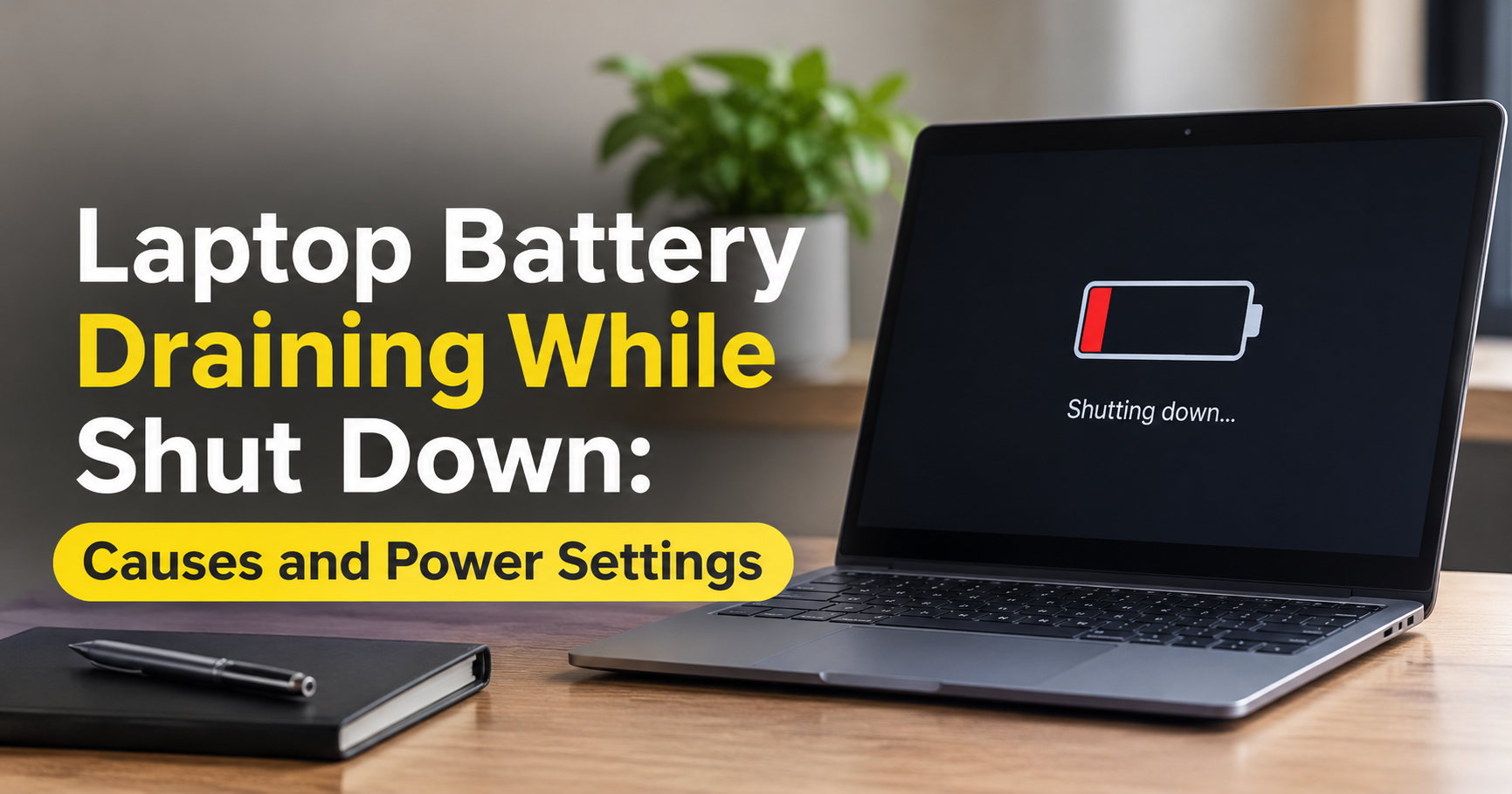
You charge your laptop to 100%, shut it down at night, and find the battery at 60% or even empty the next morning. It feels wrong, because a switched-off device is supposed to use no power at all. The good news is that this is a very common problem, and in most cases it has a clear cause you can find and fix.
In this guide you will learn why a laptop battery drains when it is shut down, how much drain is normal, how to test your own laptop, and exactly what to change to stop the loss.
Quick Answer
A laptop battery drains when shut down mainly because the laptop is not fully off (Fast Startup, sleep or hibernate), because wake features and powered USB ports keep parts of the system active, or because the battery itself is aging and losing charge faster than normal. A small amount of self-discharge is normal for every lithium-ion battery, but losing a large percentage overnight is not.
Is Your Laptop Really Shut Down?
The first thing to understand is that “off” can mean four different things. Many people believe they have shut their laptop down when it is actually in a low-power state that still uses the battery.

- Full shutdown: Windows closes every app and the hardware powers off. Only tiny background drains remain.
- Sleep (or Modern Standby): Your session stays in memory, so the laptop must keep supplying power. This is the state a laptop usually enters when you close the lid.
- Hibernate: Your session is written to the drive and the laptop powers down. Drain is very low.
- Fast Startup (hybrid shutdown): When you click Shut down in Windows 10 or 11, Windows saves part of the system to the drive so it can start faster next time. The laptop looks off, but it is not a true cold shutdown.
If your battery drops noticeably overnight, there is a good chance your laptop was in sleep or a hybrid state rather than a complete shutdown.
How Much Battery Drain Is Normal When a Laptop Is Off?
Every lithium-ion battery slowly loses charge on its own, and the battery’s protection circuit uses a tiny amount of power too. The numbers below are rough rules of thumb. Real results vary with the laptop model, battery age, room temperature and settings.
| Laptop state | Typical drain (rough guide) | Is it a concern? |
|---|---|---|
| Fully shut down | A few percent per month | Normal. Losing a large share overnight is not. |
| Hibernate | Very small overnight loss | Normal |
| Fast Startup shutdown | Small, but can be higher if ports or wake features stay active | Worth checking if you lose more than a few percent overnight |
| Sleep / Modern Standby | Several percent overnight is common | Normal for sleep, but large drops point to background activity |
As a practical rule, if your laptop loses a big chunk of charge overnight when it is truly shut down, or is empty after a weekend, something is wrong and it can be fixed.
The 6 Main Reasons a Shut-Down Laptop Loses Battery

1. Fast Startup Keeps the System in a Hybrid State
Fast Startup is turned on by default on many Windows laptops. Instead of shutting everything down, Windows saves the core of the system to a file on the drive. On most machines this still ends with the power cut, but on some laptops the hybrid shutdown leaves the hardware partly awake. Common signs are a laptop that feels warm in your bag, a fan that spins after shutdown, or lights that stay on.
2. The Laptop Is in Sleep, Not Shut Down
Closing the lid, pressing the power button briefly or letting a timer expire usually puts the laptop to sleep, not off. Newer laptops use Modern Standby, which keeps the system connected and able to receive notifications. It is convenient, but it uses battery power continuously, and some apps can keep the laptop busier than they should.
3. Normal Battery Self-Discharge
Even a perfectly healthy lithium-ion battery loses a little charge every day. Heat makes this worse. A laptop stored in a hot car or a warm bag will lose charge faster than one kept in a cool room. This type of drain is slow, so it is only a problem if the laptop sits unused for weeks.
4. Wake Features and Scheduled Tasks
Several features can wake a laptop that you believed was off or asleep:
- Wake timers used by Windows Update, maintenance tasks and some apps.
- Wake on LAN and wake on network activity, which let the network adapter start the computer.
- Wake from keyboard, mouse or USB devices, which can start the laptop when you bump the desk.
Each time the laptop wakes in your bag, it uses power, produces heat and may run background work before going idle again.
5. USB Ports That Stay Powered
Many laptops can keep one or more USB ports powered when the laptop is off, so you can charge a phone from it. Anything plugged in, such as a phone, wireless mouse receiver, external drive, dock or LED accessory, may keep drawing from the laptop battery. Docks and Thunderbolt devices are frequent offenders.
6. An Aging or Faulty Battery
Batteries wear out. As a battery ages, its internal resistance rises and its capacity falls, and some cells self-discharge much faster than they should. A worn battery can also report inaccurate percentages, so it may appear to drop quickly or jump from a high percentage to empty. If the other causes are ruled out, battery health is the next place to look.
What Abnormal Drain Looks Like Over Time
The chart below shows an illustrative example of how three different problems look over two weeks of unplugged shutdown. It is not measured data, but it shows why the pattern matters: a healthy battery barely moves, a settings problem drains steadily, and a failing battery collapses quickly.

How to Test Whether Your Laptop Is Draining While Off
Before changing settings, run a simple test so you know exactly what is happening.
- Charge the laptop to 100% and note the battery percentage.
- Unplug the charger and every USB device, dock, SD card and external drive.
- Hold the Shift key while clicking Shut down, or run the command shutdown /s /f /t 0. This forces a full shutdown instead of a Fast Startup shutdown.
- Leave the laptop off for 24 hours in a room-temperature spot.
- Turn it on and check the percentage.
If the battery has dropped only slightly, your battery is healthy and the drain you saw earlier comes from Fast Startup, sleep, wake features or connected devices. If it still drops a lot, the battery or a hardware fault is the more likely cause.
Use Built-In Windows Commands to Find the Cause
Windows has a command-line tool called powercfg that reports on battery health and wake sources. Open Command Prompt as administrator and try these commands:

- powercfg /batteryreport creates a report that compares the battery’s original design capacity with its current full-charge capacity. A large gap means a worn battery.
- powercfg /lastwake tells you what woke the laptop most recently.
- powercfg /waketimers lists timers that are allowed to wake the laptop.
- powercfg /devicequery wake_armed lists the devices that are allowed to wake it.
- powercfg /sleepstudy creates a Modern Standby report showing which apps and drivers use power while the laptop sleeps.
How to Stop Your Laptop Battery From Draining When Shut Down
Fix 1: Turn Off Fast Startup
This is the first fix to try on any Windows laptop that loses charge while shut down. You lose a few seconds of start-up speed, but you get a true shutdown every time.

- Open Control Panel and go to Hardware and Sound > Power Options.
- Click Choose what the power buttons do.
- Click Change settings that are currently unavailable.
- Untick Turn on fast startup (recommended).
- Click Save changes and shut the laptop down.
Restarting the laptop, rather than shutting it down, also performs a full reboot and clears many glitches.
Fix 2: Change What the Lid and Power Button Do
If you often close the lid and carry the laptop, set the lid action to Hibernate or Shut down instead of Sleep. In Control Panel > Power Options, choose Choose what closing the lid does, then set the battery option. If Hibernate is missing, open Command Prompt as administrator and run powercfg /h on.
Fix 3: Disable Wake Timers
- Open Power Options and click Change plan settings for your current plan.
- Click Change advanced power settings.
- Expand Sleep > Allow wake timers.
- Set both On battery and Plugged in to Disable.
Fix 4: Stop Devices From Waking the Laptop
Open Device Manager, expand Network adapters, right-click your Wi-Fi or Ethernet adapter and choose Properties. Under the Power Management tab, untick Allow this device to wake the computer. Repeat for keyboards and mice if the laptop wakes when you touch them.
Fix 5: Unplug Everything Before Storing or Carrying
Remove USB drives, wireless receivers, docks, phones and chargers. Even small devices can keep a powered port active.
Fix 6: Adjust BIOS or UEFI Power Settings
Restart the laptop and open the BIOS or UEFI setup screen (the key is usually F2, Del, F10 or Esc, depending on the brand). Setting names differ between manufacturers, but look for options like:
- Wake on LAN or Wake on WLAN: disable
- USB charging when off, Always-On USB or USB Power Share: disable
- Deep Sleep, ErP or EuP power saving: enable
- Lid open power on: disable if available
Fix 7: Update BIOS, Chipset and Drivers
Power management bugs are often fixed in firmware and driver updates. Install the latest BIOS, chipset, graphics and network drivers from your laptop manufacturer. Back up your files before a BIOS update and keep the laptop plugged in while it runs.
Fix 8: Check Battery Health and Replace It If Needed
Open the battery report from powercfg /batteryreport and compare design capacity with full-charge capacity. If the full-charge capacity is far below the design capacity, or the percentage jumps around, the battery may simply be worn out. Many manufacturers also provide a battery diagnostic or calibration tool. If a battery is swollen, hot while idle, or has bent the case, stop using and charging it and contact the manufacturer or a qualified technician.
Important Safety Note
Never press on, puncture or try to open a swollen lithium-ion battery. A swollen battery is a safety risk and should be handled by a qualified repair professional.
What About MacBooks and Linux Laptops?
MacBooks: Closing the lid puts a MacBook to sleep, which is not the same as shutting it down. Features such as Power Nap or waking for network access can allow limited background activity during sleep. Look for these options in the Battery or Energy settings and turn them off if you want the least drain. For long storage, a full shutdown is best.
Linux: Some laptops use a lighter suspend mode that drains more than a deep sleep. You can check the current mode with the command cat /sys/power/mem_sleep, and switching to deep sleep or hibernate may reduce overnight drain on supported hardware.
How to Store a Laptop for Weeks or Months
If you will not use your laptop for a long time, a few habits protect the battery:
- Shut it down fully (with Fast Startup off) instead of leaving it asleep.
- Store it with the battery partly charged, roughly between 40% and 60%, rather than full or empty.
- Keep it in a cool, dry place away from direct sunlight and heat.
- Check and top up the charge every two to three months so the battery never sinks to zero for a long period.
Helpful Accessories to Look For
The right accessories will not replace good settings, but they can make battery problems easier to prevent.
- A certified replacement battery or charger: If your battery is worn, choose a battery that matches your exact model and comes from the manufacturer or a reputable certified supplier. Very cheap, unbranded batteries can have poor protection circuits.
- A padded, ventilated laptop sleeve or bag: It protects the laptop and helps prevent heat build-up if it wakes by accident.
- A USB-C power bank with Power Delivery: Useful for travel if your laptop supports USB-C charging, and it gives you a backup if the battery runs low.
- A powered USB hub with its own switch: It lets you cut power to accessories completely instead of leaving them connected to the laptop.
Frequently Asked Questions
Is it normal for a laptop to lose battery when it is shut down?
A very small loss is normal because every lithium-ion battery self-discharges. A large drop overnight is not normal and usually means Fast Startup, sleep, wake features, powered USB ports or a worn battery.
Why does my laptop battery drain overnight even after shutdown?
The most likely reasons are a hybrid Fast Startup shutdown, a laptop that only went to sleep, a wake timer, or a connected USB device. Run the 24-hour test with a forced full shutdown to narrow it down.
Does Fast Startup drain the battery?
On many laptops the effect is small, but on some models it leaves hardware partly active or interacts badly with wake settings. If your battery drains after shutdown, turning Fast Startup off is a safe and easy test.
Does hibernate use battery?
Hibernate uses very little battery because it saves your session to the drive and powers the system down. It is a much better choice than sleep for long breaks.
Can a laptop battery go flat while the laptop is off?
Yes. If a laptop is stored for months, or the battery is old or faulty, it can reach zero. Deeply discharged lithium-ion batteries can lose capacity, so avoid leaving a laptop empty for long periods.
Should I remove the battery if my laptop drains when off?
Some older laptops have removable batteries, and taking the battery out for long storage is possible. Most modern laptops have an internal battery that should only be removed by a qualified technician, so do not open the case unless you know exactly what you are doing.
How do I know if my battery needs replacing?
Run powercfg /batteryreport and compare design capacity with full-charge capacity. If the battery holds far less than it used to, drops fast even after a forced full shutdown, or swells, it is time to replace it.
Final Thoughts
A laptop battery that drains while the laptop is shut down is rarely a mystery. In most cases the laptop is not completely off because of Fast Startup or sleep, something is waking it up, or a connected device is drawing power. Start with the simple test, turn off Fast Startup, disable wake timers and unplug your accessories. If the battery still falls quickly after a true shutdown, check its health and consider a replacement.
Follow the steps in this guide and your laptop should be ready, with most of its charge intact, whenever you need it.