




Every photographer eventually hits the same wall. The memory cards keep filling up, the laptop drive is almost full, and a stack of external drives starts growing on the desk. Then comes the big question: should you store your photos on an SSD or an HDD?
The honest answer is that both are good, but for different jobs. An SSD is much faster and tougher against knocks, while an HDD gives you far more space for the money. Picking the wrong one for the wrong task can mean slow editing, wasted budget, or, in the worst case, lost memories.
In this guide, we break down SSD vs HDD for photo storage in plain language. You will learn how each drive works, how they compare on speed, cost, durability and lifespan, and how to combine them into a simple, safe system that protects your photos for years.
Quick Answer
- Use an SSD for the photos you are actively editing, for your Lightroom or Capture One catalog, and for anything you carry around.
- Use an HDD for large archives and backups, where cheap capacity matters more than speed.
- Use both together, plus a second backup copy somewhere else. No single drive, SSD or HDD, is a safe home for irreplaceable photos.
How SSDs and HDDs Store Your Photos
Understanding the basic technology makes every other difference easier to follow.
What Is an HDD?
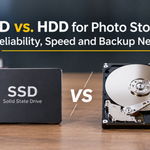
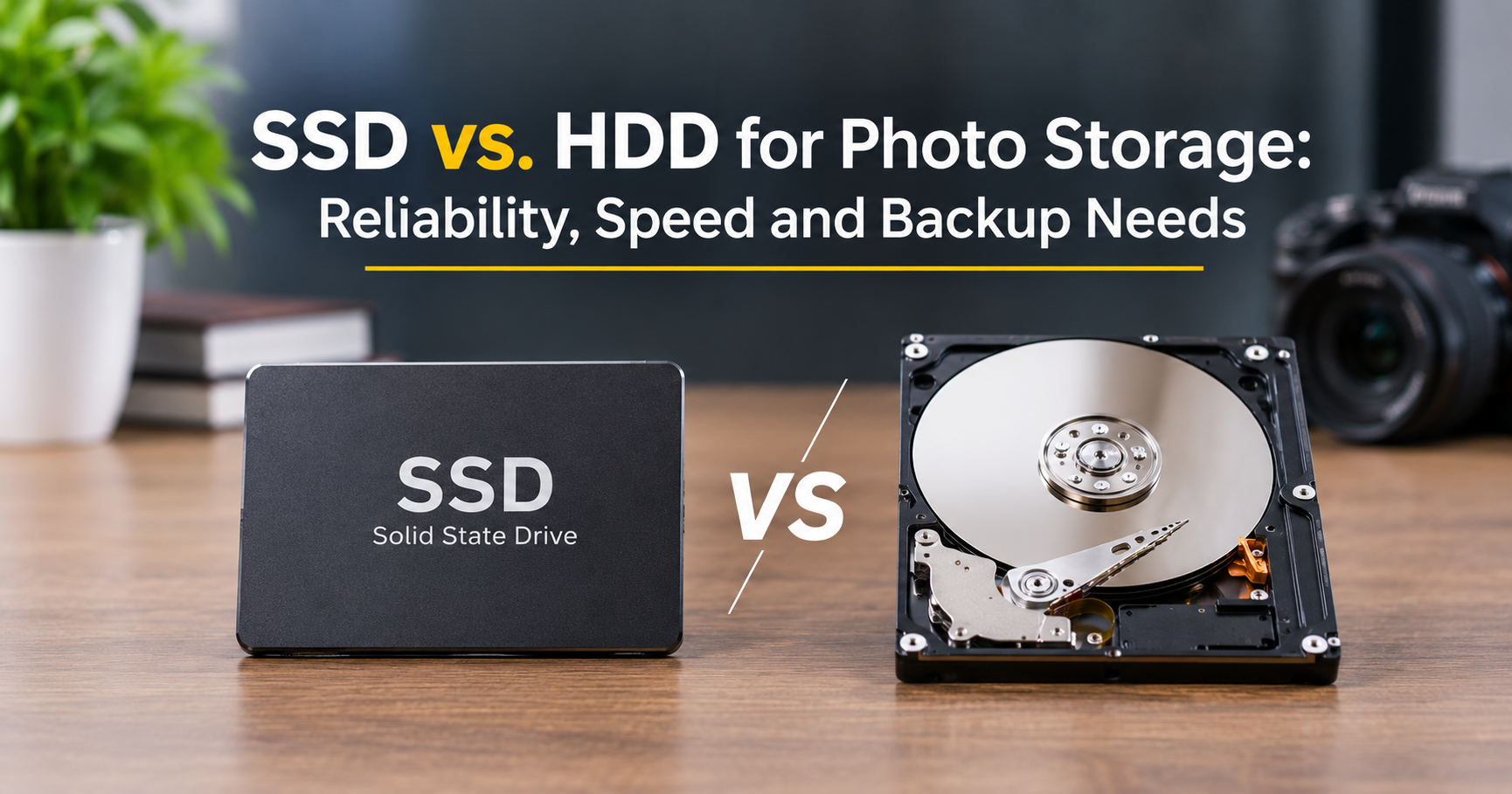
A hard disk drive (HDD) stores data on fast-spinning magnetic platters. A tiny read/write head moves across the surface, much like a record player arm, to find and write your files. Because it relies on moving parts, an HDD takes a moment to locate data and is sensitive to drops and vibration while running.
What Is an SSD?
A solid-state drive (SSD) has no moving parts. It stores data in flash memory chips, similar to a memory card but far faster and more sophisticated. Without spinning platters, an SSD can reach your files almost instantly and handles bumps much better.
SATA SSD vs NVMe SSD
Not all SSDs are equal. A SATA SSD uses the older interface and tops out around 550 MB/s. An NVMe SSD connects through the faster PCIe interface and can reach several thousand MB/s. For photo work, even a SATA SSD feels much quicker than an HDD, while NVMe is a bonus for heavy editors and video shooters.
Speed: Why It Matters for Photographers
Speed is the biggest everyday difference between the two drive types. Photo files are large, and modern editing software constantly reads and writes them. Here is where you will feel the gap:
- Importing: Copying hundreds of RAW files from a card to the drive finishes sooner when the drive can keep up with a fast card reader.
- Browsing and culling: Scrolling through thousands of thumbnails and previews is smoother when files open instantly.
- Editing: Loading a 45-megapixel RAW file, applying edits and saving it back is noticeably snappier on an SSD.
- Exporting and backups: Large batches of exports, panoramas and Photoshop files finish faster, which saves real time on big projects.

An HDD can still handle a single photo just fine, because one RAW file is only a few dozen megabytes. The slowdown shows up when you work with thousands of files at once, or when your editing software constantly asks the drive for small pieces of data. That is exactly where an SSD shines.
Capacity and Cost: How Much Space Do Photos Need?
Photo libraries grow quickly, especially if you shoot RAW. As a rough guide, here is what typical files look like:
| File Type | Typical Size | Approx. Photos per 1 TB |
|---|---|---|
| JPEG, 24 MP | 8 to 12 MB | 80,000 to 120,000 |
| RAW, 24 MP | 25 to 35 MB | 30,000 to 40,000 |
| RAW, 45 MP | 50 to 70 MB | 14,000 to 20,000 |
| RAW, 60 MP+ | 70 to 125 MB | 8,000 to 14,000 |
These numbers are estimates. Compression settings, camera model and subject detail all change file size.
A wedding photographer can easily produce 100 GB or more from a single event. Over a few years, that becomes tens of terabytes. This is where cost per terabyte becomes the deciding factor.

HDDs have historically been several times cheaper per terabyte than SSDs, and they are available in very large capacities. If you need to store 10, 20 or 30 TB of photos, an HDD-based archive is almost always the practical choice. Prices for both types move up and down over time, so compare current prices before you buy.
Durability and Reliability
Physical Toughness
This is one of the SSD’s strongest points. With no moving parts, an SSD handles vibration, bumps and the occasional drop far better than an HDD. If you carry a drive in a camera bag, travel to shoots or edit on location, a portable SSD is the safer companion. An HDD that is dropped while spinning can suffer head damage and may lose data.
How Long Do They Last?
Both drive types wear out eventually, just in different ways:
- HDDs fail mostly because of mechanical wear: motors, bearings and heads. Large fleet studies from data centers generally show a low yearly failure rate in the first few years that rises as drives age. Many people plan to replace HDDs after about 4 to 6 years of service.
- SSDs wear based on how much data is written. For photo storage, where you mostly write files once and read them many times, this wear is rarely a problem. Most consumer SSDs have write endurance far beyond what a photographer will use.
An Important Warning About Unpowered SSDs
Flash memory stores data as tiny electrical charges, and those charges can slowly leak over time when a drive sits without power. Manufacturers design consumer SSDs to retain data for a reasonable period, but an SSD left unplugged in a drawer for years is not a reliable long-term archive. If you keep photos on SSDs that stay offline, plug them in and check them from time to time, and always keep another copy elsewhere.
HDDs Are Not Perfect Archives Either
Spare HDDs stored on a shelf can fail to spin up after long periods, and silent file corruption can creep in unnoticed. The lesson is simple: neither drive type should ever be your only copy.
Noise, Power and Portability
- Noise: SSDs are completely silent. HDDs produce a gentle hum and clicking, especially larger desktop drives under load.
- Power: SSDs generally use less power at idle and run cooler, although fast NVMe drives can get warm during heavy transfers. Desktop HDDs need a separate power source, while small portable HDDs run from a USB port.
- Size and weight: A portable SSD is tiny and light enough to slip into a shirt pocket. HDDs, especially 3.5 inch desktop models, are bulkier and heavier.
SSD vs HDD for Photo Storage: Side-by-Side Comparison
| Feature | SSD | HDD |
|---|---|---|
| Speed | Very fast (SATA ~550 MB/s, NVMe several thousand MB/s) | Slower (roughly 100 to 250 MB/s) |
| Cost per TB | Higher | Much lower |
| Maximum capacity | Common up to 4 to 8 TB, larger sizes cost a lot | Easily 20 TB and above |
| Shock resistance | Excellent, no moving parts | Weaker, sensitive when spinning |
| Noise | Silent | Audible hum and clicks |
| Portability | Tiny and light | Bulkier and heavier |
| Best use for photos | Editing, catalogs, travel | Archives and backups |
| Long-term offline storage | Not ideal if left unpowered for years | Better, but needs periodic checking |
The Best Approach: Use SSD and HDD Together
Most photographers do not need to choose one or the other. A hybrid setup gives you speed where it counts and capacity where it is cheap.
- Import to a fast SSD. Copy photos from your card to a working SSD. Verify the import before you format the card.
- Edit from the SSD. Keep your active projects, your editing catalog and its previews on the SSD so the software stays responsive.
- Move finished work to an HDD archive. Once a project is complete, move or copy it to a large HDD to free up SSD space.
- Keep a separate backup. Make another copy on a second drive or a cloud service, and keep it somewhere different from your main setup.

Follow the 3-2-1 Backup Rule
The 3-2-1 rule is the easiest way to protect your photos from drive failure, theft, fire and human error:
- 3 copies of every photo: the original and two backups.
- 2 different types of storage, for example an SSD and an HDD, or a drive and the cloud.
- 1 copy off-site, such as a drive stored at a relative’s home or a cloud backup.
Remember that RAID is not a backup. A RAID setup or NAS keeps your files available if one drive dies, but it will happily copy an accidental deletion, a virus or a corrupted file to every drive. You still need a separate backup.
Which Setup Is Right for You?

Casual Photographers and Hobbyists
If you shoot a few hundred gigabytes a year, a 1 or 2 TB portable SSD for editing plus one external HDD for backup is plenty. Add a cloud copy of your favorite photos for extra safety.
Enthusiasts
If you shoot RAW regularly and produce a couple of terabytes per year, use a 2 TB NVMe or fast SSD for current work, a large HDD for the archive, and a second HDD or cloud service for the backup.
Professionals and Studios
For wedding, event and commercial photographers, speed and safety are both critical. Use fast NVMe storage for active jobs, a NAS built with NAS-rated HDDs for the archive, and an automated off-site or cloud backup. Treat the off-site copy as non-negotiable.
Buying Tips for Photographers
When Buying an SSD
- Pick the right interface. Check that your computer and cable support the speeds you are paying for. A fast NVMe drive in a slow enclosure or port will not perform at its best.
- Look for a good USB standard. For portable drives, a USB 3.2 Gen 2 or faster connection avoids a bottleneck.
- Check endurance and warranty. A longer warranty and a higher terabytes-written rating signal a more durable drive.
- Do not fill it to the brim. Leave about 10 to 20 percent free space to keep performance steady.
When Buying an HDD
- Prefer CMR over SMR for active use. Shingled magnetic recording (SMR) drives can slow down badly during long writes. Conventional magnetic recording (CMR) drives are more consistent, especially in a NAS or when you write large batches of photos.
- Choose NAS-rated drives for a NAS. They are built for constant operation and vibration from neighboring drives.
- Consider 2.5 inch vs 3.5 inch. Small portable drives are convenient but are usually smaller in capacity, while 3.5 inch drives offer more space for the money but need external power.
- Buy more than you need today. Your library will grow, so plan for at least double your current size.
Good Habits to Keep Your Photos Safe
- Verify before you format. Confirm photos are copied and open correctly before wiping a memory card.
- Eject drives safely. Pulling a drive out mid-write can corrupt files or the file system.
- Use a clear folder structure. Organize by year and date or event name so you can find and verify files easily.
- Check your backups. Open a few random files from your backup drives every few months to make sure they still work.
- Rotate and replace drives. Plan to replace HDDs every 4 to 6 years, and migrate data before a drive shows warning signs.
- Power up offline drives. If you keep SSDs or spare HDDs on a shelf, connect them periodically and copy your data to fresh storage when needed.
- Back up your catalog too. Your editing catalog stores all your edits and keywords, so include it in your backup routine.
- Keep drives cool and dry. Heat, humidity and strong magnets are bad news for any storage device.
Common Mistakes to Avoid
- Using one drive as the only copy. This is the number one cause of lost photos.
- Treating RAID or a NAS as a backup. It protects against a failed drive, not against deletion or corruption.
- Storing an editing catalog on a slow HDD. Previews and catalog files benefit hugely from SSD speed.
- Leaving an SSD unplugged for years and assuming it is safe. Check it regularly and keep another copy.
- Buying the cheapest unknown drive for important photos. Reliable brands and clear warranties are worth a few extra dollars.
- Ignoring SMR drives. They may be fine for light backup use but can disappoint when you write large amounts of data.
Frequently Asked Questions
Is an SSD or HDD better for storing photos long term?
For long-term archives, large HDDs are usually the more practical choice because of their lower cost per terabyte. SSDs are better for active work. The safest approach is to keep at least two or three copies across different storage types, instead of trusting any one drive.
Do SSDs lose data if they are not used?
Yes, they can. Flash memory slowly loses its charge when a drive is left unpowered for a long time, and the risk is higher with older, heavily used drives and in warm environments. An SSD that sits unplugged for years should not be your only copy of important photos.
Is an SSD worth it for editing photos?
In most cases, yes. Opening RAW files, scrolling through previews and exporting batches all feel faster on an SSD. Even a modest SATA SSD can noticeably improve your editing experience compared with an HDD.
How long do HDDs last for photo storage?
Many HDDs run well for 4 to 6 years, and some last longer, but failures can happen at any age. Plan to replace drives on a schedule and always keep a backup instead of waiting for warning signs.
How much storage do I need for my photos?
It depends on your camera and shooting habits. A 24 MP RAW photo is roughly 25 to 35 MB, so 1 TB holds around 30,000 or more of them. A simple rule is to buy at least double the space you currently use so you have room to grow.
Can I use a cloud service instead of drives?
Cloud storage is an excellent off-site backup and makes photos accessible from anywhere. For most people, it works best as one part of the 3-2-1 plan, together with local drives, since uploading and downloading large RAW libraries can take a long time on slower internet connections.
Final Verdict: SSD vs HDD for Photo Storage
The SSD vs HDD debate does not have a single winner, because the two drives solve different problems. SSDs win on speed, toughness and portability, which makes them ideal for editing and travel. HDDs win on capacity and cost, which makes them ideal for archives and backups.
The best photo storage plan uses both: a fast SSD for the photos you are working on, an HDD archive for everything else, and a separate backup, ideally off-site, so a single failure never costs you your pictures. Build that system once, check it a few times a year, and your photo library will stay safe, organized and ready whenever you want to relive a memory or deliver a project.