
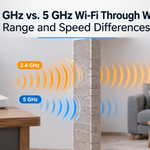





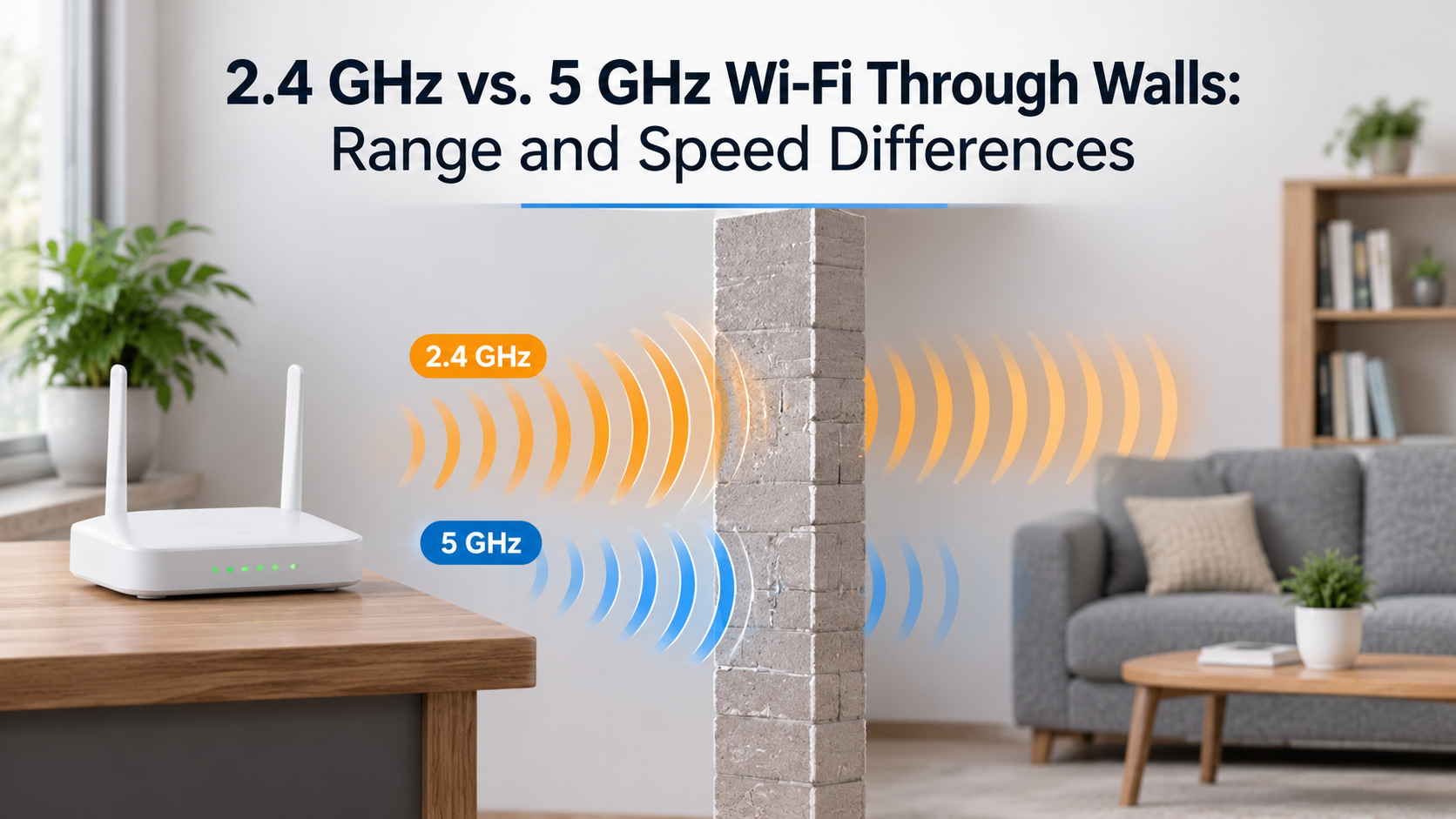
Short answer: 2.4 GHz Wi-Fi passes through walls better than 5 GHz. It reaches farther rooms with a stronger, more stable signal. 5 GHz, however, delivers much higher speeds and suffers less interference, so it wins whenever you are in the same room or one wall away from your router.
If you have ever stood in a bedroom wondering why your video call freezes even though the router is only two rooms away, you have already met the 2.4 GHz vs 5 GHz trade-off. Both bands are built into almost every modern router, yet most people never learn how differently they behave around walls, floors and furniture. This guide explains exactly what happens to each signal when it hits an obstacle, which materials hurt the most, and how to choose the right band for every room in your home.
Quick Comparison: 2.4 GHz vs 5 GHz at a Glance
| Feature | 2.4 GHz | 5 GHz |
|---|---|---|
| Wall penetration | Better | Weaker |
| Range | Longer | Shorter |
| Maximum speed | Lower | Much higher |
| Interference | High (crowded band) | Lower (more channels) |
| Non-overlapping channels | 3 in most regions | Many more |
| Best for | Distant rooms, smart home devices | Streaming, gaming, video calls nearby |
Why Frequency Changes How Wi-Fi Travels Through Walls
Wi-Fi is a radio wave, and every radio wave has a wavelength. A 2.4 GHz signal has a wavelength of roughly 12.5 cm, while a 5 GHz signal is closer to 6 cm. Longer waves bend around edges, slip through small gaps and lose less energy when they pass through solid material. Shorter waves carry more data, but they are absorbed and reflected more easily by anything dense.
Two effects work together to make 5 GHz weaker behind walls:
- Higher absorption: Materials such as brick, concrete, plaster with metal mesh and water-filled objects soak up more of a 5 GHz signal than a 2.4 GHz one.
- Higher free-space loss: Even without walls, a higher frequency loses more strength over the same distance, so the signal starts every wall crossing from a weaker position.
The picture below shows a simplified model of a router placed in the first of four rooms. Notice how the 2.4 GHz map stays usable (yellow and orange) much deeper into the home, while the 5 GHz map falls into the red zone after only two walls.

How Much Signal Do Different Materials Block?
Not every wall is equal. A thin interior partition barely affects your Wi-Fi, while a poured concrete wall or a metal-lined cabinet can kill it. The chart below shows typical, approximate signal loss for common household materials. Exact numbers depend on thickness, moisture and construction, but the pattern is consistent: 5 GHz always loses more than 2.4 GHz, and the gap widens as materials get denser.

What These Numbers Mean in Real Life
- Drywall, wood and glass: Low loss on both bands. If your home is built mostly with plasterboard partitions, 5 GHz will usually work fine one or two rooms away.
- Brick: A noticeable drop. 2.4 GHz often keeps a usable connection, while 5 GHz may fall to a slow or unstable link after two brick walls.
- Concrete and reinforced concrete: The biggest problem. Every extra concrete wall or floor slab cuts signal sharply, and 5 GHz can disappear entirely.
- Metal, mirrors, large appliances and water: Fish tanks, refrigerators, metal doors and foil-backed insulation reflect or absorb signals on both bands.
Every 3 dB of loss roughly halves the signal power, so the differences in the chart are far larger than they look. An extra 6 to 10 dB on a concrete wall can be the difference between a smooth stream and constant buffering.
It Is Not Only About Walls: Speed and Interference
If walls were the only factor, everyone would simply use 2.4 GHz. The reason they do not is that range comes at a cost.
Speed
5 GHz supports wider channels and cleaner signal conditions, which means higher data rates. In the same room as the router, 5 GHz can be several times faster than 2.4 GHz. That is why activities such as 4K streaming, online gaming, large downloads and video conferencing feel better on 5 GHz when the connection is strong.
Interference
2.4 GHz is the most crowded part of the home wireless spectrum. Your neighbors’ routers, Bluetooth devices, baby monitors, cordless phones, wireless cameras and microwave ovens all share it. With only three non-overlapping channels in most regions, congestion is common in apartment buildings. 5 GHz has many more channels and far fewer household devices competing for them, so the connection is usually cleaner and more consistent.
The Real Trade-Off
The chart below illustrates what most users experience. Close to the router, 5 GHz is dramatically faster. As distance and walls increase, its speed falls quickly, and eventually the slower but sturdier 2.4 GHz connection delivers more real-world throughput.

Which Band Should You Use? Room-by-Room Guide
- Same room or line of sight: Use 5 GHz for the best speed and lowest latency.
- One wall away (drywall or wood): 5 GHz is usually still the better choice.
- Two or more walls, or one thick brick or concrete wall: Test both. 2.4 GHz often gives a more stable connection, even if the top speed is lower.
- Another floor: Floors are typically denser than walls. Expect 2.4 GHz to hold up better, or add a second access point.
- Garage, garden, basement and outbuildings: 2.4 GHz is usually the more reliable option for cameras and sensors.
- Smart plugs, bulbs, thermostats, doorbells: Many of these only support 2.4 GHz. They send tiny amounts of data, so range matters more than speed.
- Gaming consoles, streaming boxes, laptops, work-from-home devices: Prefer 5 GHz whenever the signal is strong. Use a wired Ethernet cable for anything that does not move.
Should You Use Separate Network Names for Each Band?
Most routers combine both bands under one network name and use band steering to move devices automatically. This works well in many homes, but it can leave a device stuck on a weak 5 GHz signal when 2.4 GHz would be better. If you notice a device that keeps dropping, try this:
- Give each band its own name, for example “Home-2.4” and “Home-5”.
- Connect distant or low-bandwidth devices to the 2.4 GHz name.
- Connect fast, nearby devices to the 5 GHz name.
This simple change solves a large share of “Wi-Fi works in one room but not the next” problems.
9 Practical Ways to Improve Wi-Fi Through Walls
- Move the router to a central, elevated spot. Placing it near the middle of the home, on a shelf or table rather than the floor, reduces the number of walls between you and your devices.
- Keep it out of cabinets and corners. Furniture, TV units and thick wall corners absorb signal before it even leaves the room.
- Stay away from interference sources. Keep the router away from microwaves, cordless phones, fish tanks and large metal objects.
- Pick the least crowded channel. On 2.4 GHz use channel 1, 6 or 11 (in most regions). A Wi-Fi analyzer app on your phone can show which one is quietest.
- Narrow the channel width on 2.4 GHz. Use 20 MHz instead of 40 MHz to reduce interference and improve stability.
- Adjust the antennas. If your router has external antennas, point one vertically and one horizontally to cover more angles.
- Update firmware and use modern standards. Newer routers use better beamforming and more efficient radios, which helps both bands.
- Add a mesh system or access point. Instead of forcing one router to push through three walls, place extra nodes closer to the problem areas.
- Use a wired backhaul where possible. Connecting mesh nodes or access points with Ethernet cable gives the strongest and most consistent result, because the signal never has to cross the walls wirelessly.
Wi-Fi 6, Wi-Fi 6E and Wi-Fi 7: Do They Change Anything?
Newer standards improve efficiency, speed and the way many devices share a connection, but they do not change the physics of walls. A 5 GHz signal on Wi-Fi 6 still struggles with concrete in the same way as before. The 6 GHz band introduced with Wi-Fi 6E and Wi-Fi 7 offers very fast, uncluttered airwaves, but its higher frequency means it is the weakest of the three bands through walls. Think of it as a premium option for devices in the same room as the router, while 5 GHz and 2.4 GHz remain the bands that cover the rest of your home.
What to Look for When Buying a Router or Mesh System
If your current setup cannot cover your home, upgrading the hardware is often the most effective fix. Whichever brand you consider, these are the features that matter most for walls and multi-room coverage:
- Dual-band or tri-band support: Tri-band mesh systems dedicate one band to communication between nodes, which keeps speeds high in distant rooms.
- Mesh capability: For homes with three or more rooms separated by thick walls, or multiple floors, a mesh system usually beats a single powerful router.
- Ethernet backhaul support: This lets you connect nodes by cable for the best performance.
- Current Wi-Fi standard: Wi-Fi 6 is a strong value choice for most homes. Wi-Fi 6E and Wi-Fi 7 make sense if you have compatible devices and want the fastest nearby speeds.
- Beamforming and MU-MIMO: These technologies direct signal toward your devices and serve several devices at once.
- Adequate coverage rating: Check the manufacturer’s coverage area, then assume real-world coverage will be lower in homes with brick or concrete.
- Easy app-based management: A good app helps you place nodes, change channels and see which devices are on which band.
Extenders can help in simple layouts, but they often halve the available speed because they must receive and retransmit the same signal. A mesh system or a wired access point is usually the better long-term investment.
Common Mistakes to Avoid
- Assuming 5 GHz is always better because it is “newer” or faster on paper.
- Judging coverage by signal bars alone instead of running a speed test in each room.
- Hiding the router in a closet or behind the TV.
- Putting an extender at the very edge of the weak area instead of halfway between the router and the dead zone.
- Leaving the router on the same default channel as every neighbor.
Frequently Asked Questions
Does 2.4 GHz go through walls better than 5 GHz?
Yes. Its longer wavelength loses less energy when passing through walls and floors, so it generally provides stronger coverage in distant rooms. The trade-off is lower top speed and more interference.
Is 5 GHz useless through walls?
No. It works well through thin walls such as drywall, wood and glass. The problem appears with dense materials like brick and concrete, where its signal drops faster than 2.4 GHz.
Why is my 5 GHz Wi-Fi slower in another room?
Each wall or floor weakens the signal, and 5 GHz is more sensitive to that loss. When the signal gets weak, your devices automatically use slower data rates, and speeds fall sharply.
Should I turn off 2.4 GHz Wi-Fi?
Usually not. Many smart home devices need it, and it is often the most reliable band for far rooms. Keep it enabled unless you have a specific reason to disable it.
Is a mesh system better than a Wi-Fi extender?
In most cases, yes. Mesh systems are designed to work as one network and manage the connection between nodes more intelligently, while many extenders cut available speed and create a second network name.
How many walls can Wi-Fi go through?
There is no fixed number. Two or three drywall partitions may be fine on either band, while a single thick concrete wall can block 5 GHz almost completely. Material matters more than the wall count.
Does the 6 GHz band go through walls?
It can, but it is weaker through walls than 5 GHz. It is best used for nearby devices that need very high speed.
Final Verdict: 2.4 GHz or 5 GHz Through Walls?
For pure wall-penetrating power, 2.4 GHz is the winner. It keeps your connection alive in far bedrooms, garages and basements where 5 GHz gives up. For speed, low latency and a cleaner connection, 5 GHz is the better choice whenever the router is in the same room or just a thin wall away.
The smartest approach is not to pick one band forever. Keep both enabled, connect nearby high-demand devices to 5 GHz, send distant and low-bandwidth devices to 2.4 GHz, and place the router as centrally as possible. If dense walls or several floors still leave dead zones, a wired mesh system will fix the problem at its source instead of asking one signal to do the impossible.