

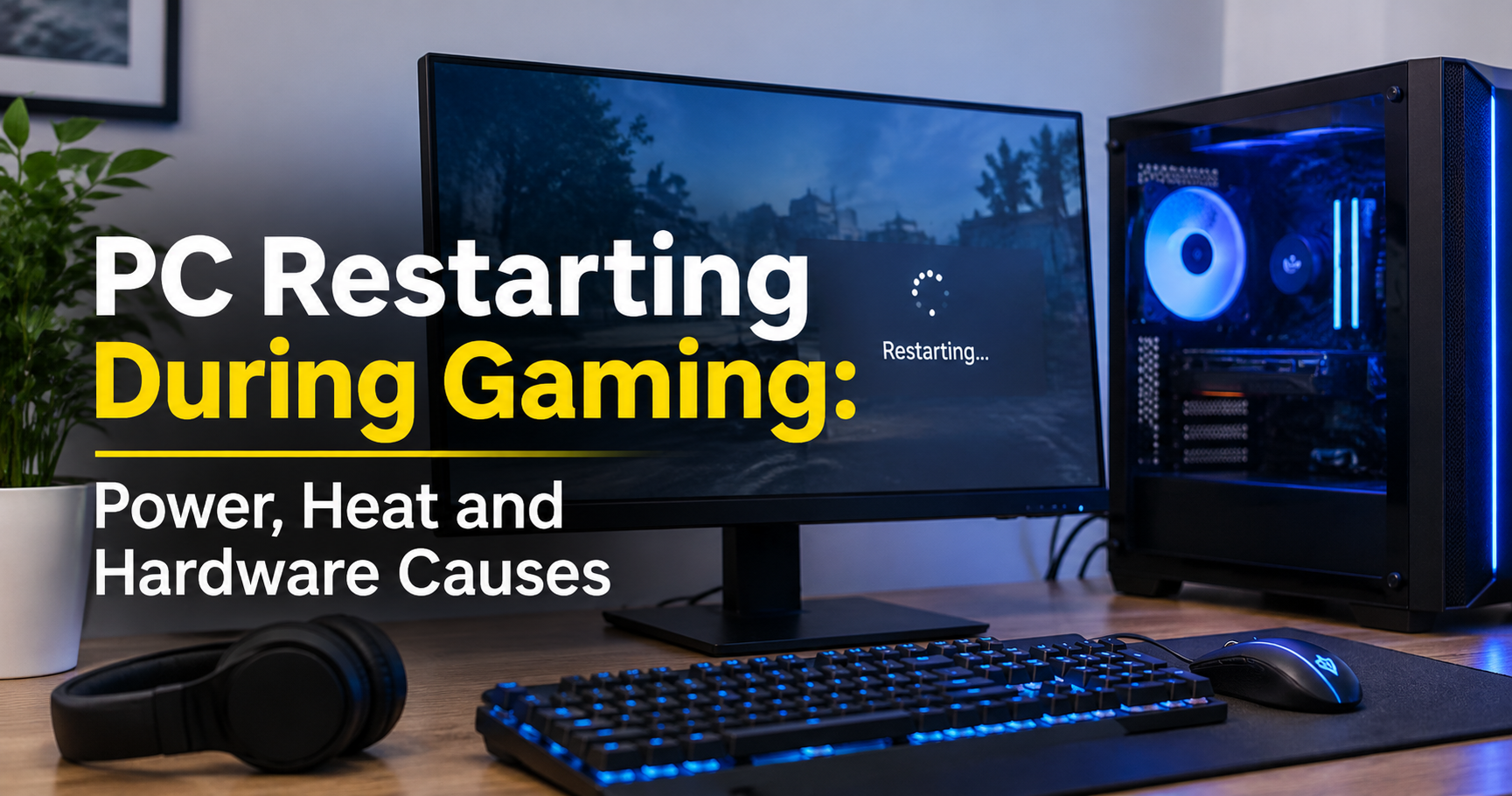
You are three rounds from winning a ranked match, or finally at the final boss, when the screen goes black, the fans spin down and your PC boots back up as if nothing happened. If this keeps happening, it is more than annoying. Repeated hard restarts can corrupt game saves, damage Windows files and put real stress on your hardware.
The good news is that a PC rarely restarts for no reason. Gaming is the most demanding thing most people ever do with their computer, so it exposes weaknesses that stay hidden during browsing or office work. In this guide you will learn exactly why a PC restarts during gaming, how to read the clues your system leaves behind, and how to fix each cause step by step.
Quick answer
A PC restarts during gaming when something interrupts its power or crashes the system faster than Windows can recover. The usual suspects are a power supply that cannot keep up with the graphics card, overheating, an unstable overclock or memory profile, bad drivers, faulty RAM, failing hardware, loose cables, or unstable power from the wall.
Why Gaming Triggers Restarts When Everyday Use Does Not
When you browse the web, your CPU and graphics card barely work. When you start a modern game, both run near their limits for long periods, often together. That sudden jump does three things at once:
- It pulls far more power. A gaming PC can draw several times more electricity under load than at idle, and the draw changes in milliseconds as the scene changes.
- It creates heat. Every watt of power ends up as heat, and a weak cooling setup can only hide that for a few minutes.
- It stresses stability. Hardware that is slightly unstable, such as a marginal memory kit or an aggressive undervolt, can run fine for hours at light loads and fail the moment a game hammers it.
That is why a PC that feels perfectly healthy can still restart only when you play. The game is not the problem. It is the test that shows the problem.

First, Work Out What Kind of Restart You Have
Before changing anything, pay attention to how the restart happens. The behaviour is your first and best clue.
| What you see | What it usually means |
|---|---|
| Screen goes black, fans stop, PC reboots instantly with no error message | A sudden loss of power or a hard reset. Think power supply, thermal shutdown, a short circuit or unstable wall power. |
| Blue screen with a stop code, then a reboot | A software or hardware error that Windows could catch. Think drivers, RAM, or an unstable overclock or undervolt. The stop code tells you where to look. |
| Game freezes for a few seconds, then the PC restarts | A graphics driver or GPU hang, an overheating card, or a system lock-up that ends in a reset. |
| Restarts after 20 to 40 minutes of play | Heat slowly building up until a protection limit is reached. |
| Restarts within the first minute of heavy load | Power delivery problems or unstable settings. Heat usually takes longer to build. |
| Restarts only in one particular game | A game-specific load pattern, a driver issue with that title, or a very demanding game that exposes a weak power supply. |
How to Check Windows Crash Logs
Windows records what it can before a restart. Spending five minutes here can save you days of guessing.
- Open Event Viewer. Search for it in the Start menu, then go to Windows Logs and choose System.
- Look for Kernel-Power, Event ID 41. This event is logged when the PC restarted without shutting down cleanly. If its BugcheckCode is 0, Windows did not record a blue-screen crash, which points strongly to a power cut, a thermal shutdown or a hard reset.
- Check Reliability Monitor. Search for “reliability history” in the Start menu. It shows crashes on a simple timeline, including critical events and failed driver installs.
- Turn off automatic restart. Go to Control Panel, System, Advanced system settings, then Startup and Recovery. Untick “Automatically restart” so a blue screen stays on screen long enough to read the stop code.
Common stop codes and what they hint at:
| Stop code | Likely direction |
|---|---|
| WHEA_UNCORRECTABLE_ERROR | A hardware error, often an unstable CPU overclock or undervolt, or a failing component. |
| VIDEO_TDR_FAILURE | The graphics driver stopped responding. Driver, overclock or GPU fault. |
| MEMORY_MANAGEMENT | Faulty or unstable RAM, or a driver corrupting memory. |
| CLOCK_WATCHDOG_TIMEOUT | A CPU core stopped responding. Usually unstable CPU settings or an outdated BIOS. |
| IRQL_NOT_LESS_OR_EQUAL | A driver or memory problem. Often points to a recently installed driver or device. |
Cause 1: A Weak or Failing Power Supply (PSU)
The power supply is the most common reason a gaming PC restarts with no warning at all. Every part in your PC depends on it, and it has built-in protection circuits that shut the system down instantly if the load is too high or the voltage drifts out of range.
Why a PSU That Looks Big Enough Can Still Fail
- Power spikes. Modern graphics cards can briefly draw much more power than their average rating for a few milliseconds. A weak or tired power supply sees that spike, trips its over-current or over-power protection and cuts the power.
- Ageing. The capacitors inside a power supply wear out over time, so a unit that delivered its full rating when new may struggle after five or more years of heavy use.
- Low quality. Some cheap units cannot deliver their printed wattage continuously, especially on the 12V rail that feeds the CPU and GPU.
- A new upgrade. If the restarts began after you installed a more powerful graphics card or CPU, the old power supply is the first thing to suspect.

How to Fix PSU Problems
- Check your total power need. Look at the recommended power supply wattage listed by your graphics card manufacturer and treat it as a minimum, not a target. Add the CPU and other parts, then aim for roughly 20 to 30 percent headroom above your expected peak draw.
- Use separate cables. For high-power graphics cards, connect each PCIe power connector with its own cable from the power supply rather than one cable with two plugs daisy-chained.
- Seat the connectors fully. Push every power plug in until it clicks, including the 24-pin, the CPU connector and the graphics card connector. For the newer 12VHPWR or 12V-2×6 connector, make sure it is fully inserted and avoid bending the cable sharply right next to the plug.
- Test with a known good unit. If you can borrow a quality power supply of adequate wattage, swap it in. If the restarts vanish, you have your answer.
- Replace it if it is old or low quality. Never open a power supply yourself. It holds dangerous voltage even when unplugged.
What to look for in a replacement power supply
- A reputable brand with independent load-test reviews, not just a high wattage number
- 80 PLUS Gold or better efficiency for a cooler, steadier unit
- ATX 3.0 or 3.1 support if you own a recent high-end graphics card
- Full protection set: over-current, over-voltage, under-voltage, over-power, short-circuit and over-temperature
- A long warranty, ideally seven to ten years
- Modular cables for cleaner airflow and easier cable routing
Cause 2: Overheating
Every CPU and GPU has a thermal protection limit. If the temperature climbs too high, the chip first slows itself down (called throttling). If that is not enough, it triggers an emergency shutdown or restart to protect itself. A PC that runs fine for 20 minutes and then restarts is a classic heat case.
What Can Overheat
- The CPU. Caused by dust, dried thermal paste, a loose cooler, a failing fan or a dead liquid-cooler pump.
- The GPU. Check both the core temperature and the hotspot or memory junction temperature, which can run much hotter than the core.
- The motherboard power section (VRM). Powerful CPUs on cheap boards without cooling on the VRM can overheat and shut down.
- The whole case. If hot air has nowhere to go, everything inside slowly cooks.
How to Measure Temperatures
Install a free monitoring tool such as HWiNFO and keep its sensors window open (or use an overlay) while you play. Note the CPU package temperature, GPU core and hotspot temperature, and fan speeds right before a restart. If you see temperatures near the red zone below, you have found your cause.

How to Fix Overheating
- Clean the dust. Power the PC off and unplug it. Use compressed air in short bursts, holding fans still so they do not over-spin. Clean the dust filters, heatsink fins and graphics card fans.
- Fix the airflow. Aim for cool air in at the front, hot air out at the rear and top. Remove blocked mesh panels, tidy cables and give the case room to breathe.
- Check every fan. Make sure all fans spin and that fan curves in the BIOS or software ramp up under load. If you use a liquid cooler, confirm the pump is running at full speed. A failed pump can send CPU temperatures to the limit within seconds.
- Re-seat the CPU cooler and renew thermal paste. Paste dries out over time, usually after three to five years. Apply a fresh, thin layer and tighten the cooler evenly.
- Look after the environment. Do not keep your PC in a closed cabinet or push it against a wall. A hot room raises every temperature inside the case.
- Repaste the GPU only if you are confident. This can void your warranty. If an almost new card runs very hot, contact the seller or manufacturer instead.

Gaming on a laptop? Laptops overheat far more easily. Clean the vents, use a hard flat surface or a cooling pad, never game on a bed or sofa, and consider a performance profile that limits power if temperatures stay high.
Cause 3: Unstable Overclock, XMP/EXPO or Undervolt
Any setting that pushes hardware beyond its default behaviour can cause restarts if it is not perfectly stable. That includes manual CPU or GPU overclocks, factory-overclocked cards pushed further, aggressive undervolting, Precision Boost or Curve Optimizer tweaks, and even memory profiles.
Many people forget that XMP and EXPO are themselves overclocks. A fast memory kit that works on one motherboard and CPU combination may be unstable on another.
How to Test and Fix
- Enter the BIOS and choose Load Optimized Defaults to remove every manual change. Turn off XMP or EXPO as well.
- Play the game that normally triggers the restart. If it no longer restarts, the problem was a tuning setting.
- Re-enable one thing at a time, starting with the memory profile, and test for a few hours before the next change.
- If a setting causes instability, back off. Lower the memory speed, add a small amount of voltage within safe limits, or reduce the undervolt.
Remember that the lowest temperature does not always mean the best result. Stability always comes first.
Cause 4: Driver and Windows Problems
A corrupted graphics driver is a very common reason for restarts during gaming, especially if the problem started right after an update. Windows system file damage and conflicting background software can add to the trouble.
- Do a clean driver install. Use a tool such as Display Driver Uninstaller in Safe Mode to remove the old graphics driver completely, then install a fresh version from the graphics card maker.
- Try an older driver. If the restarts began after a driver update, roll back to the last version that worked.
- Update the chipset driver and BIOS. These improve power management and memory compatibility. Update the BIOS carefully and never interrupt it.
- Repair Windows files. Open Command Prompt as administrator and run
sfc /scannow, thenDISM /Online /Cleanup-Image /RestoreHealth. - Close extra overlays and tuning tools. Overlays, RGB software, monitoring tools and capture software can conflict with games. Turn them off one by one to test.
- Verify the game files. Use the verify or repair option in your game launcher to fix damaged files.
- Check update restarts. If the PC restarts at a fixed time rather than under load, a Windows update may be scheduling it. Set your active hours to avoid this.
Cause 5: Faulty or Unstable RAM
Games load huge amounts of data into memory. If even one memory cell is faulty or running at an unstable speed, the result can be a blue screen or an instant restart.
- Run a memory test. Use MemTest86 from a bootable USB drive and let it complete several passes, ideally overnight. Windows Memory Diagnostic is a quicker but less thorough option. Any error means a problem.
- Test one stick at a time. If you have several modules, test each in the same slot to find the bad one.
- Reseat the modules. Remove them and push them back in until both clips click.
- Use the correct slots. Follow the motherboard manual for dual-channel installation.
- Do not mix kits. Different brands, speeds or capacities often cause instability.
- Lower the speed. If the modules pass at default speed but fail with XMP or EXPO, the profile is too aggressive for your system.
Cause 6: Failing Hardware (GPU, CPU, Motherboard or Storage)
If you have ruled out power, heat and settings, a component might be wearing out.
- Graphics card. Warning signs include visual artifacts, flickering, fans ramping to maximum before the restart, or crashes in every 3D program. If your CPU has integrated graphics, remove the graphics card, use the integrated output and play something light. If it stays stable, the graphics card is suspect.
- PCIe riser cable. A cheap vertical-mount riser can cause crashes, particularly on faster PCIe generations. Try the card directly in the slot, or set the slot to a lower PCIe generation in the BIOS as a test.
- Motherboard. Failing power circuits or bad capacitors can cause restarts under load. Look for swollen or leaking capacitors or burn marks.
- Storage drive. A failing system drive can freeze or crash Windows during game loading. Check its health using a SMART monitoring tool.
- CMOS battery. A dead battery can reset BIOS settings, undoing your stability tweaks. It is a cheap coin cell and easy to replace.
Cause 7: Loose Cables and Short Circuits
A loose connector may work fine until a vibration or heat expansion breaks contact. Short circuits are less common but they cause very sudden restarts.
- Reseat the 24-pin motherboard cable, the 4+4 or 8-pin CPU power cable and every graphics card power cable.
- Check that the graphics card sits fully in its slot and is secured at the bracket. Heavy cards can sag, so consider a support bracket.
- Make sure the motherboard only touches the case at the correct standoff points. An extra standoff under the board can cause a short.
- Inspect the front panel connectors. A stuck reset button or a damaged front panel cable can trigger a restart on its own.
- Look for pinched or damaged cables behind the motherboard tray.
Safety first. Always shut the PC down, switch off the power supply and unplug it before touching anything inside. Touch bare metal on the case to discharge static before handling components.
Cause 8: Unstable Power From the Wall
Even a good power supply cannot fix poor electricity. If the voltage dips or surges, a PC can shut down when its load changes.
- Plug the PC directly into a wall socket instead of a loaded extension board that also powers heaters, air conditioners or other heavy appliances.
- Replace old, cheap or damaged power strips and cables.
- If lights flicker when large appliances start, voltage drops are likely. A quality voltage stabilizer or a UPS with automatic voltage regulation can help. Check that the UPS output is compatible with your power supply.
- If you suspect faulty wiring or a loose earth connection, have a qualified electrician inspect the outlet.
Step-by-Step Plan to Find the Cause
Instead of changing many things at once, follow a structured process. Change one thing at a time and test after each change.

How to Stress Test the Right Way
Stress tests recreate the load that makes your PC restart, but under controlled conditions where you can watch temperatures.
- Test the CPU only. Run a CPU stress test or a looped benchmark for 15 to 30 minutes while monitoring temperatures.
- Test the GPU only. Run a graphics stress test or a repeated 3D benchmark for the same time. Stop immediately if temperatures exceed safe limits.
- Test both together. Run a combined power test. If the PC passes the first two tests but restarts when both run together, the power supply is the most likely cause.
- Watch temperatures. If anything goes beyond about 95°C on the CPU or 90°C on the GPU, stop the test and fix cooling first.
Be careful with extreme stress tools such as FurMark, which can push a graphics card harder than any real game. They are useful for finding weak power supplies but should be run for short periods with close monitoring.
Other Causes Worth Checking
- Hidden malware or crypto miners. These can load your CPU and GPU to the maximum in the background and heat the PC before you even start a game. Run a full security scan.
- Aggressive power settings. Try the Balanced or High Performance Windows power plan. In the advanced settings, you can also try turning off PCI Express Link State Power Management.
- An outdated BIOS. Newer BIOS versions often fix stability and memory problems for newer CPUs and graphics cards.
- A freshly installed or old Windows. If everything else is fine and the problem started after a major update, a repair install or clean install may help. Try this last.
How to Prevent Restarts in the Future
- Clean the PC every three to six months, or more often if you have pets or live in a dusty area.
- Replace thermal paste every few years and check fans and pumps regularly.
- Buy a quality power supply with plenty of headroom whenever you upgrade your graphics card or CPU.
- Only change one overclock or memory setting at a time and test it thoroughly.
- Keep drivers, the BIOS and Windows updated, but avoid installing a new driver the day before an important gaming event.
- Monitor temperatures during play, especially in summer.
- Protect your PC with a good power strip, surge protector or UPS.
- Back up your important files and game saves in case a restart corrupts something.
Frequently Asked Questions
Can a bad graphics card make my PC restart?
Yes. A failing or overheating GPU can crash the driver or draw unstable power, which can lead to a blue screen or a sudden restart. Artifacts on the screen before the restart are a common warning sign.
Can a weak power supply damage my other components?
A good power supply with working protection usually just shuts the PC down. A low-quality or failing unit can, in rare cases, deliver unstable voltage or fail badly and harm other parts. That is another reason not to ignore repeated restarts.
Why does my PC restart in only one game?
Some games load the CPU, GPU or memory in a way others do not. A game-specific driver bug, a corrupted game file or a power spike pattern unique to that title can all be responsible. Test other demanding games and a benchmark to see whether the problem is general.
How hot is too hot for gaming?
As a general guide, keeping the CPU and GPU under about 85°C is a good goal. Throttling often starts in the high 80s to mid 90s, and the exact limit depends on the chip, so check the specifications for your model.
Is it normal for a PC to restart once in a while?
No. An occasional restart after a Windows update is normal, but unexplained restarts during use mean something needs attention.
Can repeated restarts damage my PC?
Repeated hard resets can corrupt files, damage the Windows installation and cause storage errors. They can also be a sign of a serious hardware fault that gets worse with time.
Will reinstalling Windows fix the problem?
Only if the cause is software. If the restarts are caused by power, heat or faulty hardware, a fresh Windows install will not help, so work through the hardware checks first.
Final Thoughts
A PC that restarts during gaming is almost always telling you about one of three things: not enough stable power, too much heat, or unstable hardware or software. Start by reading the crash logs, then check temperatures, remove overclocks, test your memory and drivers, and finally look at your power supply and connections. Work through the causes one at a time and you will find the culprit far faster than by guessing.
Once you have fixed it, keep your PC clean, cool and properly powered, and your next gaming session should run from the opening menu to the final credits without a single unexpected reboot.