




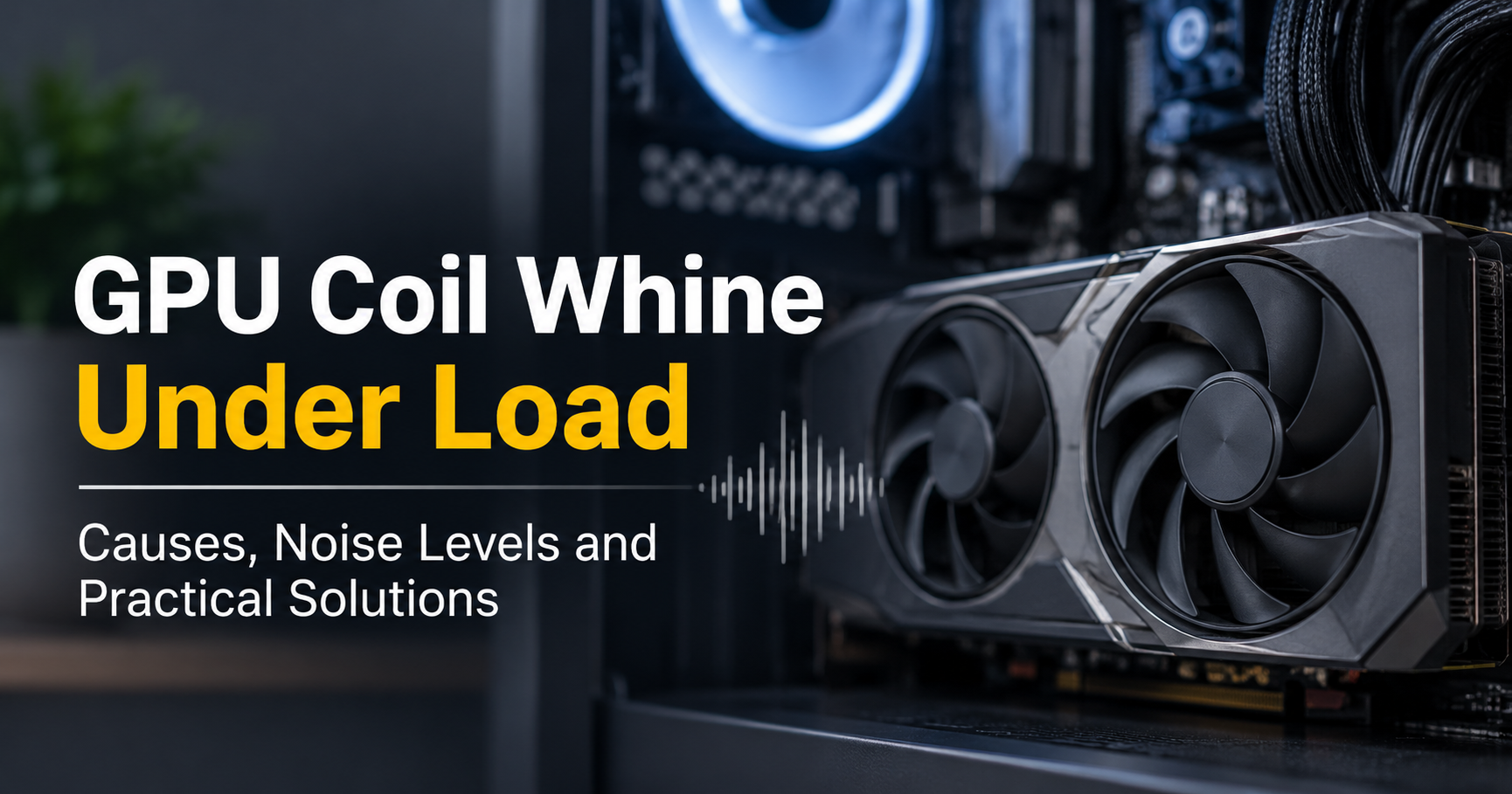
You start a game, the frame rate climbs, and then you hear it: a thin, high-pitched buzz or sizzle coming from your PC. Turn the game off and it disappears. If that sounds familiar, you are dealing with GPU coil whine under load, one of the most common and most misunderstood noises in a gaming or rendering PC.
The good news is that coil whine is almost always a noise problem, not a failure problem. In this guide you will learn exactly what it is, why it gets louder under load, how to confirm it is not something else, and which fixes are worth your time, from free software tweaks to hardware changes and warranty claims.
Quick answer: Coil whine is vibration in small electronic parts called chokes (inductors) on your graphics card. It is usually harmless. The fastest fixes are capping your frame rate, enabling V-Sync and lowering the GPU power limit slightly. If the noise is still unbearable, try different power cables or another power supply, then use your warranty or return window.
What You Will Learn
- What coil whine is and why it happens
- Why it shows up mainly under heavy load
- How to tell coil whine from fan, pump or hard drive noise
- Whether coil whine can damage your graphics card
- Nine practical fixes, ordered from easiest to hardest
- What to check before buying a new GPU or power supply
- When it is time to claim warranty
What Is GPU Coil Whine?
Coil whine is an audible, high-frequency noise produced by electronic components that vibrate when electricity passes through them. On a graphics card the main suspects are chokes, also called inductors. These are small coils wound around a core, and their job is to smooth out and regulate the power that feeds the GPU and memory.
The sound is often described as buzzing, squealing, sizzling, frying, or a faint electric whistle. It can be steady or it can rise and fall with what is happening on screen. Because the pitch is high, it can be very noticeable in a quiet room even when it is not loud in absolute terms.
Coil whine is not limited to graphics cards. Power supplies, motherboards, laptop chargers and even phone adapters can make the same kind of noise. The graphics card is simply the part most likely to produce it in a gaming PC, because it draws the most power and that power changes very quickly.
Why Does Coil Whine Happen Under Load?
When your GPU works hard, it pulls a large and rapidly changing amount of current. That current flows through the chokes on the card. Electric current creates a magnetic field, and a changing current creates a changing magnetic field. That changing field exerts small forces on the coil windings and the core, and the parts start to vibrate.
If the vibration happens at a frequency a person can hear, roughly between 20 Hz and 20 kHz, you hear it as a whine. Most coil whine sits in the higher part of that range, which is why it sounds thin and sharp rather than like a low hum.

Why load and frame rate matter
At idle, current flow is small and steady, so there is little force to make anything vibrate. Under load, current demand swings quickly. The pattern of those swings depends on what the GPU is doing, which is why coil whine often changes with the game, the scene and the frame rate.
A very common example is a menu or loading screen that runs at thousands of frames per second. The GPU renders trivial frames as fast as it can, the power delivery switches rapidly, and many users report loud whine in these moments even though the card is not producing much heat. Capping the frame rate often removes it immediately.
Why only some cards do it
No two cards are identical. Coil whine depends on the exact choke design, how tightly the coil is wound, whether the part is sealed or potted, how the board is laid out and even how the card is mounted in the case. Two cards of the same model can sound different. This is why you will see one owner complain loudly and another say their identical card is silent.
Where Exactly Does the Noise Come From?
On a modern graphics card the power delivery section, often called the VRM, sits near the power connector and around the GPU. It contains rows of chokes, capacitors and power stages. The chokes are the most common source of whine because they carry large currents and contain coils and magnetic cores.

You cannot easily fix a choke yourself, and you should not try to open the card or apply anything to the components. Opening a card usually voids the warranty, and the work needs electronics experience. The solutions in this article focus on changing how the card is used and powered rather than modifying the card itself.
Coil Whine vs Other PC Noises
Before you chase a fix, make sure you are hearing coil whine and not something else. Different noises call for completely different solutions.
| Noise type | What it sounds like | Typical cause | Changes with GPU load? |
|---|---|---|---|
| Coil whine | High-pitched buzz, squeal or sizzle | Vibrating chokes on the GPU, PSU or motherboard | Yes, strongly |
| Fan noise | Steady whoosh or rising hum | Fans spinning faster as temperature rises | Yes, with temperature |
| Fan bearing noise | Rattle, grinding or clicking | Worn bearing or loose blade or cable touching a fan | Often changes with fan speed |
| Hard drive noise | Clicks, seeks and spin-up sounds | Mechanical drive activity | No |
| Case vibration | Low rattle or drone | Loose panel, screw or cable resonance | Sometimes |
How to Confirm It Is the GPU
Coil whine can also come from the power supply or the motherboard, so it is worth confirming the source before you spend any money.
- Listen at idle and in a light desktop task. If the noise only appears when a game or benchmark is running, the GPU or power supply is likely involved.
- Run a lightweight 3D scene uncapped. If the whine is loudest at very high frame rates, it points toward the GPU power stage.
- Cap the frame rate to a modest value. If the noise drops sharply, the GPU load pattern is the trigger.
- Use a cardboard tube or rolled paper as a listening aid. With the PC side panel off and the system powered, hold one end near your ear and carefully point the other end toward the card, then the power supply, without touching any component. Keep your hands and the tube away from fans and any exposed electronics.
- Test in a second PC if you can. If the same card whines in another system with a different power supply, the card is the main source. If it is quiet there, your original power supply or setup is the likely cause.
Safety note: Never touch components inside a powered PC. Keep fingers, tools and loose items away from fans and the power supply while testing. If you are not comfortable working near a running system, use sound alone and rely on the frame rate and power tests above.
Is GPU Coil Whine Dangerous?
In most cases, no. Coil whine is considered an acoustic nuisance rather than a sign that the card is about to fail. Many users run cards with audible whine for years with no loss of performance.
That said, you should not assume every strange noise is coil whine. Contact the manufacturer or retailer if you notice any of the following along with the noise:
- A burning smell, smoke or visible damage
- Crashes, black screens or artifacts on screen
- Sudden performance drops or very high temperatures
- A loud crackling or popping sound instead of a steady whine
Those symptoms point to a real fault and should be treated as one.
9 Ways to Reduce GPU Coil Whine Under Load
These fixes are ordered from easiest and cheapest to most involved. None of them guarantees silence, because coil whine depends heavily on the individual card, but many users find one of the first few is enough.

1. Cap your frame rate
This is the single most effective free fix for many people. Set a frame limit inside the game, or use a driver-level or third-party limiter, and choose a value that matches your monitor refresh rate or slightly below it. Uncapped menus and light scenes are the worst offenders, so capping them removes the extreme frame rates that tend to trigger whine.
2. Turn on V-Sync or adaptive sync
V-Sync, or a variable refresh rate feature such as G-Sync or FreeSync paired with a frame cap, keeps the GPU from rendering far more frames than your display can show. Fewer wasted frames usually means calmer current swings and less whine. As a bonus you also get less screen tearing.
3. Lower the power limit slightly
Most GPU tuning utilities let you reduce the power limit by a few percent. A small reduction often has little effect on real-world performance but can reduce the stress on the power delivery and shift or soften the noise. Make changes in small steps, test a game, and keep stability in mind.
4. Try a mild undervolt
Undervolting lowers the voltage the card uses at a given clock speed. When done carefully it can cut power draw and heat while keeping performance close to stock. Because lower power means smaller current swings, it may also reduce whine. Test thoroughly for stability, since an unstable undervolt can cause crashes.
5. Change the power cables and check the connections
Make sure the PCIe power connectors are fully seated. If your card uses multiple power connectors, use separate cables from the power supply instead of a single daisy-chained cable where possible. Poor connections and overloaded cables can make electrical noise worse. For modern cards that use a high-power connector, follow the manufacturer’s instructions and make sure the cable is pushed in completely and not sharply bent near the plug.
6. Support the card and check the case
A heavy card that sags can transfer vibration into the case and make a noise louder. A GPU support bracket reduces sag and can change how the card resonates. Also check that expansion slot screws are tight and that nothing is touching the card. Sometimes the case amplifies a noise that is quiet on its own, and a loose panel or bracket makes it worse.
7. Try a different power supply
The power supply affects how cleanly and steadily power reaches your graphics card. Some users report that moving to a different power supply changes or removes the whine, while others see no difference. If you have a spare unit to borrow for testing, this is a cheap way to find out before you buy anything.
8. Give it time
Some owners report that whine becomes quieter after the card has been used for a while. This is not guaranteed and the reasons are not fully proven, so treat it as a bonus rather than a plan. Do not wait if the noise is severe and your return window is closing.
9. Use your return window or warranty
If nothing else works and the noise ruins your experience, replacing the card is a legitimate option. Because whine varies between individual cards, a replacement of the same model may sound completely different.
What Not to Do
- Do not stuff foam, rubber or glue inside the card. You can block airflow, trap heat and void your warranty.
- Do not open the card unless you are qualified. The risk of damage is high and the benefit is uncertain.
- Do not push overclocks to fix noise. Higher power can make whine louder, not quieter.
- Do not ignore other warning signs. Crashes, artifacts or burning smells are not coil whine.
When to RMA or Return a Graphics Card
Whether coil whine counts as a defect depends on the manufacturer and retailer. Many treat it as normal behavior, while some will accept a return or exchange if the noise is clearly excessive and you are inside the return period. Policies vary, so read yours before you buy.
Before contacting support, collect evidence so your claim is taken seriously:
- Record a short video or audio clip with the noise audible, and note the game or test you used.
- Write down your system details, including power supply model, and mention the steps you already tried.
- Test with a frame cap and without one, and note whether the noise is present in both cases.
- Mention if the card also shows crashes, artifacts or unusual heat, since that can speed up approval.
Buying Tips: How to Lower the Risk of Coil Whine
You cannot completely avoid coil whine, but you can improve your odds and protect yourself.
- Read owner feedback, not just review scores. Look at what actual owners say about noise on the exact model you are considering. Patterns across many comments are more useful than one story.
- Check the return policy first. A generous return period lets you test the card in your own system and your own room, which is where the noise actually matters.
- Test right away. Run a few games, a benchmark and a few menus without a frame cap as soon as the card is installed, and do it inside the return window.
- Pair the card with a quality power supply. Choose a unit with enough wattage and the right connectors for your card. A reliable power supply will not guarantee silence, but it removes one common variable.
- Consider a support bracket for larger cards. It is a small accessory that also protects the slot from long-term stress.
- Plan your case. A case with sound-damping panels can reduce how much of the noise reaches your ears, and a desk position farther from your head also helps.
Frequently Asked Questions
Is coil whine normal on a graphics card?
Yes. Nearly every graphics card has some level of coil whine in some conditions. Whether you can hear it depends on the card, your power supply, your case and how quiet your room is.
Does coil whine mean my GPU is going to die?
Coil whine on its own is not a reliable sign of failure. It is an acoustic effect of normal electrical operation. Treat crashes, artifacts, burning smells or sudden crackling as separate warning signs.
Why is coil whine worse at very high FPS?
Very high frame rates force the power delivery to change state quickly, and that pattern can land on a frequency that the chokes vibrate at and that you can hear. Capping the frame rate usually softens or removes it.
Can a new power supply fix coil whine?
Sometimes. A different power supply can change how the whine sounds or reduce it, but there is no guarantee. Test with a borrowed unit if possible before buying one.
Will undervolting stop the whine?
It may help, because lower power draw reduces current swings. Results vary by card, so treat it as one of several things to try, and always test for stability.
Can I fix coil whine inside the card myself?
That is not recommended. Opening the card can void the warranty and risk damage, and the benefit is uncertain. Use software settings, cable and power supply changes, or a warranty claim instead.
Is coil whine covered by warranty?
It depends on the brand and the store. Some will replace a card with severe whine, others will not. Check the return and warranty terms before purchase, and keep proof of the noise.
Final Thoughts
GPU coil whine under load is frustrating, but it is rarely a sign of a failing graphics card. It comes from tiny vibrating parts in the power delivery, it varies from one card to the next, and it gets worse when the GPU runs at extreme frame rates or draws large amounts of power.
Start with the free fixes: cap the frame rate, use V-Sync or adaptive sync, and lower the power limit a little. If the whine stays, check your cables, support the card, test another power supply and use your return window if the noise is still too much. With a calm, step-by-step approach, most people can reach a level of noise they can live with.
Disclosure: some posts on this site may contain affiliate relationships. If you buy through a product recommendation, we may earn a commission at no extra cost to you. Our advice is based on research and testing, and we only recommend products we believe are useful for readers.