


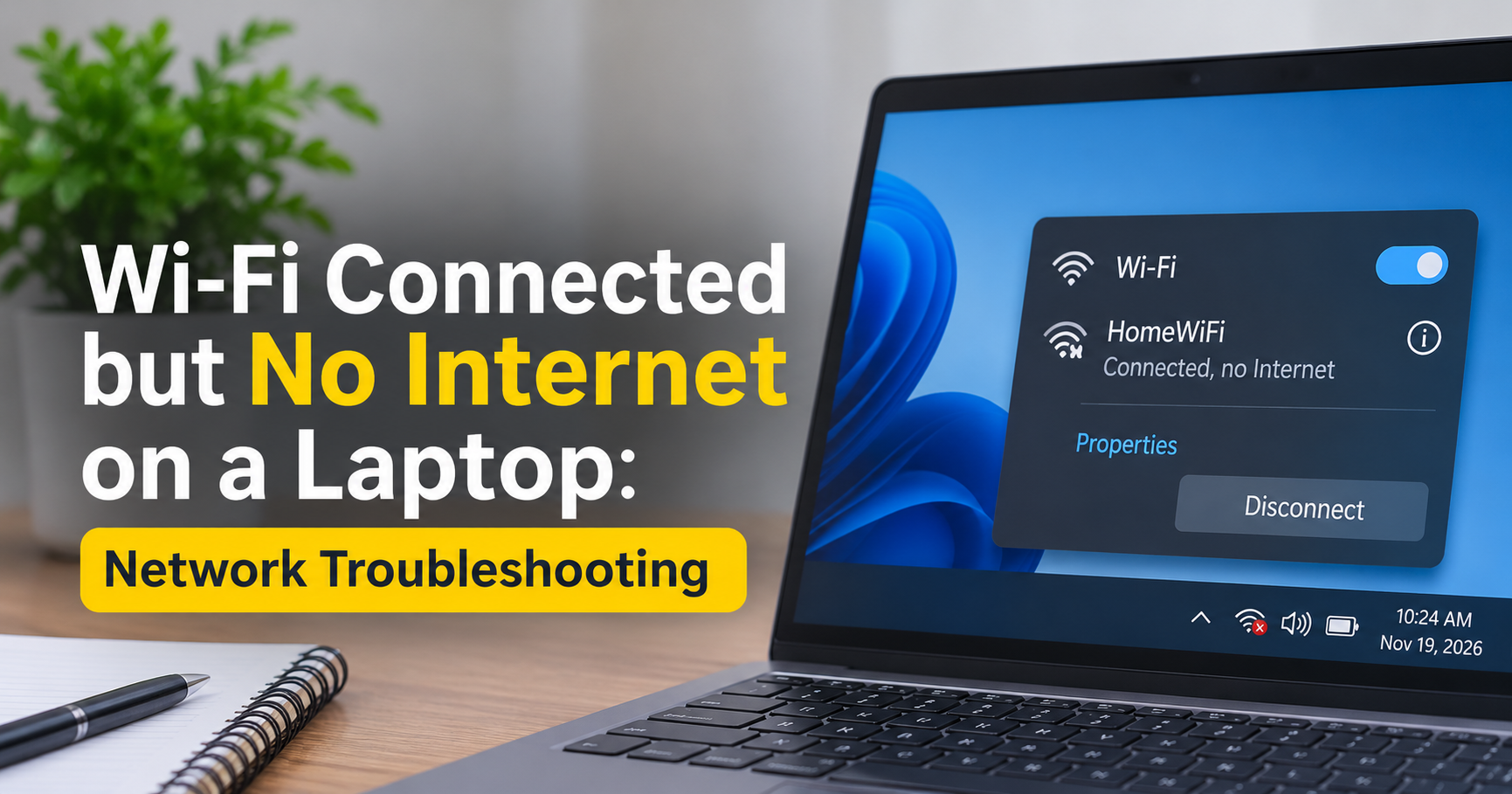
You see the WiFi icon. It says “Connected.” Yet the browser shows “No internet” or “This site can’t be reached.” This is one of the most frustrating laptop problems, especially when you have work to finish or a class to join. The good news is that WiFi connected but no internet on laptop is almost always fixable at home in a few minutes, without calling a technician.
In this guide you will learn why the problem happens, how to find out whether the fault is in your laptop, your router, or your internet provider, and 12 proven fixes for both Windows and Mac.
What Does “WiFi Connected but No Internet” Actually Mean?
Your laptop has two separate jobs. First, it connects to the router over WiFi. Second, the router passes your data to the internet through the modem and your internet service provider (ISP). When the message says “connected, no internet,” the first job succeeded but the second failed somewhere along the chain.
Common Causes of WiFi Connected but No Internet
- Your ISP is having an outage or your broadband bill or package has expired
- The router or modem needs a restart or has frozen
- Corrupted DNS cache or a slow or faulty DNS server
- Wrong IP address or TCP/IP settings on the laptop
- Outdated, damaged or incompatible WiFi driver
- A proxy server or VPN blocking the connection
- Antivirus or firewall software interfering with the network
- Wrong date and time on the laptop
- Too many devices on the router, or a faulty LAN or fiber cable
First, Find Where the Problem Is (30-Second Test)
Before trying fixes, run this quick check. It saves a lot of time.
- Test another device. Connect your phone to the same WiFi. If the phone also has no internet, the problem is the router, modem or ISP. Go to Fix 1 and Fix 12.
- Test another network. Connect your laptop to a phone hotspot. If the internet works, the laptop is fine and the home network is the issue. If it still fails, the laptop settings or driver are the cause.
- Test a wired connection. If you have an Ethernet cable, plug it in. If wired works but WiFi does not, the problem is the WiFi adapter or driver.
12 Proven Fixes for WiFi Connected but No Internet on Laptop
Fix 1: Restart the Router and Modem
This solves a large share of cases. Routers run for weeks and can slow down or freeze.
- Unplug the power cable from both the router and the modem.
- Wait a full 30 to 60 seconds.
- Plug in the modem first and wait until its lights are stable.
- Plug in the router and wait 2 minutes, then reconnect your laptop.
Fix 2: Restart Your Laptop and Toggle Airplane Mode
A simple restart clears temporary network glitches. Also turn Airplane mode on, wait 10 seconds, and turn it off again. This forces the WiFi adapter to reconnect from scratch.
Fix 3: Forget the WiFi Network and Reconnect
Saved settings can become corrupted, especially after a router password change.
- Windows 11/10: Settings > Network & Internet > WiFi > Manage known networks > select your network > Forget. Then connect again and enter the password.
- Mac: System Settings > WiFi > Advanced > remove your network from the list, then reconnect.
Fix 4: Run the Windows Network Troubleshooter
Right-click the WiFi icon in the taskbar and choose Troubleshoot problems. Windows will test the adapter, gateway and DNS, and apply fixes automatically when it finds an issue. It is not perfect, but it takes only a minute.
Fix 5: Flush DNS and Reset the Network Stack
A corrupted DNS cache or broken network stack is a very common reason for this error. Open Command Prompt as Administrator (search “cmd,” right-click, Run as administrator) and enter these commands one by one, pressing Enter after each:
ipconfig /flushdns
ipconfig /release
ipconfig /renew
netsh winsock reset
netsh int ip reset
Restart the laptop after running them. On a Mac, open Terminal and run sudo dscacheutil -flushcache; sudo killall -HUP mDNSResponder.
Fix 6: Change Your DNS Server
Your ISP’s default DNS can be slow or down even when the connection itself is fine. Switching to a public DNS often brings the internet back immediately.
- Press Windows + R, type
ncpa.cpland press Enter. - Right-click your WiFi adapter > Properties.
- Select Internet Protocol Version 4 (TCP/IPv4) > Properties.
- Choose Use the following DNS server addresses.
- Enter Preferred: 8.8.8.8 and Alternate: 8.8.4.4 (Google DNS), or 1.1.1.1 and 1.0.0.1 (Cloudflare DNS).
- Tick Validate settings upon exit and click OK.
Fix 7: Set IP Address to Automatic
A manually set or conflicting IP address blocks internet access. In the same TCP/IPv4 properties window, select Obtain an IP address automatically and Obtain DNS server address automatically (if you are not using custom DNS), then click OK.
Fix 8: Turn Off Proxy Settings
Go to Settings > Network & Internet > Proxy. Turn off Use a proxy server and make sure Automatically detect settings is on. Malware and some apps change these settings without telling you.
Fix 9: Disable VPN, Antivirus or Firewall Temporarily
Disconnect any VPN and pause your third-party antivirus or firewall for a few minutes. If the internet returns, the software is the cause. Update it, adjust its network protection settings, or switch to a different tool. Remember to turn protection back on.
Fix 10: Update or Reinstall the WiFi Driver
- Right-click the Start button and open Device Manager.
- Expand Network adapters and find your WiFi adapter (Intel, Realtek, Qualcomm, MediaTek and so on).
- Right-click > Update driver > Search automatically for drivers.
- If that does not help, choose Uninstall device, restart the laptop, and Windows will reinstall the driver.
If you cannot get online to download a driver, use another device and a USB drive, or use a phone hotspot or Ethernet cable on the laptop.
Fix 11: Stop Windows From Turning Off the WiFi Adapter
In Device Manager, double-click your WiFi adapter, open the Power Management tab, and untick Allow the computer to turn off this device to save power. This prevents random disconnections, especially after sleep mode.
Fix 12: Perform a Network Reset, or Contact Your ISP
If nothing has worked, go to Settings > Network & Internet > Advanced network settings > Network reset and click Reset now. This removes and reinstalls all network adapters and returns settings to default. You will need to re-enter WiFi passwords afterwards.
If your phone and other devices also have no internet, the problem is outside your laptop. Check that your internet package is active and the bill is paid, look at the router lights (a red or blinking “Internet” or “LOS” light usually means a line or fiber fault), and call your ISP’s support number.
Why Is My Internet Working on Phone but Not on Laptop?
When a phone works but the laptop does not, the issue is almost always on the laptop side: a DNS problem, a proxy or VPN setting, an outdated driver, or a wrong IP configuration. Work through Fix 5 to Fix 10.
How to Prevent This Problem in the Future
- Restart your router once a week, or use its scheduled reboot feature if available.
- Keep Windows or macOS and your WiFi driver updated.
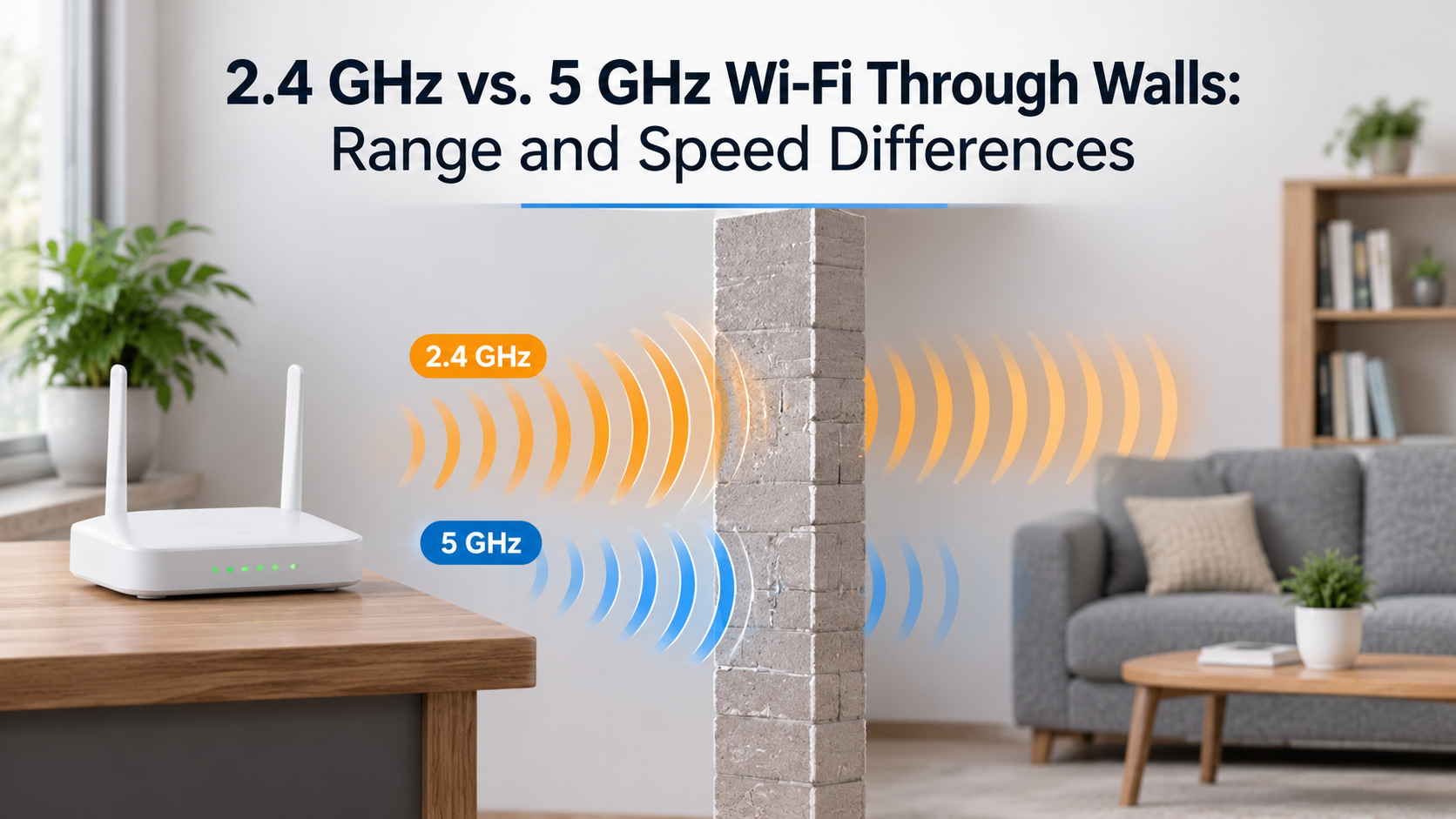
- Sit within a reasonable range of the router, and avoid placing it near thick walls, microwaves or cordless phones.
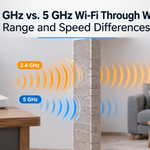
- Use the 5 GHz band for speed at close range and 2.4 GHz for longer range.
- Change the default router admin password and keep its firmware current.
- Set a reliable public DNS on your laptop or router.
Useful Gear to Avoid WiFi Problems
If the issue keeps coming back, hardware may be the real cause. These are the kinds of products that solve repeated WiFi trouble:
- A dual-band or WiFi 6 router: handles many devices better than an old single-band model and reduces drops and congestion.
- A mesh WiFi system: ideal for large homes or multiple floors where one router leaves dead spots.
- A USB WiFi adapter: a cheap fix when the laptop’s built-in adapter is failing or only supports old standards.
- A WiFi range extender or powerline adapter: improves signal in far rooms.
- A USB-to-Ethernet adapter and LAN cable: a dependable backup for work calls, downloads and emergencies.
- A surge-protected power strip or small UPS: protects the router and modem and keeps them running during short power cuts.
When buying, check the WiFi standard (WiFi 5 or WiFi 6), dual-band support, number of antennas, coverage area and real user reviews.
Frequently Asked Questions (FAQ)
Why does my laptop say “Connected, no internet”?
It means the laptop reached the router but cannot get data from the internet. The cause can be an ISP outage, a router fault, bad DNS, or wrong network settings on the laptop.
How do I fix a yellow triangle on the WiFi icon?
The yellow warning triangle indicates limited connectivity. Restart the router, flush DNS, set DNS to 8.8.8.8, and reset the TCP/IP stack as shown in Fix 1, 5 and 6.
Can a wrong date and time cause no internet?
Yes. A wrong date or time can make secure websites fail to load because of certificate errors. Set date and time to automatic in Settings.
Will resetting the network delete my files?
No. A network reset only removes saved WiFi networks, VPN settings and adapter configurations. Your personal files and programs stay safe.
Is it a router problem or a laptop problem?
If all devices fail, it is the router, modem or ISP. If only one laptop fails, look at its DNS, driver, proxy and IP settings.
Final Thoughts
Seeing “WiFi connected but no internet” on your laptop is annoying, but it is rarely serious. Start with the easiest steps: restart the router, reconnect to the network, and flush the DNS. Then move on to changing DNS, updating the driver and resetting the network. If every device in your home is offline, contact your ISP. With the 12 fixes in this guide, you should be back online quickly.