




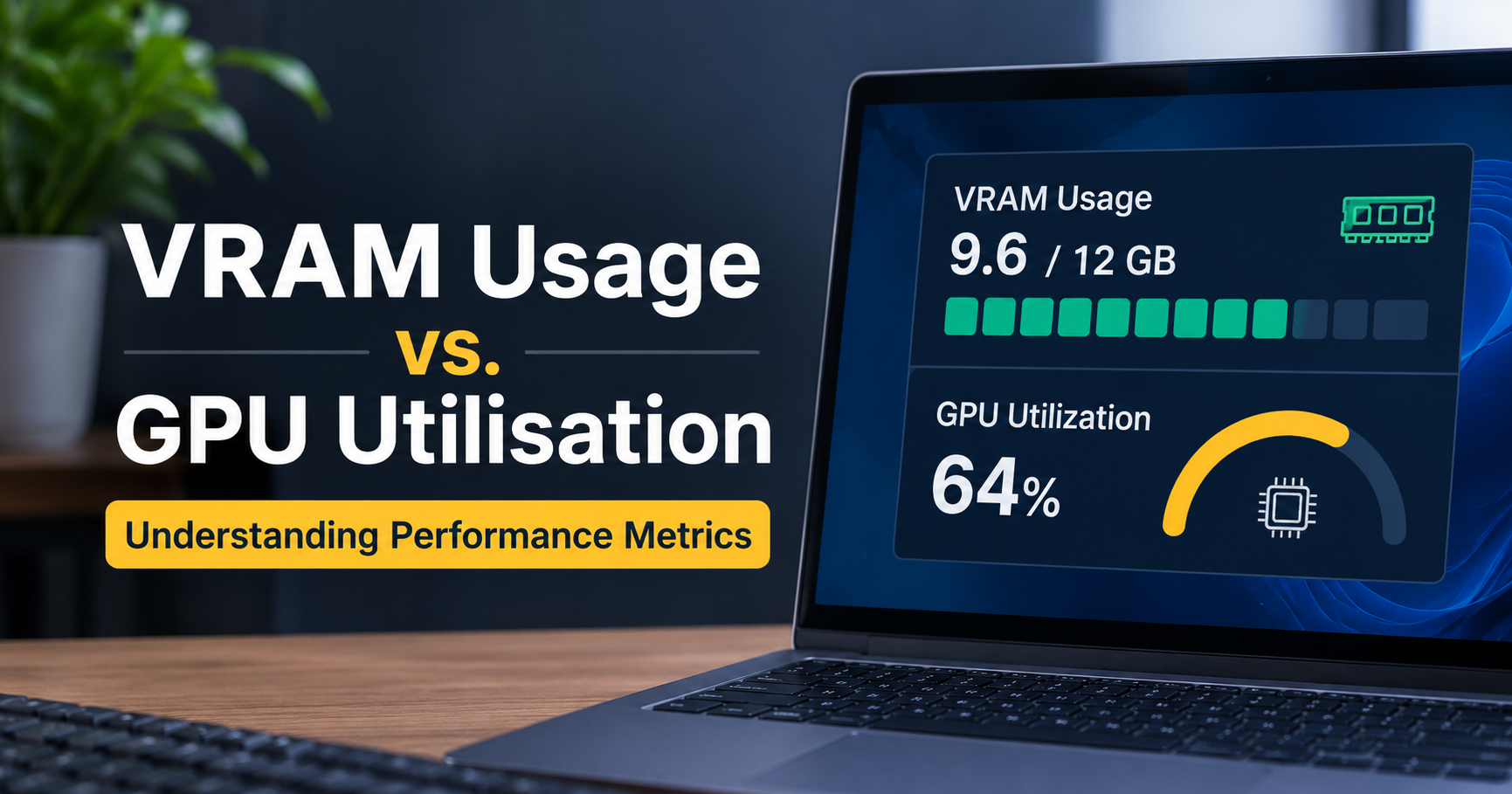
Open Task Manager or a monitoring overlay while gaming and you will see two numbers that sound similar but are not: VRAM usage and GPU utilization. Many people treat them as one and the same, then buy the wrong graphics card or “fix” a problem that never existed. This guide explains VRAM usage vs GPU utilization in plain English, shows how to read both, and tells you which one to care about for gaming, AI and video editing.
Quick answer: VRAM usage tells you how much of the graphics card’s memory is filled. GPU utilization tells you how busy the graphics processor is. One is about capacity, the other is about workload. A card can be nearly out of memory while barely working, or working at 100% while using very little memory.
What Is VRAM?
VRAM (video random access memory) is the fast, dedicated memory soldered onto your graphics card. Common types include GDDR6, GDDR6X and GDDR7. The GPU keeps everything it needs right now in this memory: game textures, 3D models, shadow maps, frame buffers, and the weights of an AI model.
Think of VRAM as a workbench. A bigger bench holds more tools and materials within arm’s reach. If the bench is full, the worker has to fetch items from a storeroom far away (your system RAM or even your SSD), and everything slows down.
What Is GPU Utilization?
GPU utilization is the percentage of time the GPU’s processing engines were busy during a short sampling window, usually about one second. A reading of 95% means the GPU was working almost the entire time. A reading of 20% means it spent most of that time waiting for something to do.
Continuing the analogy, utilization is how busy the worker is. It says nothing about the size of the workbench.
VRAM Usage vs GPU Utilization: Key Differences
| Feature | VRAM usage | GPU utilization |
|---|---|---|
| What it measures | How much graphics memory is occupied | How busy the GPU cores and engines are |
| Unit | GB or MB (sometimes % of total) | Percent (0–100%) |
| Changes when | You raise texture quality, resolution or load larger models | The GPU has more work per frame or per task |
| Too high means | Stutter, texture pop-in, “out of memory” errors | Usually nothing bad; the GPU is being used fully |
| Too low means | Plenty of headroom | Something else (often the CPU) is limiting performance |
| Fixed by | Lower textures, lower resolution, more VRAM | Better settings balance, faster CPU, or a faster GPU |
How the Two Numbers Relate
They are connected but independent. Higher resolution and heavier textures usually raise both. Yet you can easily see them move in opposite directions:
- High VRAM, low utilization: an AI model sitting loaded in memory while waiting for your prompt, or a game held back by the CPU.
- Low VRAM, high utilization: a competitive game at low textures with unlocked frame rate. The GPU is flat out but memory is barely touched.
The Four Combinations and What They Mean
1. Low VRAM, low utilization
Your workload is light. Browsing, video playback and easy games look like this. Nothing needs fixing.
2. Low VRAM, high utilization
This is the healthiest gaming pattern. The GPU is the limiting factor, which is exactly what you want. To get more frames, lower demanding effects such as ray tracing or shadows, use upscaling, or upgrade to a faster GPU.
3. High VRAM, high utilization
The card is working hard and memory is nearly full. Performance can be excellent, but you are close to the edge. If VRAM fills completely, data spills into system RAM across the PCIe connection, which is far slower. The result is stutter and sudden frame drops even though the average FPS looks fine.
4. High VRAM, low utilization
Memory is full but the GPU is idle-ish. Common causes are a CPU bottleneck, an FPS cap or V-Sync, a game in a menu, a loaded AI model waiting for input, or a game that simply reserves extra memory because it is available.
Important: A high VRAM reading is not always a problem. Many games and drivers allocate memory generously and cache textures “just in case.” Allocated memory is not the same as memory the game truly needs. Watch for stutter, not just the number.
How to Check VRAM Usage and GPU Utilization
Windows Task Manager
Press Ctrl+Shift+Esc, open the Performance tab and select your GPU. You will see utilization, Dedicated GPU memory and Shared GPU memory. Dedicated is your real VRAM. Shared is borrowed system RAM and is much slower. On the Details tab you can add per-process columns to see which app uses the most memory. For AI or rendering workloads, switch one of the graphs to the Compute or CUDA engine, because the default 3D graph may show low activity.
MSI Afterburner with RivaTuner overlay
This free combination displays utilization, memory use, temperature, clocks and FPS on screen while you play. It is the easiest way to see what happens at the exact moment a stutter occurs.
NVIDIA and AMD tools
NVIDIA users can run the nvidia-smi command in a terminal to see memory used and GPU-Util, which is very useful for AI work. AMD users can enable the performance overlay inside Radeon Software. HWiNFO and GPU-Z are good logging tools for both brands.
How to Fix Common Problems
If VRAM is maxed out and you see stutter
- Lower texture quality first. It has the biggest effect on memory and a small effect on FPS.
- Reduce resolution or turn on upscaling such as DLSS, FSR or XeSS. Frame generation and ray tracing can add memory use, so test them separately.
- Close background apps. Browsers with hardware acceleration, overlays and video editors all consume VRAM.
- Update your graphics driver and the game.
If GPU utilization is low while gaming
- Check per-core CPU usage. One core at 100% points to a CPU bottleneck.
- Remove FPS caps and disable V-Sync for testing.
- Raise resolution or graphics settings so the GPU has more to do.
- Enable XMP or EXPO for your RAM in the BIOS.
- On laptops, confirm the game runs on the dedicated GPU and not the integrated one.
How Much VRAM Do You Need?
These are general guidelines. Exact needs vary by game, settings and workload.
| Use case | Suggested VRAM | Why |
|---|---|---|
| Esports and 1080p gaming | 8 GB | Lower texture load, GPU speed matters more |
| 1440p gaming | 12 GB preferred | Modern games push past 8 GB at high settings |
| 4K gaming or heavy ray tracing | 16 GB or more | High-resolution textures and buffers |
| Video editing and 3D rendering | 12–16 GB or more | Large timelines, effects and scenes |
| Local AI and LLMs | 16–24 GB or more | The model must fit in memory to run well |
A note for AI users
For AI, VRAM decides whether a model runs, while GPU utilization and memory bandwidth decide how fast it runs. A rough estimate: a model needs about 2 bytes per parameter at 16-bit precision, so a 7-billion-parameter model needs around 14 GB, plus extra for context. Quantized 4-bit versions need roughly a quarter of that, which is why they fit on smaller cards.
Buying Advice: Which Should You Prioritize?
- Do not buy on VRAM size alone. A fast GPU with too little memory will stutter, but a slow GPU with huge memory will not magically run faster.
- Match VRAM to your resolution and the textures you plan to use for the next few years.
- Check memory bandwidth and bus width. Memory speed affects performance as much as capacity.
- Fix your CPU and RAM first if utilization is low. A new graphics card will not help a bottlenecked system.
- Plan for AI or rendering? Prioritize VRAM capacity above almost everything else.
- Remember VRAM cannot be upgraded later on a dedicated graphics card, so choose with some headroom.
Frequently Asked Questions
Is high VRAM usage bad?
Not by itself. It only becomes a problem when memory is truly full and you notice stutter, texture pop-in or out-of-memory errors.
Is 100% GPU utilization bad?
No. In gaming it means the GPU is being fully used, which is ideal. Check temperatures and clocks if you are worried, but 100% is normal under load.
Why is my GPU usage low but VRAM high?
Usually a CPU bottleneck, an FPS cap, a menu screen, or a game or AI model that has reserved memory without doing heavy work right now.
Does more VRAM increase FPS?
Only if you were running out of it. Once you have enough VRAM, extra capacity does not add frames.
Can I increase my VRAM?
Not on a dedicated graphics card. Integrated graphics borrow system RAM, and some motherboards let you adjust that allocation in the BIOS, but it is not the same as real VRAM.
Final Thoughts
VRAM usage is about capacity. GPU utilization is about workload. Read them together: high utilization with comfortable VRAM means a healthy, GPU-bound system; full VRAM with stutter means you need lower textures or more memory; low utilization means look at the CPU, settings or frame caps. Once you understand the difference, you can diagnose performance problems faster and choose your next graphics card with confidence.