





Is your laptop dying faster than it used to? Does it shut down at 30% or fail to last through a single meeting? Those are classic signs of a worn-out battery, and the good news is that Windows 11 can tell you exactly how much life your battery has left. You do not need to download any software to find out.
In this complete guide you will learn how to check laptop battery health on Windows 11 using the built-in battery report, PowerShell commands, and manufacturer tools. You will also learn how to read the numbers, what a healthy battery looks like, what causes battery wear, and when it is time to replace the battery instead of living with poor runtime.
What Is Laptop Battery Health?
Every laptop uses a lithium-ion or lithium-polymer battery. These batteries slowly lose their ability to hold a charge as they age, no matter how carefully you treat them. Battery health describes how much charge your battery can hold today compared with how much it could hold when it was brand new.
For example, if your battery was designed to hold 56,000 mWh and it now holds only 43,700 mWh, its health is about 78%. A laptop that once ran for 8 hours would now last roughly 6 hours under the same workload.
Two numbers matter most:
- Design Capacity: the maximum charge the battery was built to hold when it left the factory.
- Full Charge Capacity: the maximum charge the battery can hold right now.

The formula is simple: Battery Health % = (Full Charge Capacity ÷ Design Capacity) × 100.
Why You Should Check Your Battery Health Regularly
- Predict problems early. A battery that has dropped below 60% can suddenly shut the laptop down without warning and risk losing unsaved work.
- Know whether to repair or replace. Many people blame Windows or a slow processor when the real culprit is an aged battery.
- Buy a used laptop wisely. A quick battery report reveals whether the previous owner wore the battery out.
- Spot swelling or defects. A very low capacity or a rapidly rising cycle count can warn you about a failing cell.
- Save money. Replacing only the battery is far cheaper than buying a new laptop.
Method 1: Generate a Battery Report with Command Prompt or Terminal (Best Method)
The most reliable way to check battery health in Windows 11 is the hidden battery report built into the operating system. It works on almost every laptop and tablet, and it gives you detailed data you cannot see in Settings.

Step-by-step instructions
- Open Terminal as administrator. Right-click the Start button and choose Terminal (Admin). You can also search for "cmd", right-click Command Prompt, and select Run as administrator.
- Type the command. Enter the following and press Enter:
powercfg /batteryreport - Note the file location. Windows will show a message such as "Battery life report saved to file path C:\Users\YourName\battery-report.html".
- Open the report. Open File Explorer, go to that folder, and double-click battery-report.html. It opens in your web browser.
Tip: If you want to choose where the file is saved, use this command instead:
powercfg /batteryreport /output "C:\battery-report.html"You can also set how many days of history appear in the report, for example 14 days:
powercfg /batteryreport /duration 14How to read the battery report
The report contains several sections. Scroll down to Installed batteries. This is where you find the numbers that matter:
| Field | What it means |
|---|---|
| Name / Manufacturer | The battery model and maker, useful when searching for a compatible replacement. |
| Chemistry | Usually LION (lithium-ion) or LiP (lithium-polymer). |
| Design Capacity | The original capacity of the battery, measured in mWh. |
| Full Charge Capacity | The capacity the battery can hold today. |
| Cycle Count | How many full charge-discharge cycles the battery has gone through. Some laptops show 0 or leave it blank. |
Divide Full Charge Capacity by Design Capacity and multiply by 100 to get your battery health percentage.
Other useful sections in the report
- Recent usage: shows when the laptop was active, on battery, on AC power, or asleep over the last three days.
- Battery usage: a graph of how quickly the battery drained during recent sessions.
- Usage history: total time spent on battery versus plugged in for each period.
- Battery capacity history: a chart showing how Full Charge Capacity has fallen over time. A steep drop is a warning sign.
- Battery life estimates: how long the battery lasts at full charge compared with its design capacity.
What Is a Good Battery Health Percentage?
Once you have calculated your percentage, compare it with the scale below.

- 90-100% (Excellent): your battery is practically new.
- 80-89% (Good): normal wear after a year or two of regular use. No action required.
- 60-79% (Fair): you will notice shorter runtime. The laptop is still usable but you should monitor it.
- Below 60% (Replace soon): runtime is severely reduced and unexpected shutdowns become more likely. Start planning a replacement.
As a general rule, many manufacturers consider a battery worn out when it falls to around 80% of its original capacity under their warranty definitions, although it will keep working well beyond that point for everyday use.
Method 2: Check Battery Health with PowerShell
If you prefer a quick number without opening a report file, PowerShell can read the raw values straight from the battery.
- Right-click Start and choose Terminal (Admin) (it opens PowerShell by default on Windows 11).
- Run this command to read the designed capacity:
Get-CimInstance -Namespace root/WMI -ClassName BatteryStaticData | Select-Object DesignedCapacity - Then run this command to read the current full charge capacity:
Get-CimInstance -Namespace root/WMI -ClassName BatteryFullChargedCapacity | Select-Object FullChargedCapacity - Divide the second number by the first and multiply by 100.
Some laptops do not expose these values to PowerShell. If you get an error or empty results, use the battery report from Method 1 instead.
Method 3: Use the Windows 11 Settings App
Windows 11 Settings will not always show a clear health percentage, but it is still useful for understanding how your battery is being used.
- Open Settings by pressing Windows + I.
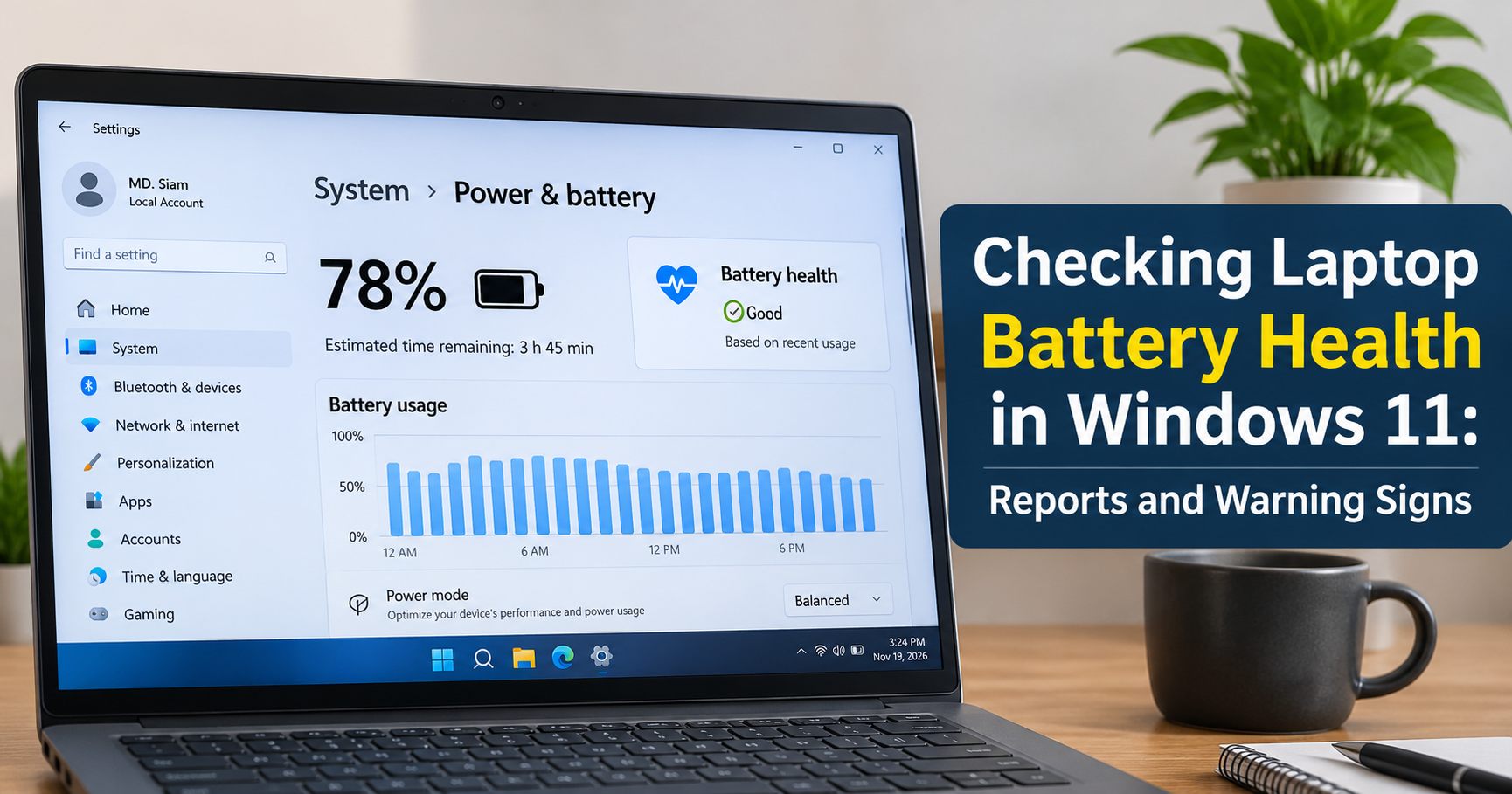
- Go to System and then Power & battery.
- Open the Battery usage section and switch the view between 24 hours and 7 days to see which apps drain the most power.
- Check the Battery saver and Battery recommendations options, if your version of Windows 11 shows them, for quick suggestions to extend runtime.
Depending on your device and Windows 11 update, a battery health indicator may appear in this area. If you do not see one, rely on the battery report for exact numbers.
Method 4: Use Your Laptop Manufacturer’s Tool
Most major laptop brands include a diagnostic or support app that reports battery health in plain language, often with a simple "Good", "Fair" or "Replace" message. These tools can also read the true cycle count more reliably than Windows on some models.
- Dell: the SupportAssist or Dell Optimizer application includes a battery health check.
- HP: HP Support Assistant and the built-in HP PC Hardware Diagnostics (available at startup by pressing F2) include a battery test.
- Lenovo: Lenovo Vantage shows battery condition and lets you enable a conservation mode.
- ASUS: MyASUS offers a battery health charging option and a diagnostic scan.
- Acer: Acer Care Center provides battery status and charge limit controls.
- Microsoft Surface: the Surface app and Surface Diagnostic Toolkit report battery condition.
Because these tools read data directly from the battery’s controller chip, their numbers sometimes differ by a few percent from the Windows report. Treat either result as a reliable estimate.
Method 5: Check Battery Health in the BIOS or UEFI
Some laptops, especially business models, show battery health information inside the BIOS or UEFI setup screen or in the pre-boot diagnostics menu. Restart your laptop and press the setup key shown on the start-up screen (commonly F2, F10, Delete, or Esc). Look for a section named Battery, Power, or Diagnostics. This method is helpful when Windows itself cannot start or when you want a reading that is independent of the operating system.
Signs Your Laptop Battery Is Failing
Numbers tell the full story, but your laptop will also give you physical clues. Watch out for these warning signs:
- The battery percentage drops very quickly, for example from 50% to 15% in minutes.
- The laptop shuts off suddenly even though the battery shows a charge remaining.
- The battery will not charge to 100% or gets stuck at a lower percentage.
- The laptop only works when plugged in.
- The charging indicator flashes or Windows reports "Consider replacing your battery".
- The laptop becomes unusually hot near the battery area.
- The trackpad clicks poorly, the case bulges, or the bottom panel lifts. These are signs of a swollen battery. Stop using the laptop, unplug it, and have the battery replaced immediately by a professional, because swollen lithium batteries are a fire risk.
What Causes Laptop Battery Wear?
Understanding the causes helps you slow down the damage:
- Heat: high temperatures are the biggest enemy of lithium-ion cells. Gaming, heavy rendering, blocked vents, and using the laptop on a bed or sofa all raise battery temperature.
- Charge cycles: every full discharge and recharge counts as one cycle. Most laptop batteries are rated for roughly 300 to 1,000 cycles before reaching about 80% capacity, depending on quality.
- Staying at 100% charge: keeping the battery fully charged and plugged in for months puts constant stress on the cells.
- Deep discharges: regularly draining the battery to 0% shortens its lifespan.
- Age: even an unused battery loses capacity over time. After three to four years, most laptop batteries show visible wear.
- Poor-quality chargers: cheap or incompatible chargers can deliver unstable power and damage the battery.
How to Improve and Protect Your Laptop Battery Health
You cannot reverse battery aging, but you can slow it down significantly with a few smart habits.

1. Follow the 20-80% rule
Try to keep your charge between about 20% and 80% during everyday use. Lithium-ion batteries are happiest in the middle of their range.
2. Use a charge limit feature
Many modern laptops offer a setting that caps charging at 80% or 85%. Look in your manufacturer’s app (for example a conservation mode, battery care, or adaptive charging option) or in the BIOS. This is ideal if your laptop stays plugged in at a desk most of the time.
3. Keep the laptop cool
Use it on a hard, flat surface, clean the vents regularly, and consider a cooling pad for heavy workloads. Avoid leaving the laptop in a hot car or in direct sunlight.
4. Lower the screen brightness and refresh rate
The display is usually the largest power consumer. Reducing brightness and switching to a 60 Hz refresh rate (if your laptop supports multiple rates) saves energy and reduces heat.
5. Enable Battery Saver and Power Mode settings
In Settings > System > Power & battery, choose a balanced or best power efficiency mode when you do not need maximum performance, and turn on Battery saver when you are away from a charger.
6. Close power-hungry background apps
Use Battery usage in Settings and Task Manager to find apps that drain energy in the background. Disable unnecessary start-up programs to reduce idle consumption.
7. Keep Windows, drivers, and BIOS updated
Updates often include power-management fixes. A faulty chipset or graphics driver can cause abnormal battery drain that feels like a bad battery but is actually a software issue.
8. Store the laptop properly
If you will not use the laptop for weeks, store it with the battery at around 50% charge in a cool, dry place. Do not leave it fully charged or completely empty for long periods.
Is It a Battery Problem or a Software Problem?
Before you buy a new battery, rule out software issues. Poor battery life can come from a recent Windows update, a misbehaving app, or a driver conflict. Check these items first:
- Look at the Battery usage list in Settings for an app using an unusually large share of power.
- Run the energy diagnostic by typing
powercfg /energyin an administrator Terminal. It saves a report listing power-efficiency errors and warnings. - Restart the laptop fully (use Restart, not just shut down, because Fast Startup can keep old driver states).
- Check that the battery health from the report is actually low. If the health is above 85% and runtime is still poor, the cause is more likely software, screen brightness, or a power-hungry application.
When Should You Replace Your Laptop Battery?
Consider replacing the battery when:
- Battery health falls below roughly 60%, or the laptop no longer lasts long enough for your daily needs.
- The laptop shuts down unexpectedly during normal use.
- The battery is swollen or the case is deformed (replace immediately).
- Windows repeatedly warns you to replace the battery.
Tips for choosing a replacement battery
- Match the exact model. Use the battery name and manufacturer shown in your battery report, and the model number printed on your laptop’s label, to find a compatible part.
- Check voltage and capacity. A replacement should match the original voltage and have equal or higher capacity (mWh or Wh) if the laptop allows it.
- Prefer genuine or reputable brands. Very cheap, unbranded batteries often have lower real capacity and weaker safety protection.
- Look for safety certifications and a clear warranty period of at least six to twelve months.
- Check whether it is removable. Many thin laptops have internal batteries that require opening the case. If you are not comfortable doing this, use a professional technician.
- Dispose of the old battery responsibly. Never throw lithium batteries in household trash. Take them to an electronics recycling point.
Frequently Asked Questions
How often should I check my laptop battery health?
Once every three to six months is enough for most users. Check more often if you notice sudden drops in battery life or if the laptop is more than two years old.
Does Windows 11 have a built-in battery health checker?
Windows 11 includes the powercfg battery report, which is the most dependable built-in method. The Settings app also provides battery usage details, and some devices and updates show extra battery information.
Why does my battery report show Design Capacity and Full Charge Capacity as the same?
This happens on a brand-new battery, or on some laptops that do not update the capacity values accurately. Try using the manufacturer’s diagnostic tool for a second opinion.
What is a normal cycle count for a laptop battery?
Most laptop batteries are designed for roughly 300 to 1,000 cycles. A cycle is one full discharge from 100% to 0%, even if it is spread across several partial uses.
Can I restore my laptop battery health?
No. Lithium-ion wear is permanent. Some tools claim to "recalibrate" the battery, which can make the percentage display more accurate, but they do not bring back lost capacity. Only a replacement battery restores original runtime.
Is it bad to keep my laptop plugged in all the time?
Modern laptops stop charging at 100%, so it will not overcharge. However, constantly sitting at 100% and generating heat can age the battery faster. Use a charge limit setting and unplug occasionally to keep the battery in better shape.
Is a battery health of 75% bad?
It is not an emergency. It means your battery holds about three quarters of its original charge, so expect shorter runtime. If this still covers your daily needs, you can keep using it while monitoring for further decline.
Final Thoughts
Knowing how to check laptop battery health on Windows 11 takes only a minute and can save you from surprise shutdowns, lost work, and unnecessary laptop purchases. Run the powercfg /batteryreport command, compare Design Capacity with Full Charge Capacity, and use the health scale in this guide to decide what to do next. If your battery is in good shape, protect it with the 20-80% rule, cool temperatures, and a charge limit. If it has dropped below 60%, plan for a quality replacement battery that matches your laptop model.
Make the battery check a habit every few months. A small amount of attention today will keep your laptop running longer, safer, and more reliably for years to come.