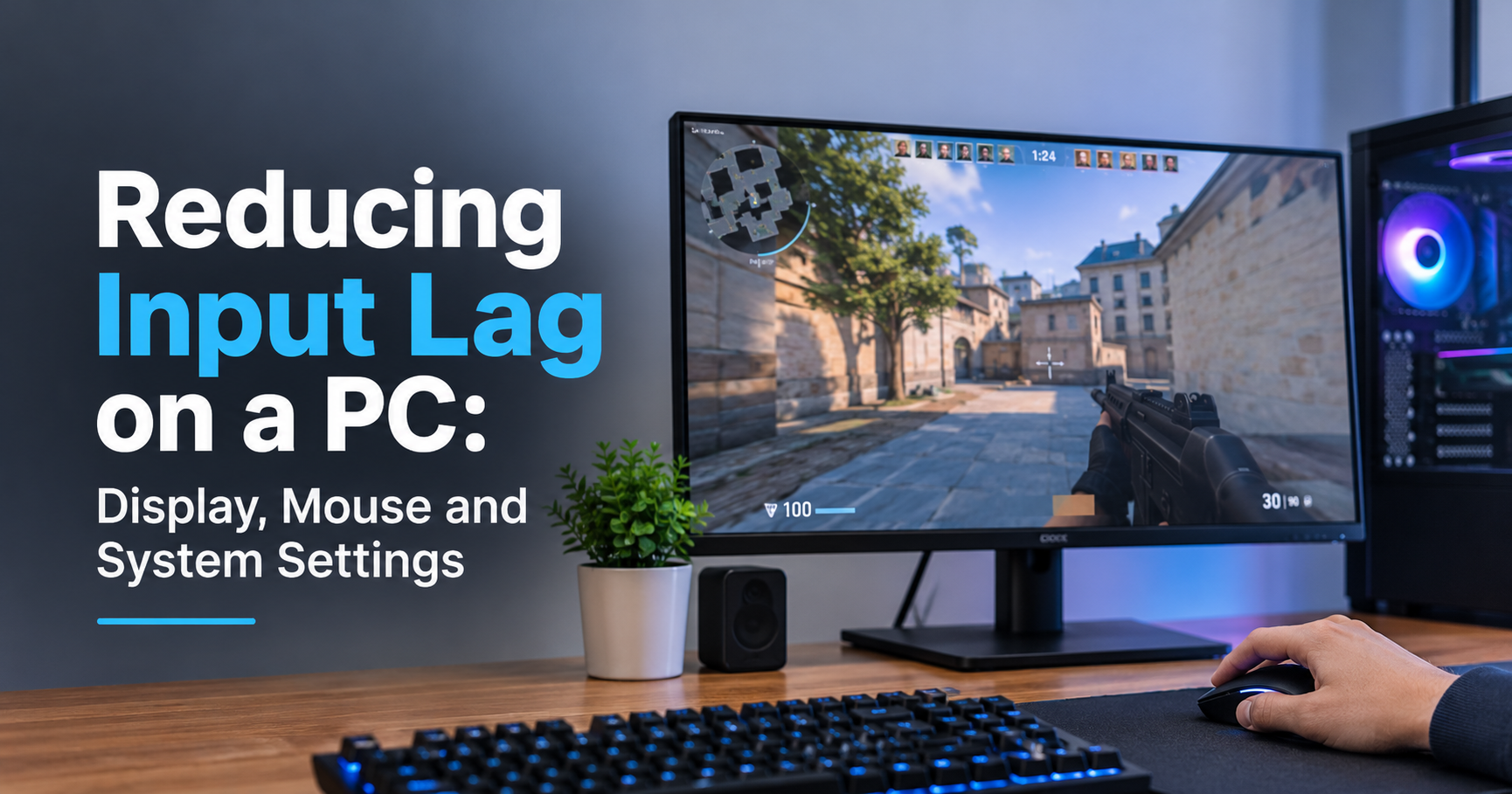
Input lag is the silent killer of good gaming sessions. You click, but your character shoots a heartbeat too late. You move the mouse, and the cursor feels like it is dragging through syrup. If that sounds familiar, you are not imagining things: your PC has a measurable delay between your action and what appears on screen.
The good news? In most cases you can cut that delay dramatically without spending a cent. In this complete guide on how to reduce input lag on PC, we will explain what causes it, how to measure it, and walk through 15 proven fixes across your monitor, Windows, graphics card, games, and peripherals. We will also show which hardware upgrades are actually worth your money.
Quick Summary (TL;DR)
- Turn off VSync and use a frame rate cap slightly below your monitor’s refresh rate.
- Enable NVIDIA Reflex or AMD Anti-Lag in supported games.
- Switch your monitor to its highest refresh rate and enable Game Mode.
- Use a wired mouse with a 1000 Hz or higher polling rate.
- Keep drivers updated and close background apps.
What Is Input Lag?
Input lag is the time that passes between you performing an action (clicking a mouse button, pressing a key, moving a controller stick) and seeing the result on your display. It is measured in milliseconds (ms). A delay of 1 ms is invisible; a delay of 60 ms or more is something almost every player can feel.
Input lag is often confused with two other things, so let’s separate them clearly:
- Input lag: the delay between your action and the on-screen result. This is what we are fixing.
- Network latency (ping): the delay between your PC and an online game server. Measured separately.
- Low FPS or stutter: a performance problem where frames are delivered slowly or unevenly. It makes input lag worse, but it is not the same thing.
Where Does Input Lag Come From?
Your action travels through a long chain before it becomes pixels. A delay can sneak in at every single step, which is why the best results come from tuning the whole chain rather than just one setting.
The main contributors are:
- Low refresh rate displays: a 60 Hz monitor updates every 16.7 ms, while a 240 Hz monitor updates every 4.2 ms.
- VSync and render queues: they buffer frames, which adds delay.
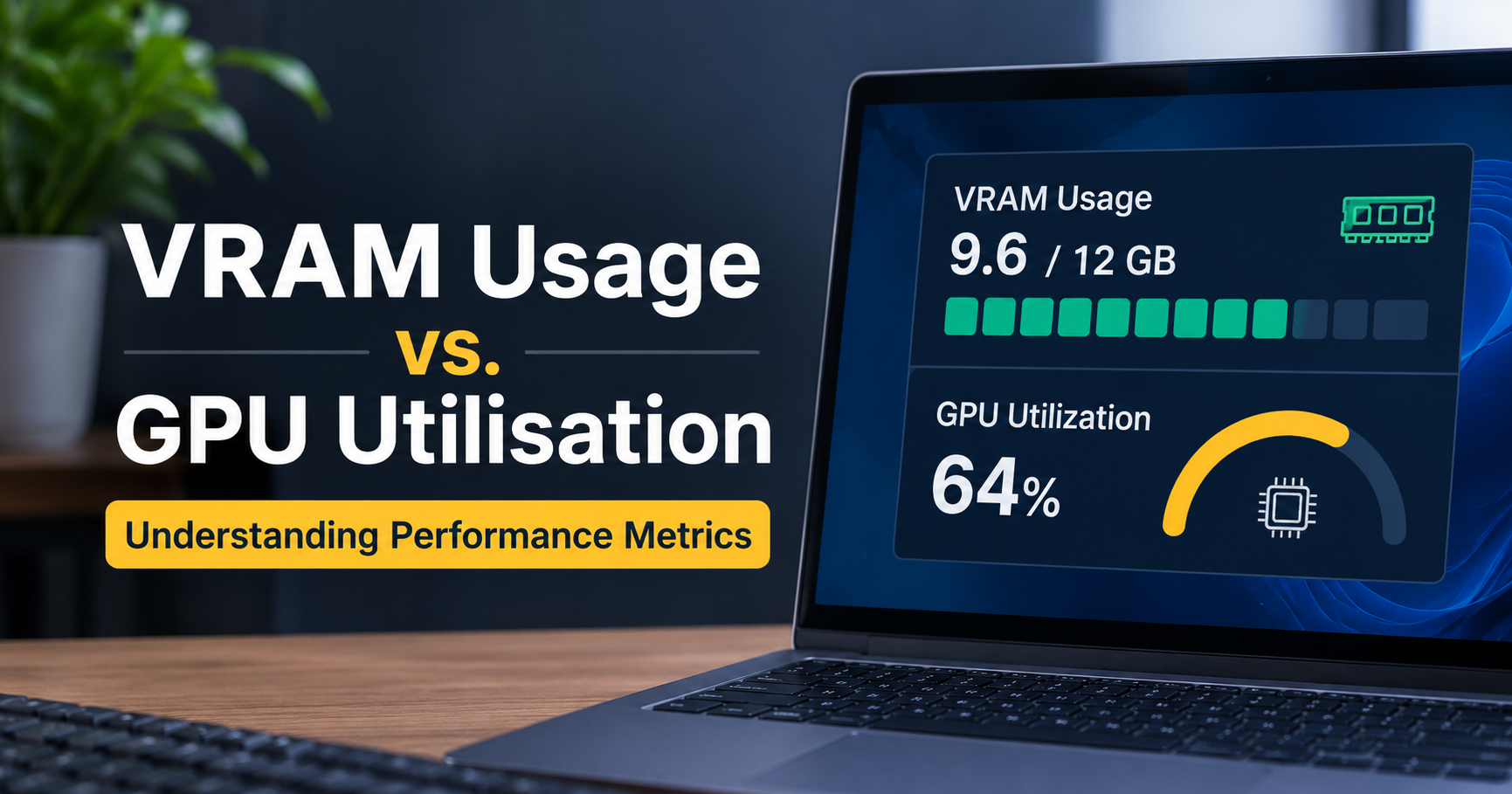
- GPU maxed out at 99-100% usage: frames queue up and latency rises sharply.
- Slow monitor processing: image enhancement features add milliseconds.
- Peripherals with low polling rates or wireless interference.
- Outdated drivers, background apps, and power-saving settings.
How to Measure Input Lag on Your PC
Before you change anything, it helps to know your starting point. You have a few options:
- NVIDIA FrameView or LDAT: measures system latency on supported NVIDIA hardware.
- NVIDIA overlay (Reflex Latency Analyzer): shows live system latency in supported games and with compatible monitors and mice.
- High-speed camera test: record a mouse click and the screen with a 240 fps phone camera, then count frames between the click and the muzzle flash.
- Feel test: if the cursor feels floaty or your shots seem late, trust your hands. Then apply the fixes below and compare.
As a rough guide, here is what different latency levels feel like in real gameplay:
15 Proven Ways to Reduce Input Lag on PC
Part 1: Monitor Settings
1. Set Your Monitor to Its Maximum Refresh Rate
This is the most common mistake. Many people buy a 144 Hz or 240 Hz monitor and never change the setting, leaving it at 60 Hz. To fix it, right-click your desktop, open Display settings, go to Advanced display, and choose the highest refresh rate available. Moving from 60 Hz to 144 Hz alone reduces the display’s frame-to-frame delay by more than 9 ms.
2. Enable Game Mode on Your Monitor or TV
Most monitors and especially TVs apply image processing such as noise reduction, motion smoothing, and sharpening. Each effect adds latency. Open the on-screen menu and switch to Game Mode (sometimes called PC Mode or Low Latency Mode). On TVs this can drop lag from over 100 ms to under 15 ms.
3. Use Adaptive Sync (G-SYNC or FreeSync)
Adaptive sync matches your monitor’s refresh rate to your GPU’s output, preventing screen tearing without the heavy latency of traditional VSync. Enable G-SYNC Compatible in the NVIDIA Control Panel or FreeSync in AMD Software, and make sure the feature is turned on inside your monitor’s menu as well.
4. Adjust the Overdrive (Response Time) Setting
Overdrive makes pixels change color faster. Set it too low and you get blur; set it too high and you get inverse ghosting (bright halos behind moving objects). The middle option, often labeled Normal or Fast, is usually the best balance.
Part 2: Windows Settings
5. Turn On Game Mode in Windows
Open Settings, go to Gaming, then Game Mode, and switch it on. Windows will then prioritize your game and prevent background tasks such as Windows Update from stealing resources during play.
6. Switch to a High Performance Power Plan
Power saving modes can park CPU cores and lower clock speeds, which creates tiny hiccups that you feel as lag. Open Control Panel, then Power Options, and select High performance or Ultimate Performance (on supported builds). Laptop users should also plug in the charger.
7. Disable Mouse Acceleration
Mouse acceleration changes cursor speed based on how fast you move your hand. It feels unpredictable and hurts aim consistency. Go to Settings, Bluetooth & devices, Mouse, Additional mouse settings, open the Pointer Options tab, and untick Enhance pointer precision.
8. Test Hardware-Accelerated GPU Scheduling
This Windows feature can lower CPU overhead on modern GPUs, and some players report smoother frame pacing. It is under Settings, System, Display, Graphics, Default graphics settings. Results vary by system, so toggle it, test your favorite game, and keep whichever setting feels better.
9. Close Background Apps and Overlays
Browsers with dozens of tabs, screen recorders, RGB software, and chat overlays all compete for CPU and GPU time. Press Ctrl + Shift + Esc, open the Task Manager, and close anything you do not need before gaming. Also consider disabling unused overlays in your game launcher.
Part 3: GPU and Driver Settings
10. Enable NVIDIA Reflex or AMD Anti-Lag
These technologies synchronize the CPU and GPU so that frames are not stuck waiting in a queue. NVIDIA Reflex is built directly into many popular competitive games and can cut system latency by a large margin, especially when your GPU is under heavy load. AMD users can enable Anti-Lag in the Radeon Software, and some games also include native low-latency options. If your game offers it, choose On + Boost for the lowest delay.
11. Use Low Latency Mode in the Graphics Control Panel
In the NVIDIA Control Panel, open Manage 3D settings and set Low Latency Mode to On (or Ultra for games without Reflex). Also set Power management mode to Prefer maximum performance. Radeon users can find similar options in the Gaming tab of AMD Software.
12. Keep Graphics Drivers Updated
GPU makers regularly release driver updates that improve performance and fix latency bugs for new games. Download the latest driver directly from the manufacturer’s official website, and choose a clean installation if you have been using the same driver for a long time.
Part 4: In-Game Settings
13. Turn Off VSync and Cap Your Frame Rate
Traditional VSync forces your GPU to wait for the monitor, which can add anywhere from 20 ms to 100 ms of delay. Turn it off in the game’s video settings. To avoid tearing, use adaptive sync and cap your FPS about 3 frames below your monitor’s refresh rate (for example, 141 FPS on a 144 Hz display). This keeps the GPU from maxing out and keeps the render queue empty.
Also consider lowering heavy graphics options such as shadows, ambient occlusion, and motion blur. Motion blur and some post-processing effects add visual delay without helping you play better.
Part 5: Peripherals and Connections
14. Upgrade Your Polling Rate and Go Wired (or Use Quality 2.4 GHz Wireless)
The polling rate tells you how often your mouse reports its position to the PC. At 125 Hz, that is every 8 ms; at 1000 Hz, every 1 ms. Set your mouse to at least 1000 Hz in its software. Modern 2.4 GHz wireless gaming mice are now nearly as fast as cables, but Bluetooth connections and cheap wireless dongles add noticeable delay. Plug the receiver into a front or rear USB port close to your mouse pad, and avoid USB hubs.
Keyboards matter too. Models with optical or Hall effect switches register keypresses faster than many traditional mechanical switches, and a high polling rate keyboard keeps pace with fast play.
15. Use a Wired Ethernet Connection for Online Games
Network latency is not the same thing as input lag, but online games feel laggy when either one is high. Wi-Fi interference can cause sudden ping spikes. Connect your PC to the router with an Ethernet cable, and pause downloads or streams on other devices while you play.
Bonus: Hardware Upgrades That Actually Reduce Input Lag
If you have optimized every setting and still want lower latency, these upgrades give the biggest returns:
- A high refresh rate monitor (144 Hz or higher): the single biggest improvement for most players.
- A faster GPU: higher frame rates mean a shorter time for each frame to render. This helps most when your GPU is regularly at 99% usage.
- A faster CPU: a CPU bottleneck can raise latency in esports titles that rely on single-core performance.
- An SSD: faster loading and fewer in-game stalls, particularly in open-world games.
- More RAM and dual-channel memory: 16 GB is the baseline for modern gaming; 32 GB helps heavy multitaskers.
- A good gaming mouse and keyboard: low click latency and a stable high polling rate.
Common Mistakes That Make Input Lag Worse
- Leaving the monitor at 60 Hz after buying a high refresh rate display.
- Running uncapped FPS with the GPU at 100%, which fills the render queue and increases delay.
- Using Bluetooth peripherals for fast-paced games.
- Playing in borderless windowed mode when exclusive fullscreen is available and faster for your game.
- Ignoring thermal throttling. A dusty, overheating PC lowers clock speeds and creates stutter. Clean your fans and check temperatures.
- Stacking too many “tweaks” from random videos. Change one thing at a time so you know what works.
Frequently Asked Questions (FAQ)
What is a good input lag for gaming?
For competitive gaming, aim for total system latency under 30 ms. Casual players will rarely notice anything below 40 ms. Anything above 70 ms is often described as sluggish.
Does a higher FPS reduce input lag?
Yes. Higher frame rates mean each frame is displayed sooner, so your actions show up faster. This is why players often notice a big difference when going from 60 FPS to 144 FPS or beyond, even on the same monitor.
Is VSync bad for input lag?
Traditional VSync usually increases input lag because it buffers frames. If you dislike screen tearing, use G-SYNC or FreeSync with an FPS cap instead.
Does a wireless mouse have more input lag?
Older and cheap wireless mice can, especially over Bluetooth. Modern gaming wireless mice using a dedicated 2.4 GHz receiver are very close to wired models in real-world tests.
Does Windows 11 have more input lag than Windows 10?
Both perform similarly in most games when properly updated and configured. Differences usually come from background services, drivers, and settings rather than the Windows version itself.
Is input lag the same as ping?
No. Input lag is the delay inside your own setup, while ping is the round-trip time to an online server. Both affect how responsive an online game feels, so check both.
Does overclocking help reduce input lag?
It can help only if your CPU or GPU is the bottleneck, because it raises frame rates. It will not fix latency caused by monitor settings, VSync, or a slow peripheral, so apply the simpler fixes first.
Final Thoughts
Learning how to reduce input lag on PC is mostly about removing hidden delays one by one. Start with the free fixes: set your monitor to its highest refresh rate, turn on Game Mode, switch off VSync, cap your FPS, enable Reflex or Anti-Lag, and disable mouse acceleration. These alone make a dramatic difference for most players.
If you still want more speed, invest where it counts: a high refresh rate monitor, a capable GPU, and a quality low-latency mouse and keyboard. Change one setting at a time, test it in your favorite game, and keep what feels better. Your PC will feel snappier, your aim steadier, and your wins easier to earn.
Pro tip: Bookmark this guide and re-check your settings after every major driver or Windows update, because updates can reset options such as refresh rate, power plan, and mouse settings.