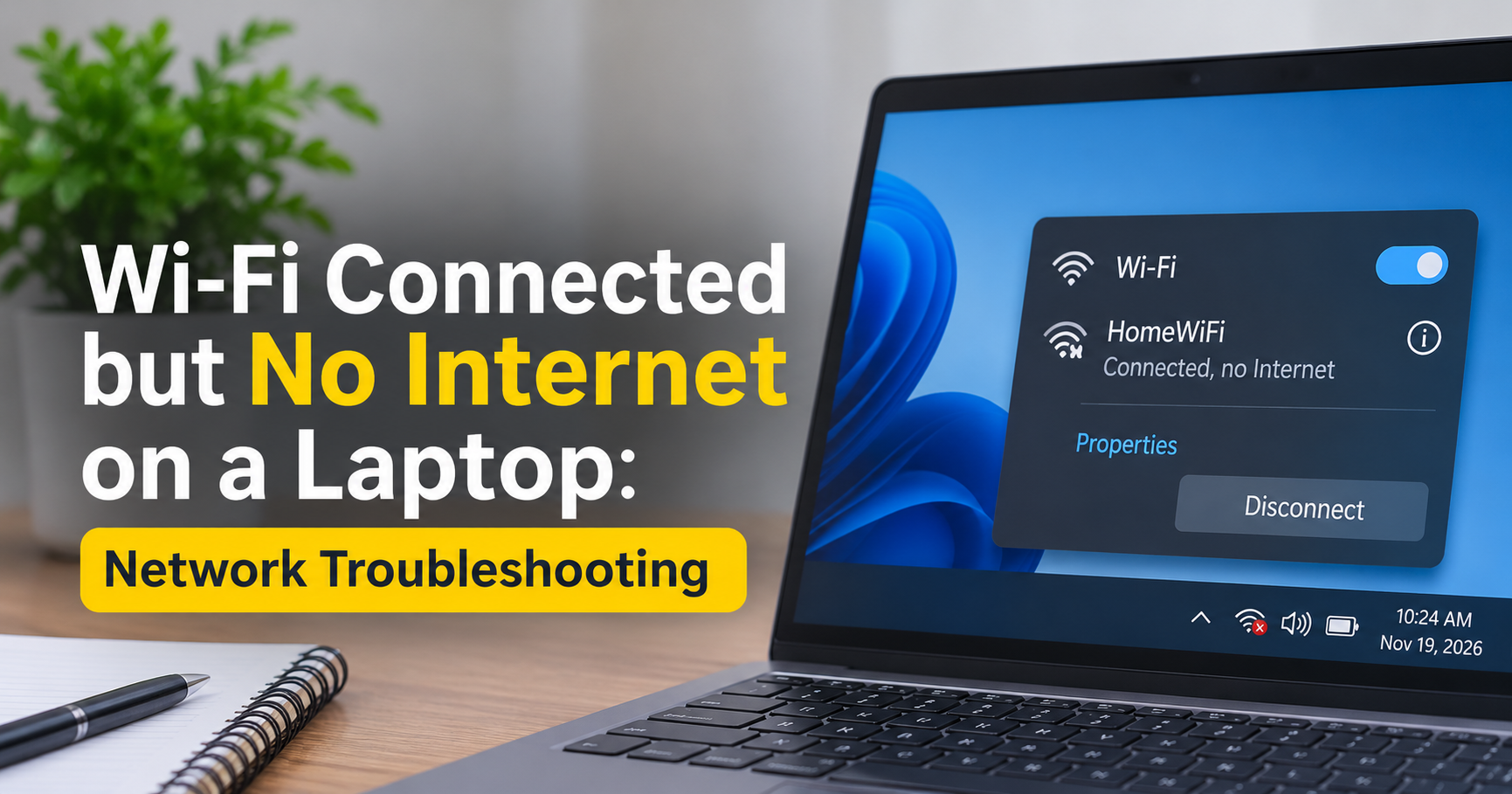

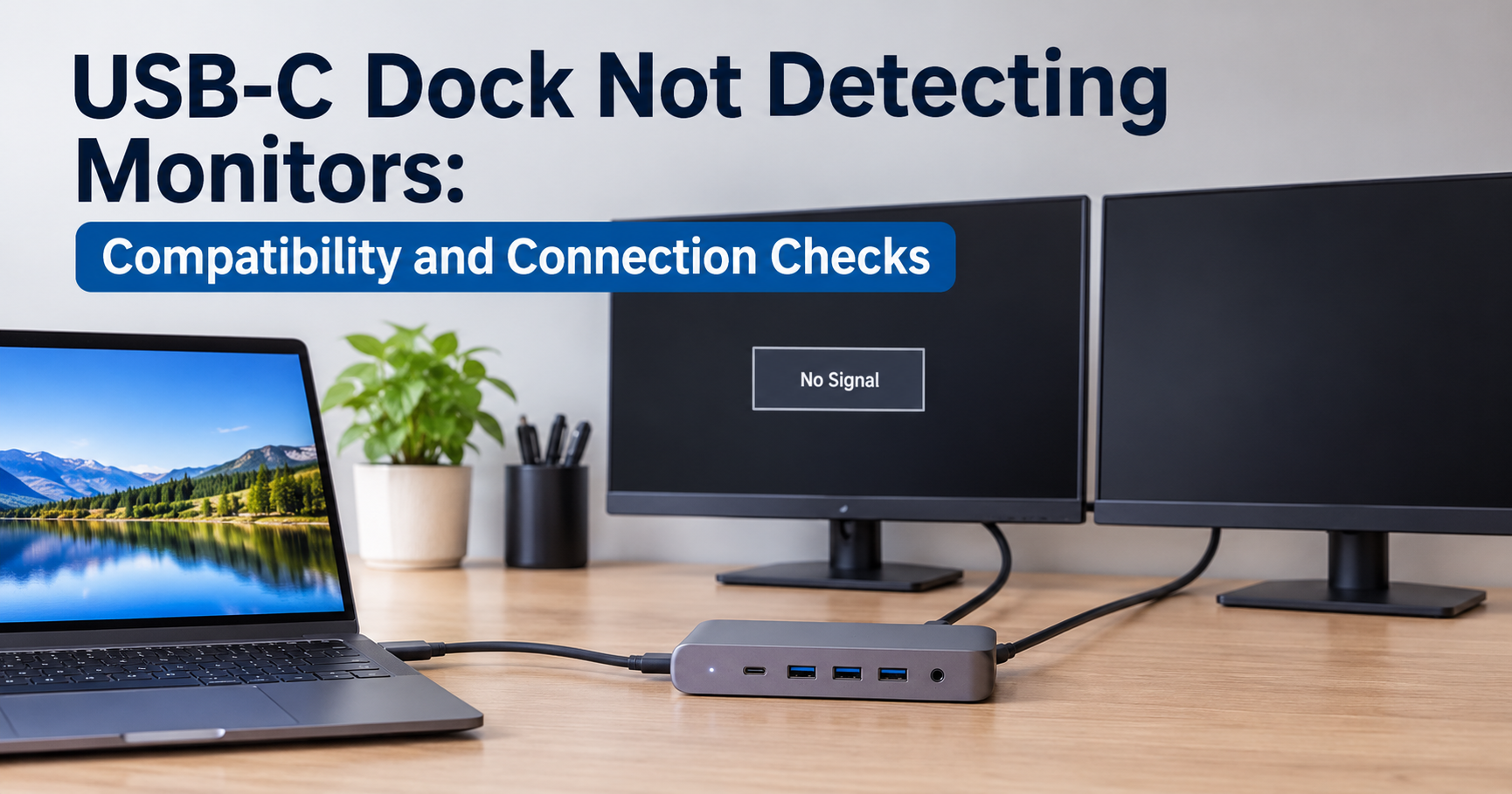
You plug your laptop into a USB-C docking station, connect two monitors, and expect a tidy desk setup. Instead, one screen stays black, or both do. It is one of the most frustrating problems in a modern work-from-home setup, because everything looks connected and nothing works.
The good news is that a USB-C docking station not detecting monitors is almost always fixable without buying new hardware. The cause is usually one of a handful of things: a laptop port that cannot output video, the wrong cable, an outdated driver, old dock firmware, or a display setup that asks for more bandwidth than the connection can carry.
This guide explains how a dock actually sends video, what goes wrong, and how to fix it step by step on Windows and Mac. It also covers what to look for if you decide the dock itself has to be replaced.
Quick answer: try these first
- Unplug the dock’s power and all cables, wait 30 seconds, then reconnect in this order: dock power, monitors, laptop.
- Confirm your laptop’s USB-C port supports video output (look for a DP or Thunderbolt symbol).
- Swap in a different full-featured USB-C cable and try another laptop port.
- Update the graphics driver and the dock’s firmware.
- Check that your monitor count and resolution fit within what the dock supports.
How a USB-C Docking Station Sends Video to Monitors
A USB-C port is just a connector. What it can do depends on the hardware behind it. To show a picture on a monitor, the laptop has to send a video signal through the USB-C port, down the cable, into the dock, and out through the dock’s HDMI or DisplayPort connectors.
Most docks do this using a feature called DisplayPort Alternate Mode (often shortened to DP Alt Mode). The laptop borrows the high-speed lanes inside the USB-C cable to carry a native DisplayPort signal. Thunderbolt and USB4 ports can do the same thing and also tunnel DisplayPort data alongside other traffic.
Some docks work differently. Docks built on DisplayLink technology compress the picture and send it over a normal USB data connection, then rebuild it inside the dock. These need a software driver on the computer, and they behave differently from Alt Mode docks.
Because a signal passes through several links in a chain, a fault in any one of them can leave a monitor undetected. The diagram below shows the five places to look.

Common Reasons a USB-C Dock Does Not Detect Monitors
1. The laptop’s USB-C port does not support video output
This is the number one cause, and it catches many people out. Not every USB-C port can send video. Some are built only for charging and data transfer. If the port has no DisplayPort Alt Mode or Thunderbolt support, the dock will power up and your keyboard and mouse may work, but the monitors will stay dark.
Check the small symbol printed next to the port, or look at the laptop’s specification sheet. A “DP” logo or a lightning bolt means video is supported. A laptop with several USB-C ports may also support video on only one or two of them.

2. The USB-C cable is charge-only or low quality
USB-C cables look identical but are not equal. Some cables only carry power and USB 2.0 data. They have no high-speed lanes for video, so a dock connected with one will not detect any monitor. Cheap or damaged cables can also cause flickering, random disconnects, or a screen that only works when the cable is held at a certain angle.
Use the cable that came with the dock, or a certified cable rated for data and video. Keep it reasonably short, since very long passive cables lose signal quality at high speeds.
3. Outdated or corrupted graphics drivers
The graphics driver is what tells your computer that a new display has been connected. An old or damaged driver may fail to recognize the dock’s display outputs, especially after a major operating system update. This is a very common reason monitors worked fine for months and then suddenly stopped appearing.
4. Old dock firmware
Docks contain their own chips and software. Manufacturers release firmware updates that fix display detection bugs, sleep and wake problems, and compatibility issues with newer laptops. A dock running its original firmware may simply not handle your current laptop or monitor properly.
5. The dock or laptop is not getting enough power
Many docks need their own power adapter to run properly. If the adapter is missing, underpowered, or plugged into a loose power strip, the dock can behave unpredictably: monitors flicker, vanish, or never appear. A laptop with a nearly empty battery can also act strangely when it is asked to power a dock and two screens at once.
6. The setup asks for more bandwidth than the connection can carry
Every monitor needs a certain amount of data to display a picture. A higher resolution and refresh rate need more. If your dock shares the cable’s lanes between video and USB data, only part of the capacity is left for the screens. Two 4K monitors at 60 Hz need roughly twice as much video bandwidth as one, which is more than many docks can deliver.
When the limit is reached, the dock may show one monitor and ignore the second, or drop both screens to a lower resolution or refresh rate, such as 4K at 30 Hz.

7. The wrong monitor input or an old HDMI cable
Sometimes the dock is working and the monitor is simply listening to the wrong input. Monitors with automatic input switching can also get confused when a dock wakes from sleep. In addition, the cable between the dock and the monitor matters. An old HDMI 1.4 cable or port limits 4K output to 30 Hz, while HDMI 2.0 or DisplayPort is needed for smooth 4K at 60 Hz.
8. Operating system limits, especially on Mac
Some limits come from the computer rather than the dock. Macs with base-level Apple silicon chips support only a limited number of external displays, often just one, and a standard dock cannot change that. In addition, macOS does not support a feature called Multi-Stream Transport (MST), which some docks use to split one video stream into two monitors. On a Mac, such a dock may show the same picture on both screens or only detect one.
9. Hybrid graphics, BIOS or Thunderbolt security settings
Some laptops route their USB-C ports through the integrated graphics, while others use a dedicated graphics card. If the wrong graphics chip is handling the port, detection can fail. On Thunderbolt docks, the laptop may also require you to approve the new device before it works, depending on the security level set in the BIOS or the Thunderbolt software.
10. Sleep, wake and hot-plug glitches
If monitors disappear after the laptop sleeps, or only appear when you connect things in a certain order, the issue is often a handshake problem. The monitor and dock exchange information about supported resolutions when they connect, and that exchange can fail. Power-cycling the whole chain usually fixes it, though a firmware update may be needed to stop it from repeating.
Step-by-Step Fixes for a Dock That Is Not Detecting Monitors
Work through these steps in order. They move from the quickest checks to the more involved ones, so you can stop as soon as the monitors appear.

Step 1: Power-cycle everything in the right order
A full reset clears most handshake and detection glitches.
- Shut down the laptop, or at least unplug the USB-C cable from it.
- Unplug the dock’s power adapter and every cable connected to the dock.
- Switch the monitors off, wait about 30 seconds, then switch them back on.
- Plug the dock’s power adapter back in first.
- Reconnect the monitor cables to the dock.
- Connect the USB-C cable to the laptop last.
Step 2: Test the monitor without the dock
Connect one monitor directly to the laptop’s own HDMI or DisplayPort output, or through a simple USB-C to HDMI adapter. If it works, the monitor and its cable are fine, and you can focus on the dock, its cable, or the USB-C port. If it does not work, the problem is the monitor, the cable, or the laptop’s display settings.
Step 3: Try a different cable and a different port
Swap the USB-C cable for another known-good, full-featured one. Then try a different USB-C port on the laptop, because only some ports may support video. Also replace the HDMI or DisplayPort cable running from the dock to the monitor, and try a different output on the dock if it has more than one.
Step 4: Make sure the monitor is on the right input
Use the monitor’s own menu button to choose the input manually (HDMI 1, HDMI 2, or DisplayPort) instead of leaving it on automatic. Automatic detection often fails with docks, particularly after sleep.
Step 5: Force the computer to look for displays
On Windows:
- Press Windows key + P and choose Extend or Duplicate. If it is set to “PC screen only”, external monitors stay off.
- Open Settings > System > Display, scroll to Multiple displays, and click Detect.
- Press Windows key + Ctrl + Shift + B to restart the graphics driver. The screen may flash or go black for a moment.
On Mac:
- Open System Settings > Displays, hold down the Option key, and click Detect Displays when it appears.
- Restart the Mac with the dock connected, then check again.
- On Intel Macs, resetting NVRAM can also help with display detection issues.
Step 6: Update the graphics driver
Download the latest driver for your graphics hardware from the Intel, AMD or NVIDIA support pages, or through your laptop manufacturer’s update tool. Install it, then restart the computer. If the problem started after an update, a clean reinstall can help. In Windows, open Device Manager, expand Display adapters, uninstall the display adapter, and restart so Windows reinstalls it.
On Mac, graphics drivers are included in macOS updates, so installing the latest system update is the equivalent step.
Step 7: Update the dock’s firmware and related drivers
Check your dock manufacturer’s support page for a firmware update tool and run it with the dock connected. Many major dock brands provide a utility for this. While you are at it, update the laptop’s BIOS and, if you use a Thunderbolt dock, the Thunderbolt driver and firmware.
If your dock uses DisplayLink technology, install the current DisplayLink driver. On a Mac, you may also need to allow screen recording permission for the DisplayLink software in System Settings > Privacy and Security, otherwise the connected monitors show a blank picture.
Step 8: Check the power setup
Make sure the dock’s own power adapter is connected and fully plugged in, and use the adapter that came with it. Avoid loose extension leads. If the laptop battery is very low, charge it before testing, since power problems can cause intermittent display dropouts.
Step 9: Reduce the load on the connection
Temporarily lower the resolution and refresh rate on the problem monitor, for example from 4K at 60 Hz to 1080p at 60 Hz. If the screen appears, bandwidth was the problem. You can then raise the settings step by step to find the maximum your dock can handle. Disconnecting USB devices from the dock, especially external drives, can also free up lanes on docks that share bandwidth between video and data.
In Windows, open Settings > System > Display > Advanced display to change the refresh rate. On a Mac, use System Settings > Displays and choose a different resolution or refresh rate for the affected screen.
Step 10: Check laptop-specific settings
Look in the BIOS or manufacturer’s settings app for USB-C or Thunderbolt options. Make sure Thunderbolt support is enabled and, if prompted, approve the dock as a trusted device. On laptops with both integrated and dedicated graphics, check whether the manufacturer’s software or the BIOS offers a graphics mode setting that changes which chip drives the external ports.
Step 11: Disable Fast Startup on Windows if the problem appears after boot
If monitors are missing only after starting or waking the computer, try turning off Fast Startup. Open Control Panel > Power Options > Choose what the power buttons do, click Change settings that are currently unavailable, and untick Turn on fast startup. Fast Startup can leave the dock in a half-initialized state.
Step 12: Test the dock on another computer
If nothing has worked, connect the dock to a different laptop that is known to support video over USB-C. If the monitors fail there too, the dock is faulty or too limited for your needs. If they work, the cause is something about your original laptop’s port, settings, or drivers.
Fixes by Symptom
If you already know exactly how the problem behaves, this table points you straight to the most likely fix.
| What you see | Most likely cause | Best fix |
|---|---|---|
| No monitor works, but USB devices on the dock do | Port has no video support, or a data-only cable | Use a video-capable port and a full-featured cable |
| Only one of two monitors works | Bandwidth limit, MST limit, or OS display limit | Lower resolution, check dock specs, check OS display limit |
| Both screens show the same picture on a Mac | Dock relies on MST, which macOS does not support | Use a DisplayLink or Thunderbolt dock |
| Screen flickers or goes black at random | Faulty cable, weak power, or driver issue | Replace cable, use the dock’s power adapter, update drivers |
| 4K screen stuck at 30 Hz | HDMI 1.4 port or cable, or shared lanes | Use DisplayPort or HDMI 2.0 and a dock that supports 4K at 60 Hz |
| Monitors vanish after sleep | Handshake or firmware issue | Update dock firmware, disable Fast Startup, power-cycle the dock |
| Monitors work only on some laptop ports | Only certain ports support video | Use the port marked with the DP or Thunderbolt symbol |
Which Type of Dock Fits Your Setup?
If troubleshooting shows that your dock simply cannot do what you need, the right replacement depends on how many monitors you use and what computer you own. The four common dock types behave quite differently.
| Dock type | How it sends video | Best for | Watch out for |
|---|---|---|---|
| Basic Alt Mode dock | Native DisplayPort over USB-C | One or two monitors on Windows laptops | Limited to what the laptop port supports; MST not supported on Mac |
| Thunderbolt or USB4 dock | Tunnels multiple DisplayPort streams | Dual 4K monitors, high-end laptops, Mac and Windows | Needs a Thunderbolt or USB4 laptop port; higher price |
| DisplayLink dock | Compressed video over USB data | More monitors than the laptop natively supports; limited Macs | Requires a driver; not ideal for fast video or gaming |
| Single-display adapter | Native DisplayPort over USB-C | A simple one-monitor setup | Not a full dock; few extra ports |
What to Look For When Buying a USB-C Docking Station
Many detection problems start at the moment of purchase, when a dock is chosen based on the number of ports rather than what it can actually drive. Before you buy, check the following.
- Your laptop’s video support. Confirm that the USB-C or Thunderbolt port supports DisplayPort output. No dock can fix a port that has no video.
- Monitor count and resolution. Read the specification for the exact combination you plan to use, such as “dual 4K at 60 Hz”, not just “supports two monitors”.
- Operating system compatibility. If you use a Mac, check that the dock supports your model and how it handles multiple displays. Docks that rely on MST usually mirror instead of extending on macOS.
- HDMI and DisplayPort versions. Look for HDMI 2.0 or newer, or DisplayPort 1.4, when you want 4K at 60 Hz.
- Power delivery. Choose a dock that supplies enough charging wattage for your laptop, and make sure it ships with its own power adapter.
- Firmware update support. A manufacturer that publishes regular firmware updates and clear support pages makes future problems easier to solve.
- A quality cable included. A dock supplied with a proper certified cable removes one common source of trouble.
- Reputable brand and warranty. Very cheap, unbranded docks are a frequent source of unstable display connections.
When It Is Time to Replace the Dock
Replacement makes sense when the dock fails on a second computer, when it overheats and drops the signal, or when its specifications cannot support your monitors at all. A dock that handles one monitor well but cannot drive two at your resolution will not improve with troubleshooting. In that case, a model with the right bandwidth, or a Thunderbolt dock, is the long-term solution.
If the dock is still under warranty, contact the manufacturer before replacing it. A faulty video chip is a legitimate warranty issue.
Frequently Asked Questions
Why is my USB-C dock not detecting my second monitor?
The most common reasons are a bandwidth limit, an operating system limit on the number of external displays, or a dock that relies on MST, which macOS does not support. Lower the resolution of both monitors and see whether the second one appears. If it does, the dock is running out of bandwidth. If you are on a Mac, check how many external displays your specific chip supports.
Why do my USB devices work on the dock but not my monitors?
This usually means the USB-C port or cable can carry data but not video. Check that your laptop’s port supports DisplayPort Alt Mode or Thunderbolt, and try a different, full-featured cable.
Do all USB-C ports support video output?
No. Some USB-C ports only support charging and data. Check for a DP or Thunderbolt symbol beside the port, or read the laptop’s specifications.
Can a bad USB-C cable stop monitors from being detected?
Yes. A charge-only cable, or a damaged or low-quality one, can prevent video from passing through. It is one of the cheapest things to rule out, so always try a second cable early in your troubleshooting.
Why does my 4K monitor only run at 30 Hz through the dock?
Either the HDMI port or cable on the dock is limited to older HDMI 1.4 speeds, or the dock is sharing lanes between video and USB data and cannot carry a full 4K 60 Hz signal. Try a DisplayPort connection, a newer HDMI cable, or a dock designed for 4K at 60 Hz.
Why do my monitors disappear after my laptop wakes from sleep?
This is usually a handshake or firmware issue. Update the dock firmware and graphics drivers, set the monitor input manually, and on Windows consider disabling Fast Startup. Power-cycling the dock fixes it temporarily if the problem returns.
Does a Thunderbolt dock fix display detection problems?
Often, yes, because Thunderbolt and USB4 connections provide far more bandwidth and are designed to carry several displays. However, your laptop must have a Thunderbolt or USB4 port, and the cable must be rated for it.
Final Thoughts
A USB-C docking station that stops detecting monitors rarely means the hardware is dead. In most cases the cause is something simple: a port without video support, a cable that cannot carry a picture, an outdated driver, or a setup that asks too much of the connection.
Start with a full power cycle, rule out the cable and port, update your drivers and dock firmware, and then check whether your monitors fit within the dock’s limits. If you still have no picture after testing the dock on another computer, you have the answer, and a better-matched dock is the right next step. With a little patience and a methodical approach, you can get your multi-monitor desk working reliably again.