



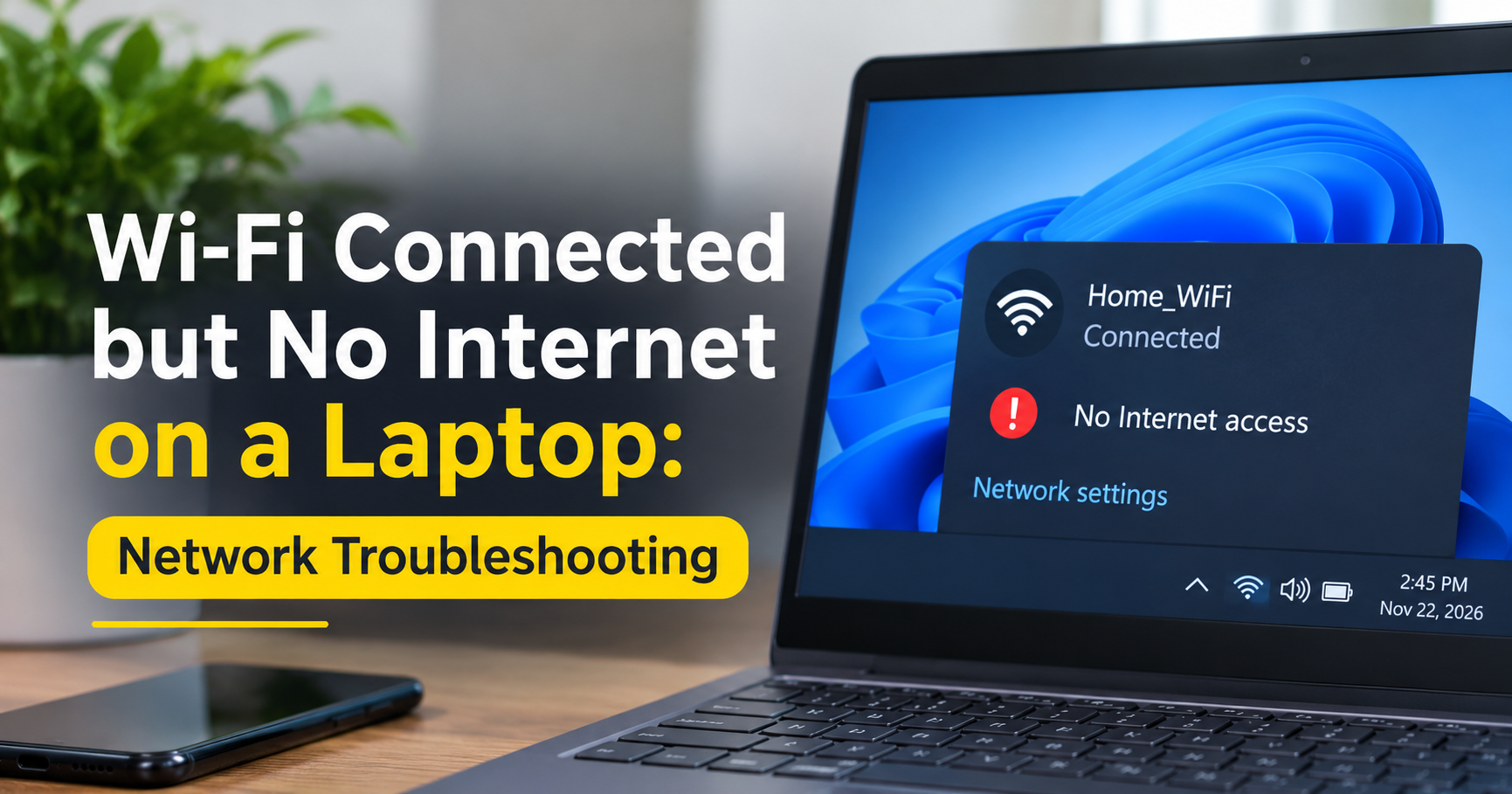
You look at your laptop and the WiFi icon says you are connected. The signal bars are full. Yet every web page refuses to load, and the browser keeps showing an error. This is one of the most frustrating network problems, because everything appears to be working while nothing actually does.
The good news is that this issue is almost always fixable at home without any technical background. In this guide you will learn what the message really means, how to find out whether the fault is in your laptop, your router or your internet provider, and exactly how to fix it, starting with the quickest solutions.
What Does “Connected, No Internet” Really Mean?
When your laptop says it is connected to WiFi, it only means one thing: it has successfully talked to your router. It does not guarantee that the router can reach the wider internet. Think of it like reaching the front door of a building and finding the hallway beyond it blocked.
Windows shows a small yellow triangle or the words “No Internet” when it tries to contact a test server on the internet and gets no answer. Several different faults can cause this, and they sit in three places: the laptop, the router and modem, or the internet service provider.

Common Causes at a Glance
| Cause | Typical Sign | Where to Look |
|---|---|---|
| Internet provider outage | All devices have no internet | Router and modem lights |
| Router or modem glitch | Problem started suddenly after days of uptime | Restart the devices |
| DNS problem | Websites fail but pinging an IP address works | DNS settings on laptop |
| IP address conflict | Only one device fails | IP configuration |
| VPN or proxy interference | Started after installing a VPN or security app | Proxy and VPN settings |
| Outdated or corrupt driver | Started after a Windows update | Device Manager |
| Weak or failing WiFi adapter | Frequent drops, works near the router only | Hardware and signal |
Step 1: Find Out Where the Problem Is
Before changing any settings, spend two minutes working out which part of the chain is broken. This saves a lot of wasted effort.
- Test another device. Try a phone or another laptop on the same WiFi. If they also have no internet, the fault is with the router, modem or provider.
- Test a different network. Connect your laptop to a phone hotspot. If it works there, your laptop is healthy and the problem lies with your home network.
- Check the router lights. A red or blinking internet light, or no light at all on the internet or WAN port, usually points to a provider or cable problem.

Fixes When Every Device Is Offline
Fix 1: Restart the Router and Modem Properly
A proper restart clears memory errors and forces a fresh connection to your provider. Many people simply press a button, but a full power cycle works better.
- Turn off your laptop’s WiFi or shut the laptop down.
- Unplug the power cables from both the modem and the router.
- Wait a full 60 seconds. This lets the internal capacitors drain and the provider session reset.
- Plug in the modem first and wait until its lights become stable, usually two to three minutes.
- Plug in the router and wait another two minutes.
- Turn the laptop back on and test the connection.
Fix 2: Check All Cables and Connections
A loose or damaged cable is a surprisingly common cause. Make sure the cable from the wall or line into the modem is firmly seated, and that the Ethernet cable between modem and router clicks into place at both ends. Look for kinks, cuts or bent connector pins. If you have a spare Ethernet cable, swap it in to rule out a faulty one. Cheap, worn cables are a frequent hidden cause, and replacing them is inexpensive.
Fix 3: Contact Your Internet Service Provider
If the modem shows an alarm light, or the internet light stays off after a restart, the problem is probably outside your home. Contact your provider and ask whether there is an outage in your area or a problem with your line. Tell them what you have already tried, since this speeds up the call.
Fixes When Only Your Laptop Is Affected
Fix 4: Turn Airplane Mode On and Off, Then Restart the Laptop
This simple step resets the wireless radios. Turn airplane mode on, wait ten seconds, then turn it off. If nothing changes, perform a full restart rather than a shutdown. In Windows, “shut down” may keep parts of the system cached, while “restart” reloads everything including network components.
Fix 5: Forget the Network and Reconnect
Saved WiFi profiles can become corrupted. Removing and re-adding the network gives you a clean profile.
- Open Settings, then Network and Internet, then WiFi.
- Select Manage known networks.
- Choose your network and click Forget.
- Click the WiFi icon in the taskbar, select the network and enter the password again.
Fix 6: Run the Windows Network Troubleshooter
Windows includes an automatic tool that can detect and repair common faults such as disabled adapters and invalid settings. Open Settings, go to System, then Troubleshoot, then Other troubleshooters, and run the Network and Internet troubleshooter. Follow the prompts and restart afterwards. It will not fix everything, but it solves a good share of simple cases in under a minute.
Fix 7: Release and Renew the IP Address, and Flush DNS
Your laptop needs a valid IP address from the router and a working DNS cache to find websites. Corrupt entries in either can cause exactly this problem. Open the Start menu, type cmd, right-click Command Prompt and choose Run as administrator. Then type the commands below, pressing Enter after each one.

After running them, restart the laptop. The last two commands reset deeper network layers, so run them if the first three do not help.
Fix 8: Change Your DNS Servers
DNS works like a phone book that turns website names into addresses. If your provider’s DNS is slow or down, pages will not load even though the connection is fine. Switching to a reliable public DNS often fixes the problem immediately.
- Open Control Panel, then Network and Sharing Center, then Change adapter settings.
- Right-click your WiFi adapter and choose Properties.
- Select Internet Protocol Version 4 (TCP/IPv4) and click Properties.
- Choose Use the following DNS server addresses.
- Enter 8.8.8.8 as the preferred server and 8.8.4.4 as the alternate server.
- Click OK, then test your browser.
Fix 9: Turn Off VPN, Proxy and Third-Party Security Software
A VPN that has failed to connect, an incorrect proxy setting, or an overactive firewall can block all traffic while the WiFi still shows as connected. Disconnect any VPN and close the app completely. Then open Settings, Network and Internet, Proxy, and make sure that automatic detection is on and manual proxy is off. If you use third-party antivirus or firewall software, temporarily disable its web protection to test. If the internet returns, adjust that software’s settings instead of leaving protection off.
Fix 10: Update, Roll Back or Reinstall the WiFi Driver
The driver is the software that lets Windows control your WiFi hardware. A faulty one is a frequent reason for random disconnects and “no internet” messages, especially after a system update.
- Right-click the Start button and open Device Manager.
- Expand Network adapters and find your wireless adapter.
- Right-click it and choose Update driver, then Search automatically.
- If the problem began after an update, open Properties, then the Driver tab, and choose Roll Back Driver if available.
- If nothing helps, choose Uninstall device and restart. Windows will reinstall a fresh driver automatically.
If you cannot get online to download a driver, use a phone hotspot or a USB cable connection from another device.
Fix 11: Adjust Power Management Settings
Windows may switch off your WiFi adapter to save battery, which can cause unstable connections. In Device Manager, open your adapter’s Properties, go to the Power Management tab and uncheck the option that allows the computer to turn off the device to save power. Also set your power plan to Balanced or High Performance while troubleshooting.
Fix 12: Reset Network Settings as a Last Resort
If every earlier step failed, a full network reset restores all adapters and settings to their defaults. Open Settings, go to Network and Internet, Advanced network settings, and select Network reset, then confirm. Your laptop will restart and you will need to re-enter WiFi passwords and reconfigure any VPN. This resolves stubborn configuration problems that cannot be found manually.
When the Router Is Old or Underpowered
If the problem returns every few days, your equipment may be the real cause. Routers that are many years old can overheat, drop connections and struggle with several devices at once. Signs include frequent restarts, a hot casing, slow speeds on all devices and a connection that only works close to the router.
Consider these upgrades if your setup is old:
- A modern dual-band or tri-band router handles many devices better and reduces congestion.
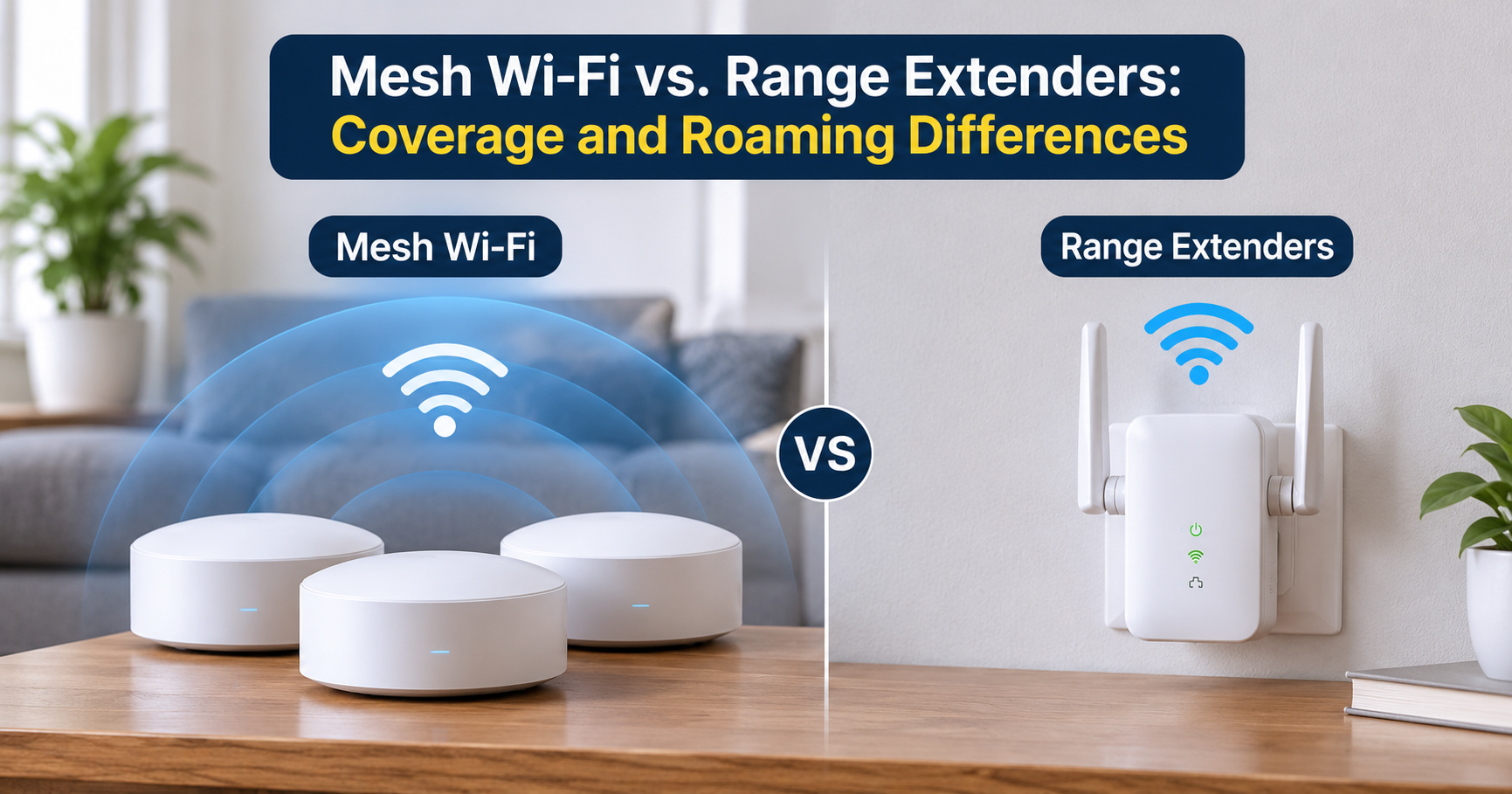
- A mesh WiFi system removes dead zones in larger homes with thick walls.
- A USB WiFi adapter is an inexpensive way to replace a failing built-in laptop card.
- A good-quality Ethernet cable gives a stable wired connection for work calls or downloads.
- A WiFi range extender can help reach a far room, though a mesh system is usually more reliable.
When choosing a router, look for current WiFi standards, strong customer support, regular firmware updates and a number of antennas or coverage rating that matches your home size.
Prevent the Problem From Coming Back
- Restart your router once every few weeks to keep it healthy.
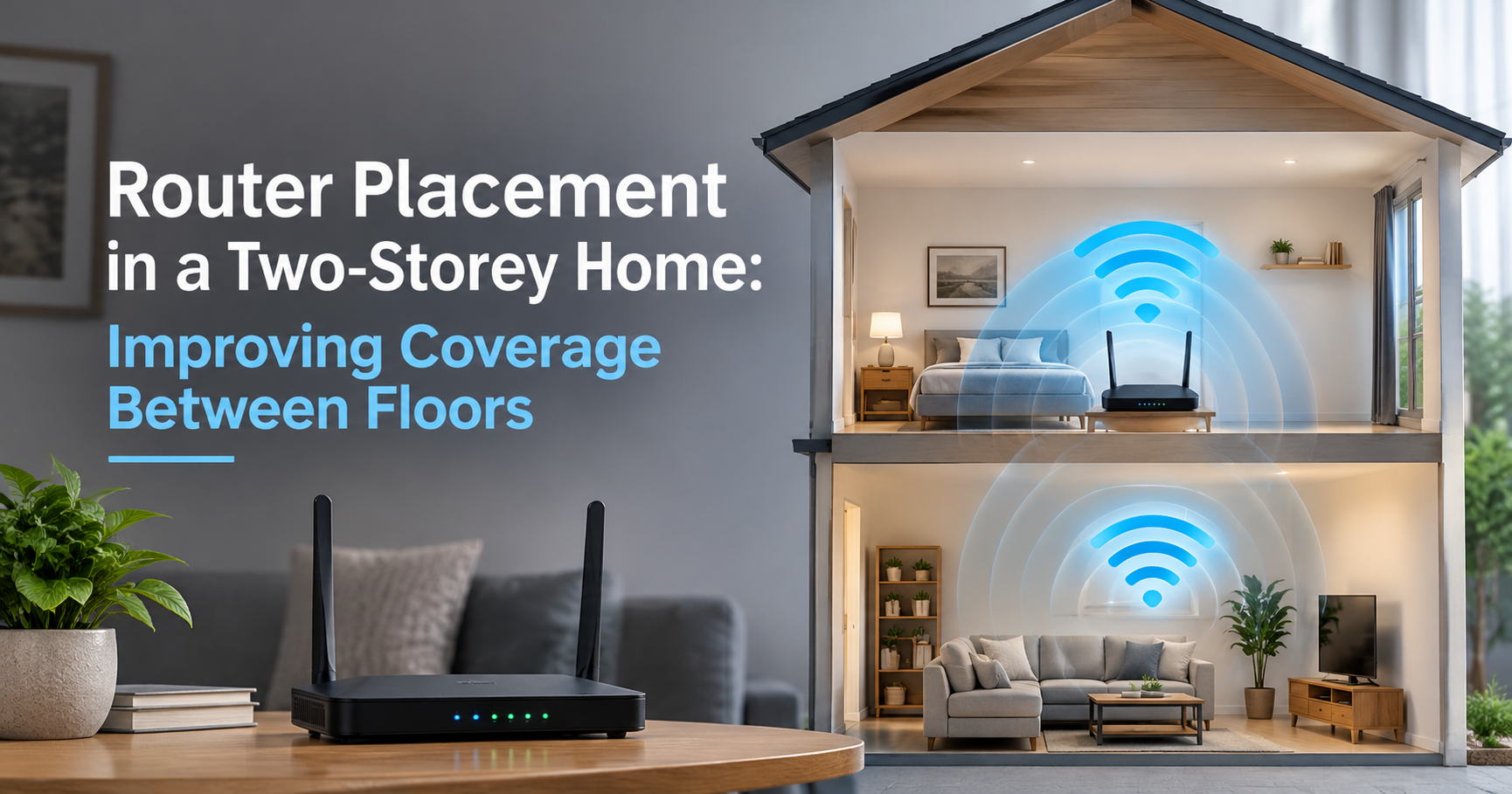
- Place the router in a central, open, raised position away from microwaves, thick walls and metal objects.
- Keep router firmware and laptop drivers updated.
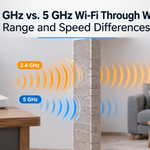
- Use the 5 GHz band for speed at close range and 2.4 GHz for longer range.
- Change the WiFi channel if many nearby networks cause interference.
- Avoid installing multiple VPN or “optimizer” programs that change network settings.
- Keep a spare Ethernet cable handy for quick tests and emergencies.
Frequently Asked Questions
Why does my laptop say connected but no internet while my phone works?
This normally means the router and provider are fine, and the problem is inside the laptop. The most common causes are DNS errors, a bad IP configuration, a VPN or proxy setting, or a faulty driver. Work through Fixes 4 to 11.
Can a Windows update cause this problem?
Yes. Updates sometimes replace network drivers or change settings. Rolling back the driver or running the network reset commands often solves it.
Is it the router or the laptop?
If several devices fail, suspect the router, modem or provider. If only one device fails, suspect that device. A phone hotspot test is the quickest way to confirm.
Will resetting the network delete my files?
No. A network reset only removes saved WiFi networks, VPN settings and adapter configurations. Your documents and programs are untouched.
Why does the problem happen at the same time every day?
This points to congestion at peak hours, scheduled router restarts, or a provider issue. Try changing the WiFi channel and ask your provider about line quality.
Should I buy a new router?
Only after ruling out simple faults. If the router is more than five years old, overheats or fails repeatedly, a replacement is a sensible investment.
Final Thoughts
A “connected, no internet” message looks alarming, yet it is rarely serious. Start by finding out whether the fault lies in the laptop or the network, then work through the fixes in order: restart the devices, refresh the IP and DNS, check VPN and proxy settings, and update the driver. If the issue keeps returning, the router or the laptop’s WiFi adapter may need replacing, and an upgrade will give you a faster, more stable connection for years.
Bookmark this guide so you can run through the steps quickly the next time your connection acts up.