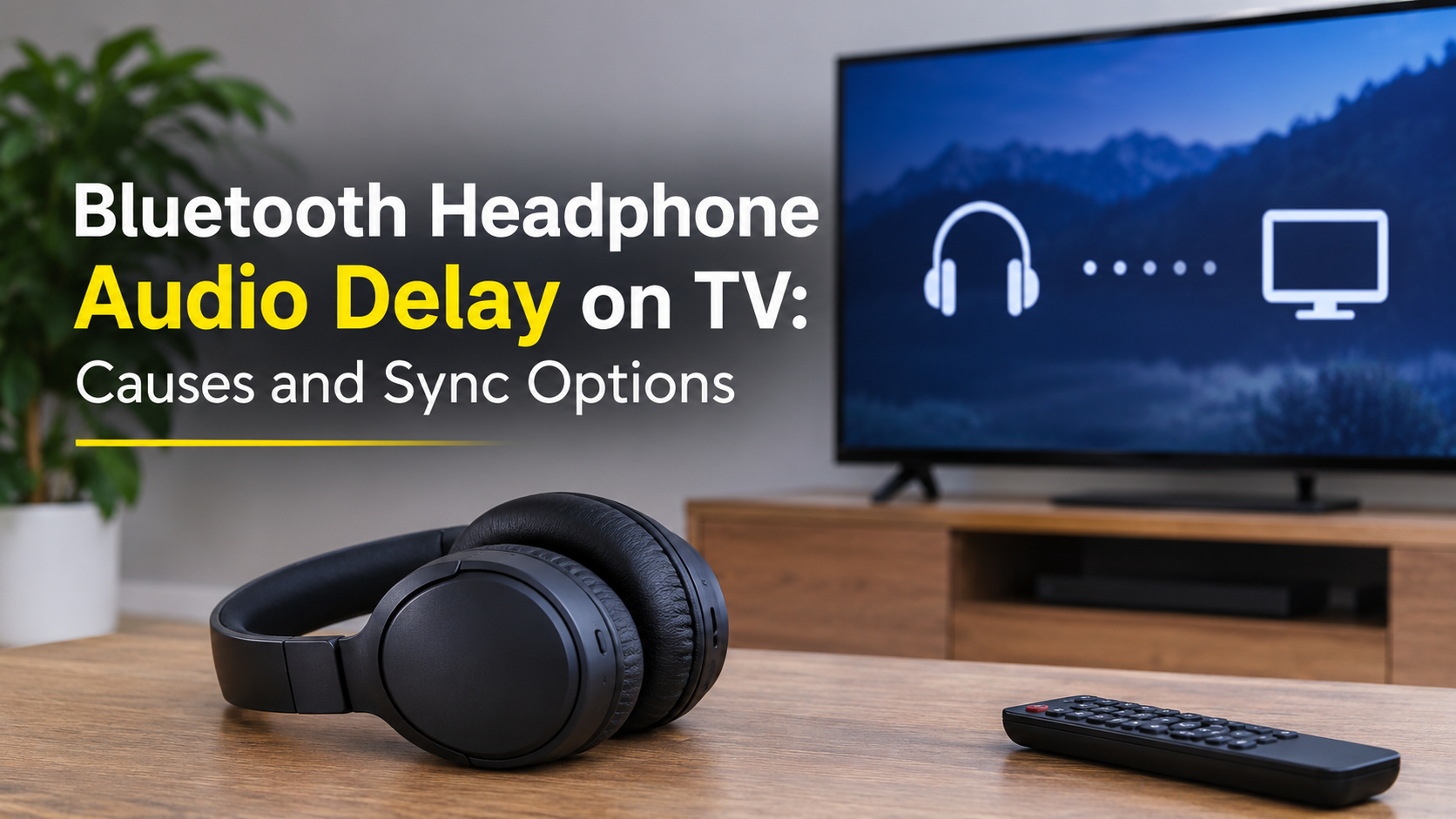
You settle in for a movie, put on your Bluetooth headphones, and something feels wrong. The actor’s lips move, and the voice arrives a moment later. Gunshots land after the flash. Dialogue trails the picture like a badly dubbed film. If this sounds familiar, you are dealing with Bluetooth headphones audio delay on TV, one of the most common complaints among people who watch TV late at night, share a room with a sleeping partner, or simply prefer private listening.
The good news is that this problem is well understood and almost always fixable. In this guide you will learn exactly why Bluetooth audio lags behind the picture, how much delay is normal, how codecs change the result, and a step-by-step set of fixes that run from free settings tweaks to hardware solutions that remove the delay almost completely.
What Is Bluetooth Audio Delay on a TV?
Audio delay, also called audio latency or lip-sync error, is the gap between the moment a TV shows an image and the moment you hear the matching sound. A TV with its own speakers plays sound almost instantly. When the sound is sent to wireless headphones, it must be processed, compressed, transmitted through the air, received, decompressed, and finally played. Each of those steps takes time, and the picture does not wait for it.
Most people start noticing something is off when the sound is more than about 100 to 125 milliseconds late. For reference, one frame of a 24 frames per second movie lasts roughly 42 milliseconds, so a delay of 200 milliseconds means the sound is about five frames behind the image. Research on audio and video synchronization, including broadcast guidelines, has found that people are more tolerant when sound is slightly late than when it arrives early, but a clear delay is irritating and tiring to watch for long.
Why Do Bluetooth Headphones Lag Behind the Picture?
Bluetooth was designed to carry music from a phone to a speaker, where a fraction of a second of lag does not matter. For music, the system favors stable, uninterrupted sound over speed. It uses buffers to absorb radio interference, and that safety margin is exactly what causes delay when you add video. The delay is not caused by a single fault. It is the sum of several stages, shown below.

1. TV audio processing
Many TVs apply surround effects, equalizers, dialogue enhancement, and volume leveling before the sound leaves the set. This processing takes time. Some TVs also hold back the audio on purpose, because the picture goes through upscaling and motion smoothing and the sound must stay in step with it.
2. Encoding
Bluetooth cannot carry uncompressed audio at a practical data rate, so the TV or transmitter compresses the sound using a codec. Encoding needs a short block of audio to work on, and that block adds delay.
3. The wireless link and buffering
Audio is sent in small packets over the 2.4 GHz band. Headphones store several packets in a buffer so that a lost or late packet does not cause a dropout. A larger buffer gives smoother sound but a longer delay. Crowded wireless environments force more retries, which increases the delay further.
4. Decoding
The headphones must unpack the compressed data back into sound. Decoding is fast, but it still adds a small amount of time.
5. Headphone processing
Active noise cancellation, equalizer presets, spatial audio, and other effects inside the headphones can add additional milliseconds on top of everything else.
Bluetooth Codecs and Latency: Why the Codec Matters Most
Of all the factors, the codec has the biggest influence on delay. A codec is the language that the sender and the headphones use to compress and decompress audio. Every Bluetooth audio device supports the basic one, called SBC, which is also the slowest. Better codecs exist, but both devices must support the same codec for it to be used. If your TV only supports SBC, your headphones will fall back to SBC no matter how advanced they are.

| Codec | Typical delay | Best for | What to know |
|---|---|---|---|
| SBC | 170 to 270 ms | Basic compatibility | Built into every Bluetooth device. Often the only codec on a TV. The delay is easy to notice. |
| AAC | 120 to 200 ms | Apple devices | Good sound quality, but the delay is still too high for comfortable video watching on many devices. |
| LDAC | 200 to 300 ms | High-quality music | Designed for sound quality, not speed. Not a good choice for TV. |
| aptX | 120 to 150 ms | General use | Better than SBC, but still on the edge of what you can notice. |
| aptX Adaptive | 50 to 80 ms | Video, gaming and music | Adjusts to conditions. Needs support on both the transmitter and the headphones. |
| aptX Low Latency | 32 to 40 ms | TV and movies | Excellent lip sync. Both the transmitter and the headphones must support it. |
| LE Audio (LC3) | 30 to 100 ms | The new generation | Efficient and flexible. Growing support in newer TVs, transmitters and headphones. |
The takeaway is simple. If your headphones and your TV agree on a low-latency codec, delay can drop from a quarter of a second to a barely noticeable level. If they only share SBC, you will need one of the fixes below.
How to Fix Bluetooth Headphones Audio Delay on TV
Work through these fixes in order. The first ones are free and take only a few minutes. Many people solve the problem before they reach the end of the list.

Fix 1: Use the lip-sync or audio delay setting on your TV
Open the sound menu of your TV and look for an option named Audio Delay, Lip Sync, AV Sync Adjustment, Audio Sync, or something similar. Many models let you delay the video, or speed up the audio, in steps of a few milliseconds. Increase or decrease the value while playing a video with clear speech until the voices match the lips. Some TVs have a separate sync control for Bluetooth output, so check the Bluetooth or wireless speaker submenu as well.
Fix 2: Change the audio output format to PCM
If your TV is set to send Dolby Digital, DTS or another bitstream format, the audio may need extra decoding that increases delay. In the sound output settings, switch the digital output to PCM or Stereo. This is also required for most simple Bluetooth transmitters, which cannot decode surround formats.
Fix 3: Turn off sound effects and enhancements
Disable virtual surround, dialogue enhancer, automatic volume leveling, and any “smart sound” modes. Each of them adds processing time. Also turn off noise cancellation or spatial audio inside your headphones as a test. If the delay shrinks, you know where the extra time is coming from.
Fix 4: Try Game Mode or a low-latency picture mode
Game Mode reduces the picture processing on your TV. Although it is meant for consoles, it brings the picture closer in time to the audio on some models, which can reduce how far apart the two seem. Keep in mind that Game Mode may lower picture quality slightly, so use it only if it helps.
Fix 5: Re-pair the headphones and restart both devices
Remove the headphones from the Bluetooth list on your TV, restart both the TV and the headphones, and pair again. A fresh connection can pick a better codec or clear a corrupted setting. If your headphones remember many devices, disconnect them from your phone and laptop while you are using the TV, since a second active connection can add buffering.
Fix 6: Reduce wireless interference and distance
Bluetooth shares the 2.4 GHz band with Wi-Fi routers, microwave ovens, cordless phones, and baby monitors. A weak or noisy signal forces the system to resend packets, which grows the buffer and the delay. Sit within a few meters of the TV with a clear line of sight. Move the router away from the TV if possible, and try switching your router’s Wi-Fi to the 5 GHz band.
Fix 7: Update the firmware
Both TV makers and headphone makers release firmware updates that improve Bluetooth stability and sometimes add support for newer codecs. Check for updates on your TV and in your headphones’ companion app. This takes only a few minutes and can make a real difference.
Fix 8: Check the streaming app, not just the TV
If the delay appears only in one app, the app may be the cause. Some streaming apps have their own audio settings, such as an audio track selection with surround sound enabled by default. Switch to a stereo track or a different audio language option to test. If the delay is only in one app, the TV settings are not the problem.
The Best Permanent Fix: A Low-Latency Bluetooth Transmitter
If your TV only supports SBC and the settings above are not enough, the most effective upgrade is a separate Bluetooth transmitter. This small device plugs into the optical, 3.5 mm headphone, or RCA output of your TV, and it sends the sound to your headphones using its own, better codec. Because it connects through a wired audio output, it can skip much of the TV’s internal Bluetooth stack.
When choosing a transmitter, look for these features:
- aptX Low Latency or aptX Adaptive support for the shortest delay. Remember that your headphones must support the same codec.
- Optical (TOSLINK) input for a clean digital connection, with 3.5 mm or RCA as backup options.
- Dual-link support if two people want to listen with separate headphones at the same time. Check the delay in that mode, since some models are slower when connected to two devices.
- Low-latency mode switch so you can choose between the lowest delay and the most stable connection.
- A built-in battery or USB power option that fits your TV setup.
Many transmitters are sold as a pair with matching headphones, which is the easiest way to guarantee that both ends support the same low-latency codec.
Other Ways to Watch TV Without Delay
RF wireless TV headphones
These headphones use a dedicated radio base station instead of Bluetooth. The base connects to your TV by cable, and the delay is typically very low, often close to unnoticeable. They are a favorite for older viewers and for anyone who is bothered by even a small amount of lag. The trade-off is that they usually work only with the included base and are not as versatile as Bluetooth models.
Wired headphones
If your TV has a headphone jack, a wired pair has no wireless delay at all. A long extension cable can make this practical for a living room, though it limits how freely you can move.
Soundbars and speakers with HDMI eARC
If the goal is better TV sound for the whole room, a soundbar connected through HDMI ARC or eARC handles audio sync automatically on most modern TVs. This is not an option for private listening, but it solves delay for shared viewing.
LE Audio and Auracast
Newer TVs and headphones are beginning to support Bluetooth LE Audio with the LC3 codec, together with Auracast broadcast audio. These technologies are designed to lower delay and allow one TV to share sound with many listeners. Support is still growing, so check that both your TV and your headphones list it before you buy.
What to Look For When Buying Headphones for TV
If you are shopping for new headphones or a transmitter, matching features matters more than price. Use this checklist.
- Low-latency codec support: aptX Low Latency, aptX Adaptive, or LE Audio on both ends.
- A dedicated TV or low-latency mode: some headphones include a mode that reduces buffering for video.
- Included transmitter or dongle: a bundled transmitter guarantees compatibility and usually offers the lowest delay.
- Wired connection option: a 3.5 mm cable or USB audio mode gives you a fallback with zero wireless delay.
- Battery life: movie nights are long. Look for at least 20 hours, and fast charging as a bonus.
- Comfort for long viewing: light weight, soft ear cushions, and a good fit matter more than extra features during a two-hour movie.
- Multipoint connection: useful if you switch between a TV transmitter and a phone, but test the delay on the TV connection.
Quick Troubleshooting Table
| Problem | Likely cause | What to try |
|---|---|---|
| Voices are always late | SBC codec with high latency | Use the TV lip-sync setting, or add a low-latency transmitter. |
| Delay changes from time to time | Wireless interference or distance | Move closer, reduce nearby 2.4 GHz devices, and re-pair. |
| Delay appears only in one app | App audio track or settings | Switch to a stereo audio track and update the app. |
| Delay appears after enabling surround | Extra audio processing | Set the output to PCM and turn off sound effects. |
| Delay is worse with two headphones | Dual-link buffering | Use one headphone, or choose a transmitter with low-latency dual mode. |
| Sound cuts out and then lags | Weak signal and large buffer | Remove obstacles, move the router, and update firmware. |
Frequently Asked Questions
Why is there a delay with Bluetooth headphones but not with the TV speakers?
TV speakers receive the sound directly and play it at once. Bluetooth headphones need the sound to be compressed, sent wirelessly, buffered, and decompressed, and each step adds a small delay.
How much Bluetooth audio delay is normal?
With the basic SBC codec, 150 to 250 milliseconds is common. Low-latency codecs such as aptX Low Latency can bring this down to around 40 milliseconds, which most people cannot notice.
Do expensive headphones have less delay?
Not necessarily. Price does not determine latency. What matters is whether the headphones and the TV or transmitter share a low-latency codec. A mid-priced headset with aptX Low Latency can beat a premium pair that only uses SBC or LDAC for TV viewing.
Can I fix the delay without buying anything?
Often, yes. Use the lip-sync setting on your TV, switch to PCM output, turn off sound effects, re-pair the headphones, and update the firmware. Many people solve the problem with these free steps alone.
Is the delay the same on all TVs?
No. Some TVs add very little delay, and some add a lot. Newer TVs are more likely to include better codecs and a built-in sync adjustment, while older models often have only SBC and limited settings.
Will Bluetooth 5.0 or 5.3 fix the delay?
Not by itself. A newer Bluetooth version improves range, power use, and reliability, but the delay is mostly determined by the codec and the buffering strategy. A device with a new Bluetooth version can still use SBC.
Final Thoughts
Bluetooth headphones audio delay on TV is frustrating, but it is not something you have to live with. Start with the free fixes: the lip-sync setting, PCM output, turning off sound effects, re-pairing, and updating firmware. If the delay is still there, the most reliable solution is to match your headphones with a low-latency codec, most easily done through a Bluetooth transmitter that supports aptX Low Latency or aptX Adaptive. And if you want the closest thing to zero delay, RF TV headphones or a wired connection will do the job.
Understand where the delay comes from, check what your TV and headphones can really do, and choose gear that matches. With the right setup, the voices and the picture finally line up, and you can enjoy your shows quietly, comfortably, and in perfect sync.