






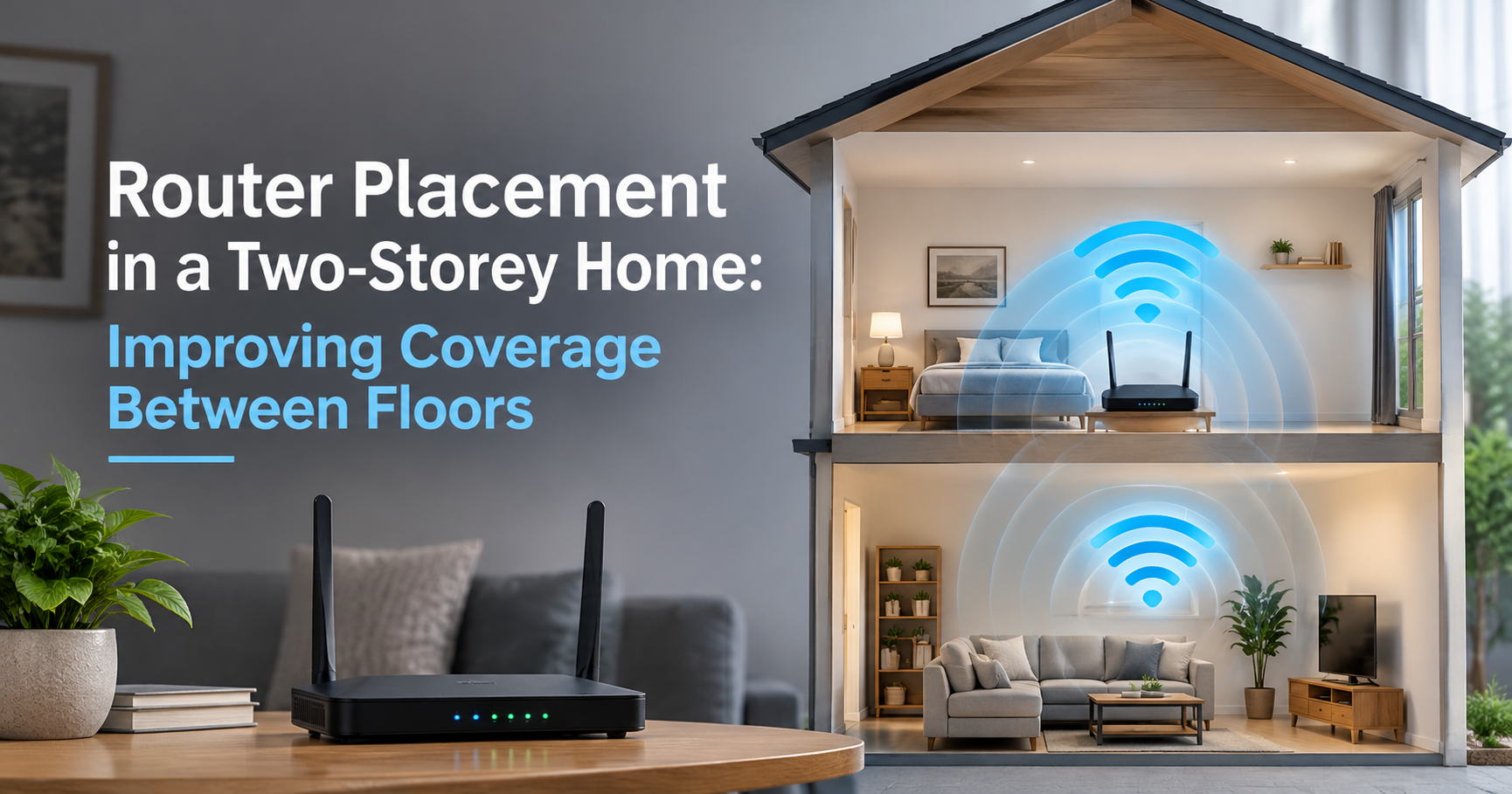
If your Wi-Fi is perfect in the living room but crawls in the upstairs bedroom, the router is probably not broken. Most of the time the problem is where it sits. Router placement for a two-story house matters far more than it does in a single-level apartment, because the signal has to travel through floors and ceilings as well as walls, and those are the toughest obstacles a Wi-Fi signal meets at home.
This guide explains how Wi-Fi actually spreads through a multi-floor home, where the best spot for your router usually is, which mistakes to avoid, and what to do when one router simply cannot cover everything. You will also find a simple testing routine so you can find the best location with real numbers instead of guesswork.
Quick answer
Put the router in a central location, raised off the floor, in the open, and as close as practical to where you use the most devices. If one floor is still weak, add a second access point or mesh node connected by an Ethernet cable rather than moving the router back and forth.
Why a Two-Story House Is Harder to Cover
A single router is a small radio transmitter. Its signal weakens with distance and loses more strength every time it passes through something solid. A two-story home adds several problems at once:
- Floors and ceilings are dense. They often contain wooden joists, subflooring, insulation, and sometimes concrete or metal decking, all of which absorb more signal than a typical interior wall.
- Hidden obstacles. Heating and cooling ducts, water pipes, electrical wiring, and metal brackets inside the floor cavity can reflect or block the signal.
- The router is usually in the wrong place. Internet service often enters the house in a basement, garage, utility closet, or a corner of the ground floor, so the router ends up wherever the cable happens to arrive.
- More area to cover. Even if the floor plan is modest, you are covering a three-dimensional space, not a flat one.
- Different needs on each floor. A home office upstairs, a streaming TV downstairs, and smart devices everywhere can all compete for the same connection.
How Router Signal Actually Spreads
Most people imagine Wi-Fi spreading out evenly like a ball. In reality, a router with standard external antennas radiates in a shape closer to a doughnut. The antennas stand upright, and the signal spreads outward sideways from them. Directly above and below the router, where the hole of the doughnut is, the signal is weakest.
This is why a router sitting on the ground floor can give excellent speed in the next room but a surprisingly poor signal in the bedroom straight above it. It is also why adjusting the antennas can help.
Antenna tips
- If your router has two or more adjustable antennas, keep one upright and tilt another to roughly 45 degrees or lay it horizontal. This gives you a mix of sideways and up-and-down coverage.
- If your router has internal antennas and no adjustable parts, rotating the whole unit rarely helps. Focus on its location instead.
- Avoid pointing every antenna in exactly the same direction if you need to reach more than one floor.
The Golden Rule: Central, Elevated, and Open
Three simple ideas solve most placement problems.
1. Central
Think of the router as a lamp. A lamp in the corner leaves the far side of the room dark, while a lamp in the middle lights everything reasonably well. Try to put the router near the middle of the area you want covered, both left to right and, as far as possible, between floors.
2. Elevated
Floor level is a poor choice. Furniture, people, and the floor itself get in the way. A shelf, the top of a bookcase, or a wall mount at about chest to head height gives the signal a cleaner path. Elevation also helps a little with reaching the floor above.
3. Open
Do not hide the router in a cabinet, behind the TV, under a desk, or inside a metal enclosure. Even a closed wooden cabinet reduces signal, and electronics around it can add interference. Give it breathing room, ideally a foot or more of clear space on all sides.
Common mistakeRouter stuck in a ground-floor corner
Problem: Corner placement limits signal coverage, especially on the upper floor.
|
Better placementCentral, elevated, in the open
Solution: A central, raised router position helps distribute Wi-Fi signals across both floors.
|
Which Floor Should the Router Go On?
There is no single answer, but a few rules help you decide.
- Put it on the floor where the most demanding devices are. Work computers, game consoles, and streaming TVs benefit most from a strong, stable signal.
- If your usage is split evenly, choose a spot near the stairs or in a hallway close to the middle of the house. Stairwells are open spaces and let signal travel between floors more easily than solid ceilings do.
- Avoid the basement unless that is the only place the internet line enters. Below-ground rooms are surrounded by concrete and earth, which badly weakens the signal for the rest of the house.
- Avoid the attic or loft. It is usually the farthest point from everything and can be extremely hot, which is bad for electronics.
Here is a quick reference for common layouts:
| Home layout | Best router position | Helpful note |
|---|---|---|
| Open-plan ground floor, bedrooms upstairs | Central on the ground floor on a shelf, near the stairs | Tilt one antenna to help reach the bedrooms |
| Home office upstairs, living areas downstairs | Upstairs hallway or office, then add a second access point downstairs if needed | Prioritize the floor with the video calls and work devices |
| Internet enters in the basement or garage | Run an Ethernet cable from the modem to a central spot on the main floor | A long cable is better than a bad location |
| Long, narrow house | Middle of the house rather than one end | Consider a mesh node at each end if it is very long |
| Concrete or brick construction | Closer to the busiest rooms, with one access point per floor | Dense materials block signal quickly, so a single router rarely covers everything |
What Blocks and Weakens Wi-Fi in a Home
Not all obstacles are equal. A glass window barely matters, while a concrete floor or a mirror can cut the signal dramatically. The chart below shows typical approximate losses. The exact numbers vary with thickness and construction, but the pattern is reliable: the denser the material, the weaker the signal that gets through.
Everyday sources of interference to keep away from
- Microwave ovens. They can disrupt the 2.4 GHz band while running.
- Cordless phones, baby monitors, and Bluetooth speakers. Many share the 2.4 GHz band.
- Large metal objects. Refrigerators, filing cabinets, metal shelving, and radiators reflect and absorb signal.
- Mirrors and foil-backed insulation. They can bounce the signal in unwanted directions.
- Aquariums and large water containers. Water absorbs Wi-Fi signal strongly.
- Thick stone, brick, or concrete walls. Position the router so the signal crosses as few of them as possible.
Choosing the Right Wi-Fi Band for Each Floor
Modern routers broadcast on several frequency bands, and each behaves differently when passing through floors and walls.
- 2.4 GHz travels farther and passes through obstacles better, but it is slower and more crowded. It is useful for upstairs devices that are far from the router, such as smart plugs, cameras, and speakers.
- 5 GHz offers much higher speeds with shorter range. It is ideal for laptops, phones, and streaming devices that are in the same room or the next room.
- 6 GHz (available on Wi-Fi 6E and Wi-Fi 7 equipment) is the fastest and least crowded, but it has the shortest range and struggles most with floors and walls.
In a two-story house, this means a distant upstairs room may connect better on 2.4 GHz or 5 GHz than on 6 GHz, even though 6 GHz looks better on paper. Let your devices choose automatically in most cases, and only separate the bands if a specific device behaves badly.
A Simple Way to Find the Best Spot
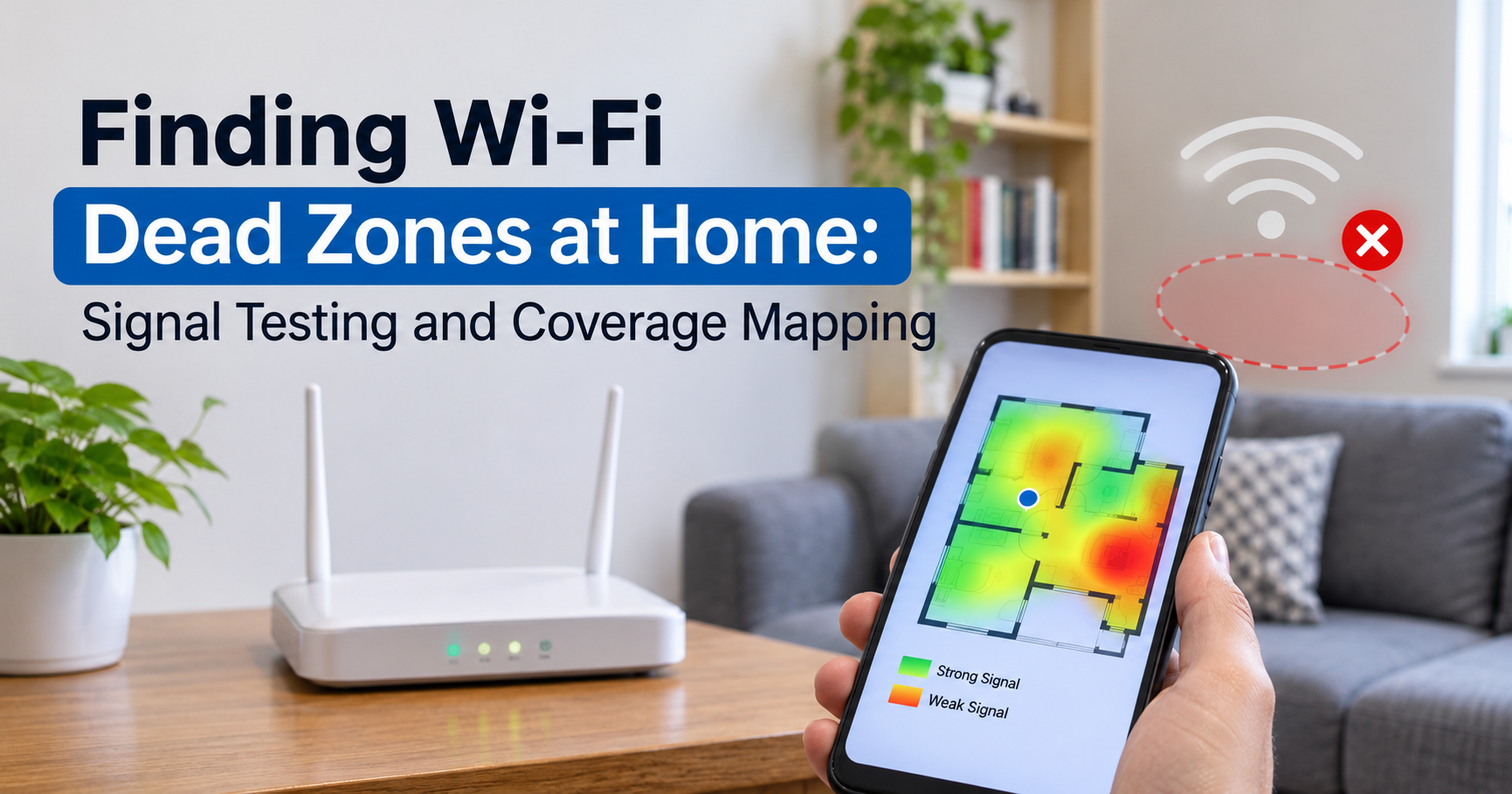
Instead of guessing, test. This takes about half an hour and often reveals a much better position than the one you started with.
- Draw a quick sketch of both floors and mark the places where you actually use the internet: desks, sofas, beds, TVs, and the room you care about most.
- Pick three or four candidate spots for the router, such as the current position, a central ground-floor shelf, and a hallway near the stairs.
- Install a free Wi-Fi analyzer or signal-strength app on your phone and run a speed test in each important room with the router in the first spot. Note the signal strength and speed.
- Move the router to the next spot, restart it if needed, and repeat the same tests in the same rooms.
- Compare the results. Look for the position that gives acceptable speed in every important room, not just the highest speed in one place. As a rough guide, a signal around minus 65 dBm or stronger is good for streaming and video calls.
- If the best position is hard to reach by cable, consider running an Ethernet cable or using a different connection method, as described below.
Cable tip
If your modem is in an awkward corner, you do not have to keep the router next to it. Connect the modem to the router with a long Ethernet cable and place the router in the best spot. Even a cable run of several meters is much better than a poor location.
When One Router Is Not Enough
Sometimes the layout, building materials, or house size make it impossible for one router to cover every room. That is not a failure of your router. It is a limit of physics, and the solution is to add coverage rather than to keep moving the router.
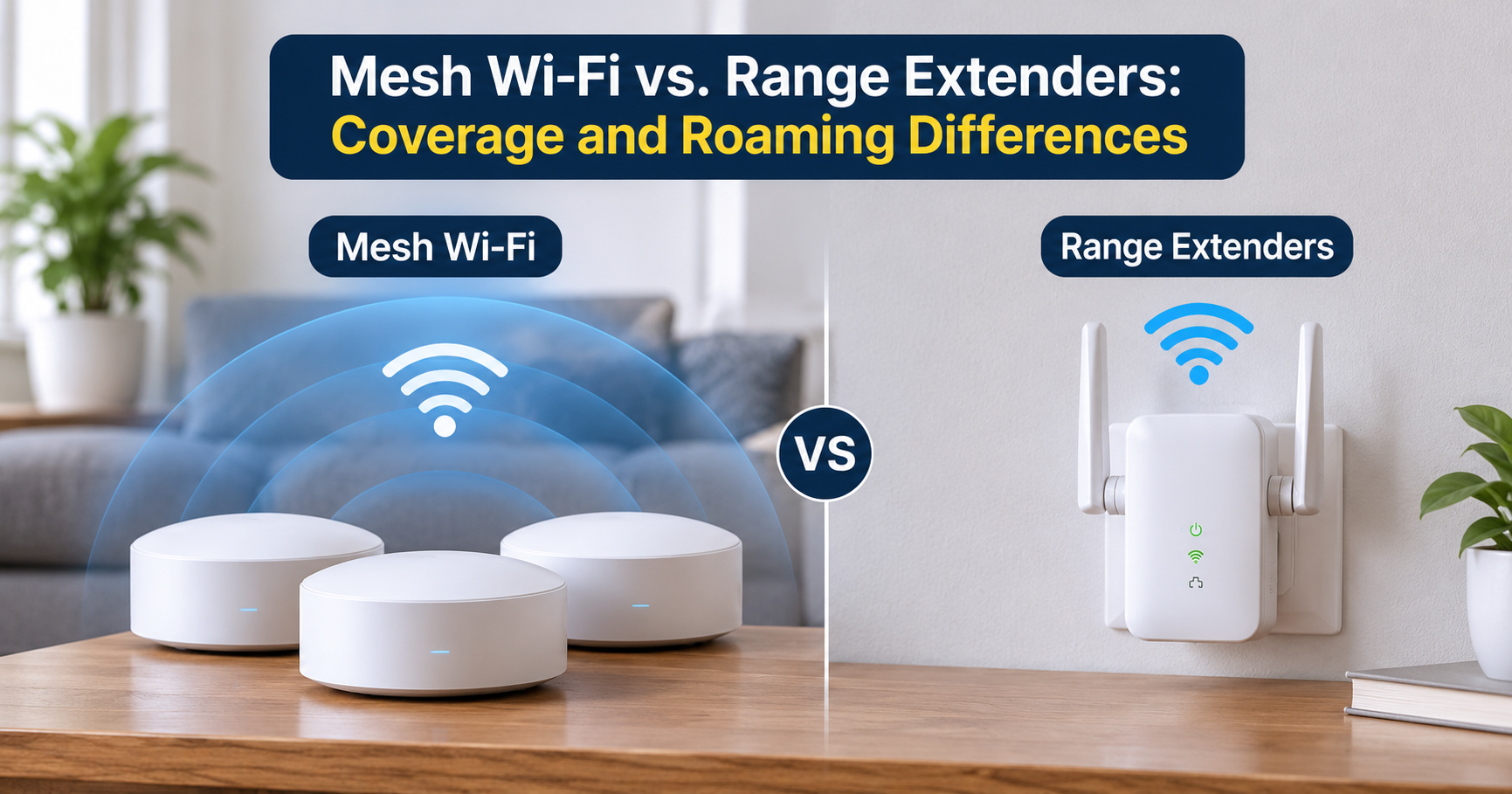
Option 1: A mesh Wi-Fi system
A mesh system uses a main unit plus one or more satellite nodes that work together under a single network name. It is the easiest upgrade for most families, because setup is usually handled through a phone app.
- Place the main unit near the modem or in the best central spot.
- Place the second node roughly halfway between the router and the weak area, not inside the dead zone itself. A node needs a strong signal to pass on a strong signal.
- For a two-story house, one node upstairs is often enough, placed near the top of the stairs or in a central upstairs hallway.
- Systems with a dedicated wireless link between nodes, often called tri-band, handle multi-floor homes more smoothly than basic dual-band kits.
Option 2: Wired access points
If you can run an Ethernet cable between floors, a wired access point is usually the most reliable and fastest solution. Many access points mount on the ceiling, which is a good position for spreading signal evenly through a room. A wired connection between the router and the second unit, known as a wired backhaul, avoids the speed loss that happens when wireless nodes have to relay signal to each other.
Option 3: Other ways to connect floors
- MoCA adapters use the coaxial cable outlets already in many homes to carry network data between rooms and floors. They can perform very well if your outlets are connected.
- Powerline adapters send data through electrical wiring. They are convenient, but performance depends heavily on the age and quality of your home wiring, so treat them as a backup option.
- A simple Wi-Fi range extender is the cheapest option, but it usually halves available speed and can create a confusing second network. It is best for light use only.
As a general ranking for multi-floor homes, wired access points come first, then mesh with a wired backhaul, then mesh with a wireless backhaul, and finally basic range extenders.
Settings That Support Good Placement
Once the router is in a good position, a few settings can improve the results further.
- Update the firmware. Manufacturers regularly improve stability, security, and range handling.
- Choose less crowded channels. In apartments or tightly packed neighborhoods, automatic channel selection or a manual channel with fewer neighbors can reduce interference.
- Use a modern Wi-Fi standard. Wi-Fi 6 and newer equipment handles many devices at once better than older standards, which matters in a busy household.
- Reduce unnecessary load. Pause large downloads or cloud backups during video calls, and check whether some devices are quietly using a lot of bandwidth.
- Restart occasionally. A scheduled or occasional reboot can clear minor glitches, especially on older routers.
- Keep it cool. A router packed into a warm enclosed space can slow down and fail early.
Common Router Placement Mistakes to Avoid
- Leaving the router wherever the installer left it, such as a basement corner or a closet.
- Placing it on the floor, behind a TV, or inside a cabinet.
- Putting it next to a microwave, a fish tank, or a large mirror.
- Mounting it in the attic or the farthest corner of the house.
- Placing a mesh node inside the dead zone instead of halfway to it.
- Judging a location by one speed test in one room instead of testing every important area.
- Buying a more expensive router before trying a better position and a few simple adjustments.
What to Look for When Upgrading Your Equipment
If testing shows that placement alone cannot solve the problem, upgrading may make sense. For a two-story house, focus on these features rather than on headline speed numbers:
- Support for Wi-Fi 6 or newer, for better handling of many devices.
- Ethernet backhaul support on mesh systems, so you can connect nodes by cable later.
- Multiple Ethernet ports on at least the main unit for wired devices such as a desktop or console.
- Tri-band design if you plan to rely on wireless connections between mesh nodes.
- Adjustable external antennas if you want to fine-tune coverage between floors on a single router.
- Ceiling-mount capability for access points if you plan to wire your home.
- Simple app control and regular firmware updates, so the system is easy to maintain.
Frequently Asked Questions
Is it better to put the router upstairs or downstairs?
Choose the floor where your most important devices are, and aim for a spot close to the stairs or the middle of the house. If both floors matter equally and one router is not enough, use a second access point or mesh node instead of trying to find one perfect spot.
Should I point the antennas up or sideways?
Keep at least one antenna vertical for sideways coverage on the same floor and tilt another to reach floors above or below. If the router has no adjustable antennas, concentrate on its location instead.
Can I put the router in the basement?
You can, but it is rarely ideal. Basements are surrounded by dense materials, and the signal has to pass through a full floor to reach the upper level. If the internet line enters there, run an Ethernet cable to a better location on the main floor.
Do range extenders work in two-story homes?
They can help in a single weak spot, but they usually cut speed and can be unreliable. A mesh system or a wired access point is a better long-term fix.
How high should I mount the router?
Roughly chest to head height, or on a high shelf, is a good starting point. Avoid placing it on the floor or inside furniture.
Why is my Wi-Fi fast near the router but terrible upstairs?
The floor and ceiling between the two levels absorb a lot of signal, and the directly overhead area is also where a standard router radiates least. Moving the router to a more central position, adjusting the antennas, or adding a second unit upstairs normally fixes it.
How many routers or nodes does a two-story house need?
Many average-sized homes are fine with one well-placed router. Larger homes, or homes with concrete or brick construction, often need one main router plus one access point or mesh node per additional floor.
Final Thoughts
Good Wi-Fi in a two-story house is mostly about smart positioning. Start by moving the router to a central, raised, open location, adjust the antennas, and test the results in the rooms that matter most. If one device cannot cover the whole house, add a second access point or mesh node, ideally connected by Ethernet, and place it halfway to the weak area.
Follow these steps in order, and you can often get strong, reliable internet on both floors without replacing your router at all.