







Open any monitoring overlay while gaming, rendering or running an AI model and you will see two numbers that look related: VRAM usage and GPU utilization. Many people treat them as one thing, so they panic when VRAM looks full, or assume something is wrong when utilization is low. In reality, they measure two very different aspects of your graphics card.
This guide explains what each metric means, how they differ, how to read them together, and what to do when the numbers point to a problem. By the end you will also know how to weigh VRAM against raw GPU power when choosing a graphics card.
Quick answer
VRAM usage tells you how much of the card’s memory is occupied. GPU utilization tells you how much of the time the GPU is busy working. One is about capacity, the other is about activity. A card can have full VRAM with low utilization, or high utilization with plenty of free VRAM.
What Is VRAM?
VRAM (video random access memory) is the dedicated, high-speed memory built onto your graphics card. Modern cards use types such as GDDR6, GDDR6X or GDDR7, while some professional accelerators use HBM. The GPU keeps the data it needs right now in this memory so it can reach it far faster than it could reach your system RAM.
Typical things stored in VRAM include:
- Textures that wrap the surfaces of game objects
- Frame buffers holding the image being drawn and the next frames in line
- Geometry and shader data used to build each scene
- Ray tracing structures when those effects are turned on
- Model weights and working data in AI, video editing and 3D rendering
VRAM is measured in gigabytes. Its size is fixed by the card you bought. Think of it as the size of a workbench: a bigger bench holds more material at once, but it does not make the worker faster.
What Is GPU Utilization?
GPU utilization is a percentage that shows how busy the graphics processor is. Strictly speaking, most tools report the share of a sampling period in which the GPU was executing work. It does not tell you how many of the thousands of cores were active at that moment, and it does not show clock speed or power draw.
That is why a card can read 99% utilization while a lighter workload is not using the chip to its fullest, and why a card can read 60% yet still be the real limit. Utilization is a useful signal, but it is a coarse one.
VRAM Usage vs GPU Utilization: Key Differences
| Feature | VRAM usage | GPU utilization |
|---|---|---|
| What it measures | How much video memory is occupied | How much of the time the GPU is busy |
| Unit | Gigabytes or percent of total memory | Percent |
| Limited by | The memory size of the card | The processing power of the GPU |
| Typical change | Rises when you raise textures, resolution or model size | Rises when work per frame increases or FPS is uncapped |
| What happens at the limit | Stutter, texture pop-in or out-of-memory errors | Frame rate cannot rise further without lowering settings |
| Main fix | Lower texture quality and resolution, free memory, get more VRAM | Lower demanding settings, use upscaling, get a faster GPU |
How to Check VRAM Usage and GPU Utilization
On Windows
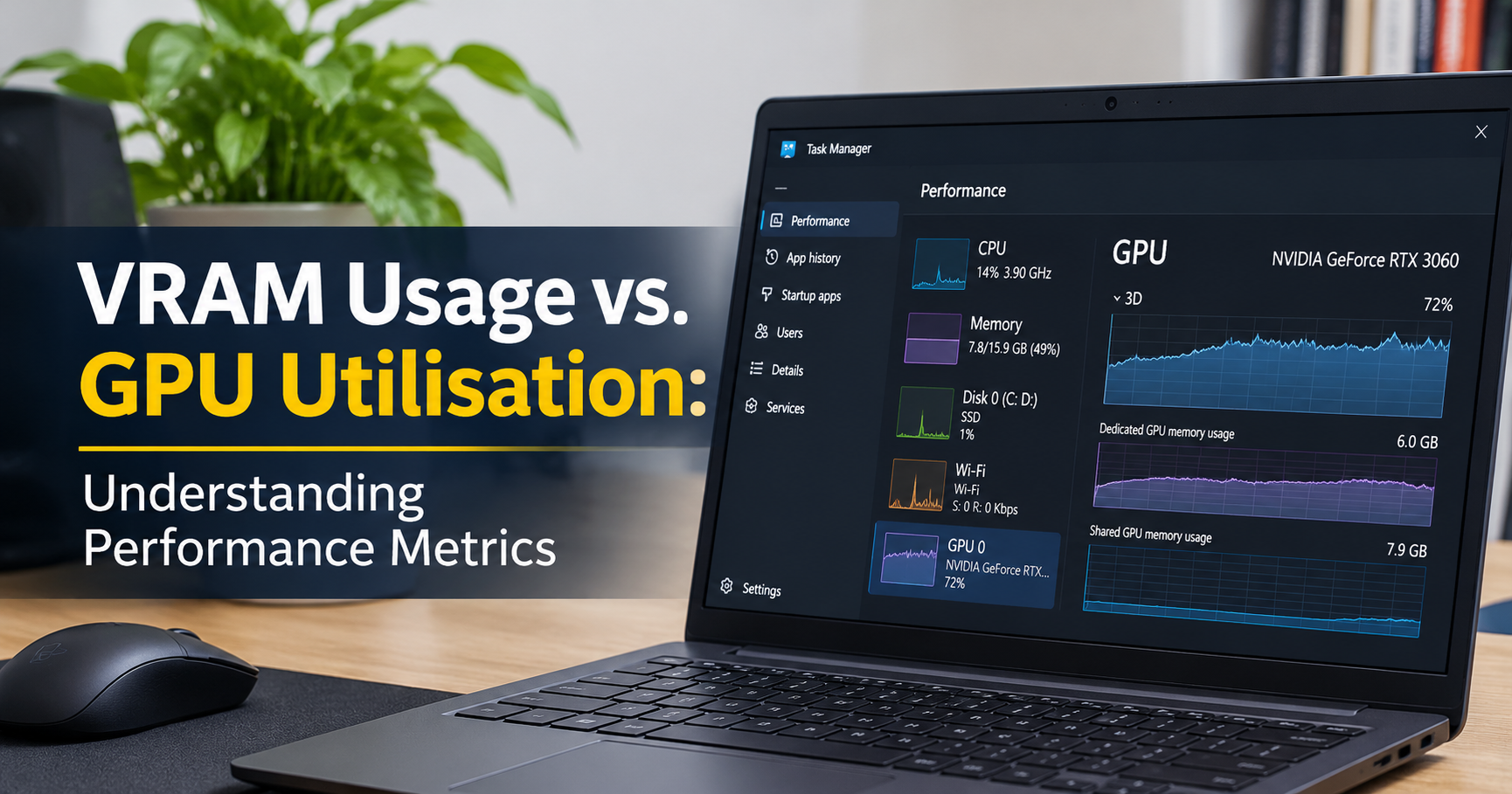
- Task Manager: open the Performance tab and choose your GPU. You will see utilization, Dedicated GPU memory (your real VRAM) and Shared GPU memory (system RAM the GPU can borrow). The utilization graph shows one engine at a time, such as 3D, Compute or Video Encode, which you can switch from the drop-down above the graph.
- Game bar and driver overlays: NVIDIA and AMD software both include performance overlays that show utilization, memory use, temperature and clocks while you play.
- Third-party monitors: hardware monitoring tools can log every sensor to a file, which is ideal for spotting patterns over a long session.
On NVIDIA Cards in a Terminal
The nvidia-smi command prints utilization, memory used, memory total, temperature and power draw. Running it repeatedly lets you watch a training job or render live.
On Linux
Besides the vendor command line tools, community monitors for both NVIDIA and AMD cards show per-process GPU and memory use in a terminal window.
Allocated is not the same as needed
Many games and applications reserve a large share of the available VRAM on purpose, because unused memory is wasted memory. Seeing 90% VRAM usage on a 16 GB card does not automatically mean the game needs that much. Problems appear when the real demand exceeds what the card has, not simply when the number looks high.
Reading the Two Numbers Together
The real value comes from looking at both metrics at once. The four combinations below cover most situations you will meet.
1. High VRAM and High Utilization
This is what a fully loaded system looks like during 4K gaming, heavy rendering or AI training. It is normal and often desirable, since you are getting what you paid for. Just make sure VRAM is not pinned at its absolute limit, or you may see stutter.
2. Low VRAM and High Utilization
The GPU is working hard but memory demand is small. This is common in esports titles at low resolution and high frame rates. The processing power of the card is the limit here, not its memory.
3. High VRAM and Low Utilization
This confuses many people. Memory is full, yet the GPU is idle for large parts of each second. Likely causes include a CPU bottleneck, a loading screen, data spilling into system RAM, or an AI model that is loaded but not currently running a job.
4. Low VRAM and Low Utilization
A light workload such as browsing, video playback or a lightweight game. A frame rate cap or Vsync can also keep utilization low on purpose. This is rarely a problem.
What Happens When VRAM Runs Out?
When a scene needs more memory than the card holds, the driver moves some data into system RAM and fetches it back over the PCIe connection. That path is much slower than the card’s own memory, so the GPU has to wait. You may notice:
- Sudden stutter or frame time spikes even when average FPS looks fine
- Textures that stay blurry or load in late
- Lower utilization than expected, because the GPU is waiting for data
- Crashes or out-of-memory errors in creative and AI software
This explains the situation where VRAM looks full and utilization drops at the same time. The GPU is not lazy; it is waiting for data that does not fit.
What Does High GPU Utilization Mean?
High utilization usually means the GPU is the part of your system doing the most work, which is exactly what you want in a game. It only becomes a concern if it comes with symptoms such as high temperatures, loud fans, falling clock speeds or crashes. A card running at 99% utilization with stable clocks and temperatures is simply being used well.
Low utilization is the one to investigate when performance is poor. If your frame rate is low and utilization is far below 90%, something else is holding the GPU back.
Common Causes of Low GPU Utilization
- CPU bottleneck: the processor cannot prepare frames fast enough, so the GPU waits. One CPU thread at 100% is a typical sign.
- Frame rate cap or Vsync: the limiter intentionally stops the GPU from working harder.
- Resolution too low for the GPU: at lower resolutions the CPU becomes the limit more often.
- Slow system RAM or storage: data arrives too slowly to keep the GPU fed.
- Outdated or faulty drivers: they can cause poor scheduling and odd readings.
- Power or thermal limits: the card lowers its clocks, so it does less work per second even though the busy percentage looks normal.
- Poorly optimized software: some games and apps simply do not scale well across the GPU.
How to Reduce VRAM Usage
- Lower texture quality first. It is the setting that saves the most memory with the least visual loss.
- Reduce the resolution or use upscaling so frames are rendered at a lower internal resolution.
- Turn down ray tracing and very high shadow settings, which both need extra memory.
- Close background programs that use the GPU, such as browsers with hardware acceleration, overlays and live wallpapers.
- Use smaller or compressed models in AI work, for example lower precision or quantized versions.
- Restart the application after long sessions, since some software does not release memory properly.
VRAM and GPU Utilization in Different Workloads
Gaming
Modern games reward balance. As a general guide, 8 GB of VRAM is often workable at 1080p, 12 GB or more is more comfortable at 1440p with high textures, and 16 GB or more helps at 4K or with heavy ray tracing. These numbers vary a lot between titles, so treat them as a starting point and not a rule.
AI and Machine Learning
Here VRAM often decides whether a task runs at all. A model with 7 billion parameters needs about 14 GB just for its weights at 16-bit precision, or roughly 3.5 to 4 GB at 4-bit precision, before adding working memory. Once the model fits, GPU utilization decides how fast it runs.
Video Editing and 3D Rendering
High-resolution footage, large timelines, heavy effects and complex scenes all consume VRAM. If memory is too small, software may fall back to the CPU or fail with an error. Higher utilization then shortens render times.
Integrated Graphics
Integrated GPUs do not have dedicated VRAM. They borrow a portion of system RAM, so the speed and amount of that RAM directly affect graphics performance.
VRAM vs GPU Power: Which Matters More When Buying a Card?
Neither one matters alone. A card with fast cores but too little memory will stutter in demanding scenes, and a card with lots of memory but a weak processor will not reach high frame rates. Match both to what you do most.
| Your main use | Prioritize | Why |
|---|---|---|
| Competitive esports at high FPS | GPU speed and a strong CPU | Memory demand is low, frame rate is the goal |
| 1440p or 4K gaming with high textures | A balance, leaning toward more VRAM | Textures and resolution raise memory demand quickly |
| Running local AI models | VRAM capacity first | The model has to fit in memory before speed matters |
| Video editing and 3D rendering | VRAM plus GPU speed | Large projects need memory, and rendering needs power |
| Everyday use and light gaming | Neither extreme | Mid-range cards or integrated graphics are enough |
Also think about the future. Games and creative software tend to ask for more memory over time, so a little extra VRAM can extend the useful life of a card.
Common Myths
- “Full VRAM means something is wrong.” Not necessarily. Software often fills available memory on purpose.
- “100% utilization means the GPU is maxed out in every way.” It only means the GPU was busy, not that every core was used efficiently.
- “More VRAM always gives more FPS.” Extra memory only helps when the workload actually needs it.
- “Low utilization means a bad GPU.” It more often points to a CPU limit, a frame cap or an app that does not scale.
Frequently Asked Questions
Is high VRAM usage bad?
No, not by itself. It becomes a problem only when the real memory demand is higher than the card’s capacity, which shows up as stutter, blurry textures or errors.
Is 100% GPU utilization bad?
No. During gaming or rendering it means the GPU is doing its job. Watch temperatures and clock speeds to make sure it is running stably.
Why is my GPU utilization low but my game still lags?
The most common reasons are a CPU bottleneck, VRAM overflow, a frame cap, slow memory or storage, or a driver issue. Use the decision path above to narrow it down.
Can I add more VRAM to my graphics card?
In practice, no. VRAM is built into the card, so the only real upgrade is a different card. On integrated graphics, adding or speeding up system RAM can help.
Does using more VRAM make the GPU run hotter?
Memory activity adds some heat, but heat is mainly driven by how hard the GPU core works. High utilization is a better indicator of temperature than the amount of VRAM used.
Which number should I watch first?
Watch both, and start with the symptom. If you see stutter or errors, check VRAM. If you see low FPS, check utilization and the CPU.
Final Thoughts
VRAM usage and GPU utilization answer two different questions. VRAM tells you whether your data fits. Utilization tells you whether the GPU is the part setting the pace. When you read them together, you can tell a memory limit from a processing limit and from a CPU limit, and you can fix the right thing instead of guessing.
Whether you are tuning game settings, running AI models or choosing your next graphics card, remember the workbench analogy: a bigger bench holds more, a busier worker finishes faster, and the best results come when both are matched to the job.