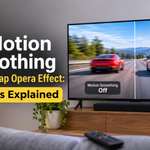




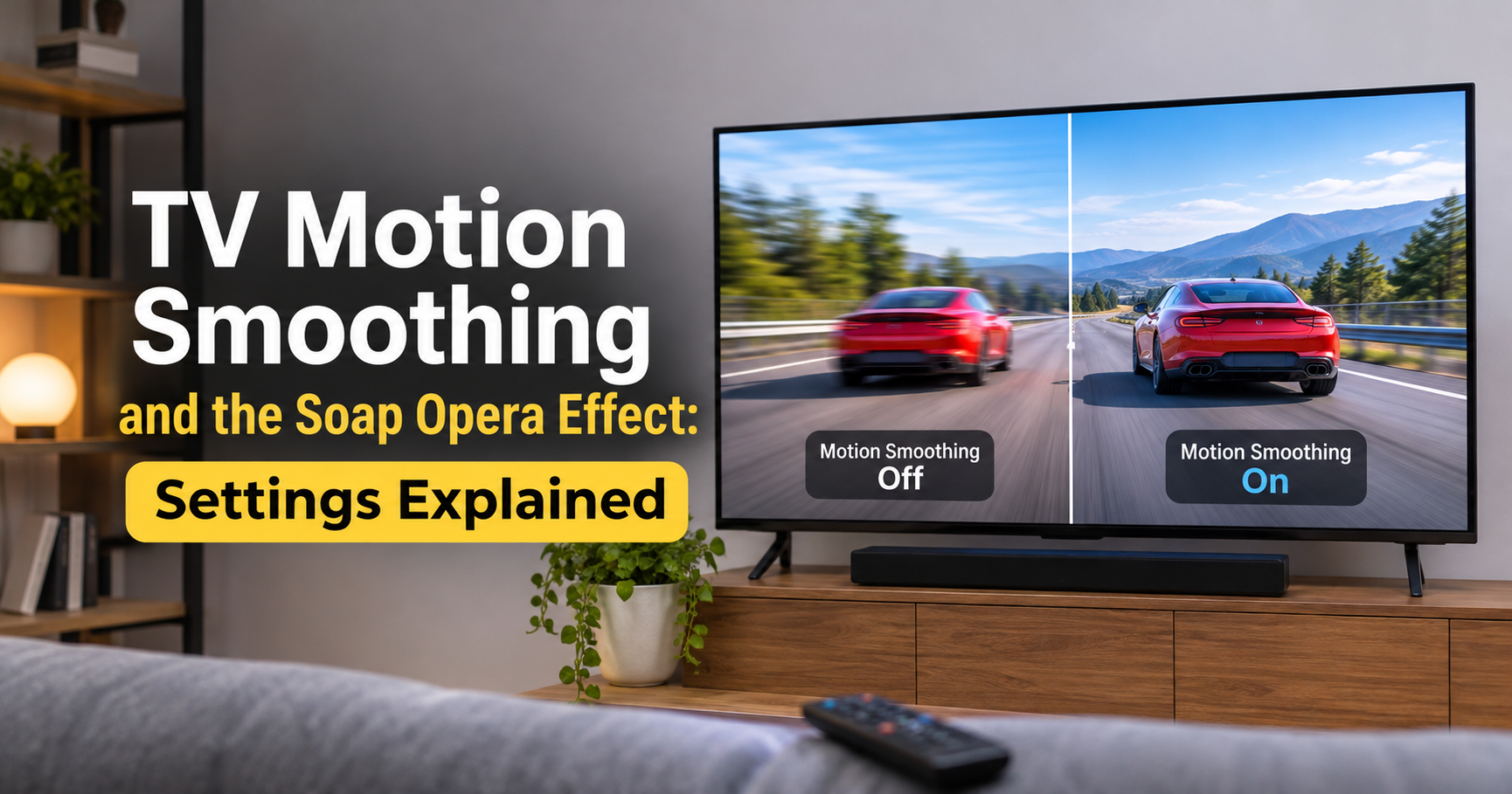
Have you ever put on a blockbuster movie and felt it suddenly looked like a cheap daytime TV show? Everything moves too fast, too smooth and strangely unreal. That odd look is called the soap opera effect, and it is caused by a TV feature known as motion smoothing. This guide explains what it is, why TV makers turn it on by default, and exactly how to switch it off, so you can enjoy movies the way filmmakers meant them to be seen.
What Is TV Motion Smoothing?
Motion smoothing, also called frame interpolation, is a picture-processing feature that analyzes two neighboring frames of video and creates a brand-new frame to place between them. The result is more frames shown every second, which makes motion appear extra fluid and reduces blur on fast-moving objects.
Most modern TVs refresh at 60Hz or 120Hz, which means they can display 60 or 120 images each second. Movies, however, are traditionally shot at 24 frames per second. To fill the gap, the TV has to either repeat frames or invent new ones. Motion smoothing chooses to invent them.
What Is the Soap Opera Effect?
The soap opera effect is the unnatural, hyper-smooth look that motion smoothing gives to film and scripted TV. The name comes from old soap operas, which were recorded on video at a higher frame rate than movies. Viewers have spent decades associating 24 fps with cinema and higher frame rates with live TV, news and low-budget shows. When your TV pushes a movie above 24 fps, your brain notices the mismatch right away.
People often describe the effect like this:
- Actors seem to move too quickly or glide across the screen.
- Sets look like cheap stage props.
- The cinematic mood and depth feel flat.
- Faint glitches or halos appear around moving objects, known as artifacts.
Why Do TV Manufacturers Enable It by Default?
Motion smoothing looks impressive on a showroom floor, where TVs are often playing sports or demo footage. It also helps hide the blur that LCD panels can produce during fast action. Because of that, brands ship their TVs with the feature on to make them stand out in stores. Unfortunately, it is rarely the best choice for movies and dramas at home.
Motion Smoothing Names by Brand
Every manufacturer uses its own marketing term, which makes the setting hard to find. Here are the most common names:
| TV Brand | Motion Smoothing Name |
|---|---|
| Samsung | Auto Motion Plus / Picture Clarity |
| LG | TruMotion |
| Sony | Motionflow |
| TCL | Action Smoothing |
| Hisense | Motion Enhancement / Smooth Motion |
| Vizio | Smooth Motion Effect |
| Panasonic | Intelligent Frame Creation |
| Philips | Perfect Natural Motion |
How to Turn Off Motion Smoothing
Menu names change between models and software versions, so use these paths as a general guide. If your menu looks different, search the Picture or Advanced Picture section for the terms in the table above.
- Samsung: Settings > All Settings > Picture > Expert Settings > Picture Clarity Settings, then switch it off or set Judder and Blur Reduction to 0.
- LG: Settings > Picture > Picture Mode Settings > Picture Options > TruMotion, then choose Off.
- Sony: Settings > Picture > Motion > Motionflow, then choose Off.
- TCL (Roku or Google TV): Settings > TV Picture Settings > Advanced Picture Settings > Action Smoothing, then choose Off.
- Vizio: Menu > Picture > More Picture > Smooth Motion Effect, then choose Off.
- Hisense: Settings > Picture > Advanced or Motion Settings, then turn off Motion Enhancement.
The Easy Shortcut: Filmmaker Mode
Many newer TVs include Filmmaker Mode, a one-touch picture preset created with the film industry. It switches off motion smoothing, keeps the original frame rate and uses accurate colors. If you want a quick fix without digging through menus, choose Filmmaker Mode or the Cinema or Movie picture mode.
When Motion Smoothing Can Actually Help
Motion smoothing is not always bad. A low or medium setting can make live sports and fast-panning nature documentaries easier to follow, especially on TVs with slower LCD panels. Many models let you adjust two separate sliders, judder reduction and blur reduction, so you can keep a small amount of smoothing without the full soap opera look.
Motion Smoothing and Gaming
Gamers should almost always turn motion smoothing off. The extra processing adds input lag, which means a delay between pressing a button and seeing the result on screen. Switching your TV to Game Mode disables most heavy processing automatically and gives you the quickest response.
What to Look for When Buying a New TV
If you are shopping for a new TV and want full control over motion, check for these features before you buy:
- Filmmaker Mode: gives you accurate movie playback with one press.
- Adjustable motion settings: separate sliders for judder and blur let you fine-tune the look.
- Native 120Hz panel: handles 24 fps film smoothly without needing heavy interpolation.
- Game Mode with VRR: keeps input lag low and supports variable refresh rates.
- Black frame insertion option: reduces blur without creating fake frames.
- Good HDR and local dimming: improves overall picture quality beyond motion handling.
Also read real-world reviews and check that the TV lets you disable smoothing completely, because a few budget models bury or limit the option.
Frequently Asked Questions
Is the soap opera effect a defect?
No. It is a deliberate processing feature. Your TV is working as designed, but the look is not what the director intended.
Does motion smoothing damage my TV?
No. It only changes how the picture is processed and cannot harm the panel.
Will turning it off make my TV look worse?
For movies and shows it usually looks better and more cinematic. You may notice slight judder on camera pans, which is normal for 24 fps film.
Is a 120Hz TV the same as motion smoothing?
No. 120Hz describes how fast the panel can refresh. Motion smoothing is a separate software feature that creates extra frames.
Does it add input lag for gaming?
Yes, usually. Interpolation takes processing time, so turn it off and use Game Mode.
Final Thoughts
The soap opera effect is one of the most common complaints about modern TVs, and fortunately it is easy to fix. Turn motion smoothing off, or choose Filmmaker Mode, for movies and scripted shows. Use a gentle setting for sports if you like, and always disable it for gaming. A few minutes in the picture menu can make your TV look dramatically more cinematic.