






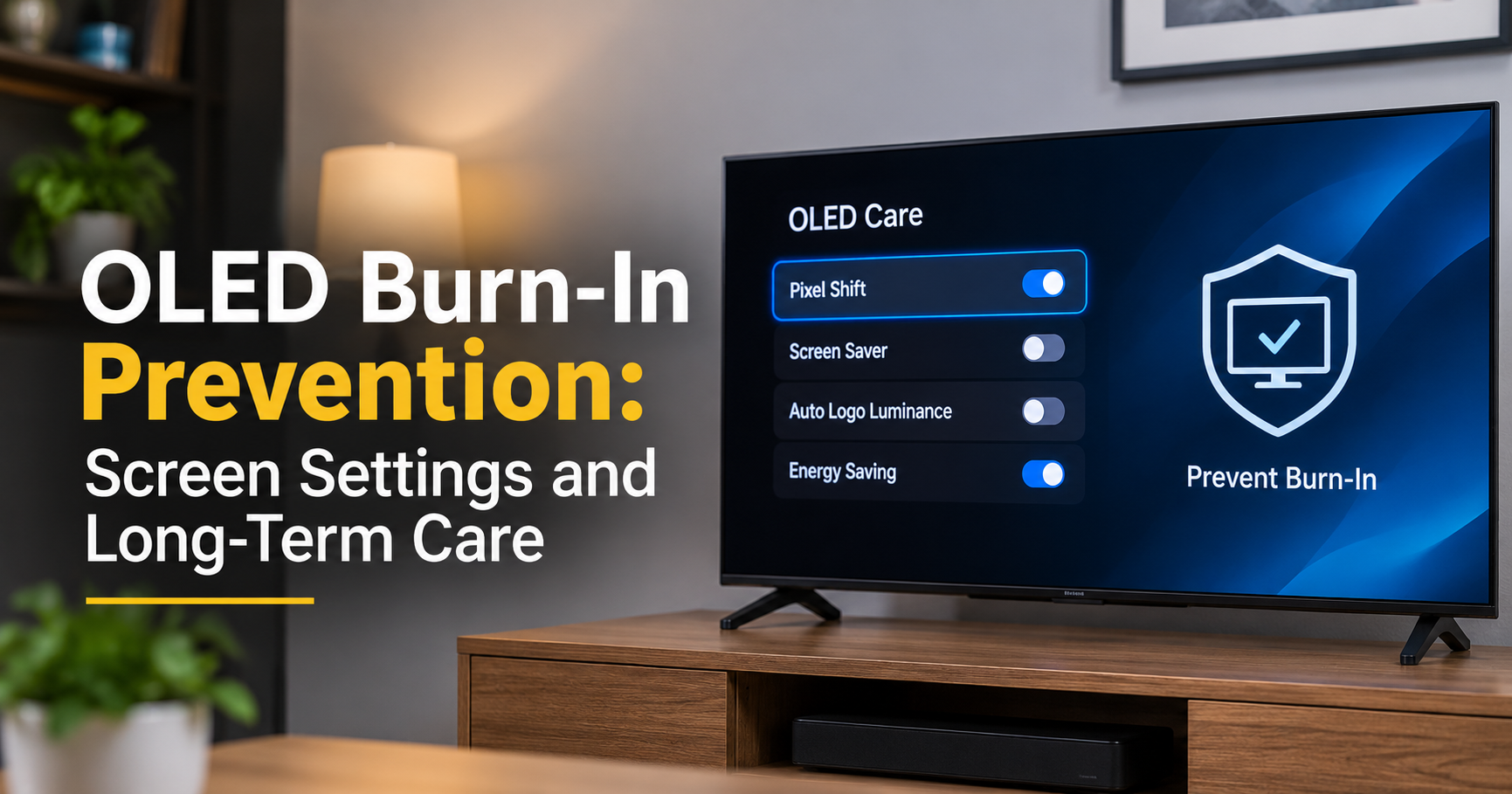
OLED screens are famous for deep blacks, rich colors and razor-sharp contrast. But they come with one well-known weak spot: burn-in. If you leave the same bright image on an OLED display for too long, a faint ghost of it can stay on the screen permanently.
The good news is that burn-in is largely preventable. With a few smart settings and habits, most people will never see it in normal use. This guide explains what burn-in is, why it happens, and gives you 15 practical OLED burn-in prevention tips that work for TVs, smartphones, monitors and laptops.
Quick summary
- Burn-in is permanent uneven wear of OLED pixels caused by static, bright content.
- Lower brightness and varied content are the two most effective defenses.
- Keep built-in protections such as pixel shift and logo dimming turned on.
- Do not confuse temporary image retention with real burn-in.
What Is OLED Burn-In?
Every pixel in an OLED panel makes its own light using organic compounds. These compounds slowly wear out the longer and brighter they glow. When one area of the screen works much harder than the rest, for example a news channel logo, a game health bar or a phone navigation bar, those pixels age faster and become dimmer than their neighbors.
That uneven aging is what you see as burn-in: a faint, shadow-like outline of a static element that remains visible even when the screen shows something else, especially on gray or solid-colored backgrounds.
Why Does Burn-In Happen?
Burn-in is a result of cumulative wear, not a sudden defect. Three factors make it more likely:
- Static content: Logos, tickers, menus, taskbars and HUDs that never move.
- High brightness: Brighter pixels wear out faster than dim ones.
- Long viewing time: Hours of the same image add up over months and years.
Blue sub-pixels typically degrade the fastest because they need more energy to produce light. Manufacturers use different compensation techniques, but the basic physics is the same on every OLED panel.
Burn-In vs. Image Retention: Know the Difference
Many people panic when they see a faint ghost image, but it is often only temporary image retention. Here is how to tell them apart:
| Feature | Image Retention | Burn-In |
|---|---|---|
| Duration | Fades in minutes or hours | Permanent |
| Cause | Short-term pixel stress | Long-term pixel wear |
| Fix | Show varied content or turn off the screen | No true fix, only prevention |
15 OLED Burn-In Prevention Tips
1. Lower the OLED Brightness Setting
This is the single most effective step. Instead of running at maximum, use a comfortable level for your room. Lower brightness means less stress on every pixel and a longer panel life.
2. Vary What You Watch
Mix movies, shows, games and videos instead of staying on one channel or app for hours. Constantly changing images spread wear evenly across the panel.
3. Enable Pixel Shift
Pixel shift (sometimes called screen shift) moves the image by a tiny amount at regular intervals so static edges do not sit on exactly the same pixels. The movement is nearly invisible, so keep it on.
4. Keep Logo Dimming Turned On
TV makers include automatic logo or static-area dimming that lowers the brightness of areas that do not change. Leave it enabled, especially if you watch news or sports channels with permanent logos and scoreboards.
5. Run Pixel Refresh When Prompted
Most OLED TVs and monitors run a short compensation cycle when you turn them off or put them on standby. Let it finish. Manual deep pixel refresh options should be used only when the display suggests it, because the process uses up a small amount of panel life.
6. Set a Short Screen Timeout
On phones, laptops and monitors, set the screen to sleep after one to two minutes of inactivity. On TVs, use the sleep timer or auto power-off feature so a paused video is never left on overnight.
7. Use Dark Mode and Dark Wallpapers
Black pixels on an OLED are completely off, so they do not age at all. Dark themes reduce total pixel usage, save battery on phones and lower burn-in risk at the same time.
8. Hide Static Interface Elements
On a PC, set the taskbar to auto-hide and keep desktop icons to a minimum. On phones, consider gesture navigation instead of a permanent three-button bar. These are the most common burn-in zones on everyday devices.
9. Use a Moving Screen Saver
If you use an OLED monitor for work, enable a screen saver that shows moving or fully black content after a short idle time. A plain black screen saver is a safe option.
10. Limit Long Gaming Sessions With Static HUDs
Games with permanent health bars, minimaps and score counters are a high-risk category. Lower your brightness while gaming, turn off optional HUD elements when possible and take regular breaks.
11. Avoid Leaving Content Paused
A paused movie, a menu screen or a loading screen is a still image with bright elements. Turn the display off or switch to a screensaver if you step away.
12. Be Careful With Letterboxed and Pillarboxed Content
Black bars are not harmful on their own, but watching only 4:3 or ultrawide content for months means the middle area ages faster than the edges. Mix aspect ratios and use the standard picture mode occasionally.
13. Reduce Always-On Display Usage on Phones
Always-on display modes are designed to use few pixels, but a bright clock or widget in the same place all day still adds wear. Choose a dim, minimal style or schedule it only for certain hours.
14. Keep Good Ventilation
Heat speeds up organic material aging. Leave space around your TV or monitor, do not cover vents and avoid placing it in direct sunlight or near a heat source.
15. Calibrate for a Comfortable, Not Maximum, HDR Setting
HDR content can push peak brightness very high. That is fine for movies, but avoid using high-brightness HDR modes for static content such as desktop work or long gaming sessions.
Device-Specific Advice
OLED TVs
Use the sleep timer, keep logo dimming on and avoid watching the same 24-hour news channel all day. Choose a moderate picture mode for everyday viewing.
Smartphones
Use dark mode, auto-brightness and a short screen timeout. Change your wallpaper from time to time and avoid keeping navigation or video apps on for hours at full brightness.
OLED Monitors
Monitors face the toughest conditions because of static desktops and toolbars. Auto-hide the taskbar, use dark themes, enable the monitor’s built-in screen saver and keep brightness lower for office work.
OLED Laptops
Set the display to turn off after a minute or two, use a dark wallpaper and avoid leaving spreadsheets or documents with bright white backgrounds open for long periods.
Buying Checklist: Choosing an OLED With Better Burn-In Protection
If you are shopping for a new OLED TV, monitor or phone, look for these features before you buy:
- Burn-in warranty: Some brands cover burn-in for a limited period. Read the terms carefully.
- Heat management: A built-in heatsink or advanced cooling design helps panels age more slowly.
- Modern panel technology: Newer generations generally offer higher efficiency and improved longevity.
- Pixel refresh and shift features: Make sure the device includes automatic compensation tools.
- Brightness control options: Flexible settings let you tailor the screen to your usage.
Frequently Asked Questions
Can OLED burn-in be fixed?
True burn-in cannot be reversed because it is physical wear of the pixels. Temporary image retention does fade, and pixel refresh tools can even out minor differences, but prevention is always the best approach.
How long does it take for burn-in to appear?
It depends on brightness, content and usage. With varied content and sensible settings, many users never see burn-in during the normal lifespan of the device. Heavy, static use at high brightness can cause it much sooner.
Is a black screen saver safe for OLED?
Yes. Black pixels are switched off, so they do not wear. A black or moving screen saver is one of the safest choices.
Is it safe to use an OLED TV as a PC monitor?
It can be, but only with precautions: lower brightness, auto-hide the taskbar, use dark themes and enable a screen saver. For long office-style work, a monitor designed for such use is often a better fit.
Should I turn off my OLED TV every night?
Putting it into standby is ideal, because it allows the automatic compensation cycle to run. Avoid cutting the power completely at the wall right after use.
Final Thoughts
OLED burn-in is a real but manageable risk. You do not need to give up the stunning picture quality of OLED to stay safe. Keep brightness reasonable, vary your content, leave built-in protections active and avoid static images for long stretches.
Follow these OLED burn-in prevention tips and your display can stay beautiful and uniform for many years.