



You bought a soundbar to make movies and shows sound better. Instead, you spend half the evening reaching for the remote: voices are barely audible, then a car chase nearly blows the roof off. If your soundbar dialogue is too quiet, you are far from alone. It is one of the most common complaints among TV owners, and the good news is that it is usually fixable without buying anything new.
In this guide you will learn why dialogue gets lost, which settings to change on your TV, streaming device and soundbar, how placement affects speech clarity, and what to look for if it is time to upgrade.
Quick Answer: How to Fix Quiet Dialogue on a Soundbar
- Turn on your soundbar’s Voice, Dialogue or Speech Enhancement mode.
- Lower the bass and raise the treble or voice level in the soundbar’s equalizer.
- Change the TV’s digital audio output from Auto/Bitstream to PCM (or the reverse) and test.
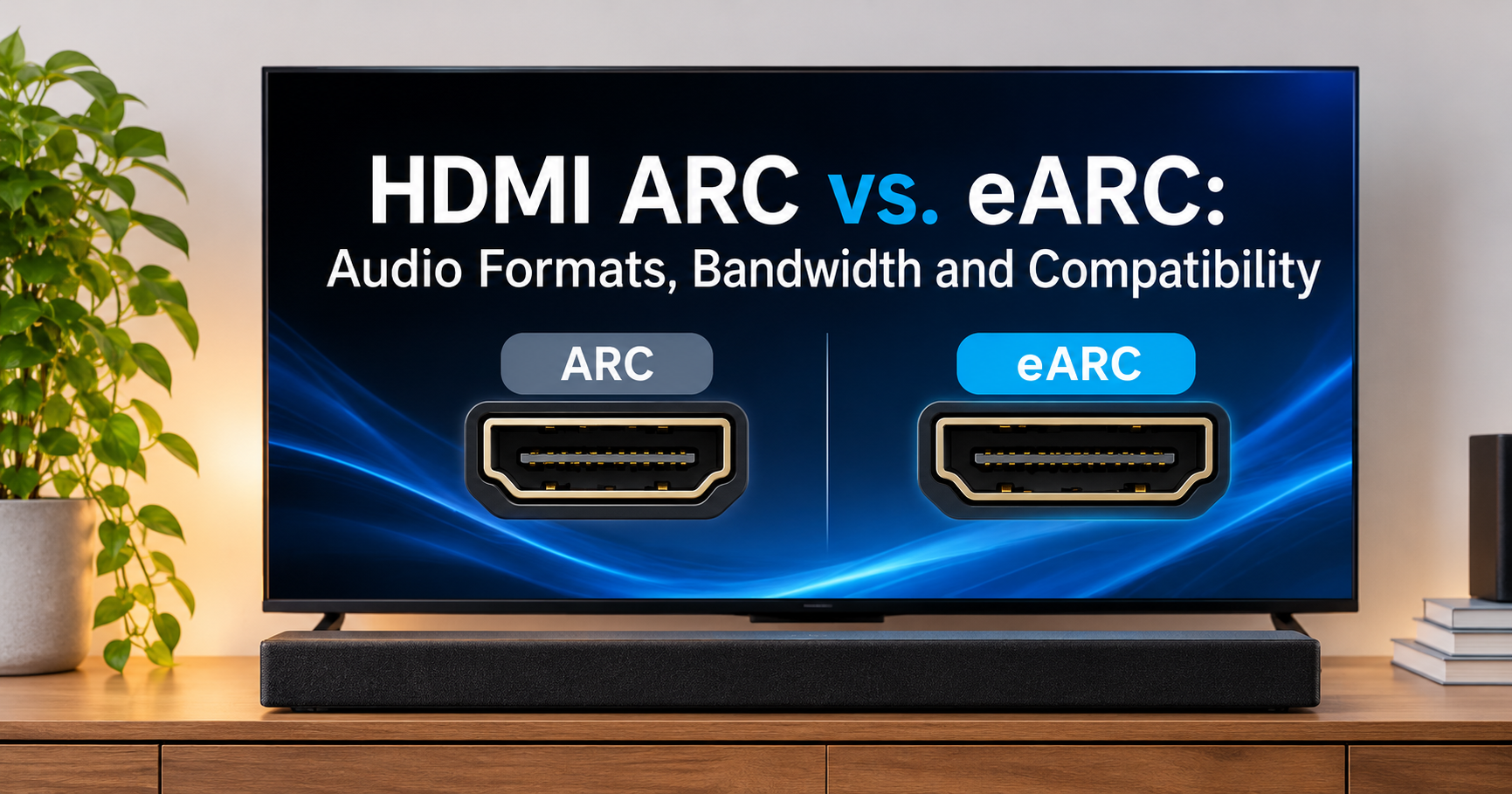
- Use the HDMI eARC/ARC port instead of optical when your TV supports it.
- Switch off the TV’s internal speakers and any surround or “Cinema” effects.
- Enable Night Mode or dynamic range compression to even out loud and quiet moments.
Why Is Soundbar Dialogue So Quiet?
Modern movies and series are mixed for cinemas and home theatres with many speakers. Dialogue usually lives in the center channel, while music and effects spread across the left, right, surround and height channels. When that surround mix is squeezed into a single slim soundbar, the center channel can lose its priority, and the voices end up sitting at the same level as everything else.

Several common causes sit behind the problem:
- Wide dynamic range. Film mixes have very quiet speech and very loud action. You set the volume for the loud scenes and lose the whispers.
- Downmixing. When a 5.1 or Atmos track is converted to stereo, the center channel is folded into left and right, often at a lower level.
- No dedicated center speaker. Many budget 2.0 and 2.1 soundbars have no center driver, so voices are not focused forward.
- Wrong audio format. A mismatch between the TV, streaming app and soundbar can produce a weak or thin mix.
- Bass-heavy sound profiles. Too much low end masks the midrange frequencies where human speech lives.
- Poor placement and room acoustics. Reflections from shelves, walls and hard surfaces blur speech.
- Thin TV speakers. Modern flat TVs are slim, with weak built-in speakers, which can still play over your soundbar if left on.
12 Ways to Fix a Soundbar When Dialogue Is Too Quiet

1. Turn On Dialogue or Voice Mode
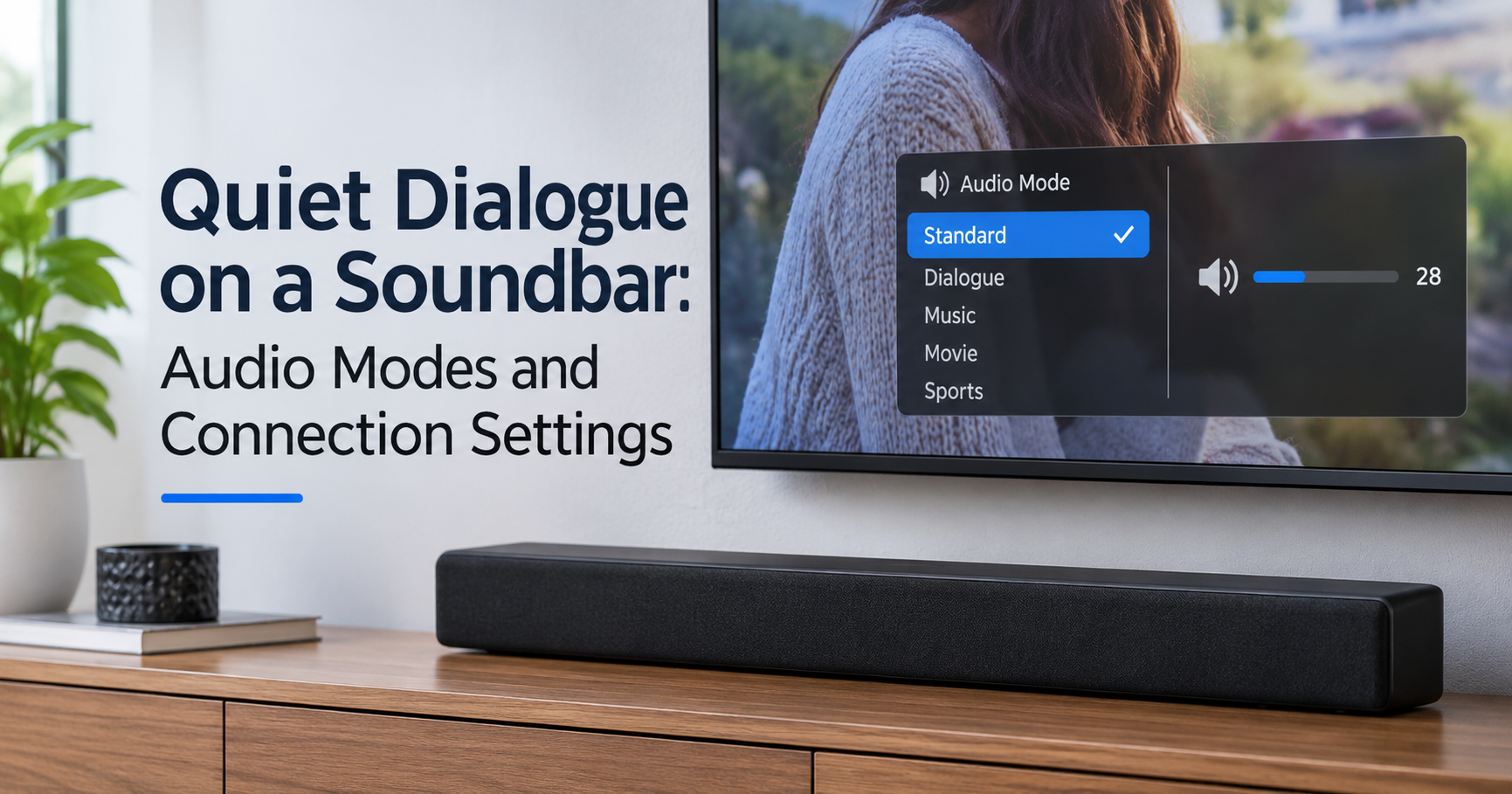
Most mid-range and premium soundbars include a feature with a name like Voice, Clear Voice, Dialogue Enhancer, Speech Enhancement or Movie/Speech mode. It boosts the speech frequency range, usually between 1 kHz and 4 kHz, and gives the center channel more weight. Look for it on the remote, in the companion app, or in the on-screen menu.
2. Adjust the Soundbar’s Equalizer
Many soundbars ship with a bass-heavy tuning. Lower the bass by two or three steps and raise the treble slightly. If your model has a three-band or app-based EQ, a small cut in the lowest band and a small lift in the mid and high bands often does more for clarity than any other change.
3. Change the TV’s Digital Audio Output Format
In your TV’s sound or audio output menu, you will usually find options such as Auto, Bitstream, Dolby Digital, Passthrough or PCM.
- PCM sends a stereo signal. It is simple and sometimes gives a stronger center image on basic soundbars.
- Dolby Digital / Bitstream / Passthrough sends the full surround track so the soundbar can decode and handle the center channel itself. This usually works best on soundbars with 3.1 or more channels.
Test both settings with the same scene. The right choice depends on your soundbar.
4. Use HDMI eARC or ARC Instead of Optical
Optical (TOSLINK) cables have limited bandwidth, so they cannot carry the highest quality formats such as Dolby Digital Plus with Atmos. If your TV and soundbar both have an HDMI port labelled eARC or ARC, use it. Remember to enable HDMI-CEC (it may be called Anynet+, Bravia Sync, Simplink or similar) in the TV’s settings so the TV and soundbar can talk to each other.
5. Turn Off the TV’s Internal Speakers and Sound Effects
Set the TV’s speaker output to External Speaker, Audio Out/Optical or HDMI ARC. Then disable any TV sound enhancements such as “Virtual Surround”, “Clear Sound” or “Dynamic Volume”, since the TV may be processing the sound before the soundbar sees it. If the TV and soundbar both play audio at once, you get echo and muddy speech.
6. Enable Night Mode or Dynamic Range Control
Night Mode, Late Night Mode or Dynamic Range Compression reduces the gap between the quietest and loudest sounds. Whispers are lifted, and explosions are tamed. It is a great fix for apartments, late viewing and anyone who struggles with big volume swings.
7. Check the Audio Settings Inside Streaming Apps
Some apps and devices let you choose the audio track or output. Look for options such as Stereo, Surround 5.1 or Dolby Atmos, as well as Dialogue Boost or Enhanced Dialogue on supported titles. Streaming boxes and sticks also include their own output settings, such as the audio format and a loudness or “reduce loud sounds” option. Match these to what your soundbar supports.
8. Raise the Center or Voice Level (If Available)
Soundbars with a dedicated center channel, especially those with Atmos or separate surrounds, often have a Center Level or Voice Level control in the app. Raise it by two to four steps and reduce the surround or height levels slightly so voices stay up front.
9. Place the Soundbar Correctly
A soundbar tucked inside a cabinet, behind a lip or sitting too far below ear level will always sound muffled. Place it directly in front of the TV, with the front of the soundbar flush to the edge of the shelf so sound is not reflected back from the surface. Keep the grille clear, and avoid placing it in a recessed shelf.

10. Improve Room Acoustics
Hard floors, bare walls and large windows reflect sound and blur speech. A rug, curtains, bookshelves and soft furniture absorb those reflections and make dialogue easier to understand. Even small changes can have a noticeable impact.
11. Update Firmware and Reset Audio Settings
Manufacturers regularly release firmware updates that fix audio bugs, HDMI handshake issues and volume-sync problems. Update both the TV and the soundbar. If settings have become tangled after many changes, factory-reset the audio profile, then set things up again step by step.
12. Check Your Cable and Ports
A damaged or low-quality HDMI cable can cause dropouts or silently force a lower-quality format. Make sure the cable is firmly connected to the correct eARC/ARC port on the TV and the HDMI OUT (TV) port on the soundbar. If you are unsure, swap in a certified high-speed HDMI cable and test again.
Recommended Settings Cheat Sheet
| Setting | Try This | Why It Helps |
|---|---|---|
| Sound Mode | Voice / Dialogue / Movie | Boosts speech frequencies |
| Bass | Lower by 2-3 steps | Stops low end masking voices |
| Connection | HDMI eARC/ARC | Carries better audio formats |
| TV Audio Output | Test PCM and Bitstream | Finds the best center-channel handling |
| Night Mode | On | Evens out loud and quiet scenes |
| TV Speakers | Off | Prevents echo and smearing |
| Center / Voice Level | +2 to +4 | Pushes speech forward |
When Settings Are Not Enough: Choosing a Better Soundbar
If you have tried every fix above and voices are still weak, the soundbar itself may be the limit. Budget 2.0 models and very small bars simply lack the drivers needed to project clear speech. When you shop for an upgrade, focus on these features:
- Dedicated center channel. A 3.1, 3.1.2, 5.1 or 5.1.2 layout has a driver dedicated to dialogue. This is the single biggest hardware improvement for clear speech.
- Dialogue enhancement modes. Look for a voice or speech mode with adjustable levels, not just an on/off button.
- HDMI eARC support. It guarantees the best sound path from the TV.
- Companion app and EQ. Fine-tuning gives you control over bass, treble and center level.
- Dolby Atmos or DTS:X decoding. Helpful for immersive sound, provided the dialogue channel is strong.
- Separate subwoofer. A wireless sub handles the bass so the bar can concentrate on voices.
- Good reviews for speech clarity. Read owner feedback specifically on dialogue, not just bass and loudness.
Which Soundbar Type Fits You?
| Type | Dialogue Clarity | Best For |
|---|---|---|
| 2.0 / 2.1 Basic Bar | Fair | Small rooms, tight budgets |
| 3.1 With Center Channel | Very Good | Movie and TV lovers who want clear speech |
| Dolby Atmos 3.1.2 or higher | Excellent | Medium to large living rooms |
| Full 5.1.2 With Rear Speakers | Excellent | Immersive home theatre setups |
Tip for buyers: Pick a soundbar with a dedicated center channel and a proper voice mode, then read recent owner reviews that mention dialogue clarity. Prices and features change often, so compare a few current models before you decide.
Frequently Asked Questions
Why is my soundbar quiet on dialogue but loud on music and effects?
Movie mixes have a very wide dynamic range, and a downmixed surround track often loses the center-channel emphasis. Using a voice mode, Night Mode and a lower bass setting usually evens things out.
Does an HDMI eARC connection improve dialogue?
It does not boost speech by itself, but it supports higher-quality audio formats and avoids the limits of optical cables, which gives the soundbar better material to work with.
Should I use PCM or Bitstream for my soundbar?
It depends on the model. Bitstream or Dolby Digital works best for soundbars with a center channel and decoding. PCM can be better for simple stereo bars. Test both with the same scene.
Will a subwoofer make dialogue quieter?
Not by design, but too much bass can mask voices. Lower the subwoofer level until speech sounds natural and clear.
Is the problem my TV or my soundbar?
Try another source, such as a different app or a streaming stick, and see if the problem follows. If it only happens with one source, check that app or device. If it happens with every source, focus on the TV output settings, the cable and the soundbar.
Can I fix dialogue issues without buying a new soundbar?
In most cases, yes. Settings, placement and connection changes solve the majority of complaints. Only consider a new soundbar if your current one lacks a center channel or voice features.
Final Thoughts
When your soundbar dialogue is too quiet, the cause is usually a mix of surround downmixing, bass-heavy tuning and a few wrong settings, not a faulty device. Work through the fixes in order: enable the voice mode, tame the bass, choose the right TV output format, use HDMI eARC, switch off the TV speakers and turn on Night Mode. Then improve placement and acoustics. If you still struggle to hear every word, a soundbar with a dedicated center channel is the upgrade that makes the biggest difference.
Try these steps one at a time, note what works for your setup, and you should be hearing every line clearly again.