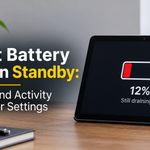




You charge your tablet to 100% at night, leave it untouched, and wake up to find it at 60%. If your tablet battery drains in standby, you are not alone. Standby drain is one of the most common complaints among Android tablet and iPad users, and in most cases it can be fixed without paying for a repair. This guide explains what is normal, what is not, why it happens, and exactly how to stop it.
Table of Contents
- How much standby drain is normal?
- Why your tablet battery drains in standby
- How to find what is draining your battery
- 12 proven fixes
- Hardware causes
- When to repair or replace
- Buying tips for good standby time
- FAQs
How Much Standby Drain Is Normal?
When the screen is off and the tablet is connected to Wi-Fi, a healthy device should lose roughly 1% per hour or less. Many modern tablets lose only 2% to 5% across an 8-hour night. If you see a loss of 3% or more every hour, or 20% to 30% overnight, something is wrong.
Keep in mind that “standby” is not the same as “powered off”. A sleeping tablet still receives messages, syncs email, checks for updates and listens for wake words, so a small drain is expected.
Why Your Tablet Battery Drains in Standby
1. Background apps and constant syncing
Social media, email, cloud backup and messaging apps keep refreshing data even when the screen is off. A single badly behaved app can keep the processor awake and drain the battery quickly.
2. Wakelocks
A wakelock is a request from an app that prevents the tablet from entering deep sleep. When an app holds a wakelock for too long because of a bug, the tablet never fully rests, and the battery empties silently.
3. Weak Wi-Fi or mobile signal
When the signal is poor, the radio works harder to stay connected. Tablets with a SIM card are especially affected, because they keep searching for a better network.
4. Notifications and always-on features
Frequent notifications light up the screen and wake the processor. Features such as always-on display, voice assistants, “Hey” wake words and ambient display add small but constant drain.
5. Location, Bluetooth and Wi-Fi scanning
Even when switched off in the main menu, scanning options can keep checking for nearby networks and devices in the background.
6. Software bugs and outdated updates
A recent system update or a pending app update can cause drain until a patch arrives. Corrupted caches after an update are another frequent cause.
7. An aging or damaged battery
After two to four years or several hundred charge cycles, a lithium-ion battery loses capacity and may self-discharge faster. A swollen or overheated battery needs urgent attention.
8. Cold or hot environments
Batteries lose charge faster in very cold or very hot places. Leaving a tablet in a hot car or a freezing room can cause a sharp drop.
How to Find What Is Draining Your Battery
Before changing random settings, identify the culprit:
- Android: open Settings, then Battery, then Battery usage. Check which apps used the most power while the screen was off.
- iPad: open Settings, then Battery, and view the last 24 hours and last 10 days. Look at “Screen Off” activity per app.
- Test method: charge to 100%, turn off the screen, leave it idle for 3 hours, then check the percentage lost. Repeat in Airplane mode. If drain stops in Airplane mode, the cause is connectivity or an app syncing.
12 Proven Fixes for Tablet Standby Battery Drain
- Restart the tablet. This clears stuck processes and wakelocks, and solves many cases instantly.
- Update the system and apps. Manufacturers often release fixes for battery bugs. Install pending updates.
- Restrict background activity. In battery settings, set rarely used apps to “Restricted” or “Optimized” so they cannot run freely in the background.
- Uninstall or force-stop problem apps. If one app shows unusually high background usage, clear its cache, update it, or remove it.
- Turn on Airplane mode at night. If you do not need messages overnight, this reduces drain dramatically.
- Disable Bluetooth, GPS and Wi-Fi scanning. Turn off location services for apps that do not need them and switch off nearby device scanning.
- Reduce sync frequency. Change email and cloud accounts from “push” to manual or every 30 to 60 minutes.
- Turn off always-on display and wake words. They are convenient, but they keep sensors and microphones active.
- Limit notifications. Mute noisy apps so the tablet does not wake up every few minutes.
- Use adaptive or battery saver mode. Enable power saving features, and schedule them to start automatically overnight.
- Clear system cache or boot in safe mode. Safe mode loads only core apps. If the drain stops, a third-party app is the cause. Clearing the cache partition can also help after major updates.
- Factory reset as a last resort. Back up your data first. A clean setup removes hidden software problems. Restore apps gradually and watch the battery after each one.
Hardware Causes You Should Not Ignore
- Degraded battery: if the tablet loses more than 10% in an hour even in Airplane mode, the battery is likely worn.
- Swelling: a screen lifting from the body or a bulging back means stop using and charging the device immediately.
- Faulty charger or cable: cheap chargers can damage battery health over time. Use the original or a certified charger.
- Charging port or motherboard faults: these may cause current leakage and require professional repair.
When to Repair or Replace Your Tablet
If the drain continues after a factory reset, the problem is most likely hardware. A battery replacement is usually cheaper than a new tablet if the device is under three years old and still performs well. If the tablet is older, no longer receives security updates, or the cost of the repair is close to half the price of a new model, replacing it makes more sense.
Habits That Protect Battery Life
- Keep charge between 20% and 80% when possible.
- Avoid charging under pillows, in direct sunlight or inside thick cases that trap heat.
- Do not leave the tablet at 0% for long periods.
- Restart the tablet once a week.
- Use dark mode and moderate brightness during use.
Buying Tips: Choosing a Tablet With Good Standby Time
If you are shopping for a new tablet, standby performance matters as much as screen-on time. Look at these points:
- Battery capacity: 7,000 mAh to 10,000 mAh is a good range for 10 to 11 inch tablets.
- Efficient processor: newer chips built on modern manufacturing processes sleep deeper and use less power idle.
- Software support: brands that promise several years of updates fix battery bugs faster.
- Adaptive battery features: look for smart background management and scheduled power saving.
- Display type: efficient LCD or OLED panels with adaptive refresh rates save power.
- Real user reviews: search reviews specifically for “overnight drain” or “standby” results, not just screen-on hours.
- Wi-Fi only vs cellular: Wi-Fi only models generally have lower standby drain than SIM-enabled ones.
Frequently Asked Questions
Why does my tablet lose battery when turned off?
A fully powered-off tablet should lose almost nothing. If it drains while off, the battery is likely faulty or the device is not shutting down fully, so try a forced restart or have the battery tested.
Is it normal for a tablet to lose 10% overnight?
Up to about 5% overnight is common on connected tablets. A loss near 10% is borderline, and anything above that deserves investigation.
Does closing apps save battery?
Swiping away apps rarely helps, and can even use more power because apps reload from scratch. Restricting problem apps works better.
Should I keep Wi-Fi on while the tablet sleeps?
A stable Wi-Fi connection uses less power than weak mobile data. Keep it on if the signal is strong, and switch to Airplane mode if you do not need notifications.
Can a new battery fix standby drain?
Yes, if the old battery is worn. Always use a quality replacement from a reputable repair service.
Final Thoughts
When your tablet battery drains in standby, the cause is usually software: a misbehaving app, constant syncing, or a weak connection. Start with a restart and updates, check battery usage, restrict background activity, and test in Airplane mode. If nothing works even after a reset, the battery itself is probably aging. Follow the steps above in order, and you should get your tablet back to lasting through the night with minimal loss.