



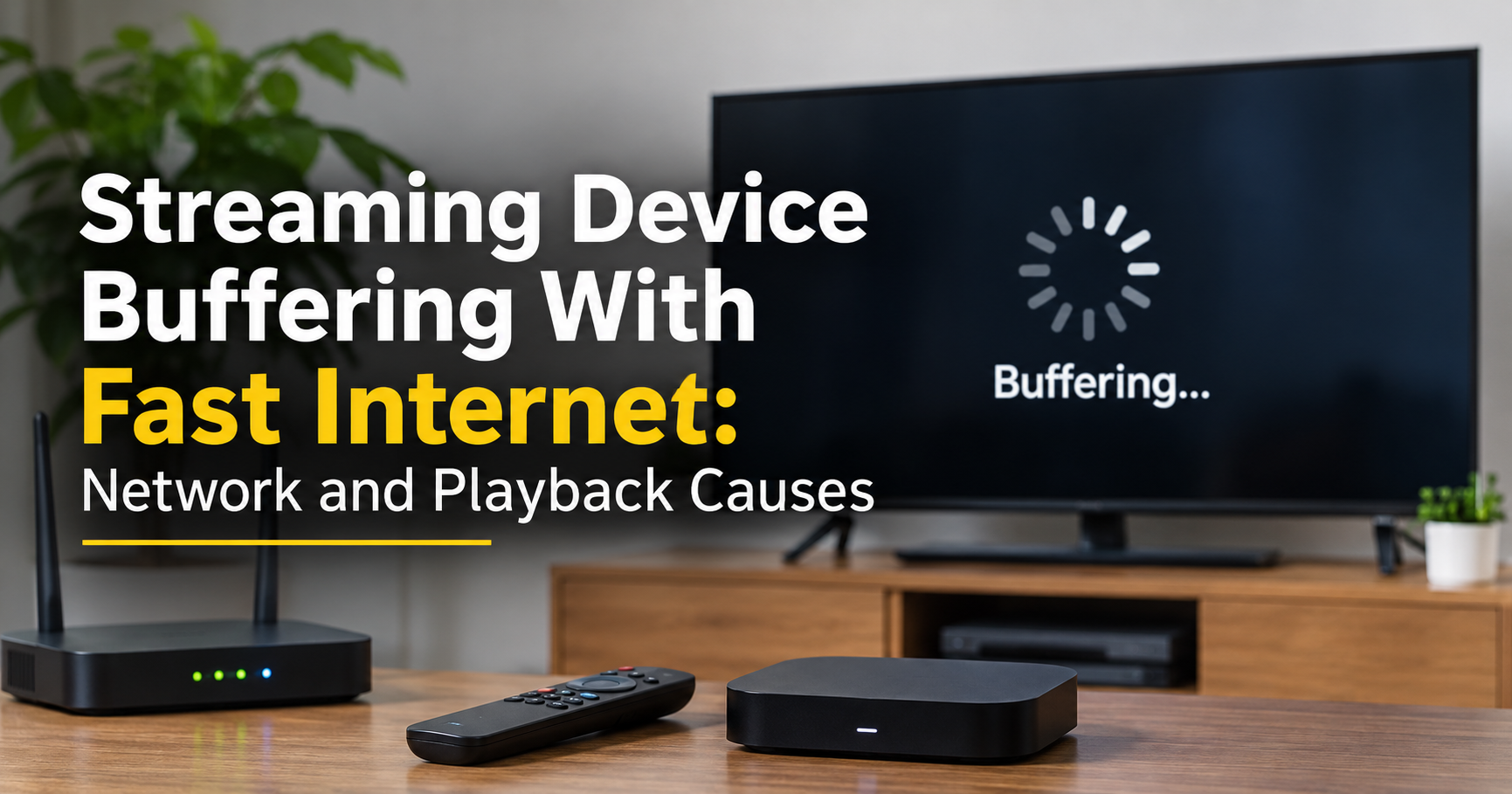
You pay for a fast internet plan, you open your favorite show, and within seconds the dreaded spinning circle appears. It is one of the most frustrating problems for anyone who streams on a smart TV, Fire Stick, Roku, Chromecast, Apple TV or Android TV box. If your streaming device keeps buffering despite fast internet, the good news is that your internet plan is rarely the real culprit.
In this complete guide you will learn why buffering happens even on a high-speed connection, how to find the exact cause, and the step-by-step fixes that solve the problem for most households.
Why Does Streaming Buffer When Internet Speed Is Fast?
Internet speed tests measure the maximum download speed that reaches your router or phone at one moment. Streaming is different. It needs a steady, uninterrupted flow of data from a distant server, through your router, across your Wi-Fi, into the streaming device, and finally into the app. A problem at any point in that chain causes buffering, even when the plan itself is fast.

Think of it like water pipes. A huge main pipe is useless if the small pipe feeding your tap is clogged. Your internet plan is the main pipe; the Wi-Fi signal, router and streaming device are the smaller pipes that decide what actually reaches the screen.
How Much Speed Do You Really Need for Streaming?
Most streaming services need far less speed than people expect. The problem usually appears when several devices share the connection or when the signal is unstable, not when the plan is too slow.

These numbers are approximate and vary by service, but they show an important point: a single 4K stream needs roughly 15 to 25 Mbps. If your plan offers 100 Mbps or more, speed is almost certainly not the issue. Stability, signal quality and device health matter more than raw speed.
The Most Common Causes of Buffering on Fast Internet
1. Weak or Congested Wi-Fi Signal
This is the number one cause. Walls, floors, mirrors, microwave ovens and even fish tanks weaken Wi-Fi. A device in a bedroom far from the router may show full speed on a phone nearby but struggle with a sustained video stream.
2. Router Overload or Outdated Hardware
Older routers cannot handle many connected devices at once. Phones, laptops, smart speakers, cameras and game consoles all compete for airtime. A router that has run for months without a restart can also slow down or drop packets.
3. Wrong Wi-Fi Band (2.4 GHz vs 5 GHz)
The 2.4 GHz band travels farther but is slower and crowded with interference from neighbors and household electronics. The 5 GHz band is faster and cleaner but covers a shorter distance. Many streaming devices connect to the wrong band by default.
4. Slow DNS Servers
DNS works like a phone book that translates website names into addresses. A slow DNS server from your provider can delay the start of video playback and cause repeated pauses.
5. Overheating Streaming Device
Small streaming sticks run hot, especially when tucked behind a TV. Overheating causes the processor to slow down, which looks exactly like buffering even when the data is arriving on time.
6. Full Storage, Low Memory or Outdated Software
Cheap streaming devices have limited storage and RAM. Too many installed apps, a bloated app cache or old firmware can cause stuttering, freezing and constant loading.
7. Server-Side or ISP Routing Problems
Sometimes the slowdown is outside your home. Streaming apps deliver video through content delivery networks, and your internet provider may route traffic poorly during peak evening hours. This is common between 7 PM and 11 PM.
8. VPN or Background Downloads
A VPN adds extra distance and encryption overhead. Cloud backups, game updates and large downloads running on other devices can silently use most of your bandwidth.
12 Proven Fixes for Streaming Device Buffering
Work through these fixes in order. Test playback after each one so you know exactly what solved the problem.

Fix 1: Restart Everything in the Right Order
Unplug the streaming device, router and modem. Wait 60 seconds, then power on the modem first, the router second and the streaming device last. This clears temporary glitches, refreshes your connection and resolves a surprising number of buffering cases.
Fix 2: Move the Router Closer or Use an Ethernet Cable
If your device has an Ethernet port, a wired connection is the most reliable fix available. If it does not, place the router in an open, central, elevated spot and avoid hiding it inside cabinets. Many streaming sticks also work with a small USB-to-Ethernet adapter.
Fix 3: Switch to the 5 GHz Wi-Fi Band
Open your streaming device’s network settings and connect to the 5 GHz network, often labeled with a “5G” suffix. If both bands share one name, give each a different name in your router settings so you can choose manually.
Fix 4: Change Your DNS Settings
Set a faster public DNS in the network settings of your device or router. Popular and reliable options are 1.1.1.1 and 1.0.0.1 from Cloudflare, or 8.8.8.8 and 8.8.4.4 from Google. This often improves start times and reduces random pauses.
Fix 5: Clear the App Cache and Update the App
Go to the device settings, open the app list, select the streaming app and clear its cache. Then install the latest app version. If the problem continues, uninstall and reinstall the app to remove corrupted data.
Fix 6: Lower the Video Quality as a Test
Set the stream to 720p or 1080p instead of Auto or 4K. If playback becomes smooth, your connection is unstable at higher bitrates, which points to Wi-Fi quality rather than your plan speed.
Fix 7: Update Device Firmware
Manufacturers regularly release updates that improve performance and fix streaming bugs. Check the system update section in your device settings and install anything available.
Fix 8: Free Up Storage and Remove Unused Apps
Delete apps you no longer use and clear old downloads. A device with very little free storage struggles to buffer video properly.
Fix 9: Let the Device Cool Down
If buffering starts after an hour or two of viewing, overheating is likely. Use the HDMI extender cable that comes with many sticks, keep the device away from the TV’s hot back panel and ensure airflow around it.
Fix 10: Turn Off Your VPN and Pause Other Downloads
Disable any VPN on the device or router and check whether other gadgets are downloading large files. Even one background update can use a large portion of your bandwidth.
Fix 11: Set Up Quality of Service (QoS) on Your Router
Many modern routers include QoS tools that give priority to streaming devices. Enable it and set your TV or streaming box as a high-priority device so video gets bandwidth first.
Fix 12: Upgrade to a Mesh System or Newer Router
If your home is large or your router is more than five years old, a modern Wi-Fi 6 router or a mesh system provides stronger coverage and handles many devices smoothly. This is a hardware investment, but it solves the problem permanently in many homes.
How to Tell If the Problem Is Your Device, Wi-Fi or Provider
| What You Notice | Most Likely Cause |
|---|---|
| Buffers on one device only | Device, app or Wi-Fi signal at that location |
| Buffers on all devices | Router, modem or internet provider |
| Only one app buffers | App problem or server issue on that service |
| Buffers only in the evening | Network congestion during peak hours |
| Starts after long viewing | Overheating or low memory |
| Smooth on Ethernet, bad on Wi-Fi | Wi-Fi interference or weak signal |
Choosing a Better Streaming Setup for the Future
If you are shopping for a new streaming device, look for these features to avoid buffering problems later:
- Wi-Fi 5 or Wi-Fi 6 support with dual-band connectivity.
- An Ethernet port or support for an Ethernet adapter.
- At least 2 GB of RAM and enough storage for apps and updates.
- Good heat management and a design that allows airflow.
- Regular software updates from the manufacturer.
Pairing a capable device with a good router matters more than buying the most expensive internet plan. A mid-range plan with strong, stable Wi-Fi beats a premium plan with a weak signal every time.
Frequently Asked Questions
Why does my streaming device buffer even though my speed test shows high speed?
A speed test measures a short burst of maximum speed, while streaming needs stable, consistent delivery. Wi-Fi interference, router overload, overheating and DNS delays can interrupt the stream even when the test result looks excellent.
Is Ethernet really better than Wi-Fi for streaming?
Yes. A wired connection avoids interference and signal loss, so it delivers more consistent speeds and lower delay. It is the most dependable solution for 4K streaming.
Does a VPN cause buffering?
It can. A VPN routes your traffic through another server, which adds distance and encryption overhead. If buffering starts when the VPN is on, turn it off and test again.
How many Mbps do I need for 4K streaming?
Most services recommend around 15 to 25 Mbps per 4K stream. Multiply that by the number of screens that may stream at the same time to estimate your household needs.
Will factory resetting my streaming device help?
A factory reset can fix deep software problems, but it erases your apps and settings. Try the other fixes first and use a reset only as a last step.
Why does buffering happen mostly at night?
Evening is peak usage time, when many households stream at once. Provider networks can become congested, and your own home also has more devices active. Using Ethernet, QoS and a better DNS often reduces the effect.
Final Thoughts
When a streaming device buffers despite fast internet, the cause is almost always found in the Wi-Fi signal, router setup, device health or settings rather than in the speed of your plan. Start with the simple steps: restart your equipment, improve the connection and adjust the DNS and band. Then move on to updates, cooling and router upgrades if needed.
Follow the fixes in order, test after each one, and you will very likely return to smooth, buffer-free streaming without paying for a faster plan.