
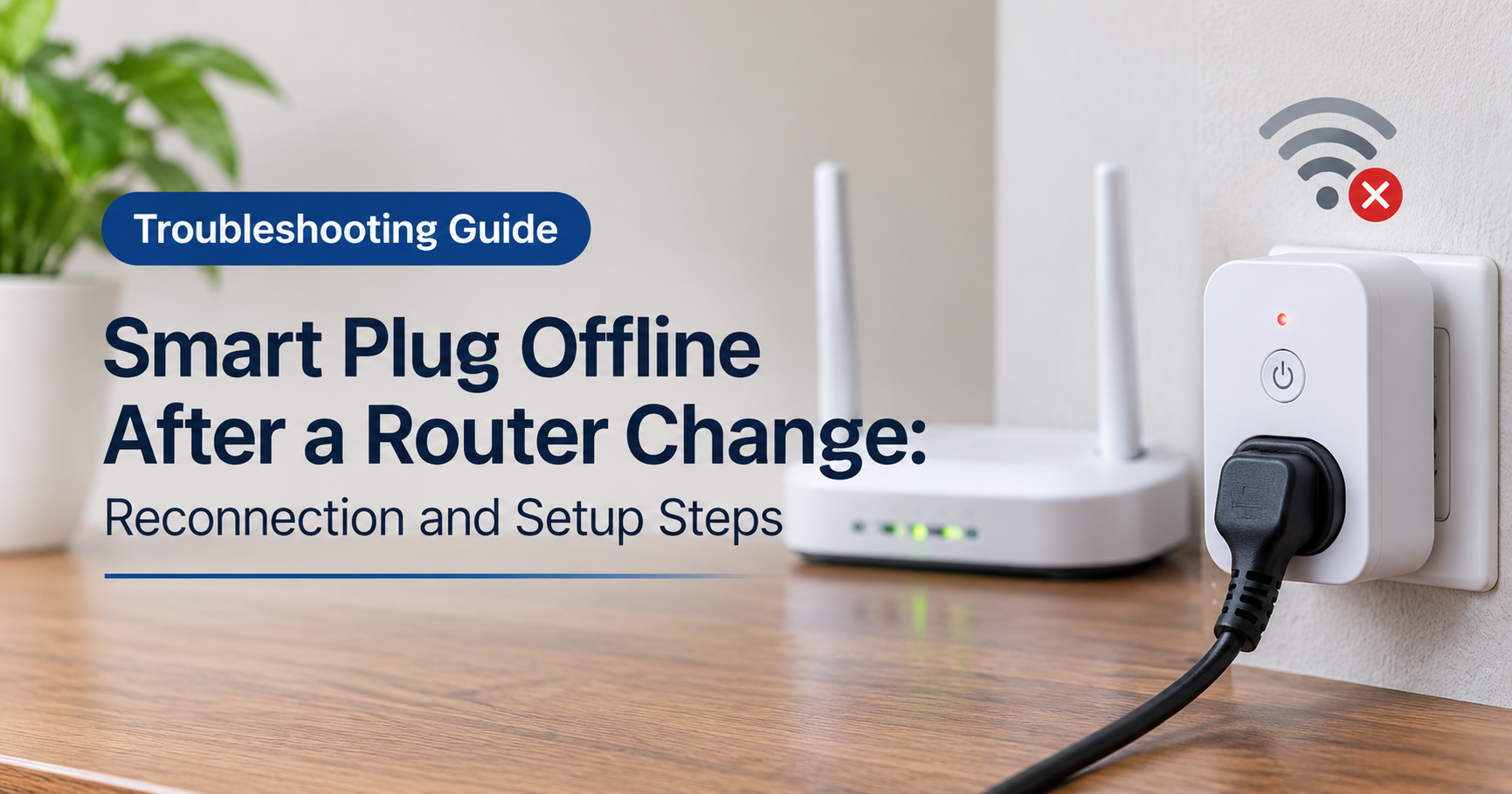
You swapped your old router for a new one, and suddenly your smart plug shows as offline in the app. The lights, fans and coffee maker it controlled are no longer responding, and the voice commands that worked yesterday now return an error. It is frustrating, but it is also one of the most common smart home problems, and it is almost always easy to fix.
In this complete guide you will learn exactly why a smart plug goes offline after a router change, how to get it reconnected step by step, and what to look for in a smart plug so you avoid the same headache in the future.
In This Guide
- Why smart plugs go offline after a router change
- 2.4 GHz vs 5 GHz: the number one cause
- Before you start: what you need
- Fix 1: Restart the smart plug and the router
- Fix 2: Match the Wi-Fi name and password exactly
- Fix 3: Use the 2.4 GHz band only during setup
- Fix 4: Check the new router settings
- Fix 5: Factory reset the smart plug
- Fix 6: Re-add the smart plug in the app
- Extra tips for a stable connection
- How to choose a reliable smart plug
- Frequently asked questions
Why Smart Plugs Go Offline After a Router Change
A Wi-Fi smart plug does not connect to your router by magic. During the first setup, you gave it three things: the name of your Wi-Fi network (the SSID), the password, and the type of connection it should use. The plug stores these details in its memory and uses them every time it powers on.
When you install a new router, one or more of these details usually changes. Even if you were careful to reuse the same network name and password, the new router may use a different security mode, a different frequency band setup, or different default settings. To the smart plug, this looks like a completely unknown network, so it keeps searching for the old one and never connects.

The most common reasons include:
- A different Wi-Fi name or password on the new router.
- Combined 2.4 GHz and 5 GHz networks that use a single name (often called Smart Connect or band steering).
- A different security mode, such as WPA3 only, which many older smart plugs do not support.
- Router features like AP isolation, MAC address filtering or a guest network setup that blocks smart devices from talking to your phone or the cloud.
- A weaker signal in the spot where the plug is installed, especially if the new router is placed in a different room.
2.4 GHz vs 5 GHz: The Number One Cause
If there is one thing to remember from this article, it is this: almost all Wi-Fi smart plugs work only on the 2.4 GHz band. Modern routers broadcast both 2.4 GHz and 5 GHz, and many of them merge both bands under one network name to make things simple for phones and laptops. That convenience can confuse a smart plug, because during setup your phone may be on 5 GHz while the plug can only see 2.4 GHz.

| Feature | 2.4 GHz | 5 GHz |
|---|---|---|
| Range | Longer | Shorter |
| Wall penetration | Better | Weaker |
| Top speed | Lower | Higher |
| Smart plug support | Almost always | Rarely |
Before You Start: What You Need
Gather these items first so the process goes smoothly:
- Your smartphone with the smart plug manufacturer’s app installed and updated.
- The exact Wi-Fi name and password of your new router. Check the label on the router if you have not changed them.
- Access to the router’s admin page or app, in case you need to change a setting.
- The smart plug plugged into a wall outlet close to the router for the first attempt. You can move it back later.

Fix 1: Restart the Smart Plug and the Router
It sounds too simple, but a restart clears temporary glitches on both sides of the connection. A new router that was just set up may also still be finishing its own startup process.
- Unplug the smart plug from the wall and leave it for about 30 seconds.
- Unplug the router power cable, wait 30 seconds, and plug it back in.
- Wait two to three minutes until the router lights are stable.
- Plug the smart plug back in and give it a minute to connect.
If the plug status in the app does not return to online, move on to the next fix.
Fix 2: Match the Wi-Fi Name and Password Exactly
If you set up the new router with the same Wi-Fi name and password as the old one, the plug may reconnect on its own. If anything is different, even a single capital letter, it will not. Wi-Fi names and passwords are case sensitive, and a lookalike character such as a zero instead of the letter O is enough to break the connection.
- Open your router’s settings and write down the exact network name and password.
- Avoid very long passwords with unusual symbols while setting up smart devices. Some plugs handle special characters poorly, so a simple but strong password made of letters and numbers can work better.
- If your new Wi-Fi name differs from the old one, you must add the plug again with the new details. A plug cannot learn a new network by itself.
Fix 3: Use the 2.4 GHz Band Only During Setup
This is the fix that solves the problem for most people. Your goal is to make sure both your phone and the smart plug are talking to the 2.4 GHz network at the moment you set the plug up.
If your router has separate network names for the two bands (for example, one ending in 2.4G and another ending in 5G), connect your phone to the 2.4G network before starting setup.
If your router uses one combined name, you have two simple options:
- Temporarily turn off the 5 GHz band in the router settings, finish the smart plug setup, and then turn 5 GHz back on. Once the plug is paired, it stays on 2.4 GHz.
- Turn off the Smart Connect or band steering option and give each band its own name. This is the cleaner long-term solution, because you can always choose the band on purpose.
Fix 4: Check the New Router Settings
New routers often ship with modern security and privacy features enabled by default. They are great for laptops and phones, but they can block simple smart home devices. Log in to your router and review these settings:
| Router Setting | What to Do |
|---|---|
| Security mode | Use WPA2 or a mixed WPA2/WPA3 mode on the 2.4 GHz band. Many plugs cannot join WPA3-only networks. |
| AP isolation or client isolation | Turn it off. It stops devices on the network from communicating with each other, including your phone and the plug. |
| MAC address filtering | Disable it, or add the smart plug’s MAC address to the allowed list. |
| Hidden network name | Make the network visible during setup, since some plugs struggle with hidden networks. |
| Wi-Fi channel | On 2.4 GHz, try channel 1, 6 or 11 and a 20 MHz channel width for the most compatible connection. |
| Guest network or IoT network | If your phone and plug are on different networks, the app may not find the plug. Put both on the same network. |
| DHCP and device limit | Make sure DHCP is enabled and the router has not reached its maximum number of connected devices. |
Save the changes and restart the router if it asks you to. Then try pairing the plug again.
Fix 5: Factory Reset the Smart Plug
If the plug still refuses to connect, it is time to wipe its saved Wi-Fi details completely. A factory reset removes the old network information and puts the plug back into pairing mode.
The exact method depends on the brand and model, but most smart plugs follow a similar pattern:
- Plug the smart plug into a wall outlet.
- Press and hold the power button on the plug for about 5 to 10 seconds.
- Release the button when the indicator light starts to blink rapidly. On many models, a rapid blink means quick pairing mode, while a slow blink means a different pairing mode.
- If the light does not change, check the instruction card in the box or the help section of the manufacturer’s app for the correct reset steps for your model.
Fix 6: Re-Add the Smart Plug in the App
With the plug in pairing mode and your phone on the right network, you can finish the job:
- Open the manufacturer’s app and choose the option to add a new device.
- Make sure your phone is connected to the 2.4 GHz Wi-Fi network and that the app has permission to use Bluetooth and location if it asks. Many apps need these permissions to find new devices.
- Select your smart plug model and follow the on-screen steps.
- Enter the Wi-Fi password carefully and wait for the app to confirm that the plug is connected.
- Rename the plug, then check that it switches on and off from the app.
If you also use a voice assistant or a smart home platform, you may need to refresh or relink the device there. Simply open the assistant’s app and run a device discovery so it picks up the plug again.
Extra Tips for a Stable Connection
- Improve the signal. Smart plugs have small antennas. If the plug is far from the router or behind thick walls, move the router, add a mesh node or use a Wi-Fi extender that supports 2.4 GHz.
- Reserve an IP address. In the router settings, set a DHCP reservation for the plug so its address does not change. This makes the connection more consistent, especially for local control features.
- Update the firmware. Keep both the router and the smart plug firmware up to date. Updates often fix compatibility issues with newer routers.
- Keep the app updated. An outdated app can fail to find or pair devices on a new network.
- Avoid interference. Microwaves, cordless phones and baby monitors can disturb the 2.4 GHz band. Keep the plug away from them if possible.
- Do one device at a time. If you have many smart plugs, reconnect them one by one. Setting up several at once can overload the router and the app.
- Be patient after power cuts. If your plugs go offline after a power outage, give the router a few minutes to start first, then restart the plugs.
How to Choose a Reliable Smart Plug
If you are tired of fighting with an unreliable plug, or you are planning to replace several of them after a router upgrade, a few features make a big difference in day to day reliability.
Wi-Fi Standard and Band Support
Look for a plug that clearly states which Wi-Fi bands it supports. A plug that works well on 2.4 GHz and handles modern WPA2 or WPA3 mixed networks is the safest choice for most homes. Plugs that advertise dual band support can be more flexible with newer routers.
Smart Home Ecosystem Compatibility
Check that the plug works with the voice assistant or smart home platform you already use, such as Alexa, Google Home or Apple Home. Plugs that support the Matter standard are designed to work across different ecosystems, which can make switching platforms or routers easier in the future.
Local Control and Offline Features
Some plugs can store schedules inside the device, so timers still run even when the internet is down. Models that support local control continue to respond on your home network when the cloud service has problems.
Energy Monitoring
If you want to track how much power your devices use, choose a plug with built in energy monitoring. It is useful for finding energy hungry appliances and estimating your running costs.
Safety Certifications and Load Rating
Always pick a plug with recognized safety certifications and a power rating that matches your appliance. Heaters, air conditioners and other high power devices need a plug that is explicitly rated for the load. Never exceed the maximum rating printed on the plug.
Compact Design
A slim design lets you use both sockets of a double wall outlet. This is a small detail that you will appreciate when you add more plugs around the house.
App Quality and Brand Support
A smart plug is only as good as its app. Pick a brand with a regularly updated app, clear setup instructions and active customer support, so that fixing problems after a router change takes minutes instead of hours.
Common Mistakes to Avoid
- Trying to pair the plug while the phone is connected to mobile data or a 5 GHz network.
- Typing the Wi-Fi password incorrectly because the app hides the characters. Use the show password option if it is available.
- Forgetting to remove the old offline device entry, which creates duplicates in the app and in voice assistants.
- Placing the plug too far from the router during the initial setup.
- Changing the Wi-Fi name or password again right after setup, which forces another reconnection.
Frequently Asked Questions
Why is my smart plug offline after I changed my router?
The plug stored the old Wi-Fi details and cannot automatically join a new network. If the new router has a different name, password, security mode or band setup, the plug will stay offline until you reset it and add it again with the new details.
Do I need to reset my smart plug when I change my router?
If the Wi-Fi name and password are exactly the same and the settings are compatible, the plug may reconnect on its own. If anything is different, or the plug stays offline after a restart, a factory reset followed by a fresh setup is the most reliable fix.
Can smart plugs connect to 5 GHz Wi-Fi?
Most standard Wi-Fi smart plugs only support 2.4 GHz. Some newer dual band models support 5 GHz as well, so check the product specifications before you buy.
Why won’t my smart plug enter pairing mode?
Try holding the button longer, unplugging the plug and trying again, or using a different outlet. If it still does not blink, consult the manual for your exact model, because some plugs require a specific button sequence.
Will my automations and schedules survive a reset?
Often they will not, especially if you remove the device from the app and add it as a new one. Plan to recreate timers, scenes and voice assistant routines after the reconnection.
My phone cannot find the smart plug during setup. What should I do?
Check that your phone is on 2.4 GHz Wi-Fi, that Bluetooth and location permissions are enabled for the app, that the plug is in pairing mode, and that the router does not have AP isolation or a guest network blocking the connection.
Is it better to keep the same Wi-Fi name and password as my old router?
Using the same network name and password is a smart shortcut because many devices reconnect without any manual work. Just make sure the security mode and 2.4 GHz band are also compatible, otherwise the plug may still fail to join.
How can I stop my smart plug from going offline again?
Keep the plug within good signal range, use a dedicated 2.4 GHz network name, reserve an IP address for it, keep firmware updated, and avoid changing router settings unnecessarily.
Final Thoughts
A smart plug that goes offline after a router change is rarely broken. In nearly every case the plug simply needs to learn the new network. Start with a restart, double check the Wi-Fi name and password, force the setup onto the 2.4 GHz band, review your router’s security and isolation settings, and if all else fails, factory reset the plug and add it again.
Once your smart plugs are back online, take a few extra minutes to give each band a clear name, reserve addresses for your devices and keep everything updated. Those small steps keep your smart home running smoothly through the next router upgrade, and if you are shopping for replacements, choosing plugs with strong 2.4 GHz support, good app quality and cross platform compatibility will save you time and frustration for years to come.