







Ollama GPU Requirements: How Much VRAM and Which GPU Do You Really Need?
Running large language models on your own computer has never been easier, and Ollama is one of the main reasons why. With a single command you can download a model and start chatting with it, with no cloud account and no monthly bill. But the moment you try a bigger model, one question comes up again and again: what are the actual Ollama GPU requirements?
The honest answer is that it depends on three things: the size of the model, how compressed (quantized) it is, and how long a conversation you want to hold in memory. In this guide we break down everything in plain language: which GPUs Ollama supports, how much VRAM each model size needs, what happens when your GPU is too small, and how to choose the right graphics card for your budget.
Quick Answer: Ollama GPU Requirements at a Glance
- Minimum to get GPU acceleration: a supported GPU (NVIDIA with compute capability 5.0 or higher, a supported AMD card, an Apple Silicon Mac, or a Vulkan-capable card).
- Small models (1B to 4B): roughly 3 to 4 GB of VRAM.
- Popular 7B to 8B models: roughly 6 to 7 GB of VRAM, so an 8 GB card works.
- 13B to 14B models: roughly 9 to 10 GB, so 12 GB or 16 GB cards are comfortable.
- 30B to 34B models: roughly 20 to 24 GB of VRAM.
- 70B models: roughly 47 to 52 GB, which means multiple GPUs, a very large unified-memory Mac, or partial offloading to system RAM.
These numbers are approximate and assume a common 4-bit quantization with an 8K context window and one active request. Your real usage will move up or down depending on the model and settings.
Why Does Ollama Need a GPU at All?
Language models are made of billions of numbers called parameters. Every time the model produces a word, it has to read through a huge portion of those numbers and do a lot of math. GPUs are built for exactly this kind of parallel math, and they also have very fast memory, which is the real secret behind quick responses.
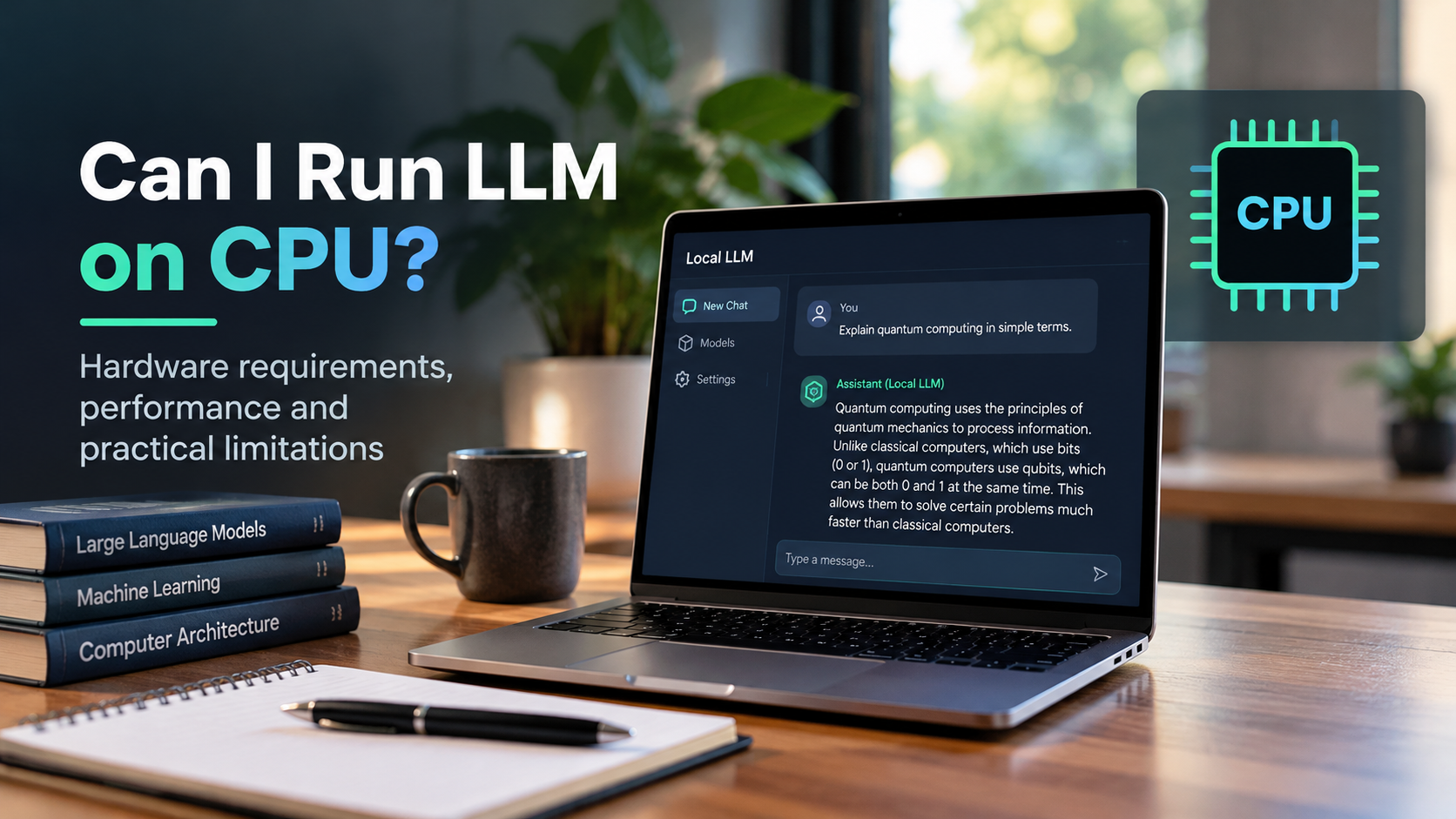
Ollama can run on a CPU alone, but it is much slower. A GPU can turn a painful few words per second into a smooth, readable stream of text. The catch is that the model has to fit in the GPU’s own memory, called VRAM, to get that full speed.

Which GPUs Does Ollama Support?
Ollama supports several kinds of hardware, and this is the first thing to check before you buy anything.

NVIDIA GPUs
NVIDIA is the easiest and most widely used option. Ollama supports NVIDIA GPUs with CUDA compute capability 5.0 or higher, which covers many GeForce GTX and RTX cards as well as data center cards such as the A100 and H100. You also need a reasonably recent NVIDIA driver. Very old cards in the 5.0 to 6.2 range may need a newer driver version than modern cards, so always update your driver before troubleshooting anything else.
AMD GPUs
On AMD, Ollama uses the ROCm software stack for a selected list of Radeon RX, Radeon PRO and Instinct cards, on both Linux and Windows. Not every AMD card is on the list, so check Ollama’s official hardware support page for your exact model before buying. AMD cards outside the list may still work through Vulkan support.
Apple Silicon (Metal)
Macs with M-series chips are supported through Apple’s Metal API. Apple Silicon uses unified memory, meaning the CPU and GPU share one pool of memory. This makes Macs surprisingly good for running larger models, because a machine with a lot of unified memory can load models that would never fit on a typical desktop graphics card.
Vulkan (Intel and Other Cards)
Vulkan support extends GPU acceleration on Windows and Linux to cards beyond the CUDA and ROCm lists, including Intel Arc and some older AMD GPUs. It is a newer and still evolving path, so performance and stability can vary compared with NVIDIA.
How Much VRAM Do You Need for Each Model Size?
VRAM is the single most important number in your hardware. If the full model fits in VRAM, Ollama runs at full speed. If it does not, part of the model spills into system RAM and speed drops sharply.

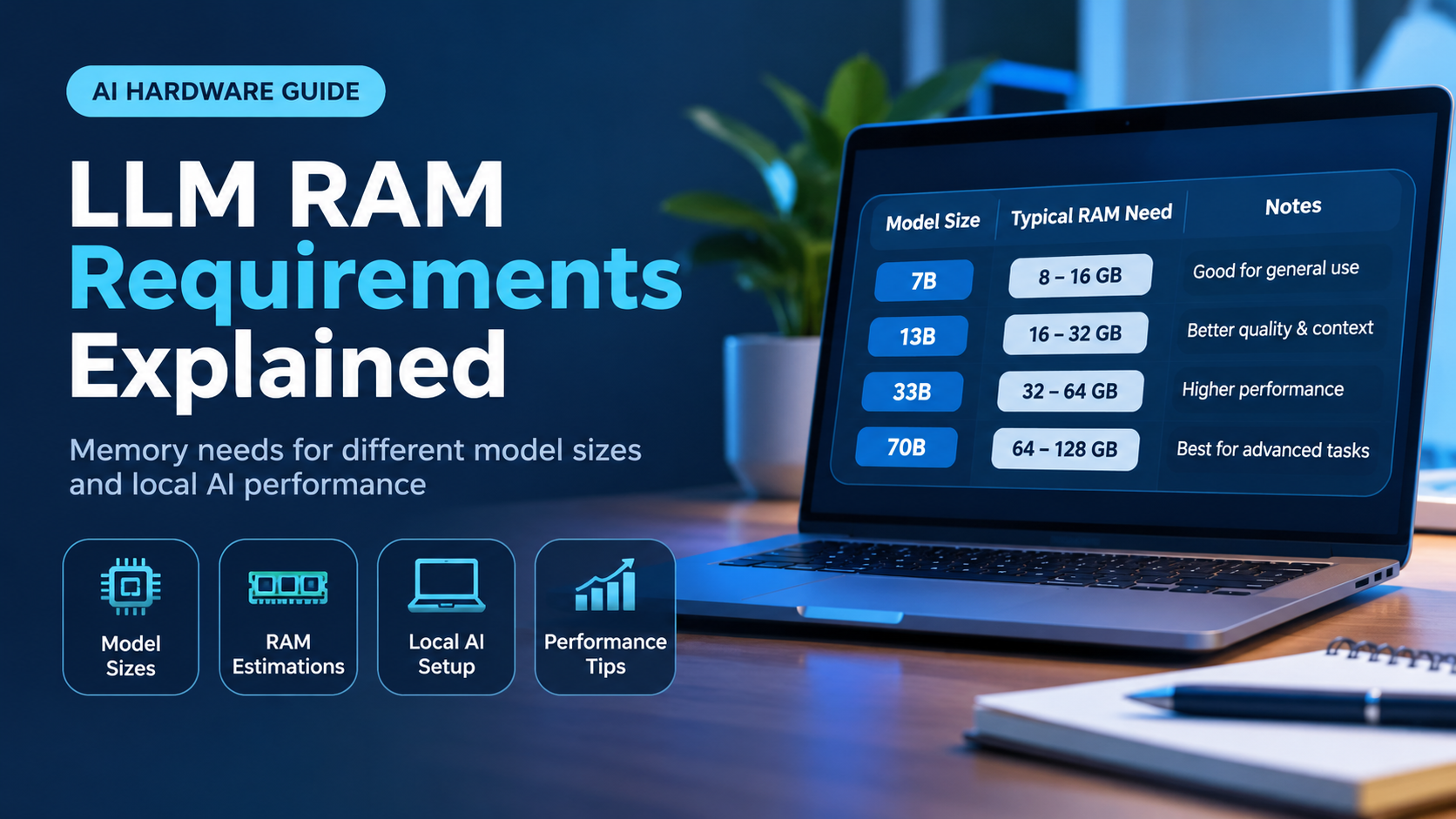
| Model Size | Approx. VRAM (4-bit, 8K context) | Suitable GPU Memory |
|---|---|---|
| 1B to 4B | 3 to 4 GB | 6 GB or more is very comfortable |
| 7B to 8B | 6 to 7 GB | 8 GB works, 12 GB is comfortable |
| 13B to 14B | 9 to 10 GB | 12 GB works, 16 GB is comfortable |
| 30B to 34B | 20 to 24 GB | 24 GB class card |
| 70B | 47 to 52 GB | Multi-GPU, large unified memory, or partial offload |
What Actually Uses Your VRAM?
Many beginners assume VRAM only holds the model file, but that is only part of the story. When a model runs, memory is used for three main things.

- Model weights: the model itself. A rough rule is that the weights take up about half a byte per parameter at 4-bit quantization, so a 7B model is a little over 4 GB just for weights.
- KV cache: the working memory that stores your conversation so far. It grows as the context window gets longer, and it can become very large at long contexts.
- Overhead: memory used by the runtime, buffers and the graphics driver itself.
This is why a model whose file is 4.7 GB may need 6 to 7 GB of VRAM once it is actually running and holding a conversation.
Quantization: The Biggest Lever You Control
Quantization compresses a model by storing its numbers with fewer bits. Most models you download through Ollama are already 4-bit versions, which is a popular balance between size, speed and quality. Going higher (such as 8-bit) improves accuracy slightly but roughly doubles memory use. Going lower saves memory but can noticeably hurt answer quality.
If a model is just slightly too large for your card, trying a smaller quantization of the same model is often the easiest fix.
Context Length: The Hidden VRAM Cost
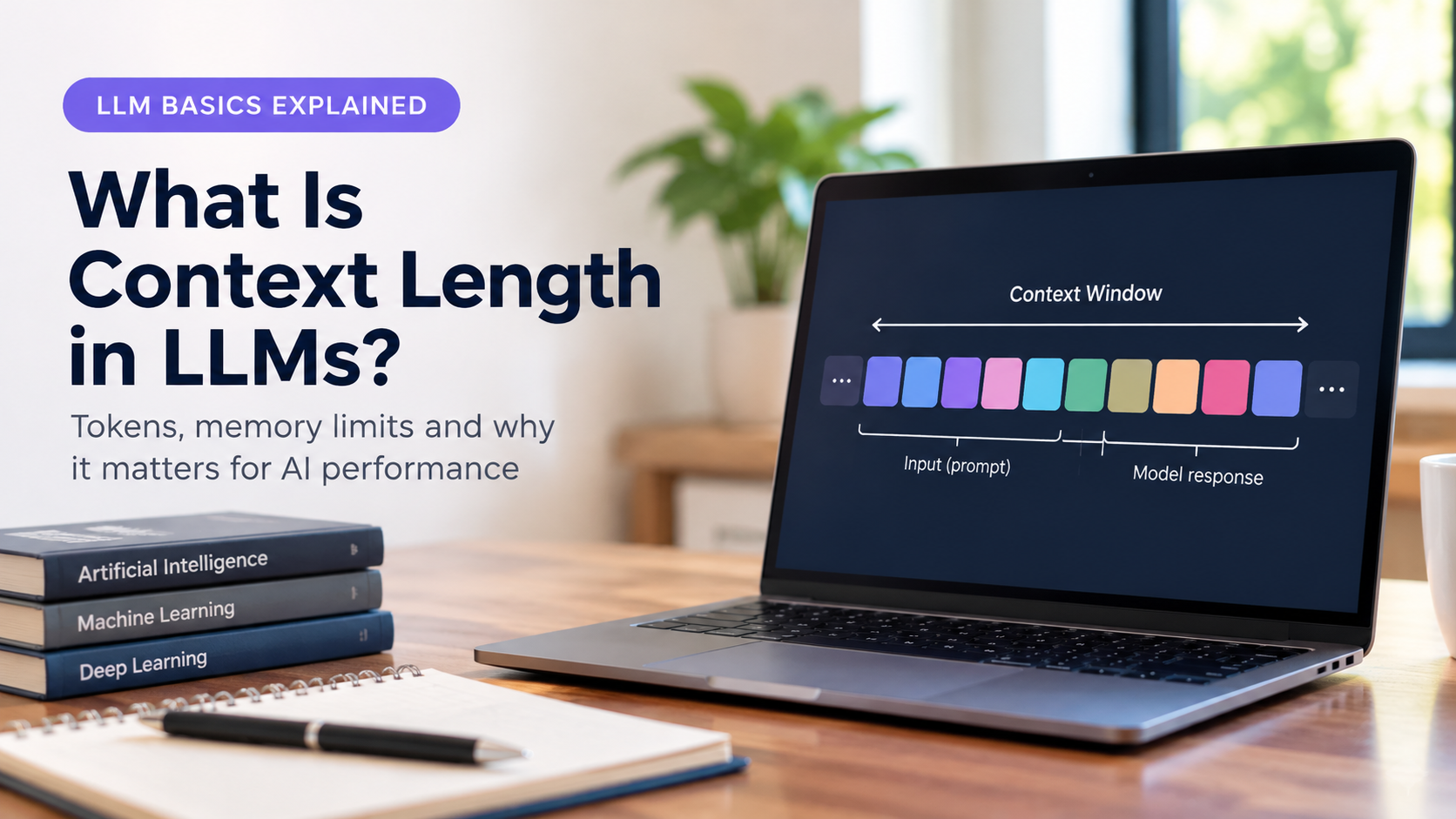
The context window is how much text the model can keep in mind at once, including your prompt and its own replies. Longer context means a bigger KV cache, and that means more VRAM. If you push the context window very high on a modest GPU, the model can suddenly stop fitting and slow to a crawl, even though the model weights did not change.
A practical approach is to start with a moderate context size and increase it only when your task really needs it, such as summarizing long documents.
What Happens When the Model Does Not Fit?
Ollama is smart about this. If a model is larger than your VRAM, it can split the work, placing as many layers as possible on the GPU and running the rest on the CPU using system RAM. This is called partial offloading.
It means a big model will still run on a smaller card, but the more layers that land on the CPU, the slower it gets. For a chat that feels responsive, aim to keep the whole model on the GPU whenever you can.
You can see exactly how a loaded model is being split by running the following command in your terminal while the model is loaded:
ollama psThe output shows whether the model is running fully on the GPU, fully on the CPU, or split between the two. For NVIDIA cards, the nvidia-smi tool shows live VRAM usage as well.
Recommended GPU Tiers for Ollama

8 GB VRAM: Entry Level
An 8 GB card handles small and 7B to 8B models. It is a fine way to start, but you will feel the limit when you try longer contexts or larger models.
12 GB VRAM: Best Budget Value
Cards such as the RTX 3060 12 GB are popular for local AI because 12 GB runs 7B to 8B models comfortably and can handle some 13B to 14B models. For many beginners this is the sweet spot between price and capability.
16 GB VRAM: The Comfortable Middle
With 16 GB you can run 13B to 14B models with room left over for longer context windows. If you plan to use Ollama regularly, this tier removes a lot of the frustration of running out of memory.
24 GB VRAM: Enthusiast Level
Cards like the RTX 3090 and RTX 4090 offer 24 GB, enough for 30B-class models fully on the GPU. Used 24 GB cards can be an excellent value for serious hobbyists.
32 GB and Above: Power Users
Newer high-end cards with 32 GB, as well as workstation and data center GPUs, are for people who want large models, multiple models loaded at once, or very long contexts. For 70B-class models you will generally need more than one GPU or a very large pool of memory.
A Note on Macs
Because Apple Silicon shares memory between CPU and GPU, a Mac with plenty of unified memory can run surprisingly large models quietly and with low power use. It will not match a top NVIDIA card in raw speed, but it can load models that a single desktop GPU simply cannot hold.
Other Hardware That Matters
- System RAM: Aim for at least as much RAM as VRAM, and ideally more. If a model spills over, system RAM becomes part of the equation. 16 GB is a practical minimum and 32 GB is much more comfortable.
- CPU: Less important when the model is fully on the GPU, but a decent modern CPU helps with loading and with any layers that get offloaded.
- Storage: Models are large files, often several gigabytes each. A fast SSD with plenty of free space makes downloading and loading models much quicker.
- Power supply and cooling: High-end GPUs draw a lot of power. Check the recommended power supply wattage for your card, and make sure your case has good airflow, since long generation sessions keep the GPU busy.
How to Check That Ollama Is Really Using Your GPU
- Start a model and send it a prompt.
- Open a second terminal and run
ollama psto see the processor split. - On NVIDIA, run
nvidia-smiand confirm VRAM usage rises while the model is loaded. - If everything is running on the CPU, update your GPU driver and restart the Ollama service.
Common Problems and Quick Fixes
Ollama Is Using the CPU Instead of the GPU
This is the most common complaint. First confirm your GPU is on the supported list and that your driver is up to date. On Linux laptops, the GPU is sometimes not detected after a suspend and resume cycle, and reloading the NVIDIA driver module or simply restarting the Ollama service usually brings it back.
The Model Is Slow Even Though I Have a GPU
Run ollama ps. If the model is split between GPU and CPU, it is too big for your VRAM. Try a smaller model, a smaller quantization, or a shorter context window.
Out of Memory Errors
These happen when the model plus its context exceeds your VRAM. Lower the context size, close other programs that use the GPU such as games, browsers with hardware acceleration or video editors, and consider a smaller model.
I Have More Than One GPU
Ollama can spread a large model across multiple GPUs. If you want to limit which GPU it uses, you can control this with environment variables such as CUDA_VISIBLE_DEVICES for NVIDIA cards.
AMD Card Not Detected
Make sure your exact card is on the supported list and that the correct driver stack is installed. Some users experiment with override settings for near-compatible cards, but results vary and this is best treated as an advanced option.
Buying Tips Before You Spend Money
- Prioritize VRAM over raw speed. A slightly slower card with more VRAM is usually better for local models than a faster card with less.
- Buy for the models you want next year, not just today. Models keep getting more capable, and people often outgrow an 8 GB card quickly.
- Confirm support first. Check that the exact card model works with Ollama before you order it.
- Consider used cards. Previous-generation cards with large VRAM can offer far better value for local AI than new mid-range cards.
- Do not forget the rest of the system. Power supply, case space and cooling matter, especially for large cards.
Frequently Asked Questions
Can Ollama run without a GPU?
Yes. Ollama works on a CPU alone, and small models can be usable that way. However, responses will be much slower than with a supported GPU, especially for larger models.
How much VRAM do I need to run Llama-style 7B or 8B models?
Around 6 to 7 GB at 4-bit quantization, so an 8 GB card is enough, though a 12 GB card leaves more room for longer conversations.
Is an NVIDIA GPU required?
No, but NVIDIA is the smoothest experience. AMD, Apple Silicon and Vulkan-capable cards are also supported, with more variation in setup and performance.
Can I run a 70B model at home?
Yes, but it needs roughly 47 to 52 GB of memory at 4-bit quantization. That usually means multiple GPUs, a Mac with a large amount of unified memory, or accepting slower speeds through partial offloading to system RAM.
Does more system RAM help if my VRAM is small?
It helps the model run at all by giving it somewhere to spill over, but it does not make the model fast. VRAM is what controls speed.
Do longer conversations need more VRAM?
Yes. A longer context window grows the KV cache, which uses additional VRAM beyond the model weights.
Final Thoughts
Understanding Ollama GPU requirements comes down to one simple idea: fit the whole model, plus its working memory, inside your VRAM. Check that your GPU is supported, pick a model size that matches your memory, and keep an eye on context length and quantization. For most people starting out, a 12 GB card is a very practical entry point, 16 GB is the comfortable middle, and 24 GB opens the door to much larger models.
Take a moment to decide which models you actually want to run, then choose the GPU that fits them with some room to spare. A little planning now saves you from slow responses, memory errors and an upgrade you did not budget for later.