







If you are planning to run AI on your own computer, one question matters more than almost any other: how much VRAM do you need for AI? Processor speed, system RAM and storage all play a part, but video memory (VRAM) on your graphics card decides which models you can load at all. Too little and the model will refuse to run, slow to a crawl, or crash with an out-of-memory error. Too much and you may have paid extra for capacity you never use.
This guide explains VRAM requirements in plain language. You will learn how to calculate memory needs for large language models (LLMs), how much you need for image and video generation, what changes when you fine-tune a model, and which GPU memory tier makes sense for your goals and budget.
Quick Answer
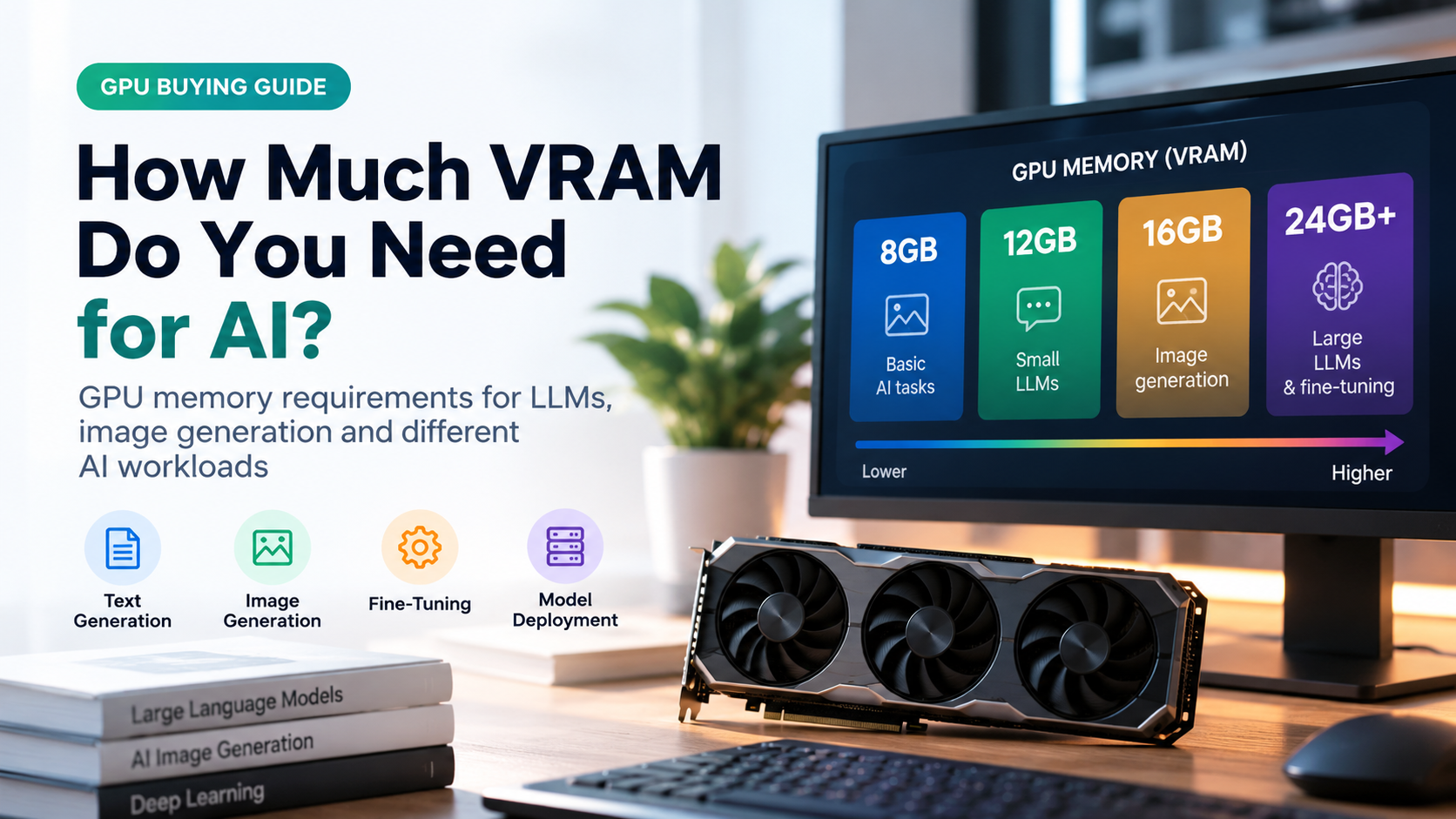
For most people, 12 GB to 16 GB of VRAM is the practical starting point for local AI in 2026. 8 GB works for small models and basic image generation, 24 GB opens up larger models and heavier workflows, and 32 GB or more is for power users who want maximum flexibility.
Quick VRAM Requirements by AI Task
Use this table as a starting point. The numbers are approximate, because exact usage depends on the software you use, the model version, quantization and your settings.
| AI Task | Minimum VRAM | Comfortable VRAM |
|---|---|---|
| Small LLMs (1B to 4B parameters) | 4 GB | 6 to 8 GB |
| 7B to 8B LLMs (4-bit) | 6 GB | 8 to 12 GB |
| 13B to 14B LLMs (4-bit) | 10 GB | 12 to 16 GB |
| 27B to 34B LLMs (4-bit) | 20 GB | 24 GB |
| 70B LLMs (4-bit) | 40 GB | 48 GB or more |
| Stable Diffusion 1.5 images | 4 GB | 6 to 8 GB |
| SDXL images | 8 GB | 12 GB |
| Flux-class image models (12B) | 8 GB (heavily quantized) | 16 to 24 GB |
| AI video generation | 12 GB (quantized, short clips) | 24 GB or more |
| QLoRA fine-tuning of a 7B model | 8 to 10 GB | 12 to 16 GB |
| Full fine-tuning of a 7B model | 80 GB or more | Multiple data-center GPUs |
What Is VRAM and Why Does AI Need So Much?
VRAM stands for video random access memory. It is the fast memory built into your graphics card, and it sits right next to the GPU cores that do the heavy mathematics. When you run an AI model, the model’s parameters (also called weights) have to be loaded into this memory so the GPU can read them billions of times per second.
System RAM is also fast, but it is far slower than VRAM for this job. If a model does not fit in VRAM, the software has to move parts of it back and forth over a much slower connection, or run it on the CPU. The result is dramatically lower speed. A model that produces dozens of words per second on the GPU can drop to a few words per second once it spills into system memory.
That is why the saying among local AI users is simple: VRAM is king. A mid-range GPU with plenty of memory will often run bigger models more smoothly than a faster GPU with less memory.
How to Calculate VRAM for an AI Model
You can estimate the memory a model needs with one easy formula. Multiply the number of parameters by the number of bytes each parameter uses, then add roughly 20 percent for overhead.
Bytes per parameter at different precisions
| Precision | Bytes per parameter | 7B model weights | 70B model weights |
|---|---|---|---|
| FP32 (full precision) | 4 | 28 GB | 280 GB |
| FP16 / BF16 (standard) | 2 | 14 GB | 140 GB |
| INT8 / FP8 (8-bit) | 1 | 7 GB | 70 GB |
| 4-bit (quantized) | about 0.5 to 0.6 | 3.5 to 4.5 GB | 35 to 42 GB |
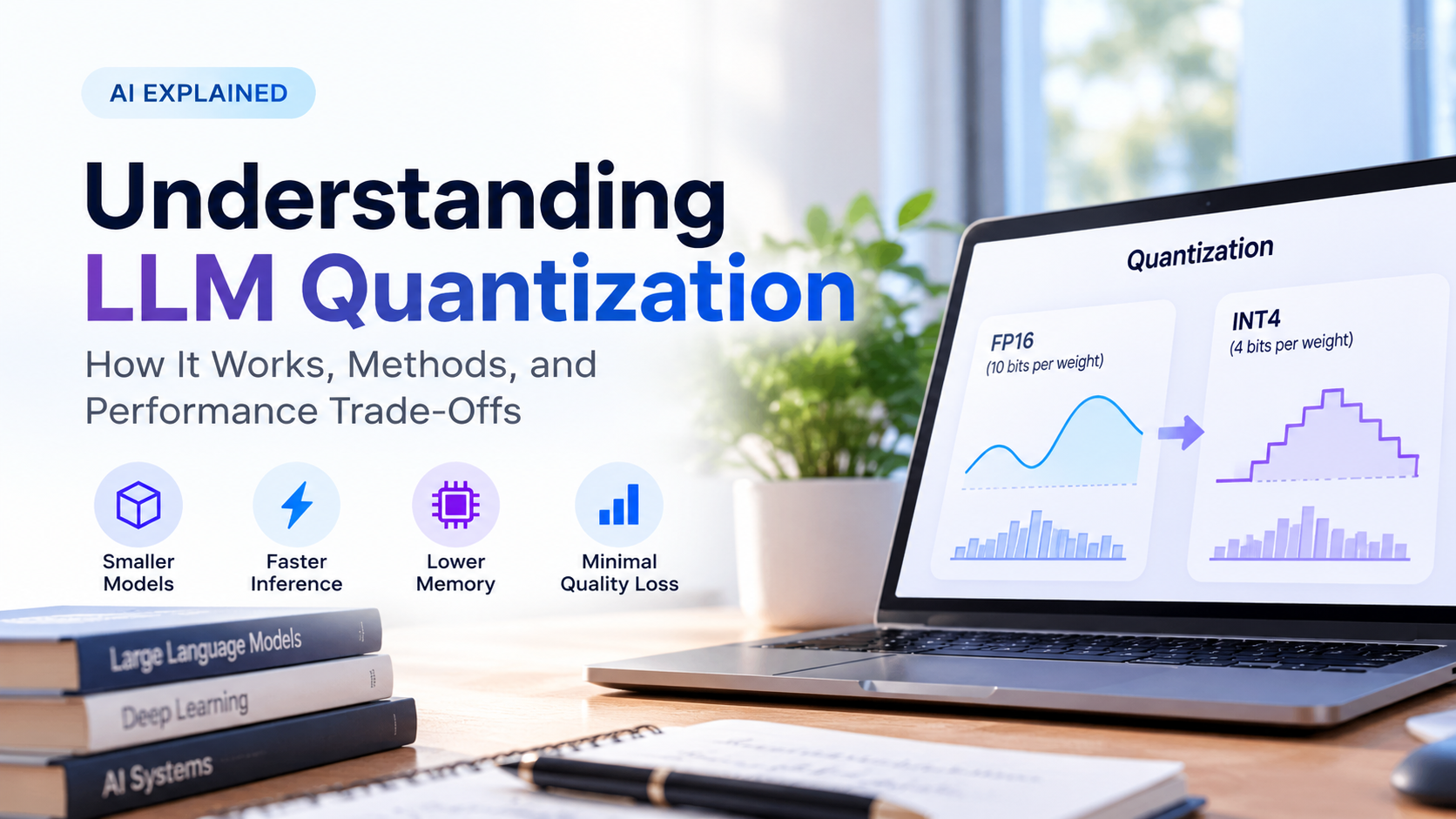
This is why quantization matters so much. Quantization stores the weights using fewer bits, which cuts memory use dramatically with a small loss in quality. A 4-bit version of a model needs roughly a quarter of the memory of the 16-bit original, and for everyday chat and writing tasks the difference is usually hard to notice.
VRAM Needed for Running Large Language Models (LLMs)
Chatbots, coding assistants and writing tools all rely on LLMs. Their memory needs scale directly with model size, so the first thing to check is how many parameters your chosen model has.
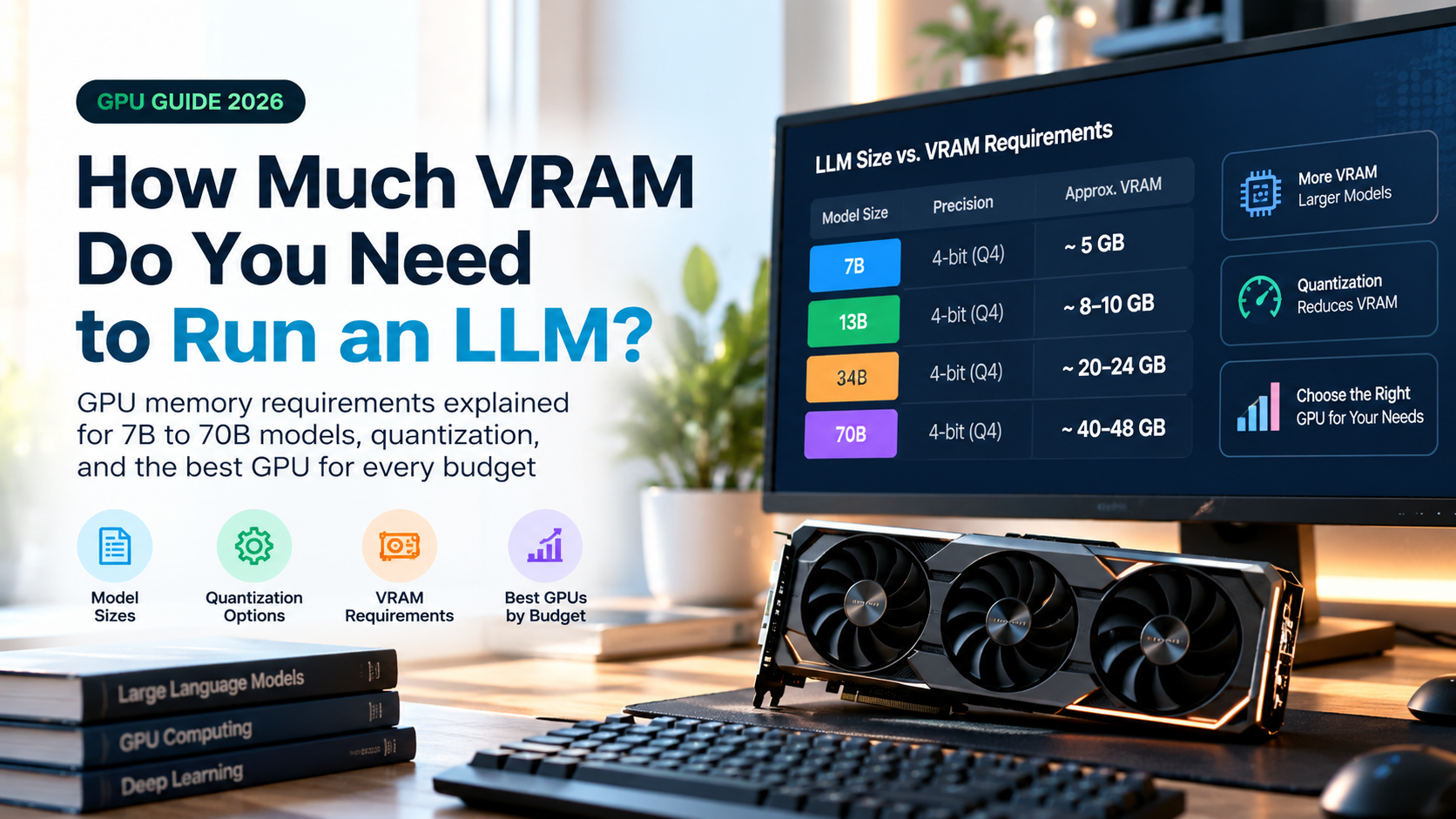
| Model size | FP16 weights | 8-bit | 4-bit | Suggested GPU memory (4-bit) |
|---|---|---|---|---|
| 1B to 3B | 2 to 6 GB | 1 to 3 GB | 1 to 2.5 GB | 4 GB |
| 7B to 8B | 14 to 16 GB | 7 to 8 GB | 4.5 to 5.5 GB | 8 GB |
| 13B to 14B | 26 to 28 GB | 13 to 14 GB | 8 to 9 GB | 12 GB |
| 30B to 34B | 60 to 68 GB | 30 to 34 GB | 18 to 21 GB | 24 GB |
| 70B | 140 GB | 70 GB | 38 to 42 GB | 48 GB |
Context length and the KV cache
The weights are only part of the story. While a model generates text, it stores information about the conversation so far in something called the KV cache. The longer your prompt and chat history, the larger this cache grows. For a typical 8B-class model, the cache costs roughly 1 GB for every 8,000 tokens at 16-bit precision, so very long contexts can need several additional gigabytes. Newer models and software can compress the cache, but you should still leave headroom.
Practical rule
Pick a GPU with at least 25 to 30 percent more VRAM than the size of the model file you plan to run. A 9 GB model file fits comfortably on a 12 GB card, but it will be tight on a 10 GB card once you add context.
Mixture-of-Experts models
Some modern LLMs use a mixture-of-experts design. They activate only a fraction of their parameters for each token, which makes them fast for their size. However, all of the parameters still have to be stored, so a large mixture-of-experts model can need as much memory as a dense model of the same total size. Many local users keep the inactive parts in system RAM to make these models fit, which works but is slower than keeping everything in VRAM.
VRAM Needed for AI Image Generation
Image models are much smaller than the biggest LLMs, but they still need generous memory, especially at high resolutions or when you stack extras such as ControlNet, LoRA files and upscalers.
| Image model | Bare minimum | Smooth experience | Notes |
|---|---|---|---|
| Stable Diffusion 1.5 | 4 GB | 6 to 8 GB | Great for older or budget GPUs |
| SDXL | 8 GB (with memory savers) | 12 GB | Better detail and prompt following |
| Flux-class (about 12B) | 8 GB (heavily quantized) | 16 to 24 GB | FP16 needs around 24 GB, FP8 around 12 GB |
| High-resolution upscaling | +1 to 3 GB | +4 GB | Depends on tile size and method |
If you generate larger images, use higher batch sizes, or combine several control models in one workflow, memory climbs quickly. Most image tools offer options such as tiled processing, offloading and lower precision modes that trade a little speed for a lot of saved VRAM.
VRAM Needed for AI Video Generation
Video is the most demanding consumer AI task, because the model has to keep many frames in mind at once. Quantized versions of open video models can run on 12 GB to 16 GB cards for short, low-resolution clips. For longer clips, higher resolution and better quality, 24 GB or more is strongly recommended. If video is your main goal, treat VRAM as your most important buying decision.
VRAM Needed for Fine-Tuning and Training
Training needs far more memory than simply running a model, because the GPU also stores gradients and optimizer states. As a rough guide, full fine-tuning with a common optimizer can use around 16 bytes per parameter, which means a 7B model may need over 100 GB. That is data-center territory.
Fortunately, efficient methods make fine-tuning possible at home:
- LoRA trains small adapter layers instead of the whole model. A 7B model typically needs around 16 GB or more.
- QLoRA combines LoRA with a 4-bit base model. You can often fine-tune a 7B model in roughly 8 to 12 GB, and larger models on 24 GB cards.
- Gradient checkpointing and smaller batch sizes reduce memory further at the cost of training speed.
VRAM Tier Guide: Which GPU Memory Should You Choose?
8 GB: entry level
An 8 GB card handles small and mid-size 4-bit LLMs, Stable Diffusion 1.5 and optimized SDXL. It is a fine way to learn, but you will quickly meet its limits as models grow.
12 GB: the budget sweet spot
With 12 GB you can run 7B and 8B models at higher quality, 13B and 14B models in 4-bit, and SDXL comfortably. Cards in this class have long been a popular choice for hobbyists who want real capability without a huge price.
16 GB: comfortable all-rounder
Sixteen gigabytes gives you room for longer contexts, bigger quantizations and FP8 versions of larger image models. It is the best balance of cost and flexibility for many buyers.
24 GB: enthusiast tier
At 24 GB you can run 27B to 34B models in 4-bit, 13B models at high quality, heavier image workflows and serious QLoRA experiments. This tier has been the target for enthusiasts for several GPU generations.
32 GB and above: power users
Cards with 32 GB or more allow higher-precision 30B-class models, big image and video models and larger fine-tuning jobs. For 70B models you will generally want 48 GB or more, which usually means two GPUs working together or a professional card.
Do You Need an NVIDIA GPU?
NVIDIA GPUs remain the most compatible choice because the CUDA software ecosystem is supported by nearly every AI tool. AMD cards have improved steadily and work well with many popular LLM tools, and Apple Silicon computers can run models using unified memory shared between the CPU and GPU. The trade-off is that some image, video and training tools still work best, or only work, on NVIDIA hardware. Before buying, check that the exact software you plan to use supports your card.
Apple Silicon and Unified Memory
On a Mac with Apple Silicon, there is no separate VRAM. The GPU shares one pool of memory with everything else, and a large portion of it (commonly around two thirds to three quarters by default) can be used for models. That makes high-memory Macs attractive for running big LLMs quietly, although raw speed for image generation and training is usually lower than on a dedicated high-end GPU.
Can System RAM Replace VRAM?
Partly. Many LLM tools can offload some layers of a model to system RAM when VRAM runs out. This lets you run models larger than your GPU memory, but speed drops sharply, often from a comfortable reading pace to a slow crawl. Think of system RAM as a safety net, not a replacement. If you often need offloading, a GPU with more VRAM will improve your experience far more than a faster processor.
How to Reduce VRAM Usage
If your GPU is already bought and memory is tight, these techniques can help you do more with less:
- Use quantized models. 4-bit and 5-bit versions are the biggest single saving.
- Shorten the context window. Do not set a very large context if you do not need it.
- Quantize the KV cache. Many tools can store the cache in 8-bit to save memory.
- Close other GPU apps. Browsers, games and video editors can each take a surprising amount of VRAM.
- Plug your monitor into integrated graphics if your computer has it, which frees up to a gigabyte on the main GPU.
- Use offloading and tiled processing for image generation and upscaling.
- Choose a smaller model. A well-trained 8B model often beats a poorly matched 30B model for a specific task.
Common Mistakes When Choosing VRAM for AI
- Buying only on speed. A fast GPU with low VRAM cannot load models that a slower, higher-memory card can.
- Forgetting the context cache. A model that barely fits will fail once your chats grow long.
- Ignoring future needs. Models keep growing, and VRAM cannot be upgraded later on a normal graphics card.
- Assuming every task is the same. Image generation, LLMs, video and training have very different memory profiles.
- Overlooking power and cooling. High-memory cards often draw more power and need a suitable power supply and case airflow.
Buying Checklist for an AI GPU
- List the models you want to run and note their sizes in billions of parameters.
- Decide on the quantization level you are comfortable with (4-bit is a good default).
- Calculate memory with the formula above, then add 25 to 30 percent headroom.
- Confirm that your software supports the GPU brand you are considering.
- Check your power supply wattage, connector type and case space before ordering.
- Compare memory bandwidth too, since it affects how fast tokens are generated.
- Consider renting cloud GPUs for occasional heavy jobs instead of buying top-end hardware.
Frequently Asked Questions
Is 8 GB of VRAM enough for AI?
It is enough to get started. You can run small and mid-size 4-bit LLMs and generate images with Stable Diffusion 1.5 or optimized SDXL. For larger models, long contexts, Flux-class image models or video, you will want more.
Is 12 GB or 16 GB better for AI?
Sixteen gigabytes is better if you can afford it, because it gives you more headroom for context, higher-quality quantizations and bigger image models. Twelve gigabytes is still a strong, cost-effective choice for 7B to 14B models and SDXL.
How much VRAM do I need to run a 70B model?
At 4-bit precision, a 70B model needs around 40 GB for the weights alone, and more once you add context. Plan for 48 GB or more, either on a single professional GPU or across two cards.
Can I combine two GPUs to get more VRAM?
For many LLM tools, yes. They can split a model across multiple GPUs so the combined memory holds a bigger model. Most image and video tools do not combine memory across cards as well, so a single larger card is usually better for those tasks.
Does more VRAM make AI faster?
Not directly. More VRAM lets you load bigger models and longer contexts. Speed depends mainly on GPU compute power and memory bandwidth. However, once a model no longer fits in VRAM, performance falls dramatically, so having enough memory is the first requirement for good speed.
Can I upgrade my graphics card’s VRAM later?
No. VRAM is built into the graphics card and cannot be expanded. If you need more, you have to replace the card, so it is wise to buy with future needs in mind.
Is VRAM the same as RAM?
No. VRAM is dedicated memory on the graphics card, while RAM is your computer’s main memory. AI models run fastest when they sit entirely in VRAM.
Final Thoughts: How Much VRAM Do You Really Need?
The right amount of VRAM comes down to what you want to do. If you are exploring chatbots and basic image generation, 8 GB to 12 GB will get you started. If you want a smooth experience with mid-size LLMs, long contexts and modern image models, aim for 16 GB. If you are chasing large models, video generation or serious fine-tuning, 24 GB or more will save you frustration.
Remember the simple method: estimate the model size with parameters times bytes per parameter, add room for context and overhead, and leave a healthy buffer. Do that before you buy, and you will choose a GPU that matches your real workload instead of guessing. Specifications and prices change quickly, so always confirm the latest details of any card before you purchase.