






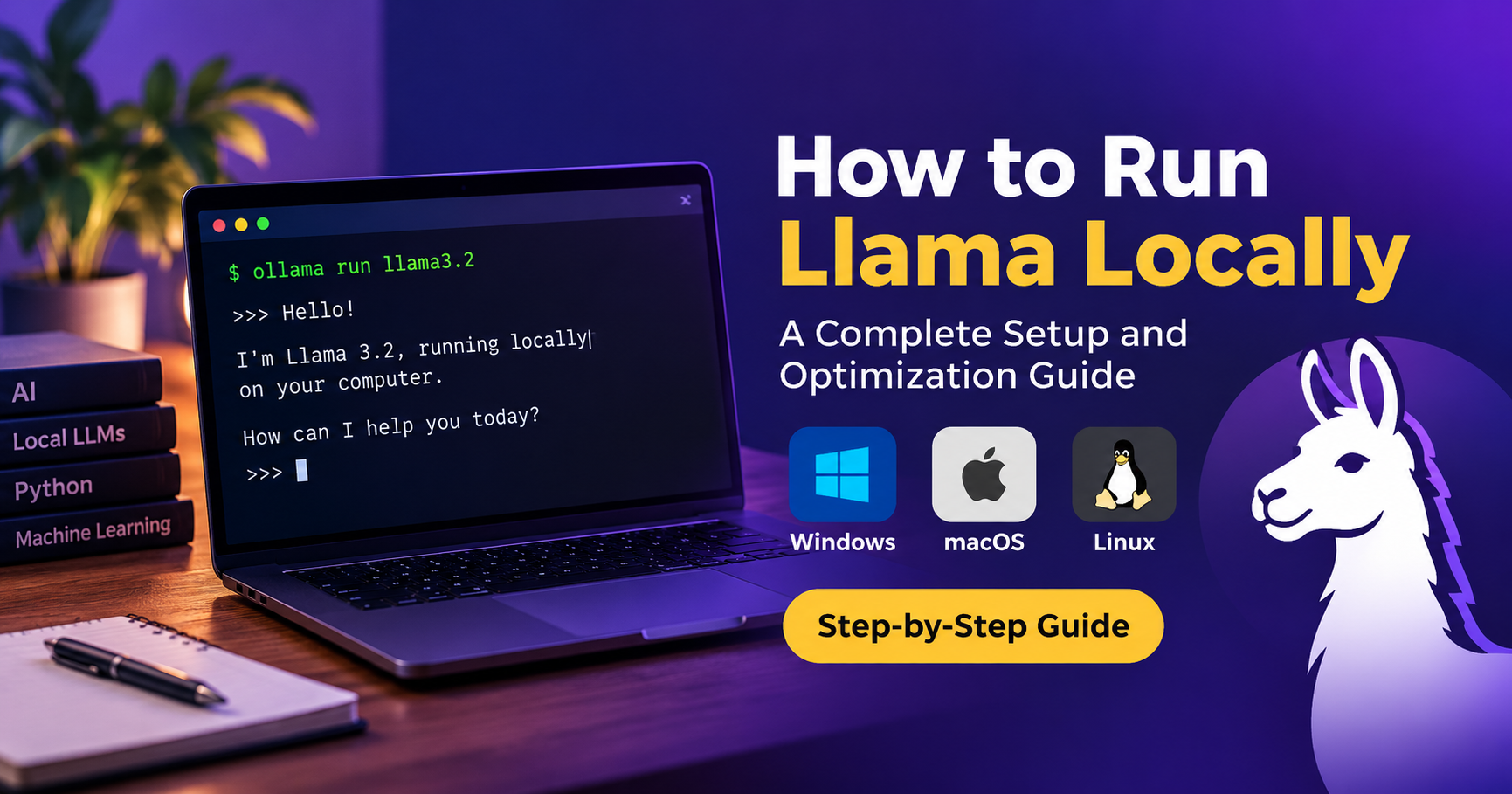

Running a powerful AI model on your own computer used to sound impossible. Today, it takes only a few minutes. Meta’s Llama family of open-weight language models can run on a regular laptop or desktop, with no subscription, no usage limits, and no data leaving your machine. In this guide, you will learn how to run Llama locally on Windows, macOS, and Linux, which hardware you need, which tools to choose, and how to fix the most common problems.
What Is Llama?
Llama is a series of large language models (LLMs) released by Meta. Models in the family can write text, answer questions, summarize documents, translate languages, and generate code. Newer versions also include lightweight models designed for laptops and phones, as well as larger models built for powerful workstations and servers. Because the weights are openly available under Meta’s community license, developers and hobbyists can download them and run them on their own hardware.
Why Run Llama Locally?
Cloud AI tools are convenient, but running a model on your own computer has clear advantages:
- Privacy: Your prompts and documents stay on your device. This matters for client work, business data, and personal notes.
- No recurring cost: After the download, there are no monthly fees or per-token charges.
- Offline access: Once installed, the model works without an internet connection.
- Full control: You can choose the model size, adjust settings, and build custom assistants.
- No rate limits: Generate as much text as your hardware allows.
- Great for learning: Local setups are the best way to understand how modern AI actually works.
System Requirements for Running Llama Locally
The main limit is memory. A model must fit into your RAM (or into your graphics card’s VRAM) to run smoothly. Model size is measured in billions of parameters, written as 1B, 3B, 8B, 70B, and so on. Bigger models are smarter but need more memory.

| Model Size | Approx. Memory (4-bit) | Recommended System | Best For |
|---|---|---|---|
| 1B – 3B | 1 – 2 GB | 8 GB RAM, any modern CPU | Quick answers, basic writing, older laptops |
| 7B – 8B | 4 – 6 GB | 16 GB RAM, or GPU with 8 GB VRAM | Everyday chat, coding help, content drafts |
| 13B – 34B class | 8 – 20 GB | 32 GB RAM, or GPU with 16–24 GB VRAM | Better reasoning and longer documents |
| 70B | 35 – 45 GB | 64 GB RAM or multiple GPUs | Near top-tier quality on a workstation |
Quick tips about hardware:
- A dedicated NVIDIA GPU makes responses much faster, but it is not required. Modern CPUs can run small and medium models well.
- Apple Silicon Macs (M1, M2, M3, M4 chips) are excellent for local AI because the CPU and GPU share unified memory.
- An SSD is strongly recommended. Model files range from about 1 GB to more than 40 GB.
- Keep at least 10–20 GB of free disk space for a few models.
Understanding Quantization (Why Big Models Fit on Small Computers)
Original model weights are stored in 16-bit precision and are very large. Quantization compresses them to 8-bit, 5-bit, or 4-bit numbers. This reduces file size and memory use dramatically, with only a small drop in quality. You will often see labels like Q4_K_M or Q8_0 on model files. As a rule of thumb, Q4 is the best balance for most users, Q5 and Q6 give slightly better quality, and Q8 is nearly lossless but uses more memory.
Best Ways to Run Llama Locally
There are several tools available. Here is a quick comparison to help you choose.
| Tool | Difficulty | Interface | Best For |
|---|---|---|---|
| Ollama | Very easy | Command line (plus many desktop apps) | Beginners and developers who want speed |
| LM Studio | Very easy | Graphical desktop app | Users who prefer clicking over typing |
| llama.cpp | Medium | Command line and built-in server | Maximum control and performance tuning |
| Hugging Face Transformers | Advanced | Python code | Developers, researchers, and fine-tuning |

Method 1: Run Llama with Ollama (Recommended for Beginners)
Ollama is the simplest way to get started. It handles downloading, quantization, and running the model with a single command.
Step 1: Install Ollama
- Windows: Download the installer from the official Ollama website, run it, and follow the prompts.
- macOS: Download the app, drag it to the Applications folder, and open it.
- Linux: Run the official one-line install script in your terminal.
After installation, open a terminal (Command Prompt, PowerShell, or Terminal) and verify it works:
ollama --versionStep 2: Download and Run a Llama Model
Choose a model that fits your hardware. For most laptops, the 3B model is a safe start:
ollama run llama3.2The first time you run this, Ollama downloads the model automatically. When the download finishes, a prompt appears and you can start chatting immediately. To pick a specific size, add a tag:
ollama run llama3.2:1b
ollama run llama3.1:8b
ollama run llama3.3:70b
Step 3: Useful Ollama Commands
| Command | What It Does |
|---|---|
| ollama list | Shows all downloaded models |
| ollama pull llama3.2 | Downloads a model without starting a chat |
| ollama rm llama3.2 | Deletes a model to free disk space |
| ollama ps | Shows which models are currently loaded |
| /bye | Exits the chat inside the Ollama prompt |
Step 4: Use Llama as a Local API
Ollama also runs a local server on port 11434. This lets you connect Llama to your own apps, scripts, and automation tools. Here is a simple request using curl:
curl localhost:11434/api/generate -d '{
  "model": "llama3.2",
  "prompt": "Explain what an API is in two sentences.",
  "stream": false
}'
Method 2: Run Llama with LM Studio (Best Graphical Option)
If you do not like the command line, LM Studio gives you a clean desktop interface that feels like a normal chat app.
- Download and install LM Studio for Windows, macOS, or Linux.
- Open the app and go to the Discover tab.
- Search for “Llama” and pick a model. The app shows whether it will fit in your memory.
- Choose a Q4 or Q5 version for a good balance of speed and quality, then click Download.
- Open the Chat tab, select the downloaded model, and start typing.
LM Studio also includes a local server mode that is compatible with the OpenAI-style API format, which makes it easy to plug into existing tools.
Method 3: Run Llama with llama.cpp (Best for Performance and Control)
llama.cpp is the open-source engine that powers many other local AI tools. It is written in C++ and runs efficiently on CPUs, NVIDIA GPUs, AMD GPUs, and Apple Silicon.
Step 1: Install the Requirements
You need Git, CMake, and a C++ compiler (Visual Studio Build Tools on Windows, Xcode Command Line Tools on macOS, and GCC on Linux).
Step 2: Clone and Build
git clone llama.cpp (official repository from the ggml-org GitHub page)
cd llama.cpp
cmake -B build
cmake --build build --config Release
For NVIDIA GPU acceleration, add the CUDA flag during configuration (cmake -B build -DGGML_CUDA=ON). On Apple Silicon, Metal acceleration is enabled by default.
Step 3: Download a GGUF Model
llama.cpp uses the GGUF file format. Download a quantized Llama GGUF file from the Hugging Face model hub and save it in a folder named models. Some Llama models require you to accept Meta’s license on the model page first.
Step 4: Run the Model
./build/bin/llama-cli -m models/llama-3.2-3b-instruct-q4_k_m.gguf -p "Write a short poem about the sea." -n 200To launch a web chat interface and API server instead, run:
./build/bin/llama-server -m models/llama-3.2-3b-instruct-q4_k_m.gguf --port 8080Then open your browser and go to localhost:8080 to chat.
Method 4: Run Llama with Python and Hugging Face Transformers
This method is best for developers who want to build applications or fine-tune a model. It needs more memory and usually a GPU.
pip install torch transformers accelerateThen use the following Python script:
from transformers import pipeline

pipe = pipeline(
    "text-generation",
    model="meta-llama/Llama-3.2-3B-Instruct",
    device_map="auto"
)

messages = [{"role": "user", "content": "What is machine learning?"}]
result = pipe(messages, max_new_tokens=200)
print(result[0]["generated_text"][-1]["content"])
You must have a Hugging Face account, accept the Llama license on the model page, and log in with an access token before the download will work.
How to Get Better Results from Local Llama
- Write clear prompts: Tell the model its role, the task, the format, and the length you want.
- Use instruct versions: Models labeled “Instruct” are tuned to follow directions and are better for chat than base models.
- Adjust temperature: Lower values (0.2–0.4) give focused, factual answers. Higher values (0.8–1.0) give more creative output.
- Increase context length carefully: A longer context window lets the model read more text but uses much more memory.
- Add a system prompt: Set the tone and rules once, for example “You are a helpful assistant that answers briefly.”
- Try bigger models when possible: Moving from 3B to 8B gives a noticeable quality jump.
Add a Chat Interface (Optional)
If you want a ChatGPT-style web interface for your local models, several free tools can connect to Ollama or llama.cpp, such as Open WebUI, Msty, and Jan. They add chat history, document uploads, multiple model switching, and prompt templates, all running on your own machine.
Common Problems and Easy Fixes
| Problem | Likely Cause | Solution |
|---|---|---|
| Very slow responses | Model is too large or running on CPU only | Use a smaller model or a lower quantization like Q4 |
| Out of memory error | Model does not fit in RAM or VRAM | Pick a smaller size, close other apps, or reduce context length |
| GPU is not being used | Missing drivers or wrong build | Update GPU drivers and install the CUDA-enabled build |
| Download keeps failing | Unstable connection or low disk space | Free up space and retry the pull command |
| Access denied on Hugging Face | License not accepted | Accept Meta’s license on the model page and log in with a token |
| Strange or repeated text | Wrong chat template or very high temperature | Use the Instruct model and lower the temperature |
Is Running Llama Locally Safe and Legal?
Yes. Llama models are released under Meta’s community license, which allows personal and many commercial uses. Always read the license terms for the exact version you use, especially if you plan to build a commercial product. Only download models from trusted sources and avoid unknown files from random websites.
Local Llama vs. Cloud AI: Which Should You Choose?
| Feature | Local Llama | Cloud AI Services |
|---|---|---|
| Cost | Free after setup (hardware cost only) | Subscription or per-use fees |
| Privacy | Data stays on your device | Data is sent to a provider |
| Internet needed | No (after download) | Yes |
| Peak quality | Good, depends on your hardware | Usually the highest available |
| Setup effort | Some setup required | Instant |
| Customization | Full control | Limited by provider |
Many users combine both: local models for private or high-volume tasks and cloud models for the hardest problems.
Frequently Asked Questions
Can I run Llama without a GPU?
Yes. Small and medium models like 1B, 3B, and 8B run on a modern CPU. Responses will be slower than on a GPU, but they are still usable for many tasks.
How much RAM do I need to run Llama?
8 GB is enough for small 1B–3B models. For the popular 8B models, 16 GB is recommended. The 70B models need around 64 GB or more.
Is Llama free to use?
The model weights are free to download and use under Meta’s license. You only pay for your own hardware and electricity.
Which is easier, Ollama or LM Studio?
Both are beginner friendly. Ollama is faster to set up through the command line, while LM Studio is better if you prefer a visual interface.
Can I run Llama on a phone or Raspberry Pi?
Yes. The smallest Llama models can run on phones and single-board computers, although speed and quality are limited compared with a laptop or desktop.
Can Llama work offline?
Yes. After the model is downloaded, you can disconnect from the internet and keep using it.
Which Llama model should I start with?
Start with a 3B model if you have 8 GB of RAM, or an 8B model if you have 16 GB or more. You can always try larger models later.
Final Thoughts
Learning how to run Llama locally gives you a private, free, and flexible AI assistant that works on your own terms. For most people, the fastest path is simple: install Ollama, run ollama run llama3.2, and start chatting within minutes. If you want a visual app, choose LM Studio. If you want deep control, build llama.cpp. Start small, test different model sizes and quantization levels, and upgrade your setup as your needs grow. With the steps in this guide, you are ready to bring a powerful language model to your own computer today.