







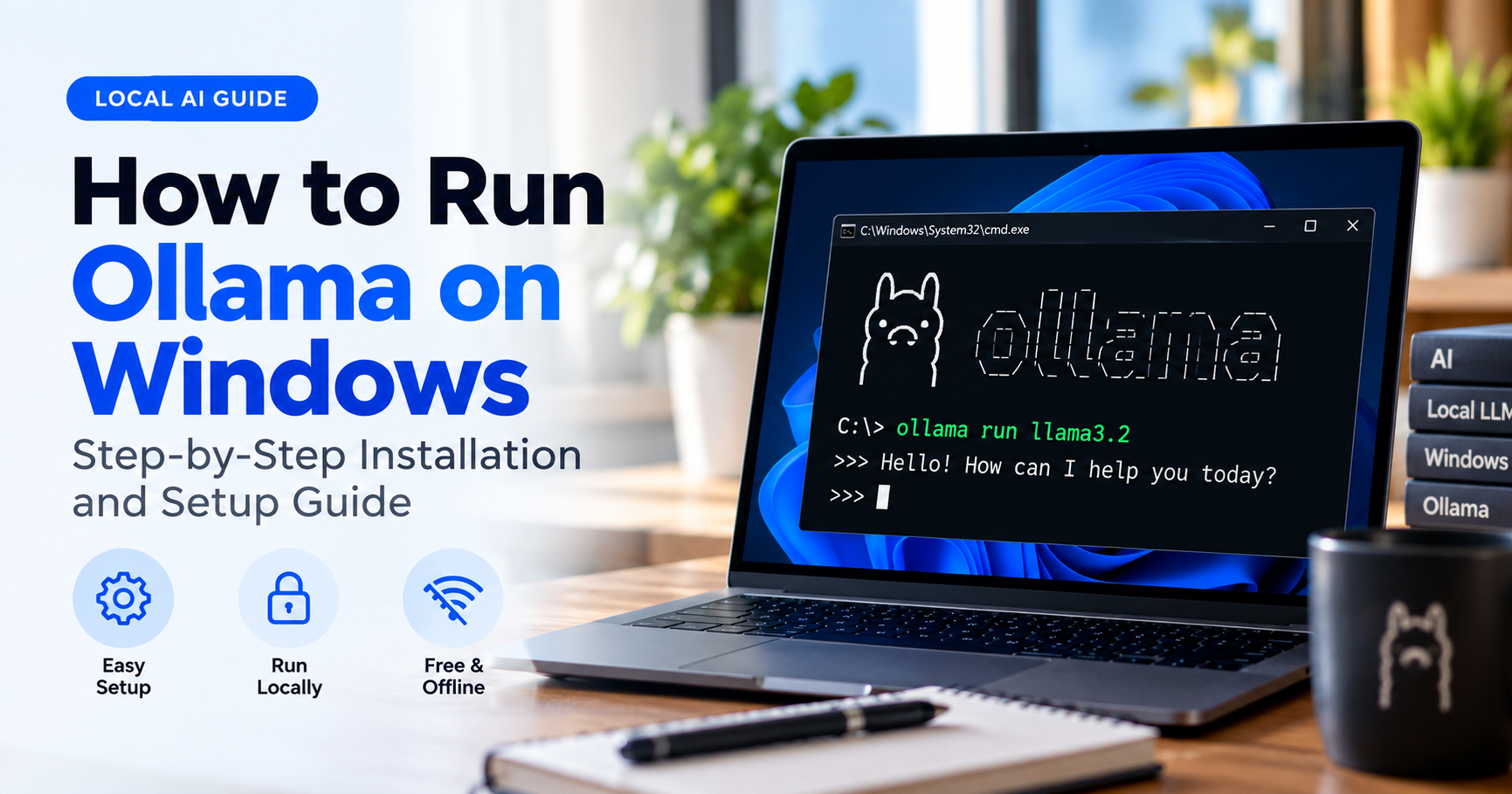

Want to use powerful AI models like Llama, Gemma, Mistral, or Qwen on your own computer without paying monthly fees or sending your data to the cloud? Ollama makes that possible, and it now runs as a native Windows application. In this complete guide, you will learn how to run Ollama on Windows from scratch: system requirements, installation, running your first model, useful commands, performance tips, and fixes for common problems.
OllamaSetup.exe) from the official website, run it, open PowerShell or Command Prompt, and type ollama run llama3.2. Ollama will download the model and start a chat right inside your terminal.
Table of Contents
- What Is Ollama?
- Why Run AI Models Locally on Windows?
- System Requirements
- How to Install Ollama on Windows
- How to Run Your First Model
- Most Useful Ollama Commands
- Best Models to Try on Windows
- Where Ollama Stores Files on Windows
- How to Change the Model Storage Location
- Using the Ollama Local API
- GPU Acceleration on Windows
- Troubleshooting Common Problems
- How to Update or Uninstall Ollama
- Hardware Tips for a Better Experience
- Frequently Asked Questions
- Final Thoughts
What Is Ollama?
Ollama is a free, open-source tool that lets you download, manage, and run large language models (LLMs) directly on your own machine. Instead of typing questions into a website, you run the model locally. Ollama handles the heavy lifting: it downloads the model files, loads them into memory, uses your GPU when possible, and gives you a simple command-line interface and a local API.
Earlier, Windows users had to rely on WSL (Windows Subsystem for Linux). Today, Ollama runs as a native Windows application, with support for both NVIDIA and AMD Radeon GPUs. After installation, it runs quietly in the background and the ollama command becomes available in Command Prompt, PowerShell, or any terminal you prefer.
Why Run AI Models Locally on Windows?
- Privacy: Your prompts and documents stay on your computer.
- No subscription: Ollama and many open models are free to use.
- Works offline: After a model is downloaded, you can use it without an internet connection.
- Full control: Choose any model, switch between them, and customize behavior with your own settings.
- Great for developers: A local API lets you build apps, chatbots, and automations without paying per request.
- Learning and experimenting: Perfect for students, writers, and tech enthusiasts who want to explore AI.
System Requirements
Before installing, make sure your PC meets the basic requirements. The official documentation lists Windows 10 version 22H2 or newer (Home or Pro) as the supported operating system, and Windows 11 works as well. The installation itself does not need administrator rights and installs into your user folder by default, but you should keep at least 4 GB of free space for the program and much more for the models.
| Component | Minimum | Recommended |
|---|---|---|
| Operating System | Windows 10 22H2 | Windows 11 |
| RAM | 8 GB | 16 GB or more |
| Free Storage | 10 GB | 50 GB+ on an SSD |
| GPU | Not required (CPU works) | NVIDIA or AMD Radeon with updated drivers |
| Internet | Needed to download models | Fast connection for large models |
As a general rule, the bigger the model, the more memory you need. The chart below gives a simple idea of how much RAM to plan for.

How to Install Ollama on Windows
Installing Ollama takes only a few minutes. Here is the whole process at a glance:

Step 1: Download the Installer
Open the official Ollama website in your browser, go to the Download page, choose Windows, and click the download button. You will get a file named OllamaSetup.exe. Always download it from the official website to stay safe.
Step 2: Run the Installer
Double-click OllamaSetup.exe and follow the on-screen instructions. Click Install and wait a short moment. If Windows SmartScreen shows a warning, confirm that the publisher is Ollama and choose to run it.
Tip: To install Ollama on a different drive (for example, drive D), start the installer from Command Prompt with the install directory flag:
OllamaSetup.exe /DIR="D:\Ollama"Step 3: Confirm That Ollama Is Running
When the installation finishes, Ollama starts automatically and runs in the background. Look for the Ollama icon in the system tray near the clock. Next, open PowerShell or Command Prompt and check the version:
ollama --versionIf a version number appears, Ollama is installed correctly. If Windows says the command is not recognized, close and reopen the terminal (or restart your PC) so the updated PATH is loaded.
How to Run Your First Model
Now comes the fun part. A good beginner choice is Llama 3.2, a small and fast model that works even on modest hardware. Type this command:
ollama run llama3.2The first time you run it, Ollama downloads the model automatically (roughly 2 GB for the small version), then opens an interactive chat prompt that looks like >>>. Type a question, press Enter, and the model answers. To leave the chat, type /bye.
If you prefer to download first and chat later, use these two commands:
ollama pull llama3.2
ollama run llama3.2
Most Useful Ollama Commands
Once you are comfortable, these commands will cover most of your daily needs:
| Command | What It Does |
|---|---|
ollama run <model> |
Starts a chat with a model (downloads it first if needed) |
ollama pull <model> |
Downloads a model without starting a chat |
ollama list |
Shows all models installed on your PC |
ollama ps |
Shows models currently loaded in memory |
ollama stop <model> |
Unloads a running model to free memory |
ollama show <model> |
Displays details about a model |
ollama rm <model> |
Deletes a model to free disk space |
ollama --help |
Lists all available commands |
Inside a chat session, you can also type /? to see in-chat commands, and /bye to exit.
Best Models to Try on Windows
The Ollama library contains many open models. Here are popular choices to start with. Download sizes are approximate and change by version, so always check the model page before pulling a large one.
| Model | Best For | Example Command |
|---|---|---|
| Llama 3.2 (3B) | Beginners, low-end PCs, quick answers | ollama run llama3.2 |
| Llama 3.1 (8B) | General-purpose chat and writing | ollama run llama3.1 |
| Mistral (7B) | Fast, balanced everyday tasks | ollama run mistral |
| Gemma | Efficient models from Google | ollama run gemma3 |
| Qwen | Multilingual tasks and coding | ollama run qwen2.5 |
| DeepSeek-R1 | Step-by-step reasoning | ollama run deepseek-r1 |
| Phi | Small but capable models for limited hardware | ollama run phi3 |
Pro tip: If your PC has 8 GB of RAM, start with a small model (1B to 3B parameters). Larger models may run very slowly or fail to load.
Where Ollama Stores Files on Windows
Knowing the folder locations helps with cleanup, backups, and troubleshooting.

- Program files:
%LOCALAPPDATA%\Programs\Ollama - Logs and downloaded updates:
%LOCALAPPDATA%\Ollama - Models and configuration:
%HOMEPATH%\.ollama
To open a folder quickly, press Win + R, type the path (for example %LOCALAPPDATA%\Ollama), and press Enter.
How to Change the Model Storage Location
Models can be several gigabytes each, so your C drive may fill up quickly. You can move model storage to another drive with an environment variable:
- Quit Ollama from the system tray icon.
- Open the Start menu, search for environment variables, and open Edit environment variables for your account.
- Click New under user variables.
- Set the variable name to
OLLAMA_MODELSand the value to your new folder, for exampleD:\OllamaModels. - Click OK, then start Ollama again from the Start menu.
New downloads will now go to the folder you chose. Existing models can be moved by copying the contents of the old models folder into the new location.
Using the Ollama Local API
While Ollama is running, it serves a local API on port 11434. This is what makes Ollama so useful for developers, because you can connect your own apps, scripts, or chat interfaces to it. Here is a quick test using PowerShell:
curl.exe localhost:11434/api/generate -d "{\"model\": \"llama3.2\", \"prompt\": \"Why is the sky blue?\", \"stream\": false}"If everything works, you will receive a JSON response containing the model’s answer. Many third-party chat interfaces and coding tools can connect to this local address, so you can build a ChatGPT-like experience that runs fully on your own PC.
GPU Acceleration on Windows
Ollama automatically uses a supported GPU when one is available, which makes responses much faster than CPU-only mode. To get the best results:
- NVIDIA users: Install the latest GeForce or Studio driver. Models that fit entirely into your video memory (VRAM) run the fastest.
- AMD Radeon users: Install up-to-date Radeon drivers. Supported Radeon cards work natively on Windows.
- No dedicated GPU: Ollama still works on your CPU. Choose smaller models for a smoother experience.
To see whether a model is running on the GPU, load a model and run ollama ps. The output shows how the model is split between CPU and GPU. If a model is too large for your VRAM, part of it spills over to the CPU and speed drops.
Troubleshooting Common Problems
“ollama” Is Not Recognized as a Command
Close all terminal windows and open a new one. If the problem remains, restart Windows so the PATH update is applied, or reinstall Ollama using the official installer.
The Model Is Very Slow
This usually means the model is too large for your hardware. Try a smaller model, close heavy apps like browsers with many tabs, and update your GPU drivers. Use ollama ps to check whether the GPU is being used.
“Error: could not connect to ollama app”
The Ollama background service may not be running. Launch Ollama from the Start menu and wait for the tray icon to appear, then try the command again.
Not Enough Disk Space
Remove unused models with ollama rm <model> or move model storage to another drive using the OLLAMA_MODELS variable explained above.
Port 11434 Already in Use
Another instance of Ollama may be running. Quit Ollama from the system tray, wait a few seconds, and start it again. You can also change the address with the OLLAMA_HOST environment variable if needed.
Download Gets Stuck or Fails
Check your internet connection, temporarily pause any VPN, and run the ollama pull command again. Downloads resume from where they stopped.
How to Update or Uninstall Ollama
Updating: Ollama checks for updates automatically and prompts you to restart when a new version is ready. You can also download the latest installer from the official website and run it over your existing installation.
Uninstalling: Open Settings > Apps > Installed apps (or Add or remove programs), find Ollama, and choose Uninstall. To free more space, delete the .ollama folder in your user directory, which contains downloaded models.
Hardware Tips for a Better Experience
If you plan to use local AI regularly, a few upgrades make a big difference:
- More RAM: 16 GB is a comfortable starting point, and 32 GB lets you try larger models.
- A graphics card with more VRAM: VRAM is the most important factor for speed. Models that fit fully in VRAM respond far faster.
- A fast NVMe SSD: Models load into memory much faster from an SSD than from a hard disk.
- Good cooling: Long AI sessions put sustained load on your CPU and GPU, so proper airflow keeps performance stable.
Frequently Asked Questions
Is Ollama free to use on Windows?
Yes. Ollama itself is free and open source, and many of the models in its library are free to download and use. Always check each model’s license if you plan to use it commercially.
Does Ollama work without a GPU?
Yes. Ollama can run on your CPU, although responses are slower. Small models work reasonably well even on laptops without a dedicated graphics card.
Do I need WSL to run Ollama on Windows?
No. Ollama runs as a native Windows application, so you do not need to install WSL or Linux.
Do I need administrator rights to install Ollama?
No. The standard installer places Ollama in your user directory and does not require administrator access.
Can I use Ollama offline?
Yes. You need an internet connection only to download Ollama and your models. After that, chatting with downloaded models works offline.
How much RAM do I need to run Ollama?
For small models, 8 GB is enough. For 7B to 8B models, 8 GB works but 16 GB is more comfortable. Larger models need 16 GB, 32 GB, or more.
Which model should a beginner start with?
Llama 3.2 is an excellent first choice because it is small, quick, and easy to run. Once you are comfortable, try Mistral, Gemma, Qwen, or DeepSeek-R1 for different strengths.
Is my data safe when I use Ollama?
When you chat with a locally downloaded model, your prompts are processed on your own computer. This makes Ollama a strong option for people who care about privacy.
Final Thoughts
Running AI on your own Windows PC is no longer complicated. With Ollama, the whole process comes down to downloading one installer, opening a terminal, and typing a single command. You get privacy, zero subscription cost, offline access, and a local API for your own projects.
Start small with Llama 3.2, explore the commands in this guide, then experiment with larger models as you learn what your hardware can handle. If you enjoyed this tutorial, keep exploring local AI tools and models to get even more out of your PC.