






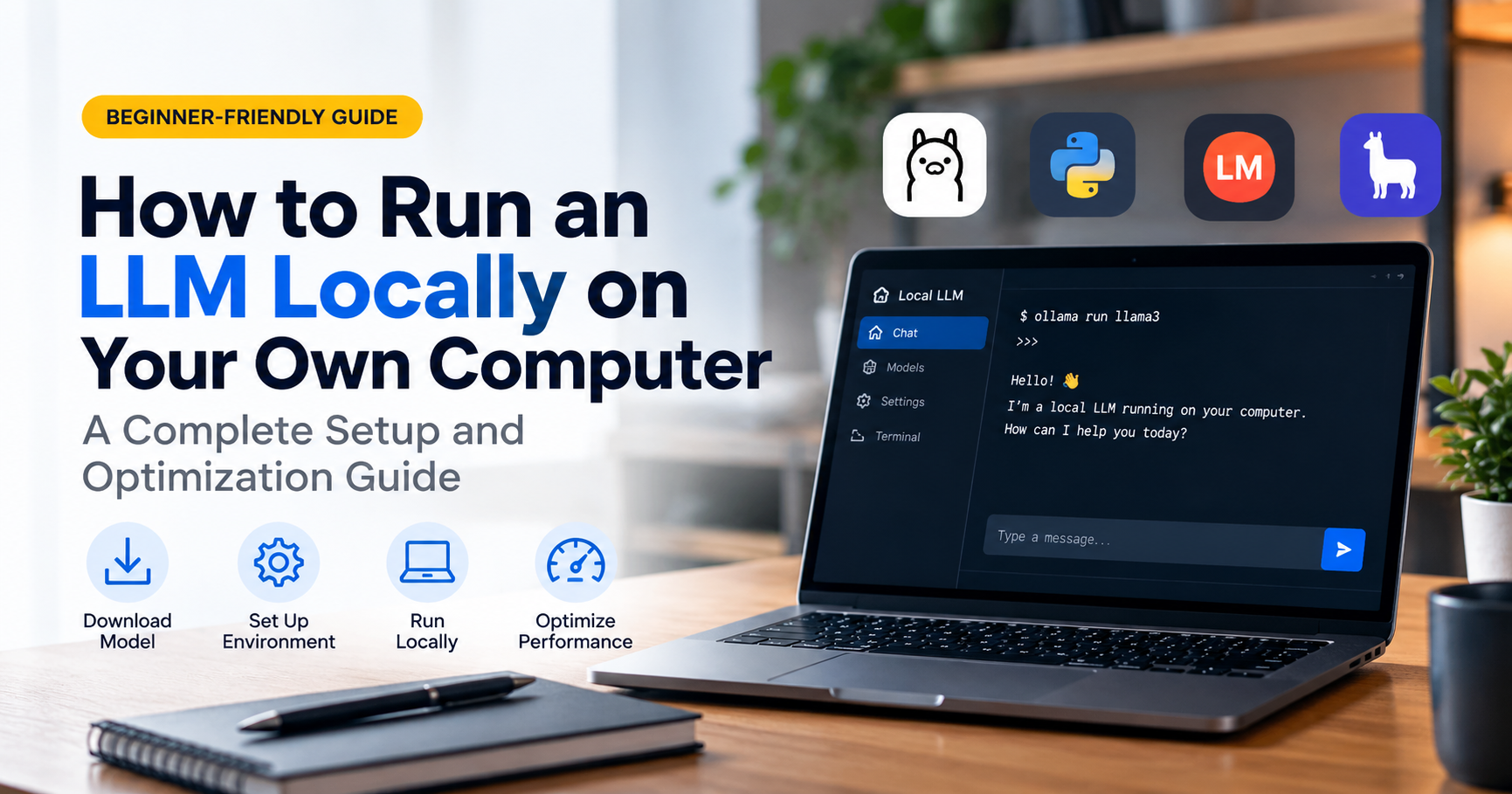
Large language models (LLMs) are no longer limited to big tech servers. With free tools and a reasonably modern computer, you can chat with an AI model, write, summarize and even get coding help without internet and without sending a single word to the cloud. This guide explains how to run an LLM locally, what hardware you need, which tools to choose and how to get started step by step.
Quick Summary
- A local LLM runs entirely on your own computer, so it is private and works offline.
- Easiest tools for beginners: Ollama and LM Studio.
- 16 GB RAM is a practical starting point; a GPU with more VRAM makes it much faster.
- Start with a small quantized model, then move up as your hardware allows.
What Is a Local LLM?
A local LLM is an AI language model that you download and run on your own machine instead of using it through a website. Most are “open-weight” models, meaning the model files are published so anyone can run them. Popular families include Llama, Mistral, Qwen, Gemma, Phi and DeepSeek, each available in several sizes.
Why Run an LLM Locally?
- Privacy: your documents and prompts never leave your device.
- No subscription: after setup, usage is free apart from electricity.
- Offline access: works on a plane, in a remote area or behind a strict firewall.
- Control: choose your model, adjust settings and customize behavior.
- Learning: a great way to understand how AI really works.
How Local LLMs Work
You type a prompt into an app. The app loads a model file into memory and uses your CPU or GPU to generate a reply one token (word piece) at a time. The speed depends mostly on how fast your memory is and how much of the model fits in your GPU’s VRAM.
What Hardware Do You Need?
The key factor is memory. A model must fit in RAM or VRAM to run well. As a rule of thumb, a 4-bit quantized model needs roughly 0.6 to 0.7 GB per billion parameters, plus extra for context.
| Your Setup | What You Can Comfortably Run |
|---|---|
| 8 GB RAM, no GPU | Very small models (1B to 3B) |
| 16 GB RAM or 8 GB VRAM | 7B to 8B models |
| 32 GB RAM or 12 to 16 GB VRAM | 12B to 14B models |
| 24 GB VRAM or 48+ GB unified memory | 30B+ models |
| 64 GB or more memory | 70B class models (heavily quantized) |
Other Hardware Tips
- GPU: NVIDIA cards are the most widely supported; AMD and Apple Silicon also work well with modern tools.
- Apple Silicon Macs: unified memory lets the GPU use most of your RAM, which is great for larger models.
- Storage: models are 2 GB to 40+ GB each. Use an SSD, ideally NVMe, with plenty of free space.
- Cooling: long generations push hardware hard, so good airflow helps.
Quantization Explained Simply
Quantization compresses a model by storing its numbers with fewer bits. A 4-bit version is roughly four times smaller than the original 16-bit model with only a small drop in quality. You will often see labels like Q4 or Q5 in model names. Q4 is a good balance; Q8 is higher quality but larger. Many local tools use the GGUF file format for these compressed models.
Best Tools to Run LLMs Locally
| Tool | Best For | Interface |
|---|---|---|
| Ollama | Easiest setup, developers and beginners | Command line, works with many apps |
| LM Studio | Beginners who want a clean desktop app | Graphical app |
| llama.cpp | Maximum control and performance | Command line |
| Jan | Open-source desktop chat app | Graphical app |
| GPT4All | Simple, low-spec friendly chat | Graphical app |
| Open WebUI | A ChatGPT-like web interface | Browser, pairs with Ollama |
Step by Step: How to Run an LLM Locally
Step 1: Check Your Hardware
Find out how much RAM, VRAM and free disk space you have. This tells you which model size to choose. When in doubt, start small.
Step 2: Install a Local LLM Tool
Download the installer for your operating system (Windows, macOS or Linux) from the official website of Ollama or LM Studio. Installation takes only a few minutes and works like any normal app.
Step 3: Method A, Run a Model with Ollama
Open a terminal and run a model by name. The first run downloads it automatically, then starts a chat:
ollama run <model-name>Useful commands for managing models:
ollama pull <model-name>   # download a model
ollama list                  # see installed models
ollama rm <model-name>     # delete a model
Pick a model name from the Ollama model library, choosing a size that fits your memory, for example an 8B model on a 16 GB machine.
Step 3: Method B, Run a Model with LM Studio
- Open LM Studio and go to the model search or discover tab.
- Search for a model family such as Llama, Qwen, Gemma or Mistral.
- Choose a quantized version (Q4 is a safe start) that LM Studio marks as compatible with your hardware.
- Click download, then open the chat tab and load the model.
- Type your first prompt and watch it respond.
Step 4: Tune Your Settings
- Context length: how much text the model remembers. Higher values use more memory.
- Temperature: lower (0.2 to 0.5) for factual tasks, higher (0.8+) for creative writing.
- GPU offload: move as many layers as possible to the GPU for speed.
Step 5: Add a Friendly Interface (Optional)
If you prefer a browser chat window, install Open WebUI and connect it to Ollama. You can then upload documents, keep chat history and switch between models easily.
How to Choose the Right Model
- General chat and writing: an instruct or chat tuned model from the Llama, Qwen, Gemma or Mistral families.
- Coding help: look for models labeled “coder” or “code”.
- Low-end laptops: small Phi or 1B to 3B models.
- Reasoning tasks: reasoning-focused models, which are slower but think step by step.
Model releases move fast, so check recent community benchmarks and model cards for the newest options before downloading.
Tips to Make Local LLMs Faster
- Use a smaller or more heavily quantized model.
- Close memory-hungry apps like browsers with many tabs.
- Keep the model fully on the GPU whenever possible.
- Reduce context length if you do not need long conversations.
- Keep GPU drivers updated.
Common Problems and Fixes
| Problem | Likely Fix |
|---|---|
| Very slow responses | Use a smaller model or lower-bit quantization; offload to GPU |
| Out of memory error | Choose a smaller model or reduce context length |
| Model will not load | Check free disk space and that the file is a supported format |
| GPU not used | Update drivers and enable GPU acceleration in settings |
| Poor answers | Try a larger or better instruct-tuned model and a clearer prompt |
Helpful Hardware and Accessories to Consider
If you plan to run local models regularly, these upgrades make the biggest difference. Compare specs and reviews before buying.
- GPU with high VRAM: the single best upgrade for speed and model size.
- RAM upgrade (32 GB or 64 GB): lets you run larger models.
- Fast NVMe SSD (1 TB or more): stores many models and loads them quickly.
- Mini PC or Apple Silicon Mac: compact, efficient options with large memory.
- Quality power supply and case cooling: keeps long sessions stable.
- External SSD: extra space for a growing model library.
Frequently Asked Questions
Can I run an LLM locally without a GPU?
Yes. Small 3B to 8B models run on a modern CPU with 16 GB RAM, but responses will be slower than on a GPU.
Is running an LLM locally free?
Most tools and many open-weight models are free to download and use. Your costs are hardware and electricity. Always check each model’s license for commercial use.
How much RAM do I need?
16 GB handles small to medium models. 32 GB or more gives comfortable room for larger models and longer conversations.
Are local LLMs as good as ChatGPT-style cloud services?
The largest cloud models are still stronger overall, but good local models handle writing, summarizing, coding help and Q and A very well for everyday tasks.
Is it safe and private?
Once the model is downloaded, prompts are processed on your device. Download tools and models only from official, trusted sources.
Final Thoughts
Running an LLM locally is easier than ever. Install Ollama or LM Studio, download a small quantized model that fits your memory and start chatting in minutes. As you get comfortable, experiment with bigger models, different families and tools like Open WebUI. You will gain privacy, control and a deeper understanding of modern AI, all on your own machine.
Note: Model names, sizes and tool features change quickly. Always check official documentation and model licenses before downloading or using a model commercially.