








Can I Run LLM on CPU? Yes – Here Is How, What You Need and What to Expect
Many people assume that running a large language model (LLM) at home requires an expensive graphics card. That is not true. Yes, you can run an LLM on a CPU, and thanks to quantization and efficient software, it is now practical on ordinary laptops and desktops. The experience will not match a high-end GPU, but for chat, writing help, summarizing and learning, a CPU can do a surprisingly good job.
In this guide you will learn why CPU inference works, how fast it really is, how much RAM you need, which models and tools to choose, and the practical tips that make the biggest difference.
Quick Answer
- Yes, modern LLM software runs fine on a CPU, with no GPU required.
- RAM matters most: 8 GB for small models, 16 GB for 7B-8B models, 32 GB or more for larger ones.
- Expect roughly 2-15 tokens per second on typical CPUs for a 7B model at 4-bit.
- Use quantized GGUF models and tools such as llama.cpp, Ollama or LM Studio.
- Small and mid-sized models (1B to 8B) give the best CPU experience.
Can You Really Run an LLM on a CPU?
Yes. An LLM is a large set of numbers (weights) and a program that multiplies them with your input. A GPU does this math faster because it has thousands of small cores, but a CPU can perform exactly the same calculations. It is slower, not incapable.
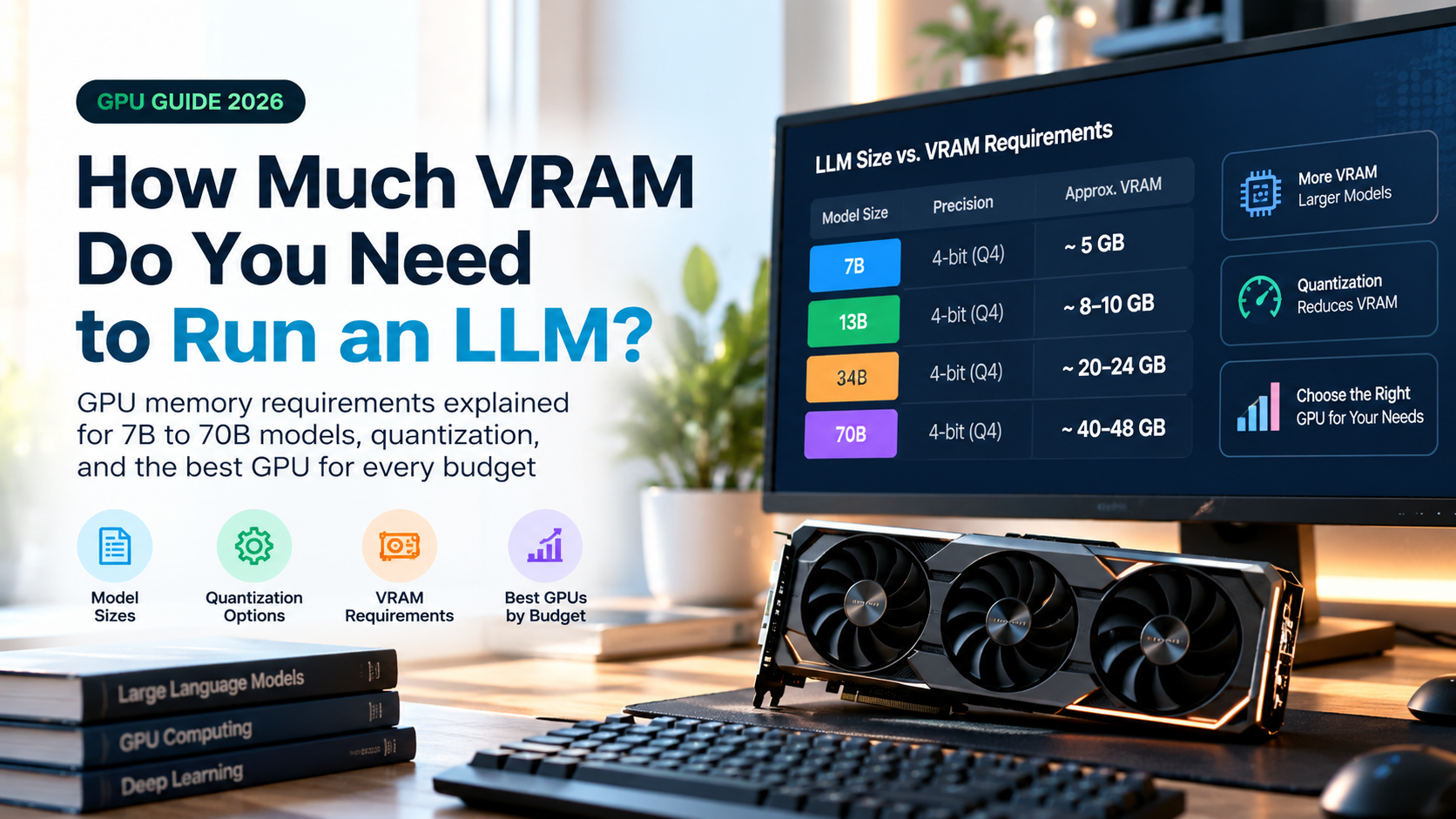
Two developments made CPU inference practical. First, quantization compresses model weights from 16-bit to 8-bit or 4-bit, shrinking a 7B model from about 14 GB to around 4-5 GB. Second, optimized runtimes such as llama.cpp use CPU features like AVX2, AVX-512 and ARM NEON to speed up the math. Together they let a normal computer generate text at readable speeds.
CPU vs GPU for LLMs: What Is the Difference?
| Factor | CPU | GPU |
|---|---|---|
| Speed | Slower, usually a few to a dozen tokens per second | Much faster, often dozens to hundreds of tokens per second |
| Memory available | Uses system RAM, which is cheap and easy to expand | Limited by VRAM, which is expensive and fixed |
| Largest model you can load | Large models fit if you have enough RAM, but run slowly | Limited by VRAM unless you split across devices |
| Cost to get started | Free if you already own a computer | Needs a capable graphics card |
| Power and noise | Generally lower | Higher under heavy load |
| Best for | Learning, privacy, light daily use, small models | Fast chat, long outputs, heavy or multi-user use |
The big advantage of a CPU setup is memory. System RAM is far cheaper than VRAM, so a computer with 64 GB of RAM can load models that would not fit on most consumer graphics cards. You pay for that flexibility with lower speed.
Why Is a CPU Slower? The Memory Bandwidth Story
Generating each token requires reading essentially the whole model from memory. That means speed is often limited by memory bandwidth rather than raw processing power. A simple rule of thumb is:
Maximum tokens per second is roughly memory bandwidth divided by model size.
For example, a 4 GB model on a dual-channel DDR4 system with about 50 GB/s of bandwidth has a ceiling of around 12 tokens per second. Real-world speed is usually somewhat lower. A faster memory kit, DDR5, or an Apple Silicon chip with unified memory raises that ceiling significantly.
This is why Apple Silicon Macs perform so well for local LLMs, and why enabling the correct memory profile (XMP or EXPO) on a desktop can noticeably improve speed.
How Fast Is LLM Inference on CPU?
Speed is measured in tokens per second. A token is roughly three-quarters of a word, so 5 tokens per second is about 3-4 words per second, which is around the pace of comfortable reading. Typical ranges for a 7B model at 4-bit look like this:
- Below 3 tokens per second: usable for patient tasks, but feels slow in chat.
- 5-10 tokens per second: comfortable for most chat and writing help.
- 10+ tokens per second: feels smooth and responsive.
Remember that there are two phases. Prompt processing (reading your input) and generation (writing the reply). On a CPU, long prompts can take noticeable time before the first word appears, so keep prompts focused when speed matters.
How Much RAM Do You Need to Run an LLM on CPU?
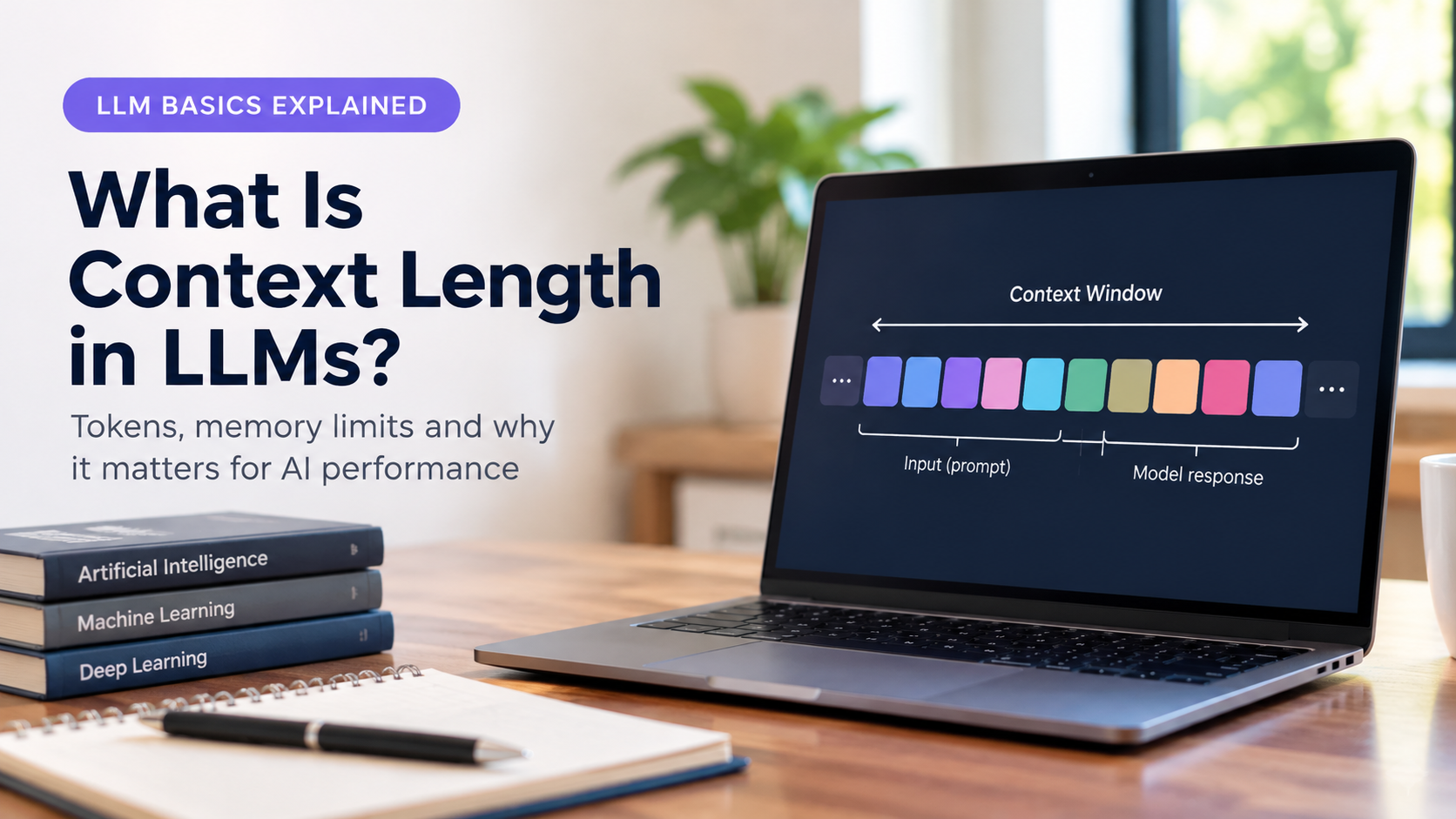
RAM is the key requirement. The model file must fit in memory, along with the operating system, the app and the context window (the model’s working memory for your conversation).
| Model size | 4-bit file size | Recommended system RAM | Experience on CPU |
|---|---|---|---|
| 1B – 3B | ~1-2 GB | 8 GB | Fast and light. Good for simple tasks. |
| 7B – 8B | ~4-5 GB | 16 GB | Best balance for most CPU users. |
| 13B – 14B | ~8-9 GB | 16-32 GB | Better answers, noticeably slower. |
| 32B – 34B | ~19-21 GB | 32-48 GB | High quality, slow on most CPUs. |
| 70B | ~40 GB | 64 GB or more | Very slow without a high-bandwidth platform. |
If a model is close to filling your RAM, the system may start using the disk as overflow, which slows everything dramatically. Always leave a few gigabytes free.
CPU Features and Specs That Matter
- RAM capacity: decides which models you can load at all.
- Memory speed and channels: dual-channel (or more) and faster RAM raise your tokens-per-second ceiling.
- Core count: more physical cores help, but gains flatten once memory bandwidth becomes the bottleneck.
- Instruction sets: AVX2 and AVX-512 on x86, and NEON on ARM, speed up the calculations. Most CPUs from the last several years support at least AVX2.
- Cache size: larger CPU caches can help with smaller models.
- Cooling: LLM inference keeps all cores busy, so a laptop may throttle under long sessions.
- Fast SSD: speeds up model loading, though it does not affect generation speed once loaded.
A recent mid-range desktop processor with 32 GB of fast dual-channel RAM is a very capable CPU-only machine. Workstation and server platforms with many memory channels can be even faster for large models.
Best Models to Run on CPU
Because CPUs are slower, smaller and well-optimized models give the best experience. Good categories to look at include:
- Small models (1B-4B parameters): very fast, ideal for quick questions, rewriting, simple summaries and weaker hardware.
- Mid-sized models (7B-9B parameters): the sweet spot for quality on a 16 GB machine.
- Mixture-of-Experts (MoE) models: these have many total parameters but only activate a fraction per token, so they can run faster on a CPU than their size suggests, as long as you have enough RAM to hold them.
- Specialized models: code-focused or language-specific variants are useful when they match your task.
Always choose a quantized GGUF version. As a general rule, Q4_K_M is a strong default, Q5_K_M gives a bit more quality if you have spare RAM, and Q8_0 is near-original quality but needs twice the memory of 4-bit.
Best Tools for Running LLMs on CPU
| Tool | Best for | Difficulty |
|---|---|---|
| llama.cpp | Maximum control and performance; the engine behind many other apps | Intermediate |
| Ollama | Simple command-line setup with easy model downloads | Beginner |
| LM Studio | Friendly desktop app with a built-in model browser and chat | Beginner |
| GPT4All | Easy offline chat app aimed at everyday users | Beginner |
| Jan | Open-source desktop assistant that runs models locally | Beginner |
| KoboldCpp | Story writing and role-play with flexible settings | Intermediate |
Most of these tools are free and use llama.cpp or similar engines internally. For a first try, a beginner-friendly app is the quickest way to see results.
Step-by-Step: How to Run an LLM on Your CPU
- Check your hardware. Note your total RAM, CPU model and whether your RAM runs in dual-channel mode.
- Choose a small starting model. Begin with a 3B to 8B model in a 4-bit GGUF version.
- Install a runtime or app. Pick Ollama, LM Studio, GPT4All or llama.cpp and install it like any normal program.
- Download the model. Most apps include a built-in model browser. The download can be several gigabytes.
- Start chatting. Load the model, type a prompt, and watch the tokens-per-second figure if your app shows it.
- Tune the settings. Adjust threads, context length and batch size to find the best balance for your computer.
Tips to Speed Up LLM Inference on CPU
- Use 4-bit quantization. Smaller files move through memory faster, giving higher speed.
- Set the thread count wisely. Start with the number of physical cores, not logical threads. More is not always faster.
- Keep the context length modest. Longer context uses more memory and slows processing.
- Enable your RAM’s XMP or EXPO profile. Many systems run memory below its rated speed by default.
- Use dual-channel memory. Two matching sticks double the bandwidth compared with a single stick.
- Close heavy programs. Browsers with many tabs compete for RAM and memory bandwidth.
- Pick a smaller model for quick tasks. A 3B model that responds instantly is often better than a 13B model that crawls.
- Use partial GPU offload if available. Even a modest graphics card can take over some layers and speed things up.
- Keep your laptop plugged in and cool. Battery mode and heat throttling both reduce performance.
Who Should Run LLMs on a CPU?
CPU inference is a good fit if you:
- Want to try local AI without buying new hardware.
- Value privacy and want your data to stay on your own device.
- Need an offline assistant for writing, summarizing or learning.
- Have lots of RAM but no powerful graphics card.
- Use AI occasionally rather than for hours at a time.
A GPU is a better choice if you:
- Need fast, real-time responses for long outputs.
- Plan to serve several users at once.
- Want to run large models quickly or fine-tune models.
- Do heavy coding assistance with very long contexts.
Limitations to Keep in Mind
- Speed: large models can be painfully slow on CPUs.
- Long prompts: reading a long document can take a while before the answer starts.
- Training and fine-tuning: CPUs are generally too slow for serious training. They are best used for inference.
- Heat and battery: sustained use can heat up laptops and drain batteries quickly.
- Quality trade-offs: smaller, heavily quantized models are less capable than the biggest cloud models.
Frequently Asked Questions
Can I run an LLM on CPU without a GPU?
Yes. Tools like llama.cpp, Ollama and LM Studio work without any graphics card. You only need enough RAM to hold the model.
How much RAM do I need to run an LLM on CPU?
8 GB is enough for small models, 16 GB is comfortable for 7B-8B models, and 32 GB or more is better for 13B-34B models. Larger models need correspondingly more.
Is running an LLM on CPU too slow?
For small and mid-sized models it is perfectly usable, typically a few to a dozen tokens per second. Very large models will feel slow on most CPUs.
Which CPU is best for running LLMs?
A recent processor with several fast cores helps, but memory bandwidth matters even more. Fast dual-channel or higher RAM and Apple Silicon’s unified memory both perform very well.
Can I run an LLM on a laptop?
Yes. A laptop with 16 GB of RAM can run 7B-8B models at 4-bit. Keep it plugged in and well ventilated for the best speed.
Can I run an LLM on a Raspberry Pi or old PC?
Small models of 1B to 3B parameters can run on very modest hardware, including single-board computers, although speeds are low. Older PCs work if you have enough RAM.
Is CPU inference private?
Yes. When you run a model locally, your prompts stay on your computer and the model works fully offline.
Should I use a CPU or a GPU for LLMs?
Use a CPU to get started, for privacy, or for occasional use. Choose a GPU when you need much higher speed or want to run larger models responsively.
Conclusion
So, can you run an LLM on a CPU? Absolutely. With quantized GGUF models and efficient software, almost any modern computer with enough RAM can run a capable local AI assistant. Speed will be lower than on a GPU, but for everyday chat, writing and summarizing, it is more than good enough, and it keeps your data private.
Start small: check your RAM, download a 3B to 8B model at 4-bit, and try a beginner-friendly app. If you later want more speed or bigger models, upgrading to faster memory or adding a graphics card is an easy next step. Your first local LLM may be just a download away.