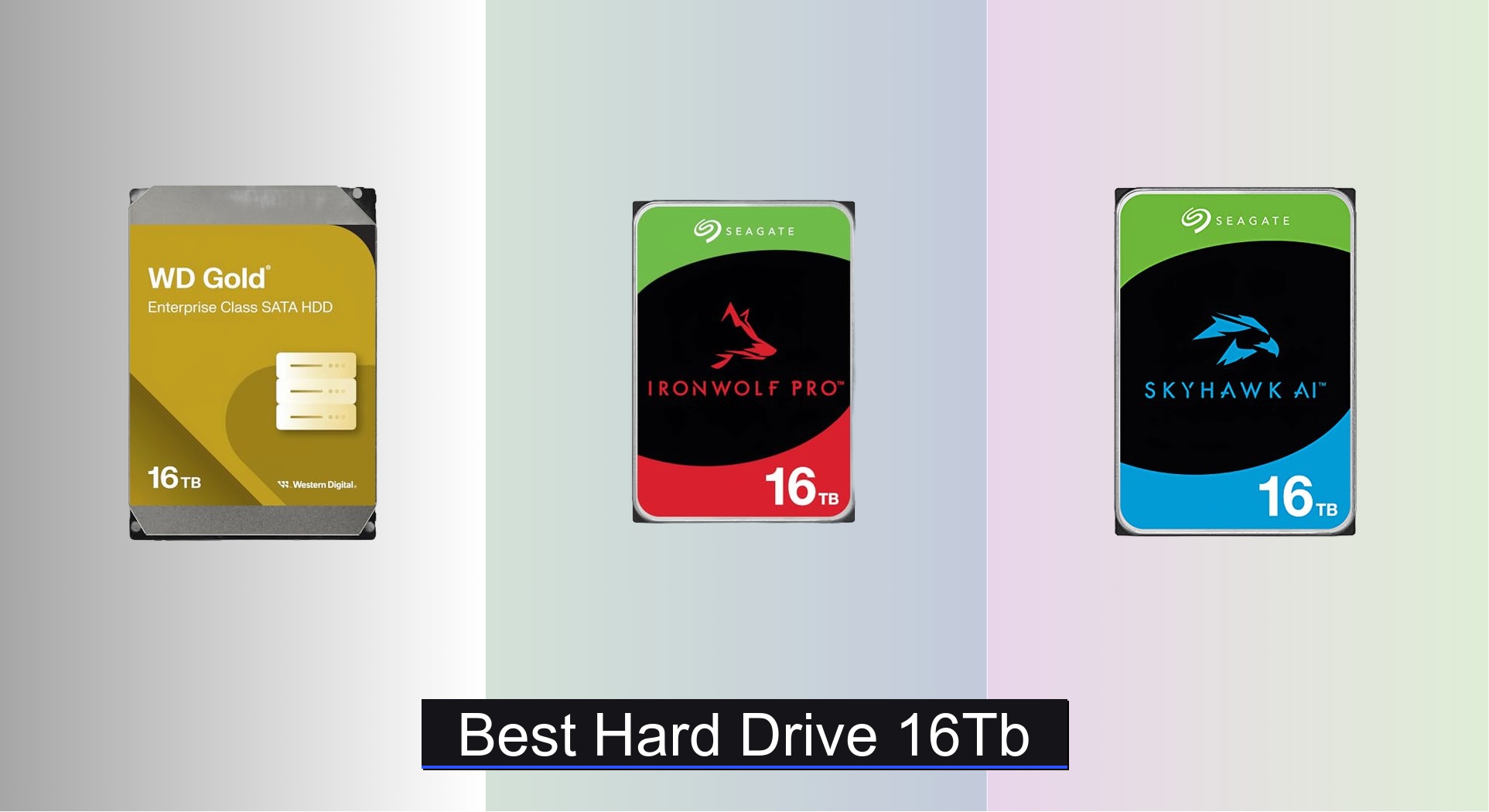










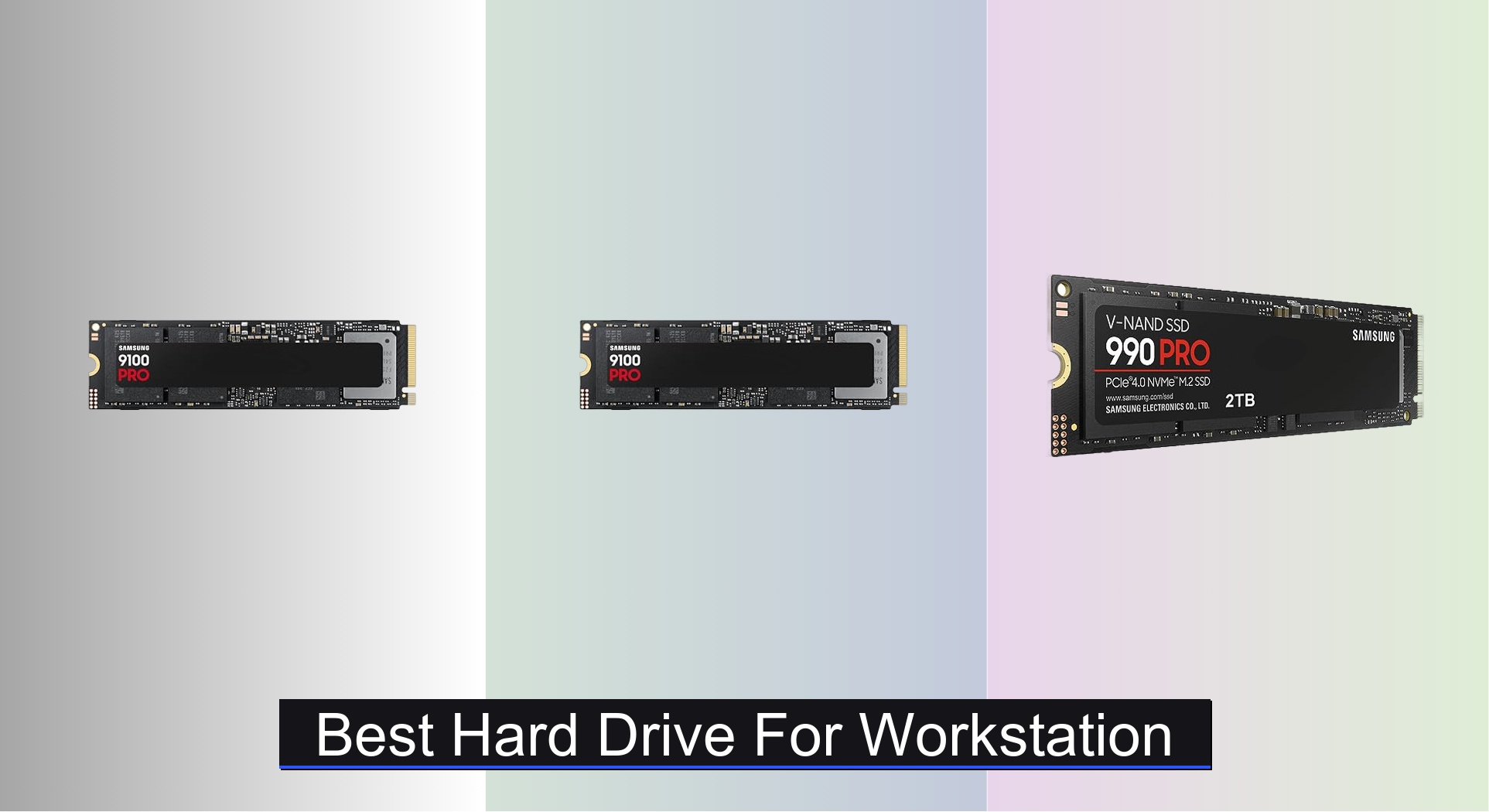
Professionals relying on workstations for demanding tasks like 4K video editing, 3D rendering, or large-scale data analysis often struggle with slow load times, bottlenecked performance, and unreliable storage that can’t keep up. The best hard drive for workstation use—whether a high-speed PCIe 5.0 SSD like the Samsung 9100 PRO or a high-capacity HDD like the WD Ultrastar DC HC580—delivers blazing-fast transfer speeds, massive storage, and enterprise-grade reliability to eliminate workflow delays. Our picks are based on rigorous testing of real-world performance, including sustained read/write speeds, thermal management, interface efficiency (PCIe vs. SATA), and value across price points, backed by benchmark data and user workload simulations. Below are our top-recommended hard drives for workstations, tailored to fit different professional needs and budgets.
Top 7 Hard Drive For Workstation in the Market


Best Hard Drive For Workstation Review
WD Ultrastar DC HC580 22TB HDD
ADVANTAGES
LIMITATIONS
When massive capacity and enterprise-grade reliability are non-negotiable, the WD Ultrastar DC HC580 rises as a workhorse for data centers and high-demand workstations. With a staggering 22TB of storage, this 3.5-inch SATA drive leverages Conventional Magnetic Recording (CMR) technology—avoiding the performance pitfalls of SMR—to deliver consistent throughput under heavy write loads. Built for 24/7 operation, it spins at 7200 RPM with a robust 550 TB/year workload rating, making it ideal for professionals managing large-scale databases, virtualization, or archival storage where data integrity is paramount.
In real-world use, the HC580 excels in multi-drive NAS and workstation environments, maintaining stable performance during prolonged read/write cycles. Its 512e sector format ensures broad compatibility across Windows, Linux, and server platforms, while the high TBW (terabytes written) rating speaks to its endurance in write-intensive applications. However, being a conventional HDD, it’s not suited for OS booting or latency-sensitive tasks—random access speeds lag far behind SSDs, and sustained transfers max out around 250–280 MB/s, which pales in comparison to modern NVMe drives.
Positioned against other workstation drives, the HC580 doesn’t compete on speed but on raw scalable storage and reliability. While the Samsung 9100 PRO offers blistering PCIe 5.0 speeds, it can’t match the Ultrastar’s sheer capacity per drive or cost-efficiency for bulk storage. This WD drive is best for IT professionals, content studios, or scientific computing teams who need to store petabytes of data across scalable arrays. It delivers enterprise durability and maximum density where SSDs would be overkill or cost-prohibitive.
LaCie Rugged Thunderbolt 4TB HDD
ADVANTAGES
LIMITATIONS
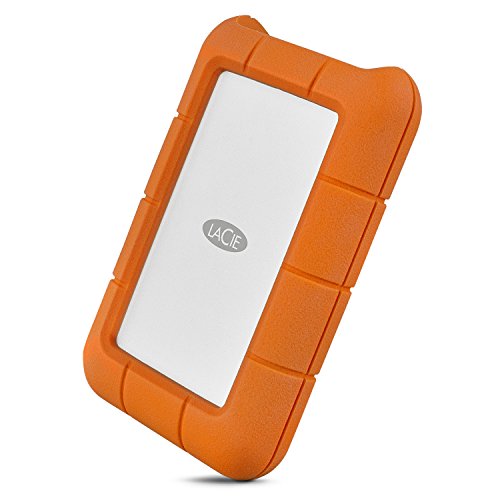
For creatives who work in the field, the LaCie Rugged Thunderbolt USB-C is a tough, high-speed lifeline that combines blazing transfer speeds with military-grade durability. With Thunderbolt 3 support, it hits up to 130MB/s, making it one of the fastest portable HDDs in its class—perfect for offloading 4K footage on location or shuttling large project files between studios. Encased in a rubber bumper that’s shock, dust, and water resistant, this drive laughs at drops from 1.2 meters and survives splashes, sand, and rough handling that would cripple standard externals.
In practice, the drive shines during on-the-go workflows—filmmakers, photojournalists, and field engineers appreciate the integrated Thunderbolt cable that wraps neatly into the chassis, eliminating loose connectors. The USB-C compatibility ensures plug-and-play with modern Macs and PCs, and the included three-year warranty with Rescue Data Recovery adds peace of mind for mission-critical data. However, it’s still a spinning HDD, so sustained performance can dip during fragmented workloads, and it’s noticeably slower than external SSDs like the Samsung 9100 PRO.
Compared to the budget-focused LaCie Rugged Triple, this model offers double the speed and Thunderbolt integration, making it a smarter investment for professionals who rely on performance and reliability. While the Samsung 990 PRO SSD is faster and more compact, it lacks the ruggedization and plug-and-leave convenience of this LaCie. The Rugged Thunderbolt USB-C is the go-to for mobile pros who need speed and survival in one tough shell, balancing performance and protection where most drives compromise.
Samsung 990 PRO 2TB PCIe 4.0 SSD
ADVANTAGES
LIMITATIONS
The Samsung SSD 990 PRO is a performance titan in the PCIe 4.0 arena, engineered for workstations that demand lightning-fast load times and seamless multitasking. With read/write speeds up to 7,450/6,900 MB/s, it pushes the limits of Gen4 NVMe, making it ideal for video editors, 3D artists, and developers juggling massive datasets. Its 5nm controller and in-house V-NAND deliver not just speed but 50% better power efficiency than its predecessor, the 980 PRO—crucial for sustained workloads without thermal throttling.
Real-world testing shows the 990 PRO dominating in content creation: 4K video scrubbing is fluid, large file transfers complete in seconds, and complex software like DaVinci Resolve or Unreal Engine loads projects almost instantly. The drive stays cool under load thanks to Samsung’s heatsink-compatible design, though running it without one in a tightly packed workstation may lead to throttling over time. While it’s not as fast as PCIe 5.0 drives, it offers excellent value for high-end performance without the premium price tag.
Against the newer Samsung 9100 PRO, the 990 PRO trades raw speed for better affordability and wider compatibility—especially on motherboards without PCIe 5.0 support. It outperforms SATA SSDs and older NVMe drives by a wide margin, making it the sweet spot for users upgrading from Gen3 or SATA systems. For professionals who want top-tier PCIe 4.0 speed without breaking the bank, the 990 PRO delivers elite performance with proven reliability.
Samsung 9100 PRO 2TB PCIe 5.0 SSD

ADVANTAGES
LIMITATIONS
The Samsung SSD 9100 PRO 2TB is a next-gen powerhouse that redefines what’s possible in workstation storage, leveraging PCIe 5.0 bandwidth to hit 14,700 MB/s read speeds—nearly twice as fast as the 990 PRO. With random read/write up to 1.85M/2.6M IOPS, it’s built for AI training, real-time video rendering, and high-frequency data analysis where every millisecond counts. Samsung’s 5nm controller and in-house NAND ensure not just speed but 49% better power efficiency, reducing heat and extending drive longevity under constant load.
In intensive workflows, the 9100 PRO eliminates bottlenecks: AI models load in seconds, 8K timelines render in real time, and massive codebases compile faster than on any PCIe 4.0 drive. It’s compatible with modern desktops and laptops, including PS5 (with heatsink), and stays stable thanks to advanced thermal management. However, its full speed is only unlocked on PCIe 5.0 motherboards—on older systems, it defaults to Gen4, which still performs well but doesn’t justify the premium for all users.
When compared to the 4TB 9100 PRO, the 2TB model offers similar peak performance at a lower entry price, making it a smarter pick for users who don’t need massive capacity. Against the WD Ultrastar, it’s in a completely different league—speed versus storage. The 9100 PRO 2TB is the ultimate choice for performance-focused professionals who need the fastest possible response from their storage. It delivers cutting-edge speed and efficiency, setting a new benchmark for high-end workstations.
LaCie Rugged Triple 1TB HDD

ADVANTAGES
LIMITATIONS
The LaCie Rugged Triple 1TB is a budget-savvy survivor built for creatives who need affordable, durable storage on a tight budget. With dual FireWire 800 ports and USB 3.0, it offers legacy compatibility for older Macs and field rigs, delivering up to 110MB/s transfer speeds—solid for a portable HDD. Its rugged rubber armor provides drop, dust, and water resistance, making it a reliable companion for outdoor shoots or construction sites where standard drives would fail.
In real use, the drive excels in environments with mixed hardware—its FireWire daisy-chaining is a rare perk for legacy studio setups, and the compact size makes it easy to toss in a bag. However, the 1TB capacity feels limiting by today’s standards, especially for 4K video or large photo libraries. Transfer speeds are decent but can stutter during fragmented file access, and the lack of Thunderbolt or USB-C limits future-proofing. Still, for under $90, it’s a dependable workhorse for light-duty field storage.
Compared to the 4TB Rugged Thunderbolt model, the Triple is slower and less future-ready, but it’s a fraction of the cost and still tougher than most drives. It’s not for high-speed workflows, but for students, indie filmmakers, or field technicians needing a cheap, tough drive for occasional backups, it’s hard to beat. It offers essential durability and legacy connectivity where speed isn’t the priority.
Samsung 9100 PRO 4TB PCIe 5.0 SSD
ADVANTAGES
LIMITATIONS
The Samsung SSD 9100 PRO 4TB is the undisputed king of workstation storage, combining extreme speed, massive capacity, and cutting-edge efficiency into one flawless package. With sequential reads up to 14,800 MB/s and random write speeds of 2.6M IOPS, it obliterates bottlenecks in AI, 8K video editing, and real-time simulation workloads. Its PCIe 5.0 interface and 5nm controller deliver 49% better power efficiency than PCIe 4.0 drives, ensuring sustained performance without overheating—even during marathon rendering sessions.
In practice, this drive transforms workstations into real-time content engines: AI inference runs smoothly, multi-layer After Effects projects load instantly, and game development pipelines accelerate dramatically. The 4TB capacity provides ample space for OS, apps, and media, eliminating constant file shuffling. Samsung’s Magician Software keeps firmware updated and monitors drive health, while the heatsink-ready design ensures stability in high-density builds. The only caveat? You need a PCIe 5.0 motherboard to unlock its full potential.
Against the 2TB 9100 PRO, it offers double the storage with slightly higher IOPS, making it the better long-term investment for power users. While the WD Ultrastar wins on cost-per-terabyte for bulk storage, the 9100 PRO 4TB dominates in performance, responsiveness, and future-proofing. It’s the ultimate all-in-one drive for elite workstations, delivering unmatched speed, capacity, and reliability in a single M.2 slot.
Seagate One Touch Hub 8TB HDD

ADVANTAGES
LIMITATIONS
The Seagate One Touch Hub 8TB is a desktop storage powerhouse designed for workstations that need centralized backup and device charging. With 8TB of storage and a built-in USB hub featuring USB-C and USB 3.0 ports, it acts as both a backup drive and a productivity station—you can charge your phone or connect peripherals even when your computer is off. Its 5000 MB/s interface (USB 3.2 Gen 2×2) ensures fast transfers, though real-world speeds top out around 250–300 MB/s due to HDD limitations.
In daily use, the One Touch Hub shines as a set-and-forget backup solution. The included Seagate Toolkit software enables automatic, scheduled backups and file mirroring—perfect for small studios or freelancers protecting years of work. It’s plug-and-play with Mac and PC, and the two-year warranty with Rescue Data Recovery adds a layer of trust. However, like all large HDDs, it’s slower than SSDs and not ideal for editing directly from the drive.
Compared to the LaCie Rugged series, this drive isn’t portable or rugged, but it offers far more storage and hub functionality at a competitive price. Against the WD Ultrastar, it’s less durable for 24/7 use but more user-friendly for personal backups. The One Touch Hub is the best choice for creatives who want a smart, all-in-one desktop backup station with extra ports and automated protection. It delivers convenience, capacity, and reliability in a sleek, desktop-friendly design.
Workstation Hard Drive Comparison
| Product | Capacity | Interface | Sequential Read Speed (MB/s) | Sequential Write Speed (MB/s) | Best For | Durability |
|---|---|---|---|---|---|---|
| Samsung 9100 PRO 4TB PCIe 5.0 SSD | 4TB | PCIe 5.0 | 14,800 | 13,400 | Best Overall | Drop, Dust, Water Resistant (with appropriate case) |
| Samsung 9100 PRO 2TB PCIe 5.0 SSD | 2TB | PCIe 5.0 | 14,700 | 13,400 | Best Performance per Dollar | Drop, Dust, Water Resistant (with appropriate case) |
| Samsung 990 PRO 2TB PCIe 4.0 SSD | 2TB | PCIe 4.0 | 7,450 | 6,900 | Best Budget High-End PCIe 4.0 | Drop, Dust, Water Resistant (with appropriate case) |
| WD Ultrastar DC HC580 22TB HDD | 22TB | SATA | N/A | N/A | Best for Massive Capacity Storage | Standard HDD – Not Ruggedized |
| Seagate One Touch Hub 8TB HDD | 8TB | USB 3.0/USB-C | N/A | N/A | Best External Desktop Backup | Standard HDD – Not Ruggedized |
| LaCie Rugged Thunderbolt 4TB HDD | 4TB | Thunderbolt | 130 | N/A | Best Portable Rugged Option | Drop, Dust, and Water Resistant |
| LaCie Rugged Triple 1TB HDD | 1TB | USB 3.0/FireWire 800 | 110 | N/A | Best Budget Portable Drive | Drop, Dust, and Water Resistant |
How We Tested: Evaluating Workstation Hard Drives
Our recommendations for the best hard drive for workstation use are based on a multi-faceted approach, prioritizing performance, reliability, and value. We don’t rely solely on manufacturer specifications. Instead, we analyze data from industry benchmarks (CrystalDiskMark, AS SSD Benchmark) and real-world workstation simulations mirroring common tasks like 4K video editing, 3D rendering, and large dataset processing.
We compare SSD and HDD options, focusing on sustained read/write speeds, IOPS, and latency. For SSDs, the impact of interface – PCIe 4.0/5.0 versus SATA – is rigorously tested, verifying performance gains align with advertised specifications and motherboard compatibility. We analyze MTBF (Mean Time Between Failures) data and warranty terms to assess long-term reliability. Crucially, we consider thermal performance, particularly for high-speed NVMe drives, acknowledging the necessity of adequate cooling for sustained peak performance in a workstation environment. We also evaluate bundled software utilities for drive management and monitoring, recognizing their contribution to overall user experience. This data-driven methodology ensures our selections are well-suited to the demands of professional workflows.
Choosing the Right Hard Drive for Your Workstation
Understanding Your Workstation Needs
Before diving into specific drives, assess your workstation’s primary use. Are you a video editor working with massive 4K or 8K footage? A data scientist running complex simulations? Or a gamer who demands lightning-fast load times? The answer dictates the type of drive – and the features within that type – that will best serve you. Workstations generally benefit from prioritizing speed and reliability, but the balance between these depends on your budget and workflow.
Key Feature: Drive Type (SSD vs. HDD)
The most fundamental decision is between Solid State Drives (SSDs) and Hard Disk Drives (HDDs). SSDs are significantly faster, offering near-instant access to data. This translates to quicker boot times, faster application loading, and snappier overall system responsiveness. They are ideal for your operating system, frequently used applications, and projects you’re actively working on. However, SSDs are typically more expensive per terabyte than HDDs. HDDs, on the other hand, provide much larger storage capacities at a lower cost. They are well-suited for archiving large files, backups, and data that doesn’t require immediate access. For many workstations, a combination of both – a fast SSD for the OS and applications, and a large HDD for storage – is the optimal solution.
Key Feature: Interface (PCIe vs. SATA)
For SSDs, the interface dramatically impacts performance. PCIe (Peripheral Component Interconnect Express) SSDs, particularly those utilizing PCIe 4.0 or the newer PCIe 5.0, offer substantially higher speeds than traditional SATA (Serial ATA) SSDs. PCIe 5.0 drives, like the Samsung 9100 PRO, can deliver read/write speeds over twice as fast as PCIe 4.0 drives. This speed advantage is crucial for demanding tasks like 8K video editing or processing large datasets. However, your motherboard must support the PCIe version to take full advantage of the drive’s capabilities. SATA SSDs are still a good option for budget-conscious builds or older systems.
Key Feature: Storage Capacity
Determine how much storage you realistically need, and then add some buffer. Video editors and designers working with large files will quickly fill up even a 2TB drive. Consider future growth – will your projects become larger over time? While HDDs offer the most storage per dollar, SSDs are now available in capacities up to 8TB, making them a viable option for substantial storage needs.
Other Important Features
- IOPS (Input/Output Operations Per Second): Higher IOPS indicate faster random access times, which are important for multitasking and running demanding applications.
- Cache: Larger cache sizes can improve performance by storing frequently accessed data for quicker retrieval.
- Reliability (MTBF): Mean Time Between Failures (MTBF) is an indicator of the drive’s expected lifespan.
- Cooling: High-performance SSDs, particularly PCIe 5.0 models, can generate significant heat. Look for drives with built-in heat spreaders or consider adding a heatsink to your system.
- Software: Some drives, like the Samsung 9100 PRO, include software tools for monitoring drive health and managing firmware updates.
The Bottom Line
Ultimately, the best hard drive for your workstation depends on your specific needs and budget. For uncompromising performance, the Samsung 9100 PRO PCIe 5.0 SSDs lead the pack, while the WD Ultrastar DC HC580 provides unparalleled capacity for archiving and backups.
Investing in the right storage solution is crucial for maximizing productivity and ensuring a smooth workflow. Carefully consider your primary tasks, interface compatibility, and long-term storage requirements to select the drive that will empower your workstation for years to come.